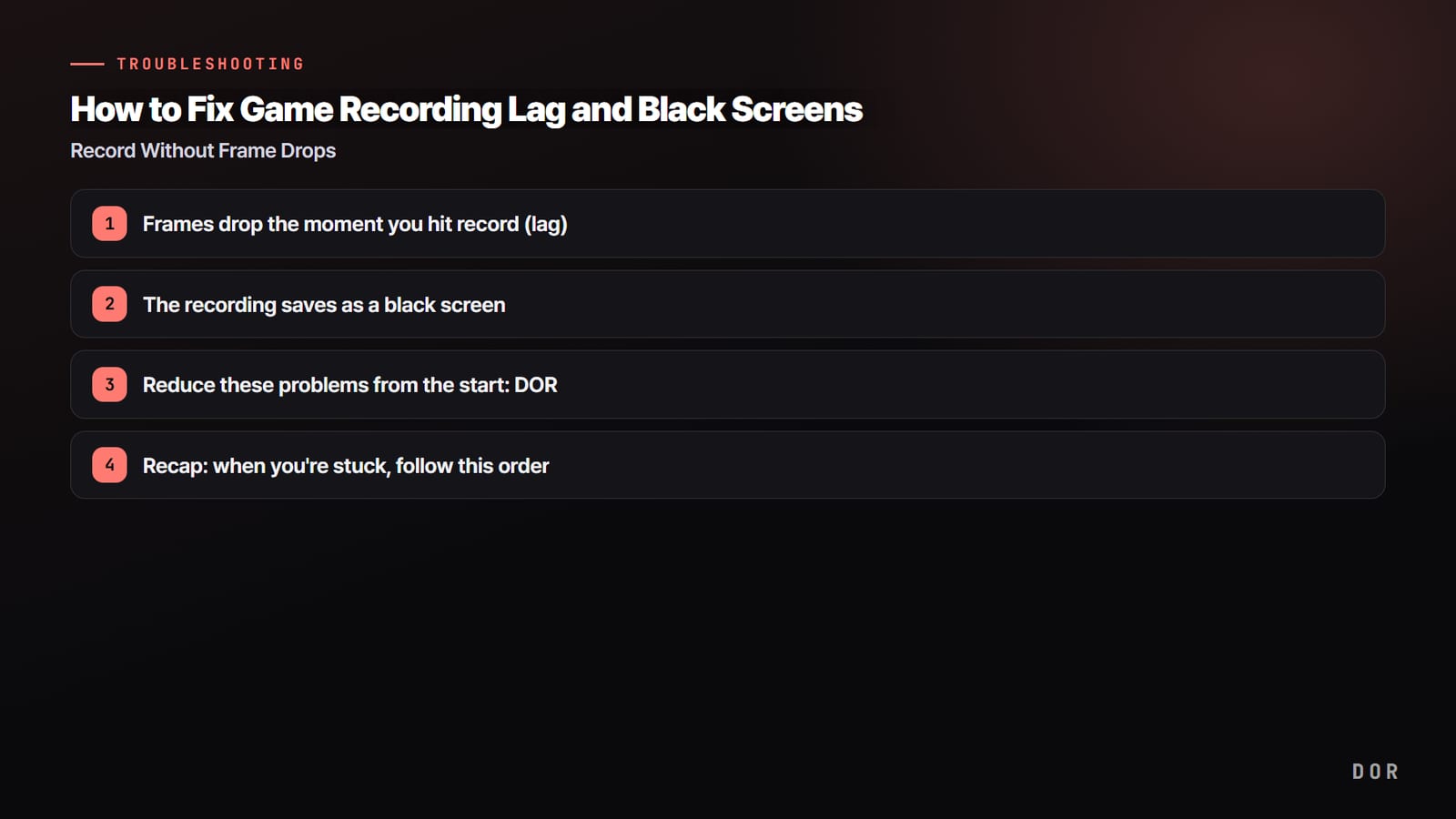

Game recording में दो परेशानियां सबसे ज़्यादा सताती हैं। पहली, record दबाते ही आपके frames गिर जाते हैं (lag) और असली gameplay बिगड़ जाता है। दूसरी, recording साफ़ तौर पर हुई, लेकिन file खोलो तो screen पूरी काली है और सिर्फ़ आवाज़ आ रही है।
दोनों की वजहें काफ़ी साफ़ हैं, और क्रम से जांच करें तो ज़्यादातर मामले 5 से 10 मिनट में सुलझ जाते हैं। इस गाइड में हम Valorant, PUBG और Battlefield 6 जैसे भारी games को आधार बनाकर lag और black screen को वजह से fix तक स्टेप बाय स्टेप समझेंगे।
सीधा जवाब: lag की जड़ encoder है, black screen की जड़ capture method
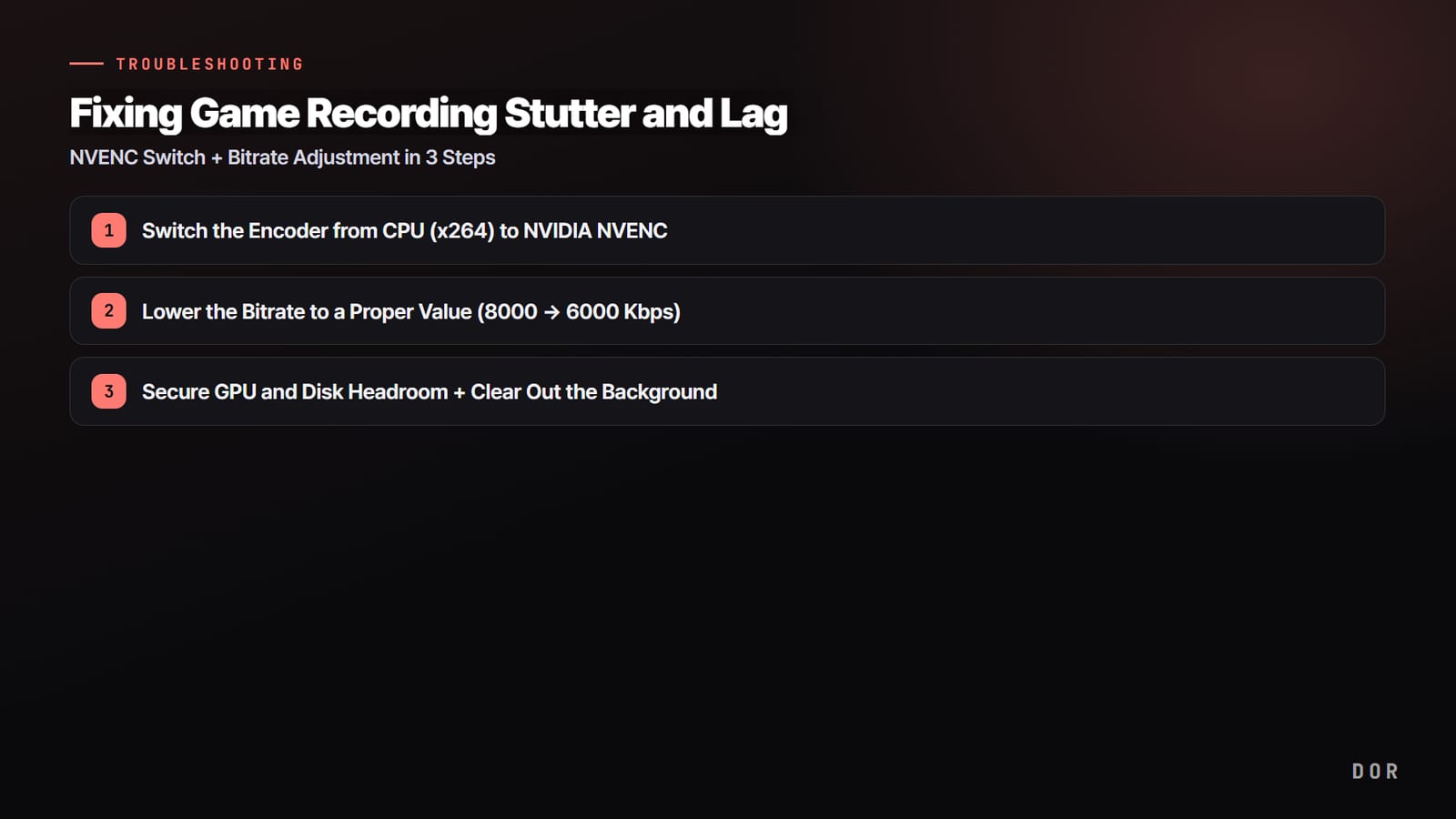
Lag के लिए सबसे पहले encoder को NVIDIA NVENC पर करें (AMD पर AMF, Intel पर QuickSync), फिर भी भारी लगे तो fps को 60 से 30 करें और उसके बाद resolution को 1080p से 720p, ज़्यादातर लोगों का काम पहले स्टेप पर ही हो जाता है।
Black screen performance की समस्या नहीं, capture method की समस्या है, इसलिए पहले बस दो चीज़ें देखें: game को borderless windowed पर रखें और recorder को administrator के रूप में चलाएं।
अगर आपका मकसद settings से जूझना नहीं बल्कि अपने matches सहेजना है, तो free Windows app DOR चालू छोड़ देना छोटा रास्ता है।
यह supported games को अपने आप पहचानता है (game list देखें), पूरे matches background में record करता है, RTX series जैसे supported NVIDIA graphics cards पर कम load वाली NVENC hardware encoding इस्तेमाल करता है, और सब कुछ app की library में save करता है, यानी न encoder चुनना है, न record button दबाना है।
बड़ी तस्वीर फिर से: lag का सवाल है 'encoding CPU कर रहा है या GPU', और black screen का सवाल है 'क्या recorder के पास game screen capture करने की सही permission और तरीका है'। बस इन दोनों को अलग करके देखने से आधा काम हो जाता है।
समस्या 1: record दबाते ही frames गिरना (lag)
Recording शुरू करते ही जो game आम तौर पर 144fps पर चलता है वह 90 से 100fps पर आ जाता है और mouse भारी लगने लगता है। यह लगभग 100% encoding load है। आपकी screen को video file में compress करने का काम (encoding) कहां होता है, इसी से तय होता है कि game के frames बचेंगे या नहीं।
वजह: software encoding (x264) आपका CPU खा जाती है
कई recorders में default 'software encoding (x264)' होती है। यह video को CPU से compress करती है, और दिक्कत यह है कि game भी CPU ही इस्तेमाल करता है। Game और encoding एक ही CPU के लिए लड़ते हैं, तो quality जितनी बढ़ाओ, game के frames उतने गिरते हैं।
CPU usage देखें तो recording शुरू होते ही अक्सर 80 से 100% तक पहुंच जाता है। Battlefield 6 जैसे CPU-heavy बड़े battlefield games में यह खास तौर पर ज़्यादा होता है।
Fix: hardware encoding (NVIDIA NVENC) पर switch करें
असली fix है encoder को 'NVIDIA NVENC' पर बदलना। NVENC आपके graphics card (GPU) में अलग से बनी एक dedicated encoding chip से video compress करता है। अब game rendering और encoding अलग-अलग resources लेते हैं, तो CPU पर पड़ने वाला load लगभग खत्म हो जाता है।
उसी PC पर x264 से जो भारी frame loss होता है, वह NVENC पर जाने के बाद अक्सर साफ़ तौर पर कम हो जाता है। हां, अगर आपका GPU पहले से लगभग 100% usage पर है तो NVENC से भी कुछ frames जाएंगे, तब अगले स्टेप्स (fps और resolution कम करना) पर जाएं।
- OBS में: Settings, Output में जाएं, Output Mode को 'Advanced' करें, फिर Recording tab में encoder को 'NVIDIA NVENC H.264' (या HEVC) पर सेट करें।
- NVENC option नहीं दिख रहा? GeForce Experience या NVIDIA app में graphics driver को latest पर update करें। पुराने driver की वजह से NVENC option दिखता ही नहीं।
- AMD graphics card पर यह 'AMD AMF/VCE' है और Intel integrated graphics पर 'QuickSync', ये वही काम करने वाले hardware encoders हैं।
- DOR आपका graphics card देखकर encoder खुद चुनता है और RTX series जैसे supported NVIDIA cards पर NVENC hardware encoding से record करता है, तो आपको कुछ चुनना नहीं पड़ता।
Resolution, fps और bitrate 'ज़रूरत से ज़्यादा नहीं'
Encoder बदलने के बाद भी अटकता है तो आपकी settings बहुत ऊंची हैं। Recording quality बिना सोचे बढ़ाने से encoding और disk load भी उतना ही बढ़ता है। असल में अच्छे values कुछ ऐसे हैं।
आम 1080p game के लिए 1920x1080 resolution, 60fps और करीब 20 से 30Mbps bitrate काफ़ी है। अगर मकसद YouTube upload नहीं बल्कि दोबारा देखना और highlights सहेजना है, तो 40 से 50Mbps तक जाने की ज़रूरत नहीं।
सिर्फ़ bitrate बढ़ाने से दिखने वाली quality में खास फर्क नहीं पड़ता, जबकि file size और disk write load फूल जाता है, जिससे stuttering होती है।
Low-spec laptop पर 720p / 30fps से शुरू करें
अगर आप gaming laptop या थोड़े कमज़ोर graphics card वाले PC पर हैं, तो शुरू से उम्मीद थोड़ी कम रखें और 1280x720 resolution व 30fps से शुरू करें। 720p / 30fps का encoding load 1080p / 60fps का लगभग एक चौथाई है, तो उसी PC पर game का frame loss बहुत कम होता है। Quality कम लगे तो तब 1080p पर जाएं। बहुत से लोग max settings से शुरू करते हैं और मान लेते हैं कि 'recording में तो lag होता ही है'।
समस्या 2: recording black screen में save होती है
Recording साफ़ तौर पर हुई और duration भी सही है, लेकिन file खोलो तो पूरी screen काली है और सिर्फ़ आवाज़ है। इसकी वजह lag से बिल्कुल अलग है। यह performance की समस्या नहीं, बल्कि permission और method की समस्या है, जिसमें recorder game screen को 'capture नहीं कर पाया'। नीचे दिए क्रम में जांच करने से ज़्यादातर मामले ठीक हो जाते हैं।
Exclusive Fullscreen क्या है: fullscreen बनाम borderless बनाम windowed
Exclusive Fullscreen एक display mode है जिसमें game monitor का output अपने कब्ज़े में ले लेता है।
Game Windows desktop से होकर जाने की जगह सीधे GPU output पकड़ता है, इसलिए recorders और overlays के लिए उस frame में घुसना मुश्किल होता है, और OBS Game Capture Troubleshooting guide के मुताबिक Alt+Tab करते ही game rendering पूरी तरह रोक देता है (2026-09-15 को चेक किया गया)।
Borderless Windowed एक window है जो monitor के साइज़ तक फैली होती है, इसलिए दिखने में fullscreen जैसी ही है, लेकिन desktop पर बाकी windows की तरह बनती है और recorders इसे आराम से capture करते हैं।
वही docs उन games के लिए Window Capture या windowed/borderless fullscreen की सलाह देते हैं जिन्हें Game Capture नहीं पकड़ पाता।
| Display mode | कैसे काम करता है | Recording में capture | नोट |
|---|---|---|---|
| Exclusive Fullscreen | Game monitor output पर पूरा कब्ज़ा कर लेता है | Game capture block हो तो black screen | Black screen आए तो सबसे पहले इसे बदलें |
| Borderless Windowed | Monitor के साइज़ तक फैली window | किसी भी window की तरह सामान्य capture | दिखने में fullscreen जैसा, recording के लिए default सलाह |
| Windowed | Border वाली सामान्य window | सामान्य capture, लेकिन सिर्फ़ window वाला हिस्सा | Screen का कुछ हिस्सा ही इस्तेमाल होता है, immersion कम |
पहला: Exclusive Fullscreen को 'Borderless Windowed' करें
Black screen की यह सबसे आम वजह है। जब game का display mode 'Exclusive Fullscreen' पर होता है, तो game GPU output path पर कब्ज़ा कर लेता है और recorder उस screen में नहीं घुस पाता, इसलिए capture काला आता है। Fix आसान है।
Game की Settings, Graphics (Display) में display mode को 'Borderless Windowed (Borderless / Windowed Fullscreen)' करें। ऊपर की table की तरह यह windowed mode है, तो recorder screen सामान्य रूप से capture करता है। Valorant और PUBG दोनों की graphics settings में यह option है।
दूसरा: recorder को 'administrator के रूप में' चलाएं
अगर game administrator के रूप में चल रहा है और recorder सामान्य rights से, तो permission के इस फर्क से recorder game screen तक नहीं पहुंच पाता और black screen आता है। Valorant और PUBG जैसे anti-cheat वाले games में यह खास तौर पर आम है।
Recorder की executable (.exe) पर right-click करके 'Run as administrator' चुनें। हर बार ऐसा करना झंझट लगे तो executable पर right-click, Properties, Compatibility tab में जाकर 'Run this program as an administrator' पर tick कर दें।
तीसरा: graphics driver update करें
Driver पुराना हो तो screen capture API ठीक से काम नहीं करती, जिससे black screen या flickering होती है। NVIDIA के लिए GeForce Experience या NVIDIA app में, और AMD के लिए Adrenalin में latest driver डालें। Update के बाद PC एक बार restart करना अच्छा रहता है। अक्सर सिर्फ़ driver update से lag और black screen दोनों एक साथ ठीक हो जाते हैं।
चौथा: laptop पर discrete (high-performance) GPU assign करें
Gaming laptops में integrated graphics (Intel/AMD) और discrete graphics (NVIDIA) दोनों होते हैं, और अगर game discrete GPU पर चले जबकि recorder को integrated GPU मिले, तो दोनों अलग-अलग screen देखते हैं और black screen आता है।
Windows Settings, System, Display, Graphics (graphics settings) में जाकर recorder जोड़ें और उसका option 'High performance (NVIDIA GPU)' पर सेट करें। असली बात यह है कि game और recorder एक ही GPU इस्तेमाल करें।
आवाज़ आ रही है लेकिन screen काली है
अगर audio ठीक है और सिर्फ़ video काला है, तो लगभग हमेशा ऊपर का पहला (fullscreen से borderless) या दूसरा (admin rights) स्टेप इसे ठीक कर देता है। आवाज़ record हुई, मतलब recorder खुद ठीक चला, बस screen का 'capture path' block हुआ था। अगर आपका program game capture इस्तेमाल करता है, तो 'display (monitor) capture' पर switch करना भी जल्दी का workaround है।
ये परेशानियां शुरू से कम करें: DOR
हर बार यह सब हाथ से tune करना झंझट लगे, तो setup का बोझ कम करने वाला tool इस्तेमाल करना भी एक रास्ता है। DOR एक free game recorder है, और इसे इस गाइड के lag वाले हिस्से का बोझ आपसे हटाने के लिए बनाया गया है।
सबसे पहले, DOR आपका graphics card देखकर encoder खुद चुनता है, तो आपको NVENC हाथ से switch नहीं करना पड़ता; RTX series जैसे supported NVIDIA graphics cards पर यह NVENC hardware encoding से record करता है ताकि game पर load हल्का रहे।
DOR Valorant, PUBG और Battlefield 6 जैसे supported games को अपने आप पहचानकर पूरे matches background में record करता है, और Valorant व PUBG जैसे auto clip वाले games में kills और highlights जैसे खास पलों को clips में भी काट देता है। Battlefield 6 जैसे बाकी supported games में पूरे match की recording रहती है।
'Record दबाना भूल गया और play छूट गया' वाली समस्या खत्म, और auto clip वाले games में 'लंबी original video खंगालकर खुद trim करने' का काम भी घटता है। जो scenes रखने हैं उन्हें browser clip editor में trim करें और dor.gg link से share करें।
Recap: अटक जाएं तो यही क्रम अपनाएं
- Lag (frame drop) के लिए: (1) encoder NVENC पर, फिर (2) fps 60 से 30, फिर (3) resolution 1080p से 720p, फिर (4) bitrate 20Mbps के अंदर।
- Black screen के लिए: (1) fullscreen से borderless windowed, फिर (2) administrator के रूप में चलाएं, फिर (3) graphics driver update, फिर (4) (laptop पर) discrete GPU assign करें।
- आवाज़ है पर सिर्फ़ screen काली: पहले black screen list के सिर्फ़ (1) और (2) देखें।
- हर बार tune करना झंझट लगे: DOR से शुरू करें, जो encoder खुद चुनता है (RTX series जैसे supported NVIDIA cards पर NVENC) और अपने आप record करता है।
जो game आप सबसे ज़्यादा खेलते हैं उसके page पर recommended recording settings देखें: Valorant, PUBG, Battlefield 6।