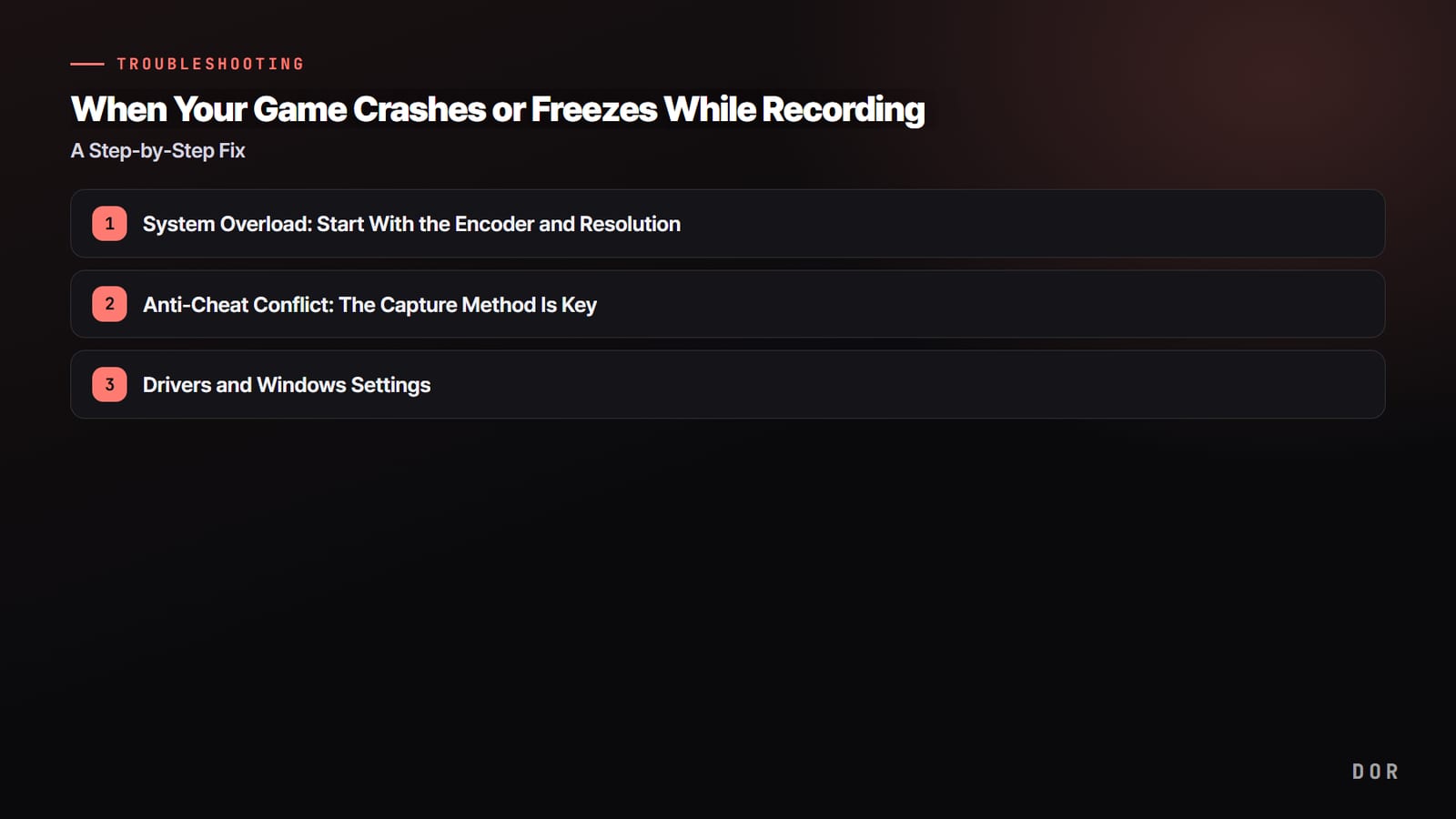

सीधी बात पहले: recording चालू करते ही game crash या freeze हो जाए, तो लगभग हमेशा वजह तीन में से एक होती है।
पहली, system overload, जब CPU, GPU और disk पर एक साथ load बढ़ जाता है; दूसरी, conflict, जब anti-cheat आपके recording program के game में hook करने के तरीके को रोकता है; और तीसरी, graphics driver या Windows settings की दिक्कत। नीचे दिए steps क्रम से करें, तो ज़्यादातर मामलों में वजह पकड़ में आ जाती है।
सबसे जल्दी असर देने वाला क्रम यह है: encoder को hardware पर करें, recording resolution और frame rate एक step कम करें, और मज़बूत anti-cheat वाले games में capture method बदलें। सिर्फ ये तीन काम करने से recording के दौरान होने वाले crashes का बड़ा हिस्सा खत्म हो जाता है।
वजह 1. System Overload: Encoder और Resolution से शुरू करें
Recording का मतलब है game पहले से जो resources इस्तेमाल कर रहा है, उनके ऊपर encoding का काम और जोड़ना। अगर game 90 प्रतिशत GPU इस्तेमाल कर रहा है और recording video को CPU पर compress करती है, तो दोनों resources के लिए लड़ते हैं, frames तेज़ी से गिरते हैं और बुरी हालत में game freeze हो जाता है। इसलिए पहला कदम है encoding का बोझ CPU से हटाकर GPU की अलग encoding chip पर डालना।
Software (x264) से Hardware Encoding पर जाएँ
अपने recording program में encoder setting देखें। अगर x264 या software चुना है, तो NVIDIA के लिए NVENC, AMD के लिए AMF/AV1, या Intel के लिए QuickSync कर दें। Hardware encoders game rendering से अलग chip पर चलते हैं, इसलिए CPU usage काफी घटता है और recording से होने वाले frame drops साफ तौर पर कम हो जाते हैं।
- 1System Overload: Encoder और Resolution से शुरू करें
- 2Anti-Cheat Conflict: Capture Method ही असली चाबी है
- 3Drivers और Windows Settings
Recording Resolution और Frame Rate एक Step कम करें
फिर भी crash हो, तो output resolution एक step कम करें। Game भले 1440p पर चलाएँ, recording output को 1080p पर downscale करने से encoding का बोझ लगभग आधा हो जाता है। 60fps ज़्यादा भारी पड़े, तो frame rate को 48 या 30 पर भी करके देखें। PUBG या Apex जैसे games में screen जितनी अचानक बदलती है, इस downscale का असर उतना ही बड़ा होता है।
- Recording output resolution को 1080p पर downscale करें (in game resolution जैसा है वैसा रख सकते हैं)
- Bitrate को CBR में 8000 से 12000 kbps के बीच fix करें
- Recording frame rate एक step कम करें, 60 से 48 या 30
- Replay buffer और instant replay जैसे memory में चलते रहने वाले features कुछ देर बंद करके test करें
वजह 2. Anti-Cheat Conflict: Capture Method ही असली चाबी है
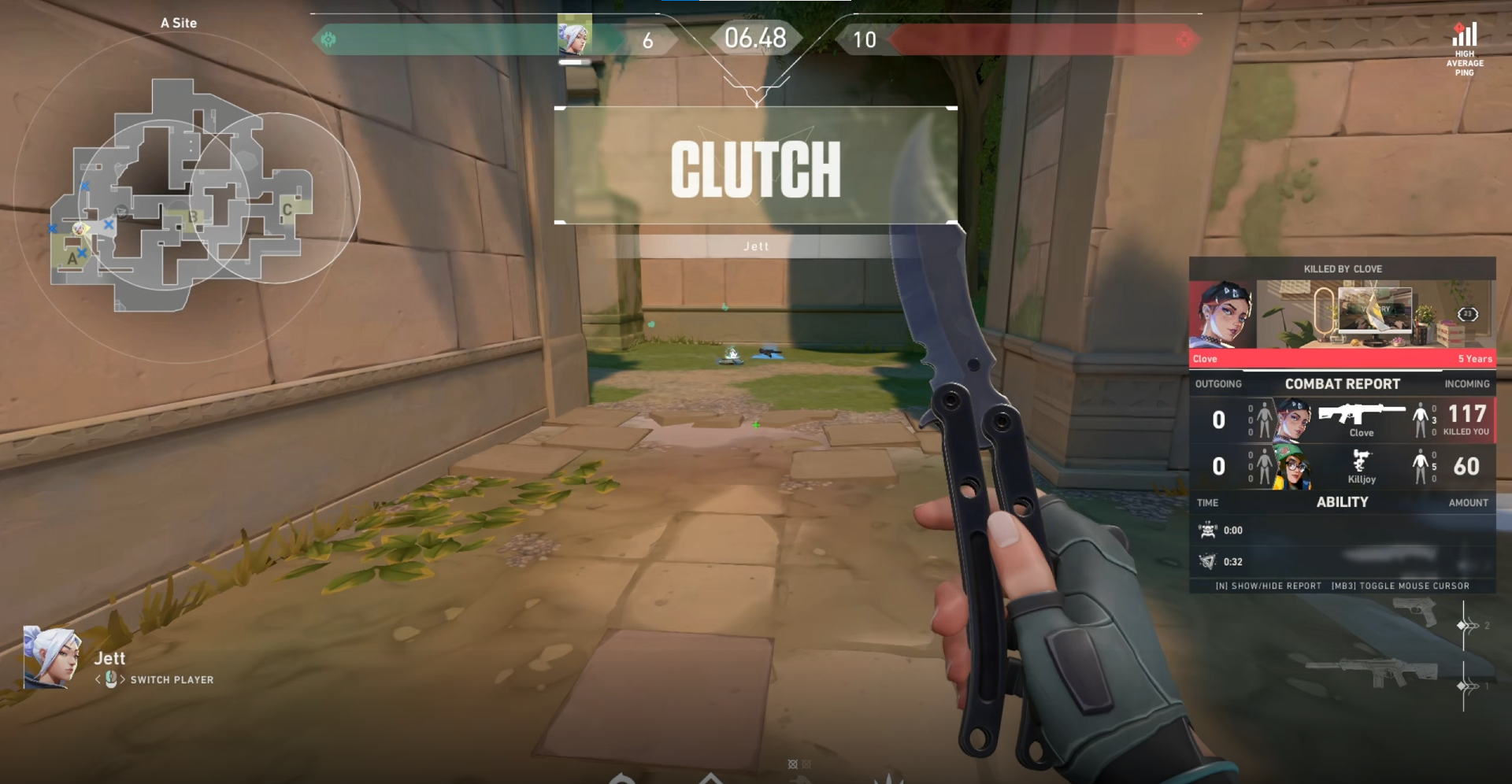
Valorant का Vanguard, PUBG और Tarkov का BattlEye, और Fortnite का EAC जैसे anti-cheat systems, game process में घुसने वाले किसी भी code को संभावित hack मानते हैं। दिक्कत यह है कि आम game capture ठीक इसी तरह के injection, यानी process hooking, का इस्तेमाल करता है। जब anti-cheat इसे रोकता है, तो black screen आती है, या सबसे बुरे मामले में game खुद को बचाने के लिए force close हो जाता है।
Game Capture की जगह Display Capture या Compatibility Capture इस्तेमाल करें
मज़बूत anti-cheat वाले game में crash हो रहा है, तो capture method बदलना ही जवाब है। Display capture game में hook किए बिना monitor का output ही पकड़ता है, इसलिए anti-cheat के छूने लायक कुछ बचता ही नहीं।
OBS इस्तेमाल करते हैं, तो game capture properties में anti-cheat compatibility hook चालू करने का option भी है। Valorant, PUBG या Apex Legends जैसे games में बार बार black screen या force close होता है, तो अक्सर सिर्फ यह बदलाव ही काम कर जाता है।
- पहला option: game capture को display capture (monitor capture) में बदलें
- दूसरा option: game capture रखें लेकिन anti-cheat compatibility hook option चालू करें
- Game को exclusive fullscreen की जगह borderless fullscreen में चलाएँ
- Hooking permission की दिक्कत हटाने के लिए recording program को administrator के रूप में चलाएँ
वजह 3. Drivers और Windows Settings
ऊपर के दोनों उपायों के बाद भी crash हो, तो graphics driver और Windows settings जाँचें। खासकर Hardware-Accelerated GPU Scheduling (HAGS) एक जाना माना कारण है, जो recording tools और overlays से टकराकर capture के दौरान freeze पैदा करता है।
- Graphics driver का latest version clean install करें (पुराने version की बची files हटाने समेत)
- Windows Settings > Display > Graphics > Default graphics settings में HAGS (Hardware-Accelerated GPU Scheduling) बंद करके test करें
- Game Mode और Game Bar recording जैसे Windows के built in recording features बंद करें, ताकि वे आपके बाहरी recording tool से न टकराएँ
- Disk में जगह खाली करें: जिस drive पर recording files जमा होती हैं, वहाँ कम से कम कुछ दर्जन GB खाली रखें
यहाँ तक सब लागू करने से recording के दौरान होने वाले ज़्यादातर game crashes ठीक हो जाते हैं। अगर अब भी सिर्फ किसी एक game में freeze हो रहा है, तो शायद उस game के anti-cheat और आपके recording method के बीच compatibility की दिक्कत है, इसलिए capture method एक बार और बदलकर देखें।
DOR से Recording करने पर Crash कम क्यों होते हैं
अगर ऊपर की सारी settings हर बार हाथ से ठीक करना झंझट लगता है, तो सबसे भरोसेमंद तरीका है ऐसा recording tool इस्तेमाल करना जो शुरू से low load के लिए बना हो।
DOR screen को ऐसे तरीके से पकड़ता है जो anti-cheat से नहीं टकराता, और RTX series जैसे supported NVIDIA graphics cards पर low load NVENC hardware encoding से record करता है, ताकि game जिन resources को इस्तेमाल कर रहा है उनसे टकराव कम से कम रहे।
नतीजा यह कि Valorant, PUBG और Apex जैसे मज़बूत anti-cheat वाले games में भी recording के दौरान game crash कम ही होते हैं।
समेटें तो क्रम यह है। Encoder को hardware पर करें, resolution और frame rate एक step कम करें, मज़बूत anti-cheat वाले games में capture method बदलें, और आखिर में drivers और HAGS जाँचें। इस flow को अपने आप सँभालने वाला low load recording tool इस्तेमाल करें, तो हर बार settings से जूझे बिना अपनी game footage भरोसे से save कर सकते हैं।