Let us start with the conclusion: the secret to recording cleanly on a dual-monitor setup is to set the capture target to the 'game screen' rather than the 'whole monitor.' If you record the entire display as is, the chat window, Discord, and strategy pages you have open on the second monitor all get mixed into the video. If you pinpoint the monitor and window to record from the start, only the game screen is captured on its own.
This article organizes, based on OBS Studio, how to specify the monitor to record, how to capture just one game window cleanly, and an easier method that handles this process automatically, in order.
Why recording gets messy on a dual-monitor setup
OBS's 'Display Capture' takes the entire screen of the selected monitor as is. There is no problem with a single monitor, but the situation changes when you use two in extended mode. The game is up on monitor 1, but an info window or notification you left on monitor 2 gets caught in the same frame, or black borders appear on both sides of the video because the canvas ratio does not match.
When you record a game, capturing the whole screen with Display Capture can also cause frame stutters or performance drops. It is more advantageous for both quality and performance to bring in the game screen with a game-dedicated capture method.
Step 1: Specify the monitor to record
First, tell OBS which monitor to record. This is the method to use when you want to capture an entire monitor as is.
- Press the + button in the 'Sources' panel at the bottom of OBS and select 'Display Capture.'
- In the 'Display' dropdown, choose the monitor on which the game is running. It is usually shown as 1 or 2.
- If you are unsure which monitor it is, switch the dropdown back and forth and check the preview screen.
- Press OK, and only the selected monitor's screen appears on the canvas.
Step 2: How to capture one monitor with no borders
If black bars still appear on both sides of the video even after specifying the monitor, it is likely that the canvas resolution is set to the combined size of both monitors. Matching it to the size of one monitor fixes it.
- Go to Settings > Video and set the 'Base (Canvas) Resolution' to the resolution of the monitor you are recording (e.g., 1920x1080).
- Setting the 'Output (Scaled) Resolution' to the same value gives a clean result with no quality loss.
- In the preview, drag the captured screen to fill the canvas to remove the black borders.
- Right-click the source and press 'Fit to Screen' to align it all at once.
Step 3: Record just one game window on its own
To make sure the second monitor's content never gets mixed in, using 'Game Capture' or 'Window Capture' instead of Display Capture is the surest. This method records only the game window you specify, following it regardless of monitor position.
- Select 'Game Capture' from the source + button.
- Set the mode to 'Capture specific window' and choose the running game from the window list.
- For a full-screen game, launch the game first and then select the window in OBS for better recognition.
- If the game does not appear in the list, set it to 'Capture foreground window' and start recording with the game focused.
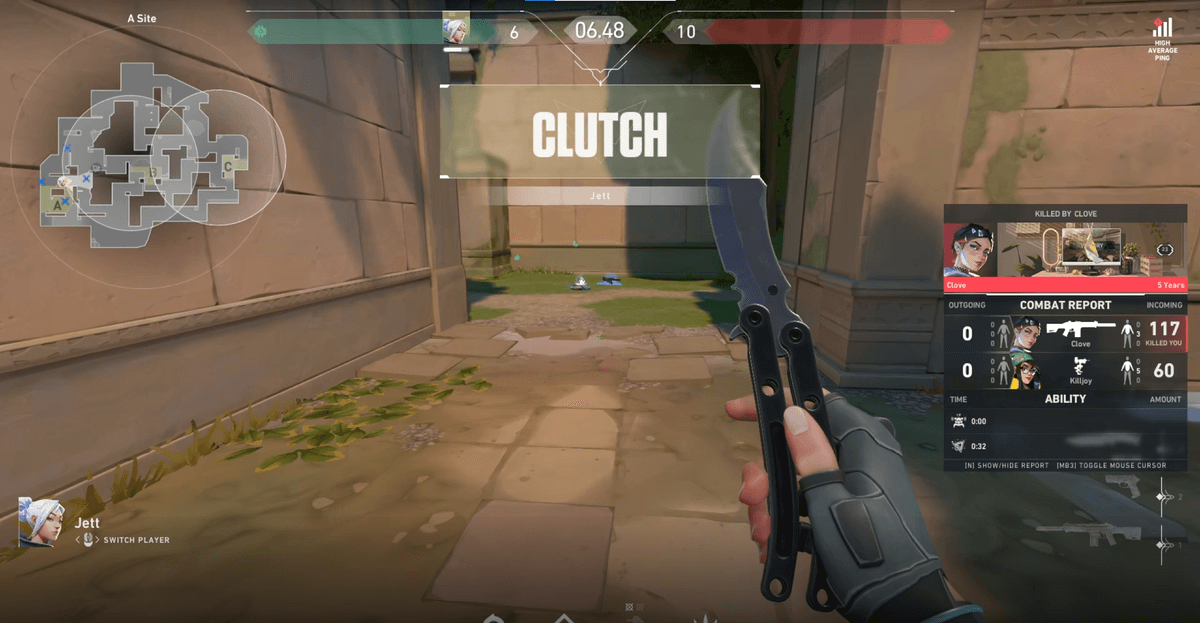
Captured this way, no matter what you leave up on the second monitor, only the game screen is captured in the video. Whether it is a shooter that finishes on one screen like <a href="valorant">Valorant</a>, or a game where you keep a strategy guide on the side monitor like <a href="league-of-legends">League of Legends</a>, it applies the same way.
- 1Specify the monitor to record
- 2How to capture one monitor with no borders
- 3Record just one game window on its own
An easier method: DOR, which automatically detects the game screen
If the process above feels cumbersome, DOR automatically detects the screen where the game is running without you having to specify monitors one by one. Just turn on the game and press the record button, and even on a dual-monitor setup it figures out the screen where the game is up and records only that screen cleanly.
Even if you leave Discord or a strategy guide up on the second monitor, it does not get into the video. There is no work of matching the canvas resolution or dragging sources to align, so even first-time recorders will not get lost in the settings.
Summary
Dual-monitor recording is all about narrowing the capture target to the game screen. With OBS, specify the monitor to record, match the canvas resolution to one monitor, and where possible capture just the game window on its own with Game Capture. If you want to skip the setup process, just press the record button with DOR, which automatically detects the game screen.