If you press your recording hotkey and nothing happens, the cause is almost always one of three things. First, a key conflict, where a game or another program grabs the same key first. Second, a focus issue, where a fullscreen game monopolizes key input and the recording tool can't receive the key. Third, a privilege mismatch, where the game runs with administrator privileges but the recording tool runs with normal privileges, so the key is blocked. This article addresses all three causes in order.
First, check this: is the hotkey actually registered
Before getting into troubleshooting, first rule out the case where the hotkey is empty or saved incorrectly. Open the hotkey section of your recording tool's settings and check whether keys are properly entered for recording start/stop. Click the field, press the key you want directly to re-register it, and if there is a save button, be sure to press it to confirm.
- Check that the recording start key and stop key are not blank
- Check that you pressed Save or Apply before closing the settings window after registering the key
- Re-register in English-input state in case the Korean/English input state is interfering with hotkey registration
Cause 1: Key conflict (the most common)
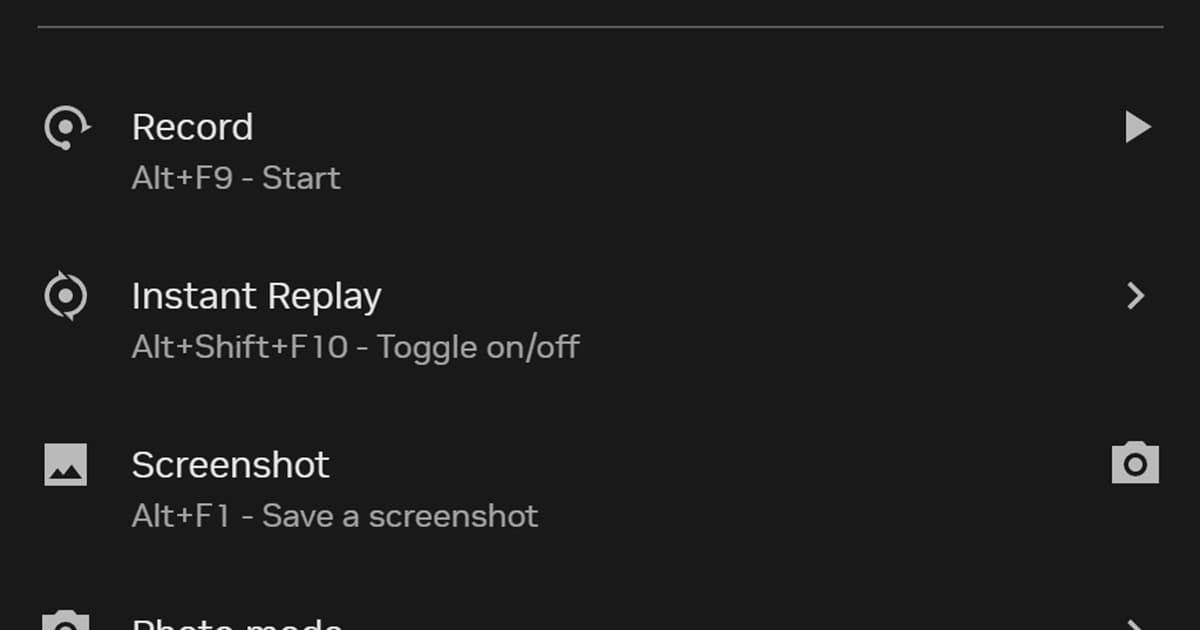
This is the most common cause. If an in-game hotkey, a Windows default hotkey (e.g., a Game Bar recording key like Win+Alt+R), a graphics driver overlay (NVIDIA, AMD), Discord, or a mouse/keyboard macro app grabs the same key first, the recording tool never gets that key.
Checking is simple. If the recording key works fine on the desktop outside the game but only fails inside the game, there is a good chance the same key is assigned in the game's internal key settings. Open the game's key settings, find the conflicting key, and clear or change it.
- Check whether the same recording key exists in the NVIDIA GeForce Experience / NVIDIA App overlay and unbind it
- Check for duplicate AMD Adrenalin recording hotkeys
- Check in settings whether it overlaps with a Windows Game Bar (Xbox Game Bar) hotkey
- Check for duplicate Discord push-to-talk or recording-related keys
- Check for duplicate macro keys in your mouse/keyboard manufacturer's software
Cause 2: Fullscreen focus, the recording tool can't receive the key
A game running in Exclusive Fullscreen mode sometimes monopolizes keyboard input. In this case the recording tool gets no key input at all from behind the game, so the hotkey is ignored. It is the classic symptom of working fine in windowed mode or on the desktop but failing only in game fullscreen.
- Change the game's display setting from 'Fullscreen' to 'Borderless Windowed'
- If your recording tool's settings have a 'keep hotkeys always active' or 'do not disable hotkeys' option, turn it on
- After changing the above options, restart the game and check whether key input is delivered
Borderless windowed mode feels almost the same on screen as fullscreen while avoiding the key-monopoly problem, making it the safest choice when you run recording or streaming alongside. Games with good windowed-mode support, like Valorant or League of Legends, are often solved by this method alone.
Cause 3: Administrator-privilege mismatch
If the game is running with administrator privileges but the recording tool has normal privileges, Windows security policy prevents a normal-privilege program's key input from being delivered to an administrator-privilege window. As a result, the recording hotkey gets blocked entirely. The key is to 'match' the privileges.
- Run the recording tool as administrator (right-click the executable > Run as administrator)
- Match the privileges of the game and the recording tool: both administrator or both normal
- If you have a Stream Deck or macro helper program, run that at the same privilege level too
Recommended hotkey combinations that won't overlap
To fundamentally avoid key conflicts, it is best to switch to a combination that games and Windows rarely use. Combinations mixing a function key with a modifier key have a lower chance of conflict.
- Recording start/stop: Ctrl+Shift+F9 or Ctrl+Alt+F10
- Instant clip save: Ctrl+Shift+F11
- Avoid Win-key-only combinations since they tend to overlap with Windows features
- F1-F4 and number keys alone easily overlap with in-game keys, so use them together with a modifier key
DOR does not need you to press a hotkey
Fixing your hotkey with the methods above is good, but the more fundamental solution is not to rely on a hotkey at all. DOR records your gameplay in the background at all times and automatically detects highlights like kills, multikills, and clutches, saving them as clips. There is no pressure to press a key at the decisive moment.
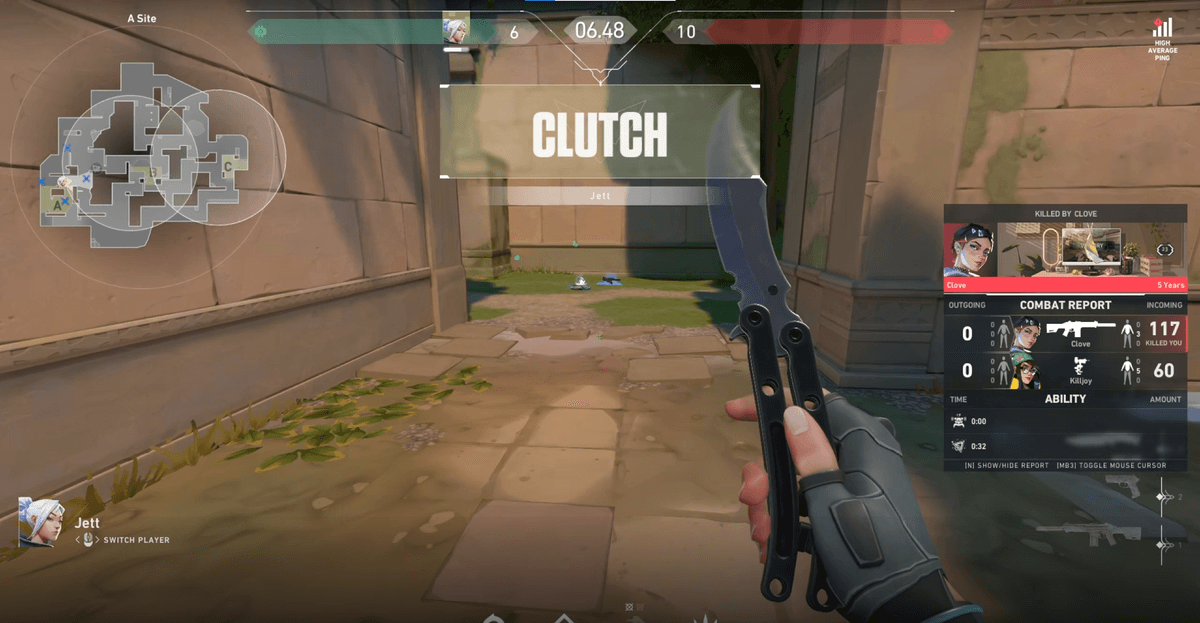
Even when a hotkey is blocked by a key conflict, fullscreen focus, or a privilege problem, automatic detection is not affected by it. There is no regret over missing a good scene; the clips are already organized by the time the game ends. Moments like an ace in Valorant or a pentakill in League of Legends can be saved as-is without pressing a key.
Wrap-up
When a recording hotkey does not work, fix it in this order: check for key conflicts first, switch fullscreen to borderless windowed mode, and match the privileges of the game and the recording tool. If even then it is a hassle to mind the keys every time, you can consider reducing hotkey dependence itself with DOR, which automatically saves highlights.