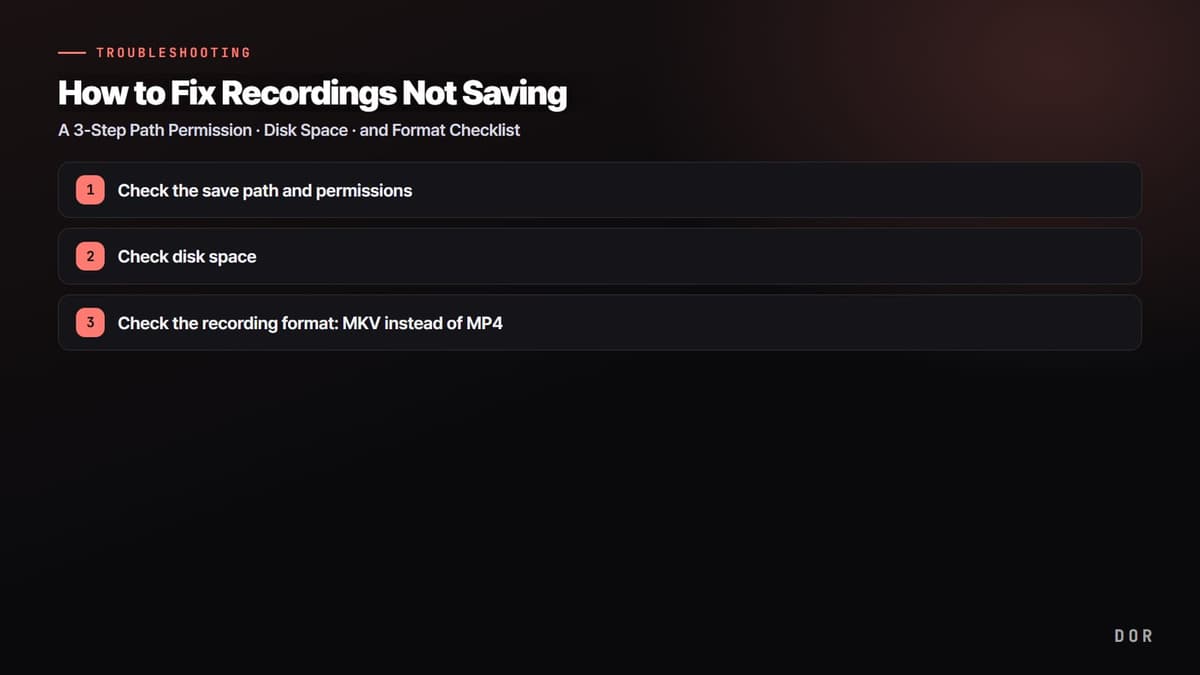
Here is the bottom line: a recording failing to save is almost always one of three causes. First, save path permissions or whether the path exists; second, low disk space; third, a recording format problem. This article is a checklist for going through these three one by one, in order of most common. Just checking from the top down resolves most cases of "I recorded but there's no file" or "the file's there but it won't open."
We explain this using the most widely used OBS Studio, but the principles apply just as well to other recording programs. Just find and check the same items in your own program's settings screen. First, let's split the symptoms into two.
Identify the symptom first: no file, or won't open?
To narrow the cause quickly, you first need to decide which symptom you have. The two symptoms have different causes.
- The recording file does not appear at all: usually the save path is wrong, you lack permission, or the disk is full. Check path, then permission, then space.
- The file appeared but won't play or is corrupted at 0KB: often the MP4 file header was damaged by an abnormal shutdown mid-recording. Move on to the format problem.
If you are not sure where the file went, press the program's recording-stop notification or the menu's "Show Recording Folder" to open the actual save location first. It is surprisingly common for the folder you had in mind to differ from the actual save folder.
Step 1. Check the save path and permissions
This is the most common cause. In OBS, there is a "Recording Path" under Settings, then Output, then Recording. Copy the folder specified there as-is, paste it into your file explorer's address bar, and open it. If the folder opens normally, the path is valid; if you get a "folder not found" message, you have a path set that does not exist.
If you set a nonexistent folder as the save path, many programs mislabel it as "low disk space." In reality there is plenty of space, but saving fails because the path is gone, so looking only at disk capacity makes the cause easy to miss. That is why we put the path check before the disk check.
Avoid folders where write permission is blocked
Even if the path exists, no file appears if you lack write permission to that folder. Locations Windows protects, like the top level of the C drive (C:\), the program install folder (Program Files), and system folders, often block writing under normal permissions. Changing the save path to a freely writable location like Documents, Videos, or a general folder on a separate drive solves most cases.
The test is simple. Open the folder you set as the save path in your explorer, then try creating an empty text file inside it. If it gets created, you have write permission; if it blocks you with "permission required," that folder is the cause. In that case, it is faster to move the path to another folder with free permissions.
Step 2. Check disk space
High-quality game recording fills up hundreds of MB per minute, and tens of GB over a long session. Even if there was space when you started recording, if the disk fills up midway, recording is forcibly stopped and the file up to that point can corrupt or vanish. Check the remaining capacity on your save drive first.
- Check the free space on the drive holding the save path. For long recordings, it is safest to leave at least tens of GB free.
- If space is tight, move previous recordings to another drive or empty the recycle bin to actually reclaim space.
- If you have several drives, setting the emptiest one as a dedicated recording save path reduces mid-session stoppages.
One thing to watch for. As noted above, setting a nonexistent path or a network drive can make a "low disk space" message appear even with space to spare. If the disk is clearly empty but this message shows, you should suspect the path and permissions from Step 1 again, not the capacity.
Step 3. Check the recording format: MKV instead of MP4
If "the file clearly appeared but won't play or is corrupted at 0KB," it is ten-to-one a format problem. The key lies in the MP4 file's structure. MP4 writes "info about this video" to the end of the file when recording finishes normally, but if the game crashes, the program is force-closed, or the computer freezes, this finishing record is left out and the entire file corrupts. Even if everything you recorded is sitting there intact, it ends up unopenable.
So if you value recording stability, it is better to change the format to MKV. In OBS, you can select MKV under Settings, then Output, then Recording, then Recording Format. MKV is built so that even if an abnormal shutdown happens mid-recording, the footage up to just before the shutdown stays intact, so the accident of losing the whole file almost never happens. Even if the game crashes during a heavy moment like an intense Valorant fight or a League of Legends teamfight, you can keep your recording.
If you need MP4, convert it later
You often end up needing MP4 for YouTube uploads or editing compatibility. In that case, do not record in MP4 from the start; record safely in MKV and convert (remux) to MP4 later. OBS has a File, then "Remux Recordings" feature built in that quickly changes MKV to MP4 with no quality loss. "Record in MKV, upload as converted MP4" is the formula that covers both safety and compatibility.
- 1Check the save path and permissions
- 2Check disk space
- 3Check the recording format: MKV instead of MP4
Extra checks when it still won't work
The three steps above solve most cases, but if it still won't save, check the following.
- Encoder: try switching the encoder under Settings, then Output, to a different option. If NVIDIA NVENC throws errors, switch encoders or update your graphics driver to the latest.
- Antivirus/security software: some security programs can block recording file creation. Try adding your save folder as an exception.
- Program version: a specific version may have a known issue like a disk space calculation error. Update to the latest version or settle on a stable version.
- Confirm recording started: a hotkey conflict may have kept recording from starting. Check that a recording indicator is showing on screen while recording.
An approach that rarely fails to save in the first place: auto-save
Everything we have checked so far rests on the premise that "I manage the path and format directly myself." The moment you set the wrong path, leave the format as MP4 while the game crashes, or miss the disk filling up, the recording vanishes. Because it is a structure where a person has to keep tabs every time, there is that much room for mistakes.
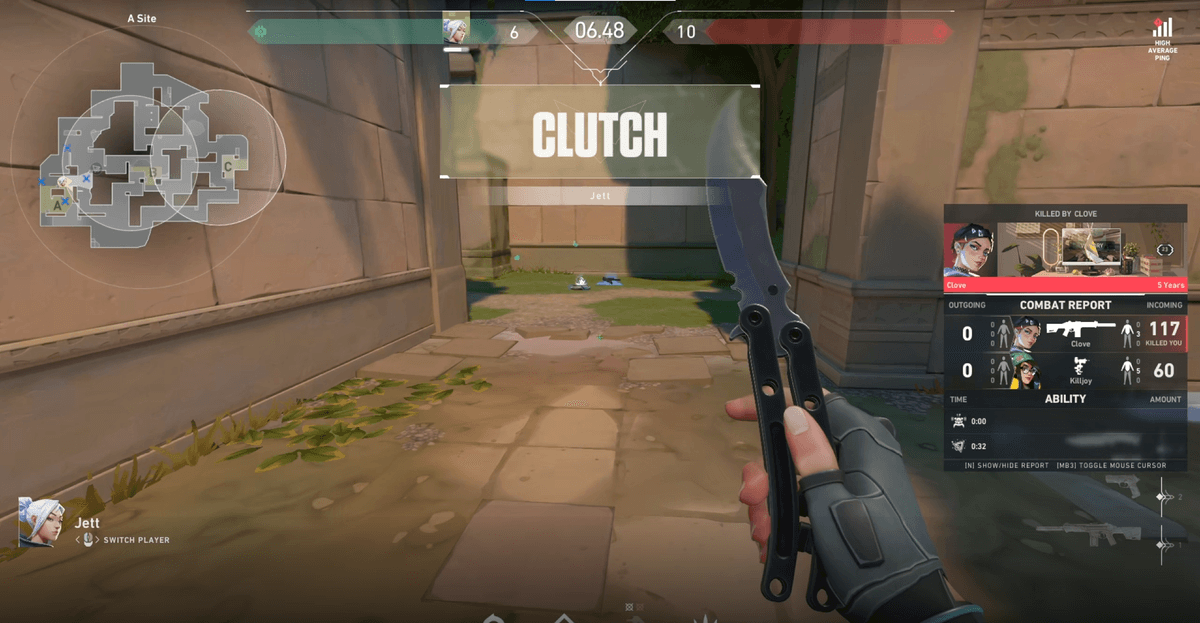
DOR changes that structure itself. DOR automatically detects when a game launches, cuts standout moments into clips, and saves them automatically to the app library organized by game, without you specifying a path. Since you never set the save location yourself, files rarely vanish due to path or permission problems, and there is no need to dig through folders wondering where a clip went. Whether it is a Valorant ace or a League of Legends pentakill, by the time you close the game it is already organized in your library.
To sum up, recording save problems are mostly caught by checking the three of path permissions, disk space, and format in order. The single habit of recording in MKV instead of MP4 alone greatly reduces the accident of "the file is corrupted and won't open." And if this kind of management is a hassle in itself, using an approach that rarely fails to save, like DOR with clips saved automatically to the library, is also a good choice. Check out auto-save examples on the page for the game you play often: Valorant, League of Legends.