
गेम खुल जाता है, लेकिन Moments timeline में कोई automatic event नहीं दिखता या manual clip shortcut दबाने पर नई clip नहीं बनती। SteelSeries Moments में गायब auto या manual clips की वजह पकड़ने के लिए detection, permissions, hotkeys, storage, capture और audio playback को अलग अलग जांचिए।
हर symptom को एक छोटे verification test से जोड़ें
| दिख रहा symptom | संभावित stage | सबसे छोटा काम का test |
|---|---|---|
| गेम खुलता है, लेकिन Moments timeline में कोई automatic event नहीं आता या manual clip shortcut से नई clip नहीं बनती। | Unsupported automatic events को game detection की गड़बड़ी, window mode, privilege mismatch और टकराते shortcut से अलग करें। | Auto-Clip support list में गेम देखें, fullscreen पर जाएं, और set किए गए manual shortcut से 30 second का sample save करें। |
| Product से जुड़ा व्यवहार | Auto-Clip event detection सिर्फ GG में listed games के लिए देता है, जबकि manual Moments capture set किए गए shortcut से चलता रहता है। | पहले Auto-Clip list खोलें। गेम उसमें नहीं है तो event markers की उम्मीद छोड़ें, fullscreen रखें, और कोई साफ दिखने वाला test action करके Moments का manual shortcut दबाएं। |
| Confirmation आता है पर file गायब लगती है | Save path बदल गया, storage कम है, या retention ने file हटा दी | Set किया गया media folder खोलें और free space देखें |
| File है पर video या sound गलत है | Capture mode, device route, codec या playback track | छोटी original file को दूसरे सामान्य media player में चलाएं |
जो stage fail हुआ उसे अपने चाहे गए result से अलग करें
Unsupported automatic events को game detection की गड़बड़ी, window mode, privilege mismatch और टकराते shortcut से अलग करना है। इसलिए पहला controlled check यह है: Auto-Clip support list में अपना गेम देखें, fullscreen पर जाएं, और set किए गए manual shortcut से 30 second का sample save करें।
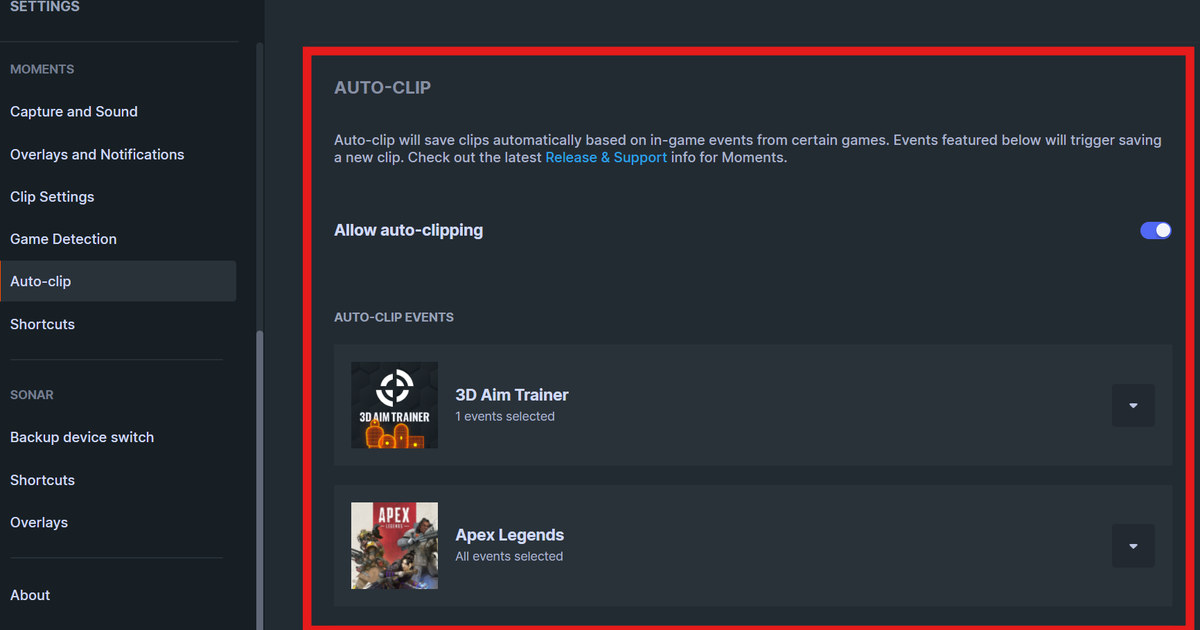
ज़रूरी path है SteelSeries GG > Settings > Auto-Clip and Shortcuts; अगर यह menu नहीं दिखता, तो पुराने instructions copy करने से पहले installed version और eligibility पक्की करें। फिर से दोहराएं: support list में गेम जांचें, fullscreen रखें, और manual shortcut से 30 second का sample बनाएं।
Troubleshooting का controlled क्रम
- 1Eligibility और mode पक्का करेंSteelSeries GG > Settings > Auto-Clip and Shortcuts खोलें, देखें कि feature चालू है, और पक्का करें कि मौजूदा गेम और display mode supported हैं।
- 2Product वाला branch test चलाएंपहले Auto-Clip list खोलें। गेम उसमें नहीं है तो event markers की उम्मीद छोड़ें, fullscreen रखें, और कोई साफ दिखने वाला test action करके Moments का manual shortcut दबाएं।
- 330 second का control sample बनाएंAuto-Clip support list में गेम देखें, fullscreen पर जाएं, और set किए गए manual shortcut से 30 second का sample save करें।
- 4Saving को playback से अलग करेंसही test समय वाली नई manual clip बन जाए तो साबित होता है कि capture path काम कर रहा है, भले ही उस गेम के लिए automatic event marker supported न हो।
- 5सबूत के साथ आगे बढ़ेंअगर manual capture भी fail हो, तो GG version, Auto-Clip list, fullscreen setting, shortcut assignment, और गेम व GG एक ही administrator level पर चल रहे हैं या नहीं, यह सब नोट करके रखें।
असली match से पहले final checklist
- गेम और recorder अलग अलग administrator level पर नहीं चल रहे
- इस session में ज़रूरी recording या replay buffer चालू है
- Hotkey गेम, chat या किसी दूसरे overlay से टकरा नहीं रही
- Media folder में लिखा जा सकता है और काफी free space है
- Game audio और microphone अलग से जांची गई 30 second की file सामान्य रूप से चलती है
आगे के supported game sessions के लिए DOR
SteelSeries Moments के गायब clips ठीक करने के बाद, अगर आगे किसी supported game session में DOR को अलग से आज़माना हो, तो free game recorder comparison, game audio troubleshooting गाइड और VALORANT game hub देखें।
मौजूदा official documentation दोबारा देखें
SteelSeries के मुताबिक automatic clipping बहुत से games में चलता है लेकिन सभी में नहीं, और unsupported गेम को भी shortcut से manually capture किया जा सकता है। SteelSeries Moments game detection support।