When you launch a game in fullscreen and hit record, the video often comes out as an entirely black screen. Bottom line, the cause is almost always one of three. First, the game is in exclusive fullscreen mode so the capture can't intercept it; second, you picked the wrong capture method and Display Capture can't grab the fullscreen; third, anti-cheat is blocking the screen hook. If you work through the steps below one by one, most of these are solved within 5 minutes.
First, Check Your Display Mode
A game's graphics settings usually have three display modes: fullscreen (exclusive), borderless windowed, and windowed. The black screen problem almost always happens in the first one, exclusive fullscreen mode. This mode has the game take sole possession of the GPU, making it hard for external programs to access the screen buffer.
The fastest fix is to change the display mode to borderless windowed in the game's settings. Borderless windowed looks exactly like fullscreen, but internally it's windowed, so your recorder pulls the screen in normally. Input lag is also barely any different on modern graphics drivers.
- Go to the game's Settings > Display or Graphics menu.
- Change the display mode from fullscreen to borderless windowed.
- Restart the game once after the change to make sure the setting takes effect.
- Start recording again and check whether the black screen is gone.
Try Changing Your Capture Method
Tools like OBS make you pick the capture source yourself. Display Capture (capturing the whole screen) can't grab an exclusive fullscreen game due to how Windows is structured, so you get a black screen. Conversely, Game Capture hooks directly into the game process, so it grabs it whether it's fullscreen or windowed. When a black screen appears, switching the source from Display Capture to Game Capture is the first thing to try.
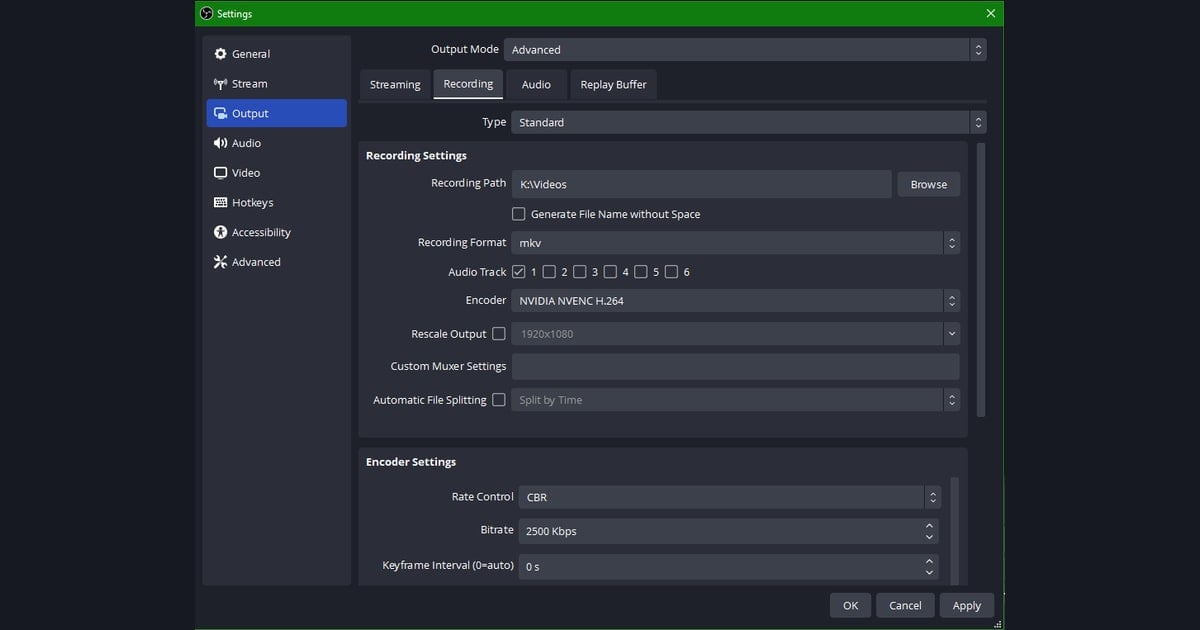
If it's still a black screen even after switching to Game Capture, look at the capture mode's detailed settings. In the Game Capture properties, set the mode to Capture specific window and directly specify the running game from the window list. Relying on auto-detection alone can leave a black screen because it misses the transition moment.
- If you were using Display Capture, swap it for a Game Capture source.
- In the Game Capture properties, set the mode to Capture specific window.
- Directly select the running game's executable from the window list.
- Turn on the SLI/Crossfire compatibility option and try again.
Check Admin Privileges and Your GPU Too
If your recorder has lower privileges than the game, the screen hook is blocked and you get a black screen. Running the recording tool as administrator often fixes it. Right-click the executable and choose Run as administrator, or in Properties > Compatibility tab, leave Run as administrator always on.
In an environment with two GPUs, like a laptop, you get a black screen if the game and the recorder use different GPUs. In Windows Settings > Display > Graphics settings, assigning both the game and the recording tool to the same high-performance GPU makes the conflict go away.
Branches by Game
Games with strong anti-cheat block the screen hook itself. Valorant has Vanguard, Counter-Strike 2 has VAC, and PUBG has BattlEye installed, so Game Capture hooking gets blocked often. In these cases, switch from Game Capture to Display Capture or Window Capture, and the game must be in borderless windowed. Since Display Capture can't grab exclusive fullscreen, you have to line up both together.
- Valorant: when Vanguard conflicts, switch to the Display Capture + borderless windowed combination.
- CS2: add -windowed -noborder to the launch options to force borderless windowed.
- PUBG: if BattlEye blocks Game Capture, switch to Window Capture.
- League of Legends: it defaults to borderless windowed, so Game Capture grabs it well.
DOR Grabs Fullscreen Automatically
If you've followed along this far, you've probably felt that OBS makes you pick the capture method yourself and line up conflicts one by one. OBS often conflicts with exclusive fullscreen mode, but DOR captures fullscreen and borderless windowed the same way, automatically. With no need to change the display mode or pick between Game Capture and Display Capture, you just launch the game and hit record.
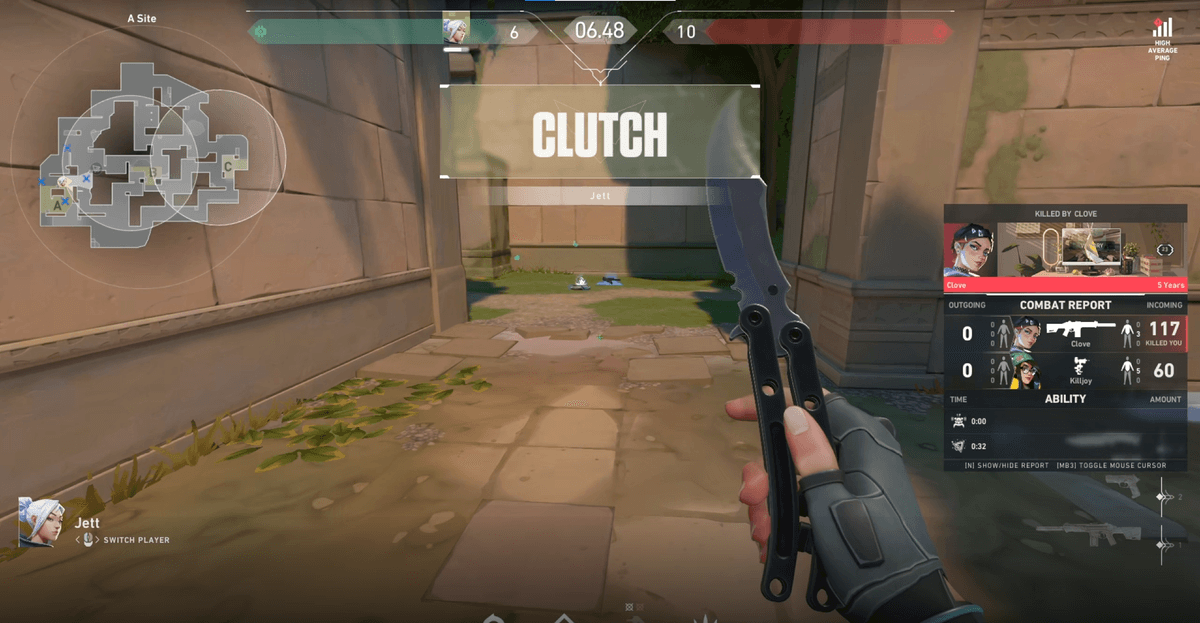
DOR detects the game process and pulls the screen in regardless of display mode, so it works even in games with anti-cheat with no separate capture-method change. If you're tired of fiddling with settings every time because of a black screen, automatic capture lets you skip that whole process.