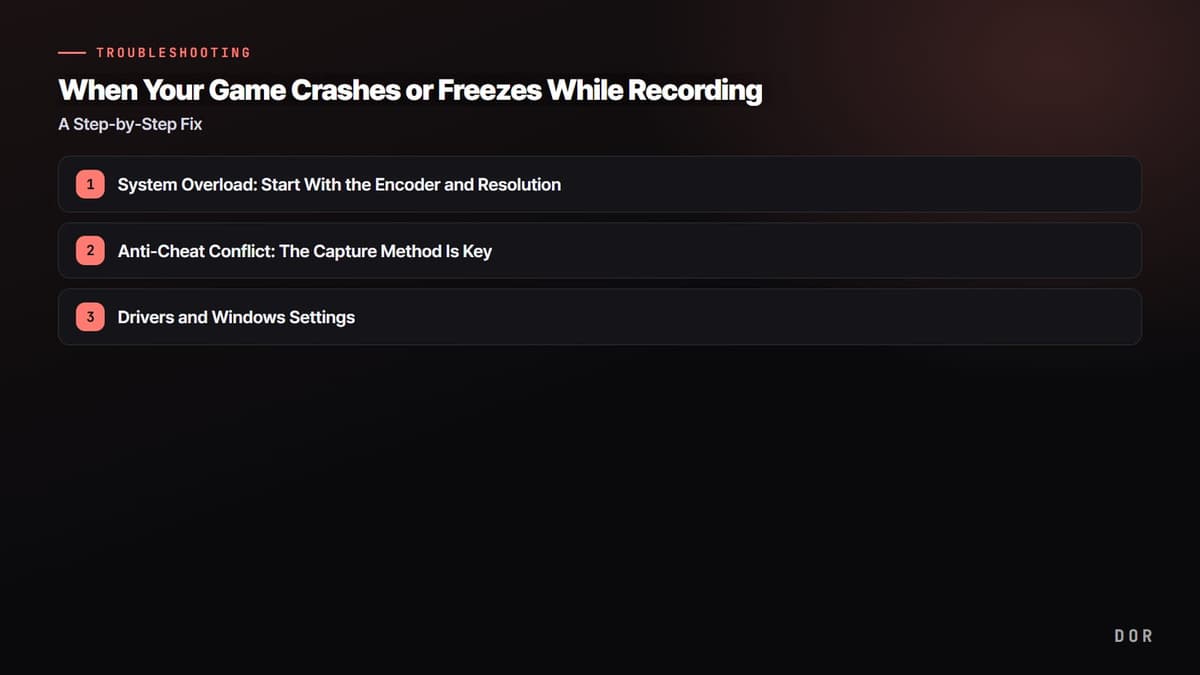
Let's start with the bottom line: when a game crashes or freezes the moment you turn on recording, it's almost always one of three things. First, a system overload where load piles onto the CPU, GPU, and disk at the same time; second, a conflict where anti-cheat blocks the way your recording program hooks into the game; and third, a graphics driver or Windows settings problem. Follow the steps below in order and you can narrow down the cause in most cases.
Here's the order that gets results fastest: switch your encoder to hardware, drop your recording resolution and frame rate by one step, and change the capture method for games with strong anti-cheat. Just applying these three eliminates a large share of crashes during recording.
Cause 1. System Overload: Start With the Encoder and Resolution
Recording means stacking an encoding job on top of the resources the game is already using. If the game is using 90 percent of the GPU and recording compresses the video on the CPU, the two fight over resources, frames drop sharply, and in bad cases the game freezes. So the first step is to shift the encoding burden from the CPU to the GPU's dedicated encoding chip.
Switch From Software (x264) to Hardware Encoding
Check the encoder setting in your recording program. If it's set to x264 or software, change it to NVENC for NVIDIA, AMF/AV1 for AMD, or QuickSync for Intel. Because hardware encoders run on a chip separate from game rendering, CPU usage drops significantly and the frame drops caused by recording become noticeably smaller.
- 1System Overload: Start With the Encoder and Resolution
- 2Anti-Cheat Conflict: The Capture Method Is Key
- 3Drivers and Windows Settings
Drop Recording Resolution and Frame Rate by One Step
If it still crashes, lower the output resolution by one step. Even if you run the game at 1440p, downscaling the recording output to 1080p cuts the encoding burden nearly in half. If 60fps is too much, try lowering the frame rate to 48 or 30 as well. The more sudden the screen changes in a game, as in PUBG or Apex, the bigger this downscale effect.
- Downscale the recording output resolution to 1080p (you can leave the in-game resolution as-is)
- Lock the bitrate at CBR between 8000 and 12000 kbps
- Drop the recording frame rate by one step, from 60 to 48 or 30
- Temporarily turn off and test memory-resident features like the replay buffer and instant replay
Cause 2. Anti-Cheat Conflict: The Capture Method Is Key
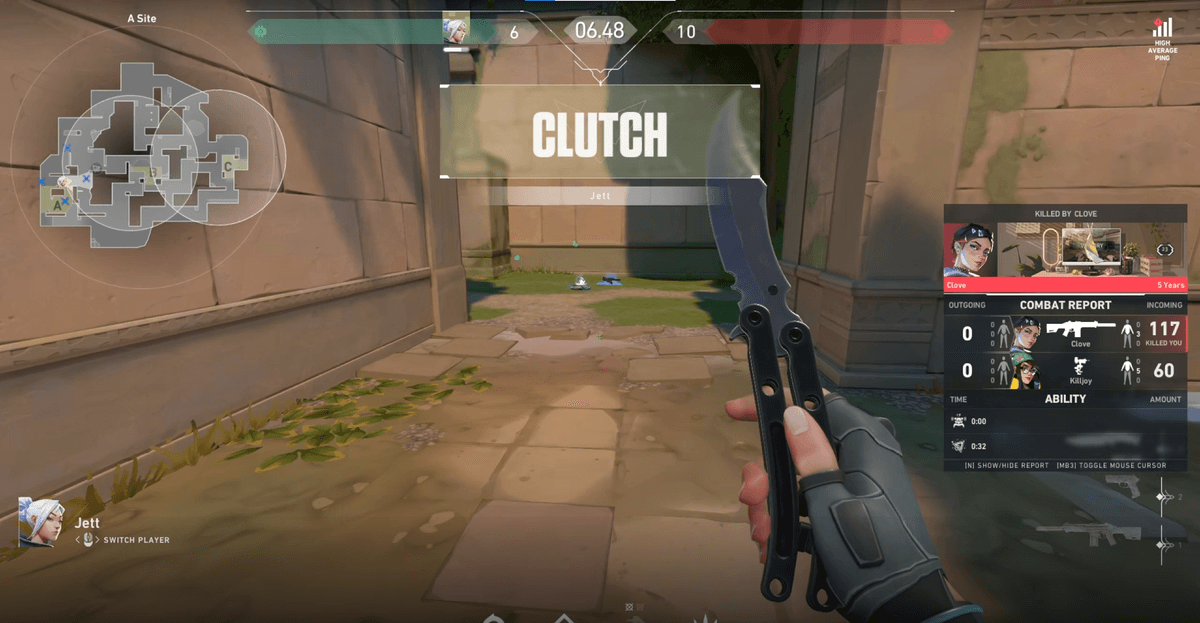
Anti-cheat systems like Valorant's Vanguard, BattlEye for PUBG and Tarkov, and EAC for Fortnite treat any code that injects into the game process as a potential hack. The problem is that typical game capture uses exactly that kind of injection, namely process hooking. When anti-cheat blocks it, you get a black screen, or in the worst case the game itself force-closes as a protective measure.
Use Display Capture or Compatibility Capture Instead of Game Capture
If you're crashing in a game with strong anti-cheat, changing the capture method is the answer. Display capture grabs the monitor output itself without hooking into the game, so there's nothing for anti-cheat to touch. If you use OBS, there's also the option of enabling the anti-cheat compatibility hook in the game capture properties. If you frequently get black screens or force-closes in games like Valorant, PUBG, or Apex Legends, this switch alone often solves it.
- First choice: Change game capture to display capture (monitor capture)
- Second choice: Keep game capture but enable the anti-cheat compatibility hook option
- Run the game in borderless fullscreen instead of exclusive fullscreen mode
- Run the recording program as administrator to rule out hooking permission issues
Cause 3. Drivers and Windows Settings
If it still crashes after both of the above, check your graphics driver and Windows settings. In particular, Hardware-Accelerated GPU Scheduling (HAGS) is a classic culprit that conflicts with recording tools and overlays to cause freezes during capture.
- Clean-install the latest version of your graphics driver (including removing leftover files from the previous version)
- Turn off HAGS (Hardware-Accelerated GPU Scheduling) under Windows Settings > Display > Graphics > Default graphics settings, and test
- Turn off Windows' built-in recording features like Game Mode and Game Bar recording so they don't overlap with your external recording tool
- Free up disk space: keep at least several dozen GB free on the drive where recording files pile up
Applying everything up to here resolves most game crashes during recording. If it still freezes in one specific game only, it's likely a compatibility issue between that game's anti-cheat and your recording method, so try changing the capture method one more time.
Why Recording With DOR Crashes Less
If tuning all of the above manually every time is a hassle, the most reliable option is to use a recording tool designed from the ground up to be low-load. DOR uses low-load NVENC capture by default to minimize conflict with the resources the game is using, and grabs the screen in a way that doesn't clash with anti-cheat. As a result, game crashes during recording are rare even in games with strong anti-cheat like Valorant, PUBG, and Apex.
To sum up, the order is this. Switch the encoder to hardware, drop the resolution and frame rate by one step, change the capture method for games with strong anti-cheat, and finally check your drivers and HAGS. Use a low-load recording tool that handles this flow automatically, and you can reliably keep your game footage without wrestling with settings every time.