Highlight videos that always feel a bit clumsy somewhere are often that way not because of editing skill, but because there is no "order." When you toss clips onto the timeline at random and start fiddling with cuts first, you end up redoing the scene order after laying down music, and scrapping a whole cut you had already color-graded, over and over. This article fixes editing game highlights (montages) into a 7-step workflow, a guide laid out so you never have to backtrack to a step you already passed.
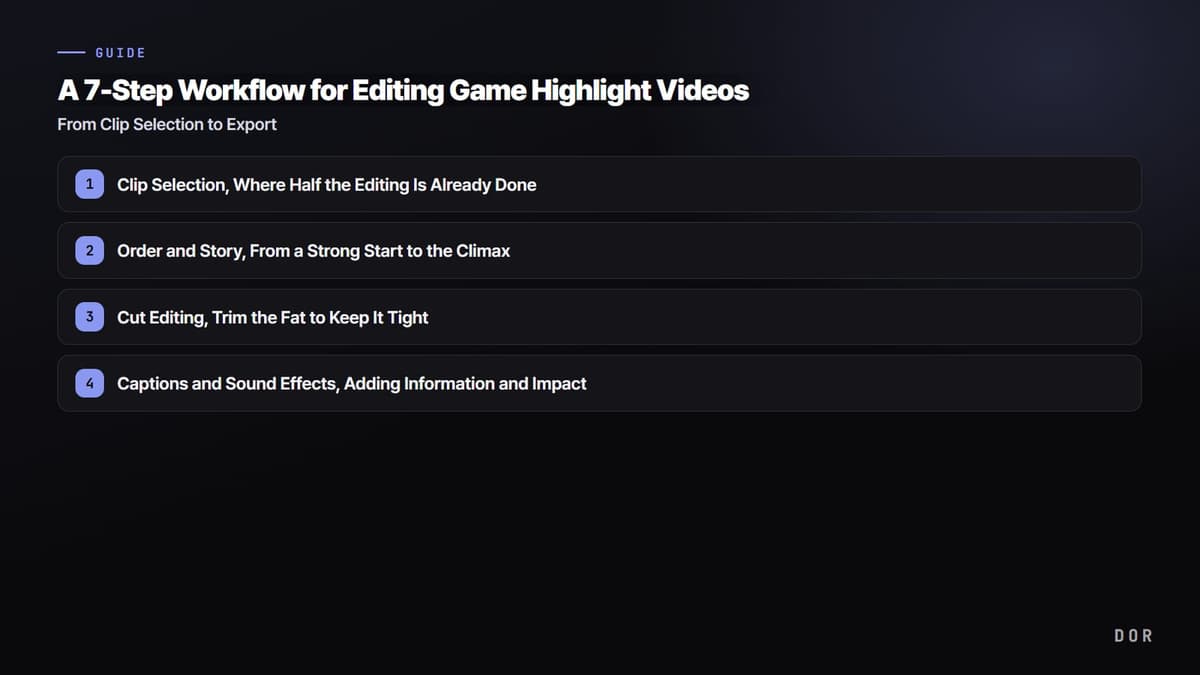
The order goes like this. (1) Clip selection, (2) order and story structure, (3) cut editing, (4) captions and sound effects, (5) background music, (6) color grading, (7) export. The higher steps set the skeleton of the video, and the lower you go, the more you are adding flesh. If the skeleton wobbles, the flesh is meaningless, so always work from top to bottom.
Go deeper only on the editing task you need
- To remove unnecessary lead-in and tail footage quickly, start with the game clip trimming guide.
- For readable kill-feed labels, dialogue, and context, see how to add subtitles to game clips.
- To adapt horizontal footage to a phone screen, continue with how to turn game footage into 9:16 vertical Shorts.
- If you plan to run a channel, check the upload workflow in the gaming YouTube Shorts starter guide.
- For simple edits without installing software, try the DOR browser clip editor; if choosing a tool comes first, compare free video editors for gaming.
Step 1: Clip Selection, Where Half the Editing Is Already Done
The most important step in highlight editing is not cutting or music, it is choosing "what to include." Narrow down to just 10 good clips and every remaining step gets easier; conversely, if you get greedy and include so-so moments, it drags no matter how much you polish. The criteria are simple. Can you tell what is happening within 3 seconds, and does it make you think, "I want to show this to someone"? If it is neither, cut it decisively.
How to Cut Down Time Spent Searching Long Recordings
The problem is that just scrubbing through a 1-2 hour recording from start to finish to find the peak-moment segments takes half your editing time. This is where using an automatic clip tool like DOR cuts that work out entirely. Just leave your game running and moments like an ace in Valorant, a pentakill in League of Legends, or a chicken dinner in PUBG are already cut into short clips, so selection shifts from "digging through long footage" to "picking from clips that are already gathered."
Step 2: Order and Story, From a Strong Start to the Climax
Once the clips are gathered, decide the "order" before putting them on the timeline. A highlight video is a short story too, so just lining things up in chronological order makes it flat. The proven structure is strong start, then buildup, then climax. Put the most impactful scene in the first 3-5 seconds to grab the viewer, fill the middle with scenes that build steadily, then place the flashiest scene at the end to leave a lasting impression.
The First 5 Seconds Decide Whether They Leave
Especially in a swipe-with-your-finger environment like YouTube Shorts or Reels, you have to give a "this is worth watching" signal within the first 5 seconds or they will not watch to the end. Putting your weakest clip up front as a warm-up is the worst choice. Just sticking to a "strong on both ends" arrangement, with the strongest scene at the very front and the next strongest at the very back, noticeably raises average watch time.
Step 3: Cut Editing, Trim the Fat to Keep It Tight
Once the order is set, now trim each clip short and tight. The key is "tight." The aimless wandering before a kill, the silence after a fight ends, the meaningless empty screen, it is all fat. Keep only from just before to just after the core action you want to show in a clip and decisively cut the front and back, and even the same scene looks far more thrilling.
Mind the rhythm too. A string of cuts that are all similar in length gets boring, so mix long and short cuts to vary the pacing. In particular, break consecutive kills or fast fights into short cuts to keep the speed, and hold a big play (an ace, a pentakill) slightly longer or add slow motion to emphasize it, and you create contrast.
Step 4: Captions and Sound Effects, Adding Information and Impact
Now add flesh to the video whose skeleton is set. Keep captions to a minimum, roughly "kill count," "situation explanation," and "reaction." Captions that fill the screen cover the game footage and backfire. Place them short and large, avoiding the screen edges. Sound effects are the best bang-for-buck element for creating impact. Just laying down a "punch" sound effect at the moment of a kill and a "whoosh" at a scene transition makes the video feel far more professional.
Too Many Sound Effects Are Poison
The rule is to use sound effects "only at key points." Adding a sound effect to every single cut buries the moments that actually matter. Lay them down intensively on just the 2-3 moments you most want to emphasize, and leave the rest to the background music and the game's original sound, which is cleaner.
Step 5: Background Music, Match Cuts to BPM and the Beat Drop
What shapes the impression of a highlight video most is the background music. The key technique is "matching cuts to the music." Figure out the track's BPM (tempo), and match your strongest scene or cut transition to the moment the beat drops, and the video and music lock together as one for a huge boost in immersion. Structuring the flow with a fast-tempo track for fast-fight sections and a track with lingering resonance for the finish is also great.
Always Check the Copyright
Using just any music can get you demonetized or have your video blocked after upload. Use tracks explicitly marked "available for commercial use," like those in the YouTube Audio Library, royalty-free music sites, or Creative Commons attribution tracks. If you use a copyrighted hit song, it might go up for now but later get blocked entirely, so working with safe music from the start is the way to save time.
Step 6: Color Grading, Apply LUTs Very Lightly
Game footage already has clean source quality, so color grading is not "painting over" but "tidying the tone," which is enough. Just nudging the contrast up a touch and adding a little saturation sharpens the image. If you are going to use a LUT (color preset), lower the strength below 50% and apply just a light touch. Get greedy for a cinematic mood and slap a strong LUT on at full strength, and the game UI colors get muddy and unnatural.
Step 7: Export, Settings That Fit the Platform
The last step is export. Set this wrong and all your earlier work gets muddy and mushy, or the opposite, the file becomes needlessly heavy. The recommended values for typical horizontal video are below.
- Resolution: 1080p (1920x1080) is the standard. If your source is 1440p or 4K, you can upload it as-is, but the file size and upload time increase.
- Bitrate: 8-12 Mbps at 1080p. For fast-moving game footage, the 12 Mbps side is cleaner.
- Codec: H.264 (MP4). It has the widest compatibility, so it is safe on any platform.
- Frame rate: 60fps. Game footage moves fast, so 60fps is clearly smoother than 30fps.
- For Shorts and Reels: Export separately in vertical 9:16 (1080x1920). Uploading a horizontal video as-is leaves bars on the top and bottom.
That is the 7-step workflow. If you remember just one thing: the more you automate step 1 (clip selection), the most labor-intensive step, the more your total editing time drops. Check first which moments DOR automatically cuts in the games you play most, Valorant, League of Legends, PUBG.