If you carefully cut a game clip, posted it to Shorts, and the views just aren't coming, surprisingly often the reason is "no captions" more than the video itself. These days a large share of Shorts and Reels viewers watch on a commute or in bed before sleep, with the sound off. With no sound, a Valorant clutch or a League of Legends teamfight call becomes "just a video with stuff moving on screen," and a viewer who can't tell what's happening swipes away in a second or two. This article lays out how to properly add captions to game clips and Shorts, from why they matter to readability rules to free tools, all by practical standards.
Why Captions Are Essential for Game Clips: Mute Viewing and Completion Rate
Captions aren't a courtesy for "people who can't hear," they're a strategy for the algorithm. The key metric is completion rate (the share who watched to the end). Shorts and Reels decide whether to push you more based on completion rate and how fast people bail after playback, and when muted viewers can't understand the situation, they drop off in droves early on. Captions instantly convey context even without sound, catching the finger that was about to swipe past, thinking "what's even happening here?"
Game clips especially benefit from captions. Unlike an ordinary vlog, the screen carries a ton of information (minimap, health bars, skill cooldowns), so it takes viewers time to read the situation. A one-line caption like "1 vs. 4 clutch," "no-scope headshot," or "Baron steal" lays the situation out in advance, so instead of decoding the screen, the viewer watches to the end anticipating the result. The caption acts as a kind of "trailer."
Manual vs. AI Auto-Captions: The Speed-vs-Accuracy Trade-Off
There are broadly two ways to add captions: manual captions, where you type each word and match the timing yourself, and AI auto-captions, which transcribe the audio automatically. The two have opposite strengths and weaknesses.
Manual Captions: Accurate but Slow
With manual captions, you can display exactly the wording you intend at exactly the timing you want. There's no risk of getting gaming terms or slang wrong, and you can pull off directorial touches like "displaying it a beat late here to land the twist." The trade-off is that captioning a one-minute clip can take 10 to 20 minutes, which is a heavy burden for someone who posts clips often.
AI Auto-Captions: Fast but Botches Gaming Terms
AI auto-captions lay down captions for a one-minute video in tens of seconds with a single click. The catch is accuracy. They transcribe everyday conversation well, but gaming terms, slang, and abbreviations like "ganking," "engage," "flash is down," or "ward the river" often get heard as the wrong words. When game sound (gunfire, skill effects) overlaps the speech, the recognition rate drops further. So treat auto-captions as a "draft that keeps you from starting at zero," and the most efficient approach is a hybrid where, once they're laid down, a person passes through once to fix gaming terms and typos.
The Four Factors of Readable Captions: Size, Color, Position, Display Time
"Adding" captions and adding them so they're "readable" are different things. Shorts captions that fly by quickly on a small screen need these four things in place to register.
1. Font Size: 5 to 8% of Screen Height
Most people watch Shorts on a small phone screen. The text height needs to be about 5 to 8% of the screen's vertical to be readable mid-scroll. Too small and people don't read it and swipe past; too large and it covers the screen so the gameplay itself can't be seen. Making key keywords (kill counts, words like "clutch") bigger and changing their color to emphasize them is one approach too.
2. Color and Outline: White Text with a Black Outline
A game screen's background color changes from moment to moment. So captions don't get lost over a bright desert map, a dark cave, or colorful skill effects, white text with a thick black outline (or shadow) is the safest combination. The letters stand out against any background. Laying down a semi-transparent black box is good too, but it covers the screen, so for Shorts an outline alone is often enough.
3. Position: Center-Lower, but Avoid the UI
The default caption position is slightly below the center of the screen. But stick it too close to the bottom and it gets hidden by the Shorts and Reels UI (like, comment buttons, account name, progress bar). Placing it in a "safe zone" raised about 15 to 20% off the very bottom is safer. Also adjust the position so captions don't overlap game UI the viewer needs to see, like the PUBG minimap or health bars.
4. Display Time: 1.5 to 2 Seconds per Line
If captions vanish too fast, people miss them mid-read; if they linger too long, viewers can't keep up with what comes next. A line needs to stay up for at least 1.5 to 2 seconds to be read comfortably. Auto-captions often chop things too short to match speech speed, so it's better to merge short segments to secure enough display time.
Caption Readability: Font, Character Count, Line Breaks
If the four factors above are the common rules for captions, there are a few extra things to mind for readability.
- Use a bold sans-serif font: Thin serif or handwriting fonts smear at small sizes. A thick sans-serif reads best.
- Keep lines short: If a single line is too long on a vertical screen, the sides get cut off or the text shrinks. If it's long, split it into two lines.
- Break lines at meaning units: Break at chunks of meaning, like "In a 1 vs. 4 / they made the clutch," so it reads easily. Avoid awkward line breaks.
- Keep proper spacing: For readability, space words correctly. Cramming them together slows reading speed on captions that fly by.
Finishing It in One Go with Free Caption Tools and DOR
Caption tools don't have to be paid to be enough. CapCut is the most widely used, offering auto-captions and a variety of caption styles for free on both mobile and PC, and Vrew's strength is auto-caption recognition. On desktop, you can drop video recorded in OBS into one of these free editors and add captions. But this still leaves all the steps of "record, find the highlight, cut the clip, move it to another editor, caption."
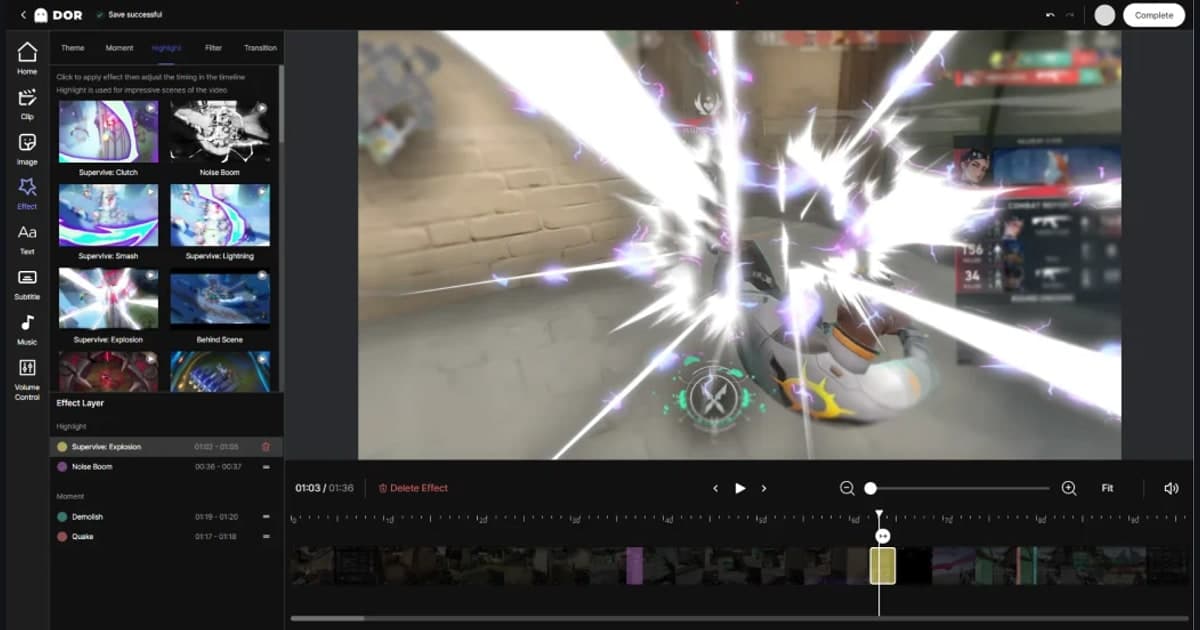
Use DOR and those earlier steps disappear. DOR records automatically the moment you launch a game and automatically cuts key moments like a Valorant ace, a League of Legends pentakill, or a PUBG chicken dinner into clips. In other words, the most tedious step of "finding and cutting the highlights" is already done. Take a clip saved that way, trim it right in DOR's free editor, and add captions, and recording flows straight through to a captioned video. You handle both not missing the great moments and turning them into caption videos that land even for muted viewers, all within one tool.
Wrapping Up: Captions Aren't Optional, They're a Default Setting
For a game clip to hold viewers in a short window, the situation has to come across even to someone watching with the sound off. Lay down a quick draft with AI auto-captions, fix the gaming terms by hand, then follow the four factors of size, color, position, and display time plus the readability rules. Master just this flow and the same clip will see a noticeably different completion rate. You need clips already stacked up to start fast, so first check out how automatic clips gather on the pages for the games you play most: Valorant, League of Legends, PUBG.