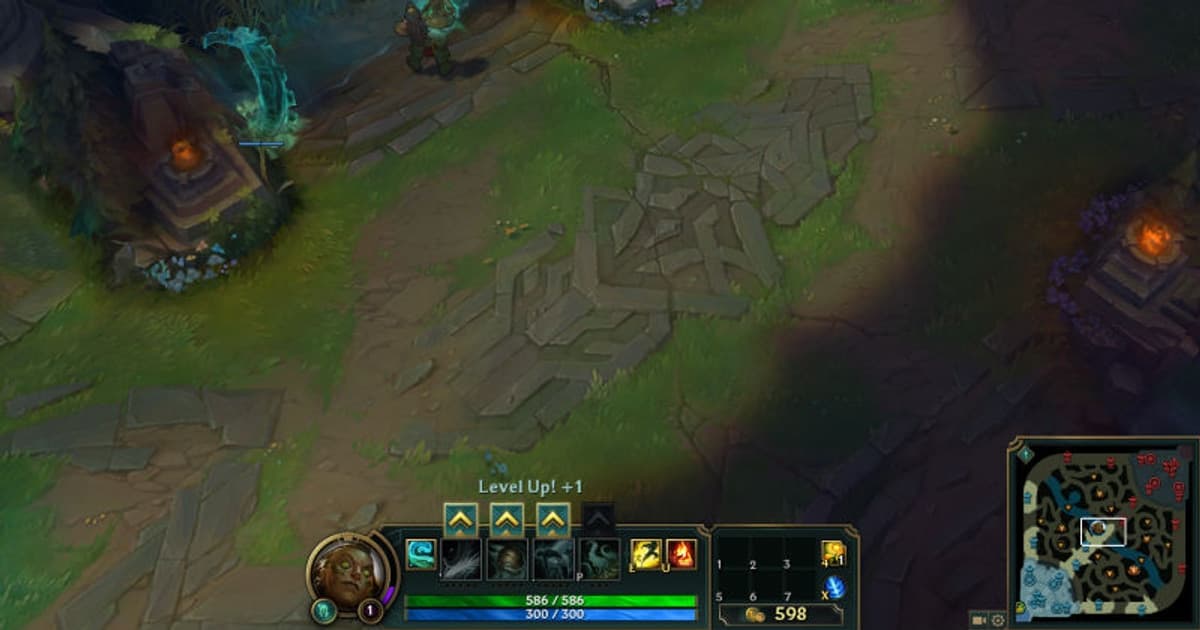
Let us start with the conclusion: the option that raises FPS the most in LoL is shadows. Just turning off shadows recovers the most frames in moments where the screen gets busy, like teamfights. After that, lower effects quality and then character quality in order. Just sorting out these three often recovers 40 to 80 frames in teamfights on a mid-range PC.
LoL is not a game with heavy textures themselves, so when the screen is quiet, frames come out well on any hardware. The problem is the combat moments when skill effects and shadows pour in all at once. So the key is to set your options based on the 'lowest frame rate during teamfights' rather than the average frame rate.
FPS impact table by option
Here are the main options in the LoL client's graphics settings menu, organized in order of their impact on frame rate. The impact size is a felt estimate based on typical mid-range hardware.
- Shadows (impact: very large), the calculation of shadows cast on characters and terrain. Turning them off gives the largest teamfight frame recovery. Recommended: off (no shadows).
- Effects quality (impact: large), skill particle and effect detail. The bigger the effect the more combat there is. Recommended: very low or low.
- Character quality (impact: medium), champion model detail. It becomes a cumulative burden when your view is crowded. Recommended: very low or low.
- Environment quality (impact: medium), map terrain and background detail. Recommended: low.
- Anti-aliasing (smoothing edges) (impact: medium), the calculation that eases jagged edges. Recommended: off.
- Vertical sync (impact: mainly input lag), it prevents screen tearing but creates a frame cap and lag. Recommended: off.
- Grass swaying (impact: small), it seems like nothing but it is unnecessary GPU burden. Recommended: off.
- Character outlines (inking) (impact: small), the outline-emphasis effect. Recommended: off.
As the table shows, the top three lines, namely shadows, effects quality, and character quality, create most of the overall frame difference. The lower options are small individually, but turning them off together makes input response clearer.
Step-by-step way to apply
Step 1 · Display frames first
After connecting to the game, press the Ctrl key and the F key together to show your current FPS and ping in the top-right of the screen. The most accurate approach is to adjust while directly checking how the lowest frame rate changes in teamfight situations each time you change an option.
Step 2 · Open the graphics settings
Press the ESC key during the game to open the settings window and move to the 'Video' or 'Graphics' tab. If you want to finish quickly, first drag the overall quality slider to the 'Performance' end to set a baseline, then fine-tune the detailed options with the recommended values below.
Step 3 · Apply the high-impact options first
Set shadows to 'off,' and lower effects quality and character quality to 'very low' or 'low.' Turn off anti-aliasing, grass swaying, and character outlines, and turn off vertical sync as well. On a low-spec laptop, turning on 'low-spec mode' can greatly reduce the burden all at once.
Step 4 · Lock the max frame rate
Lock the frame cap to your monitor's refresh rate. On a 144Hz monitor, set it to 144 or higher; on a 60Hz monitor, set it to 60, and the jittery up-and-down frame spikes are reduced for a more stable feel. If you put input lag first, turning on low-latency mode is also good.
One-line recommended settings summary
- Shadows: off
- Effects quality: very low or low
- Character quality: very low or low
- Environment quality: low
- Anti-aliasing · grass swaying · character outlines: off
- Vertical sync: off / max frame rate: locked to monitor refresh rate
These settings apply not only to the Rift but also to modes that use the same client like Teamfight Tactics. The felt difference is especially large in late rounds where champions and skins pile up. For frame rates in other champion combinations or modes, it is good to set them while comparing alongside the League of Legends guides.
If you worry that frames will drop again when recording even after boosting FPS
Even after raising frames this way with settings, when you actually turn on recording to keep a great moment, frames often get shaved off again. DOR uses a low-load capture method, so it records while maintaining fps and automatically saves great moments as clips. That means you can keep the frames you secured through settings while still grabbing the highlights.
To sum up, turning off shadows first and lowering effects and character quality is the key to FPS recovery. Once you set the recommended values, frames stay stable even in teamfights, and you can keep the great moments while maintaining that frame rate.