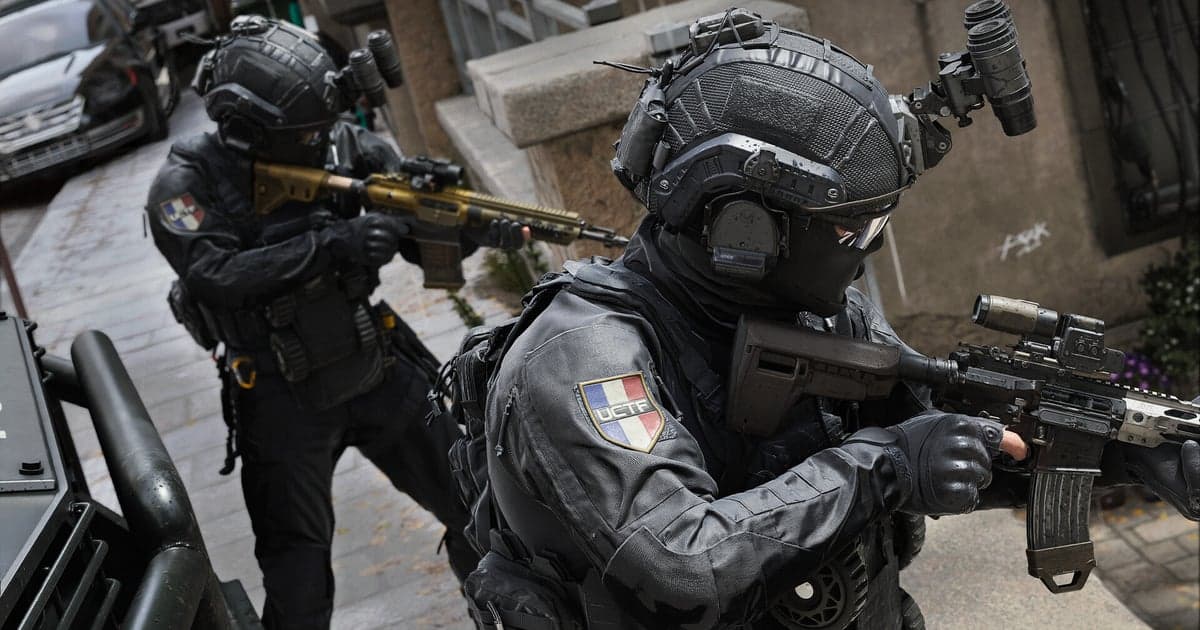
Call of Duty returns with Call of Duty: Modern Warfare 4, which launches on PC at midnight local time on 23 October 2026. The Steam store page shows 22 October 2026 instead, a day apart from the official PC blog post, which says midnight local time on 23 October, so check the store and your launcher on the day for the exact unlock time. Anyone who pre-ordered or pre-purchased digitally has had Campaign Early Access since 16 October 2026, and DMZ Early Access opens on 20 October 2026. In other words, clips are already piling up before the full release, so it pays to decide what you are recording with first. This article compares the four tools PC players actually reach for: Xbox Game Bar, which ships with Windows; the NVIDIA app and its ShadowPlay capture tools; OBS Studio; and DOR. The comparison covers automatic whole-session recording, saving only the last stretch of play, how you keep a kill, when you set your options, file size and disk space, cropping and exporting, and how audio is captured. Every figure and menu name below was checked on 17 October 2026 against the makers' official pages and the DOR app itself. Game Bar and the NVIDIA app rename features and move menus often, so confirm the exact wording on your own screen before you rely on it. Console play on PlayStation 5 and Xbox Series X|S, and play on Nintendo Switch 2, are outside the scope of this article. All four tools compared here run on Windows PCs.
The short answer: it depends on whether the whole match has to survive, and how much setup time you have
The first question is whether you need the entire match. If you only want the occasional moment, a tool with a last-stretch save is enough. NVIDIA's official page describes ShadowPlay's Instant Replay as letting you instantly save the last 30 seconds of gameplay, and OBS does the same job once you turn on the replay buffer and assign a hotkey yourself. Game Bar works differently: Windows key + Alt + R starts a recording and the same shortcut stops it, and whether background recording is on, plus how long it keeps, is something you check in Game Bar's own capture settings. If instead you want a whole campaign mission or a full DMZ run preserved so you can pick moments afterwards, you want the tool that records from launch to exit on its own. The second question is setup time. OBS expects you to build scenes and sources and then set the recording path, format and encoder in its output settings. Its own guide recommends MKV as the recording format, because an MP4 can lose the entire file if the recording never stops gracefully; after recording you convert with Remux Recordings in the File menu. You get a lot of control that way, and a lot of setup work with it. The third question is how you keep a kill. As checked on 17 October 2026, the documentation for Game Bar, the NVIDIA app and OBS does not say any of them will cut kills for you in Modern Warfare 4. The NVIDIA app's Highlights feature works only where a game integrates it, and there is no official statement about Modern Warfare 4, so open the NVIDIA app overlay and see for yourself whether a Highlights entry appears for this title. Game Bar and OBS have no notion of a kill at all. In DOR, launching Call of Duty records the whole session as one video, and pressing F8 right after a moment you want saves the last 30 seconds as its own clip. Automatic cutting on kills and deaths is available in the games where those events are registered, such as VALORANT. The fourth question is size. The official PC requirements ask for 115 GB of free SSD space at launch, and the game's own install footprint is covered separately in our Modern Warfare 4 install size breakdown. Recordings stack on top of that. Pushing from 30 fps to 60 fps at the same resolution makes a clip of the same length bigger, but by how much depends on your encoder and bitrate, so record one match and measure the file rather than trusting a rule of thumb. How session files are managed over time is laid out in managing Modern Warfare 4 recording storage. Finally, one step is the same for all four. Output resolution and frame rate are things you set before recording starts. Trying to change them with the game already running either does nothing or forces you to stop the recording, so finish your setup before you launch Modern Warfare 4.
How to settle on a recorder for Modern Warfare 4
- 1Decide what kind of footage you want firstThe answer changes depending on whether you want the occasional single moment, a whole campaign mission or DMZ run to sift through later, or a composed layout for streaming. A single moment needs nothing more than a last-stretch save. A whole match points to automatic full-session recording. A composed layout points to OBS.
- 2Set output options with the game closedAll four tools expect output resolution and frame rate to be chosen before recording. DOR defaults to 1080p and 30 fps with 60 fps available, while 1440p and above and 120 fps and above sit on the Pro plan, and resolution, frame rate and clip length are set before you launch the game. The official recommended specification targets 90 FPS in multiplayer on High settings, so headroom is tight; run a match before you decide to push the frame rate.
- 3Test the last-stretch save shortcut onceFinding out in a real firefight is too late. Load Early Access campaign or a practice area, press the save key, and confirm a file actually appears. For Game Bar that is Windows key + Alt + R, for the NVIDIA app it is whichever Instant Replay key you assigned in the overlay, for OBS it is your replay buffer hotkey, and for DOR it is F8.
- 4Run one recorder at a timeOBS documentation explains that consumer NVIDIA graphics cards are limited to two encoding sessions, and that background recording plus another capture feature will often take both, which can stop a hardware-encoded recording or stream from starting. Turn off the capture features you are not using and keep one.
- 5Check where files land and what the size budget isThe official PC requirements ask for 115 GB of free SSD space at launch, and recordings pile on top of that. Game Bar writes to the Captures folder in Videos, OBS writes wherever you point the Output tab, and DOR gives whole-session footage a 5 GB share by default and only trims the oldest sessions once that share fills. If you can keep the game drive and the recording drive separate, do.
- 6Check the cropping and export conditions tooA tool that records but then dead-ends just means installing something else later. Work out now whether you need a vertical frame and whether trimming has to happen in the same app. DOR's trim tool handles 16:9, 9:16 and 1:1, and finishing a trim requires signing in. To take a clip further, the studio joins several clips together and adds text, background music and effect templates.
- 7Confirm the game is picked up after launchThe full version of Modern Warfare 4 opens on 23 October 2026, so how the release build registers with any recorder is something to confirm after launch. In DOR, titles launched through Call of Duty HQ are covered by automatic detection; if the new title does not show, check Settings and then Games. In OBS, test in advance whether Game Capture or Window Capture is the one that picks up the image.
Modern Warfare 4 clipping tools compared (official docs checked 17 October 2026)
| What to check | Game Bar, NVIDIA app and OBS | DOR |
|---|---|---|
| Automatic whole-session recording | Game Bar starts with Windows key + Alt + R and stops with the same shortcut. The NVIDIA app starts a manual recording from its overlay. OBS needs scenes and sources built first, then Start Recording. | Launching a supported game records from start to exit as one video. Titles launched through Call of Duty HQ are covered by automatic detection; if a new title does not appear, check Settings and then Games. |
| Saving only the last stretch | The NVIDIA app describes Instant Replay as instantly saving the last 30 seconds. OBS needs the replay buffer enabled and a hotkey assigned. For Game Bar, whether background recording is on and how long it keeps is in the capture settings. | Pressing F8 saves the previous 30 seconds as a separate clip, and the length can be set to 15, 30, 45 or 60 seconds. For something longer across the whole monitor, use the screen recording shortcut (F7 by default, changeable in settings) and press it again to stop. |
| How you keep a kill | The NVIDIA app's Highlights feature only works where a game integrates it, and there is no official word on Modern Warfare 4 integration. Game Bar and OBS have no kill detection. | Launching Call of Duty records the whole session, from start to exit, as one video. For a kill, press F8 right after it happens and the last 30 seconds is kept as a clip; automatic cutting on kills and deaths is available in the games where those events are registered. |
| When you set your options | Output resolution and frame rate are meant to be set beforehand. In OBS that is the Output tab in Settings; for Game Bar and the NVIDIA app it is each app's capture settings. | Set resolution, frame rate and clip length before you launch the game. The defaults are 1080p and 30 fps with 60 fps available, while 1440p and above and 120 fps and above are on the Pro plan. |
| File size and disk space | Game Bar saves MP4 files to a Captures folder inside your Videos folder. OBS lets you set path, format and encoder in the Output tab, and you can record MKV then convert with Remux Recordings. Neither manages a size budget for you. | Whole-session footage gets a 5 GB share by default, and only when that share fills does cleanup start with the oldest sessions. The newest session and anything you liked are protected. Below 30 GB free you get a warning, and under 20 GB recording will not start. |
| Cropping and exporting | Game Bar and the NVIDIA app have no aspect-ratio editing, so you need a separate editor. OBS can rescale output relative to the canvas, but it cannot trim a finished file afterwards. | The library's trim tool takes a start and end point and exports at 16:9, 9:16 or 1:1, and finishing a trim requires signing in. The studio adds joining clips together, text, background music and effect templates. |
| Audio setup | Game Bar's capture settings let you pick what gets recorded from all, game, mic, apps and system. OBS handles desktop sound and microphone separately in its audio mixer. | Audio is a single track. With Record all sound on, everything your PC plays is included, voice chat as well; with it off, you get the game window's sound and your microphone. |
Modern Warfare 4 recorder checklist
- Decided whether you want single moments, whole matches, or a composed streaming layout.
- Set resolution, frame rate and clip length before launching the game.
- Pressed the last-stretch save shortcut once and confirmed a file appeared.
- Left exactly one capture feature enabled and turned the rest off, to avoid encoding session conflicts.
- Left room for recordings on top of the 115 GB the official requirements ask for.
- Checked whether trimming and exporting can finish in the same app, and where signing in is required.
- Confirmed you are playing the PC version rather than a console or Nintendo Switch 2.
What DOR actually does with Modern Warfare 4
DOR is a free Windows desktop app, and Call of Duty is on its supported games list. Install detection looks at Call of Duty HQ on Steam and at the Battle.net registry key. Titles launched through Call of Duty HQ are picked up automatically. If the full version does not appear in the list after you launch it, check Settings and then Games. The handling is whole-session recording: start the game and everything until you exit becomes one video. It is the same arrangement as games like Apex Legends, where a whole session is kept as a single video. When something worth keeping has just happened, press F8 and the previous 30 seconds is saved as its own clip, with the length set to 15, 30, 45 or 60 seconds in settings. For something longer across the whole monitor, use the screen recording shortcut, F7 by default and changeable in settings, and press it again to finish. For the capture side in more detail, see how to save Modern Warfare 4 clips on PC. Quality defaults to 1080p and 30 fps with 60 fps available, and 1440p and above plus 120 fps and above open on the Pro plan. Set resolution, frame rate and clip length before you launch the game. Audio is a single track: with Record all sound on, everything your PC plays is captured, voice chat included; with it off you get the game window's sound and your microphone. For storage, whole-session footage has a 5 GB share by default, and only when that share fills does cleanup begin with the oldest sessions, while the newest session and anything you liked stay protected. Below 30 GB of free drive space DOR warns you, and under 20 GB it will not start a recording and stops one in progress. Right after pulling down the 115 GB the official requirements ask for, you can land under that line, so clear space in advance. Footage you keep can be exported from the library's trim tool at 16:9, 9:16 or 1:1, and finishing a trim requires signing in. The studio joins several clips together and adds text, background music and effect templates. One more thing to have ready. If the game crashes, the process ends and the session recording ends with it. Trim the tail of the session you just played, or protect it with a like. The order to work through when it will not launch at all is in fixing Modern Warfare 4 crashes and launch failures. DOR runs on Windows PCs, so everything above applies to the PC version.