Is your OBS Game Capture source showing nothing but a black screen while the game itself runs fine? If your audio records but the screen stays black — often with 'attempting to hook process' stuck in the log — OBS can't grab your game's frames, and the cause is almost always one of three: a laptop GPU mismatch, a failed hook, or a permissions gap. Run the four ordered checks below — admin rights, borderless window, GPU assignment, capture mode — and most cases are fixed within 5 minutes.
The Short Answer: Fastest Order to Fix the Black Screen
If you are on a laptop or any PC with two GPUs, do Step 3 below first (Windows Settings → System → Display → Graphics, set OBS to "High performance") — OBS's official GPU selection guide states that while OBS runs on the integrated GPU, you cannot use Game Capture for a game running on the discrete GPU (checked 2026-09-15). On every other PC, go in order: Step 1 (run as administrator) → Step 2 (borderless window) → Step 4 ("Capture specific window"), and if it is still black, switch to Display Capture. If your actual goal is recording your games, you can skip this setup entirely. DOR is a free Windows app that auto-detects supported games and records the full match, so there is no Game Capture vs Display Capture source to pick — the trade-off is that it only records games on the supported games list, so if you need to capture a regular desktop program, stick with the OBS order above.
Why OBS Game Capture Shows a Black Screen: the 3 Causes
In OBS, the sources that capture the game screen are usually two: "Game Capture" and "Display Capture (full-screen capture)." A black screen happens when these sources can't read the game screen properly, and the causes fall into roughly three groups.
Cause 1: GPU Mismatch (Most Common on Laptops)
Gaming laptops have two graphics chips: integrated graphics and a discrete GPU. The game runs on the discrete GPU for performance, but if OBS runs on the integrated graphics, OBS can't see the game screen and you get a black screen. This is an overwhelmingly more common cause on laptops than on desktops.
Cause 2: Game Capture Hooking Failure
The "Game Capture" source hooks directly into the game process to pull in the screen. But if the game is in Exclusive Fullscreen mode, or anti-cheat blocks the hooking, or OBS is launched later than the game, the hook fails and you get a black screen.
Cause 3: Insufficient Administrator Permissions
Some games run with administrator privileges. In this case, if OBS has standard permissions, it can't hook into the game and can't pull in the screen. It's surprisingly common for a black screen to come from a single permission difference.
Fix the OBS Game Capture Black Screen: 4 Steps in Order
- Step 1, Run OBS as administrator: Fully close OBS, then right-click the desktop icon and choose "Run as administrator." A black screen caused by a permission difference is most often resolved by this one step.
- Step 2, Set the game to "Borderless Window" mode: In the game's graphics settings, change the display mode from Fullscreen to "Borderless Window" instead. Black screens happen often in Exclusive Fullscreen mode.
- Step 3, If on a laptop, match the GPU: Fully close OBS first. Open Windows Settings → System → Display → Graphics, choose "Desktop app" → Browse, add C:\Program Files\obs-studio\bin\64bit\obs64.exe, then set its Options to "High performance." OBS's official GPU selection guide is explicit that Game Capture only works when OBS runs on the same high-performance GPU as the game.
- Step 4, Change the capture mode: In the Sources dock, double-click your "Game Capture" source to open its properties, then switch Mode from "Capture any fullscreen application" to "Capture specific window" and pick the game's window directly. If the preview is still black, try enabling "SLI/Crossfire capture mode (Slow)" as a last resort — and for DirectX 12 games that refuse to hook, switching the game to DX11 mode often helps.
OBS Game Capture Not Working or Not Hooking? Do This
Sometimes the problem is not a black screen mid-game — the Game Capture source never picks anything up in the first place. If the source sits empty in the preview and the log keeps repeating hook attempts, the hook itself is failing. Assuming you have already done Step 1 (run OBS as administrator), check these four things.
- Fix the launch order: if the game started before OBS, the hook may simply have missed its moment. With OBS already open, restart the game — and give it a few seconds after you are in-game, because hooking is not instant.
- Turn off competing overlays: Discord, Steam, and GeForce overlays inject into the game the same way Game Capture does, and they can steal the hook. Disable them one at a time to find the one that conflicts.
- Pick the right source for the job: if a game keeps refusing to hook, a separate 'Window Capture' source grabs just the game window without hooking at all. Window Capture is the fallback to reach for when the game runs windowed or borderless.
- Anti-cheat games: titles with aggressive anti-cheat can block Game Capture hooking entirely. Try Window Capture first — it still isolates the game window — and if the anti-cheat blocks window capture too, Display Capture may be the only fix, as covered below.
If the hook attaches but the picture still comes out black, go back to the ordered fixes above and re-check the GPU and display mode. And once recording works again, see where OBS saves your recordings so you know where the files end up.
"Capture specific window", Window Capture, or Display Capture still black? Check by source type
Rule one thing out first. If the game runs in exclusive fullscreen, it stops rendering the moment you Alt+Tab to the OBS window, so a black preview at that moment is normal — the OBS docs say to judge by a test recording or check on a second monitor instead. If the recording file is black too, the cause depends on which source you are using. The table below only lists what the official OBS docs say (Game Capture, Window Capture, GPU selection and laptop troubleshooting guides, checked 2026-09-15).
| Source and mode you are using | Cause per the OBS docs | What to do |
|---|---|---|
| Game Capture – default mode ("Capture any fullscreen application") and nothing is captured | This mode auto-detects a game running fullscreen on your primary monitor; a game on a second monitor is outside what it detects. | Switch Mode to "Capture specific window" and pick the game window yourself, as in Step 4. |
| Game Capture – "Capture specific window" and still black | Another program is injecting into the game the same way and conflicting. The OBS docs single out RivaTuner and MSI Afterburner as especially prevalent conflicts, and note that DX12-mode games such as Fortnite may crash when run with OBS. | With Steps 1 and 3 already done, fully close RivaTuner and MSI Afterburner and retry. Run DX12 games in DX11 mode. "SLI/Crossfire capture mode" swaps shared-texture capture for memory capture and is slow, so keep it as the last resort. |
| Window Capture shows black | The capture method does not suit that program, or "Window title must match" is selected and the title changed, leaving the source blank. On a laptop, the GPU selection guide groups Window Capture with Game Capture: OBS must run on the "High performance" GPU. | In the source properties, change Capture Method from "Automatic" to "Windows 10 (1903 and up)" or "BitBlt" (the docs: BitBlt is less efficient but may help with certain programs). Set Window Match Priority to an option that does not force a title match. |
| Display Capture shows black (mostly laptops) | OBS and the monitor sit on different GPUs. Since OBS 27, with Windows 10 version 1903 or higher, there is a capture method that works even then, and the default "Automatic" picks it for most people. | Update OBS to 27 or later; if it is still black, open the source properties and set Capture Method to "Windows 10" manually. The OBS laptop guide recommends leaving OBS on the default (high power) GPU. |
Last Resorts: Graphics Driver, Anti-Cheat, OBS Reinstall
- Update your graphics driver to the latest version. Outdated drivers frequently cause hooking and GPU recognition problems.
- If the black screen happens only in a specific game, that game's anti-cheat is blocking screen capture. In this case, display capture may be the only solution.
- Fully uninstalling OBS and reinstalling the latest version can reset tangled settings and resolve the issue.
A Method That Doesn't Have This Problem in the First Place
Every fix above treats a symptom of the same root cause: OBS makes you pick a capture method, then makes you responsible for matching the GPU, the display mode, and the permission level yourself. Get one of those wrong and Game Capture shows a black screen again after the next game update or driver install. DOR removes that entire failure surface — there is no capture method to choose and no GPU or permission setting to align.
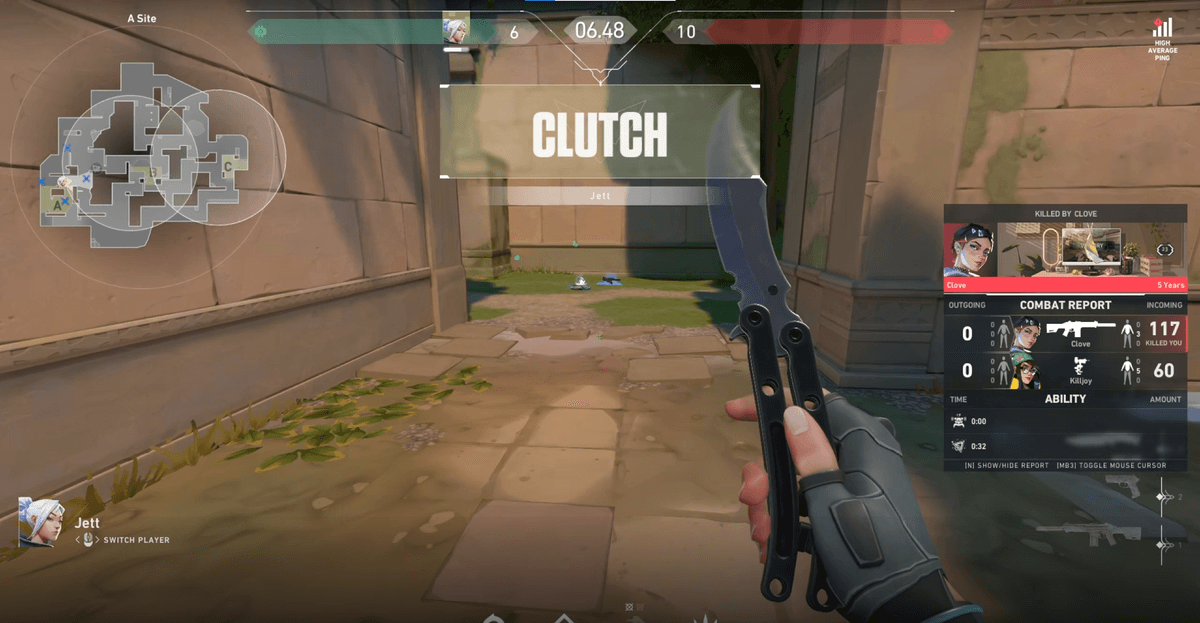
After installation, launch a game like Valorant or League of Legends and DOR detects it and starts recording on its own — no capture mode, no GPU assignment, no "Run as administrator" ritual. It captures identically in exclusive fullscreen and borderless window, so the black screen that keeps resurfacing in OBS structurally cannot happen. If you have spent an evening staring at a black preview instead of playing, that is exactly the time DOR gives back: install once, play, and your highlights are already recorded.