Bottom line, the problem of a recorder failing to detect a game is mostly one of three things. (1) Game Capture's hook fails due to GPU mismatch or insufficient privileges, (2) anti-cheat blocks the hook, or (3) fullscreen mode conflicts with your capture method. Just follow the branch that matches your situation in the order below.
Quick answer: five checks in order, and a shortcut if you only need the recording
The fastest order is (1) run OBS as administrator (the official OBS troubleshooting page lists Valorant and Call of Duty among games that require it; on a laptop, also set OBS to High performance in Windows graphics settings), (2) switch the game from exclusive fullscreen to borderless windowed, (3) for games OBS says do not allow hooking, such as Destiny 2 and Counter-Strike 2, use Window Capture, (4) turn off conflicting software such as overlays, FPS counters, and antivirus, and (5) check the window name (League of Legends uses a different window for the lobby and the match, so pick the source after the match starts) — per the official OBS docs, verified 2026-09-15. If recording is all you need, you can skip these five steps. DOR automatically detects supported games from the game list and records the full match, so there is no source-picking or hooking step at all. It cannot record games or programs that are not on that list, though, so in that case fix OBS in the order above.
Why It Can't Grab the Game and Shows a Black Screen
OBS's 'Game Capture' works by placing a hook on the game process to intercept its screen output. It's fast and lightweight, but the hook only holds if the game and the recorder draw on the same graphics card and run at the same privilege level. When this premise breaks, even if you pick the game from the game list, the preview comes out pitch black. OBS requires you to specify which game to capture and how, and that process breaks down in one of the three branches below.
- 1Hook Failure (Black Screen / No Detection)
- 2Anti-Cheat Conflict (Valorant, PUBG, and the like)
- 3Permission Problems (Admin Privilege Mismatch)
Branch 1. Hook Failure (Black Screen / No Detection)
If the game shows up in the game list but the preview is just black, the hook was attempted but got blocked at the GPU or capture mode. Let's work through it starting from the most common cause.
- 1) Match the GPU: laptops have the integrated and discrete GPUs each drawing the screen separately. In Settings > System > Display > Graphics, set OBS to 'High performance' so it uses the same discrete GPU as the game.
- 2) Change the capture mode: in the Game Capture properties, switch from 'Capture specific window' to 'Capture any fullscreen application' or toggle the other way.
- 3) Set the game to 'Borderless windowed' mode: exclusive fullscreen breaks the hook more often. Switching to windowed mode often gets it grabbed.
- 4) Delete the hook cache: delete the C:\ProgramData\obs-studio-hook folder, then create a new Game Capture source. This is effective when a cache corrupted after an update or crash is the cause.
Branch 2. Anti-Cheat Conflict (Valorant, PUBG, and the like)
Hooking is technically 'process injection.' That's why anti-cheat like Vanguard (Valorant), Easy Anti-Cheat, and BattlEye may treat hooking as cheating behavior and block it (this is not confirmed in the official documentation of the anti-cheat providers, Riot included). If Game Capture is especially black-screened in Valorant or PUBG, first run OBS as administrator: the official OBS troubleshooting page lists Valorant as a game that requires it (verified 2026-09-15). If the preview is still black after that, the right answer is to stop trying to hook and change your capture method instead.
- Fall back to Display (screen) Capture: it records the monitor output itself, so it doesn't touch the game process. With nothing for anti-cheat to block, it works most reliably.
- 'Anti-cheat compatibility hook' option: it is on by default in the Game Capture properties (official OBS docs, verified 2026-09-15); make sure it has not been turned off. It's a less intrusive hook, so some anti-cheat allows it.
- Window Capture: a compromise that records a windowed-mode game window-by-window instead of fullscreen.
Branch 3. Permission Problems (Admin Privilege Mismatch)
Many games run with administrator privileges by default. If OBS, on the other hand, is launched with normal privileges, Windows blocks 'a lower-privilege program hooking a higher-privilege process.' It often clears up just by matching the privilege levels.
- Right-click the OBS icon > 'Run as administrator' to match the privilege level with the game.
- To apply it automatically every time, check OBS Properties > Compatibility > 'Run this program as an administrator.'
- If that still doesn't work, update OBS and your GPU driver to the latest version. There are cases where an old hooking DLL is out of sync with a new driver.
The Root Fix: An Approach with No Hooking or Source-Picking at All
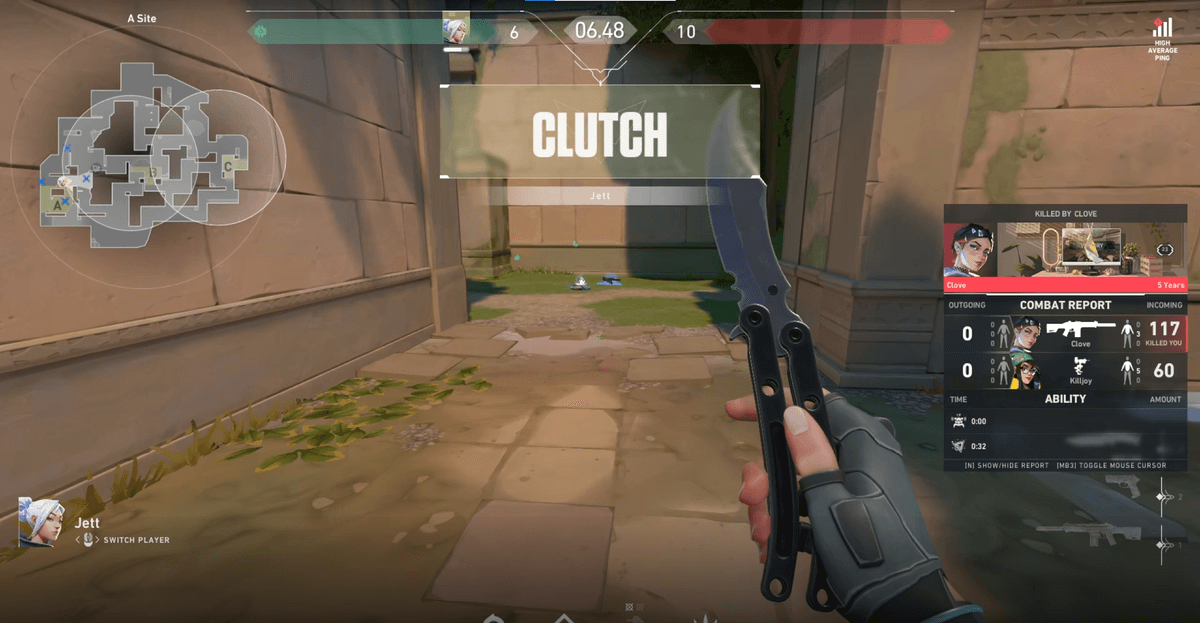
The process above ultimately comes down to the user finding and matching 'which capture method isn't blocked on this game in this environment,' and since the answer differs by game, by GPU, and by anti-cheat, you end up fumbling anew every time. OBS makes you manually add a Game Capture source and directly specify and hook the game process to capture, but DOR automatically detects supported games and starts recording. There's no need to pick a hook mode or create a source, so the step of 'failing to grab the game' disappears entirely. Launch Valorant or League of Legends and DOR recognizes it on its own and records, and automatically turns your best moments into clips too. You can check the recommended settings per game and real automatic-clip examples on the Valorant, League of Legends, and PUBG pages.
OBS still not capturing? A checklist by symptom
If you have gone through every branch above and OBS still does not pick up the game, it is faster to work backwards from the symptom. This table is based on the official OBS troubleshooting docs (verified 2026-09-15).
| Symptom | Common cause | Do this first |
|---|---|---|
| The game does not show up in the window list | The game window does not exist yet (League of Legends uses different windows for the lobby and the match) | Pick it again under ‘Capture specific window’ once the match is actually running. For League of Legends, split it into two scenes: Window Capture for the lobby, Game Capture for the match |
| Listed, but the preview is black (laptop or all-in-one PC) | OBS and the game are running on different GPUs | In Windows Settings > System > Display > Graphics, set OBS to High performance |
| Black only in Valorant or Call of Duty | Games the official OBS docs say require running OBS as administrator | Run OBS as administrator. If that still fails, use Window Capture or Display Capture |
| Black in Destiny 2, Counter-Strike 2, or Roblox | Games for which OBS recommends Window Capture instead of Game Capture | Switch to Window Capture (for Destiny 2 and Counter-Strike 2, switch to windowed or borderless fullscreen first) |
| The picture freezes or goes black when you alt-tab | In exclusive fullscreen, the game stops rendering when you alt-tab out | Switch to borderless windowed mode |
| Capture drops out or the game crashes | Conflicting software such as overlays, FPS counters, or antivirus; DX12 mode in Fortnite | Turn conflicting programs off before hooking. In Fortnite, switch to DX11 mode |