OBS Studio is free and powerful, but the first time you open it you're staring at nine settings tabs and dozens of options, wondering, "What on earth do I actually need to touch to record in high quality without lag?" The short answer: you don't need to touch all of it. Get just five things right, the encoder, rate control, resolution, keyframe, and recording format, and you can leave the rest at their defaults. Follow the menu paths and recommended values below exactly as written. We'll also explain "why" each number is what it is.
The Short Answer: OBS Recording Values in One Line, and a Faster Route
The quickest path is to switch Output Mode to Advanced, then on the Recording tab set the encoder to NVIDIA NVENC (AMD: HW AVC, Intel: QuickSync) and rate control to CQP 18 (16 to 20), on the Video tab set the resolution to 1920x1080 at 60fps (1280x720 at 30fps on a low-spec PC), then back on the Recording tab set the keyframe interval to 2 seconds and the recording format to mkv (if you are on OBS 32 or later and it already shows the default Hybrid MP4, you can keep that), and finally turn on automatic mp4 remuxing on the Advanced tab (the menu path and the reason behind each value are explained in order below). If recording itself is your goal rather than the settings, DOR, a free Windows app, is the faster route. It detects supported games (see the game list) automatically, records the full match in the background with hardware encoding such as NVENC by default, captures game audio and your mic together, and saves everything to its in-app library, so there is no encoder, bitrate, or format to touch. Trim the moments you need in the browser clip editor and share them as a dor.gg link.


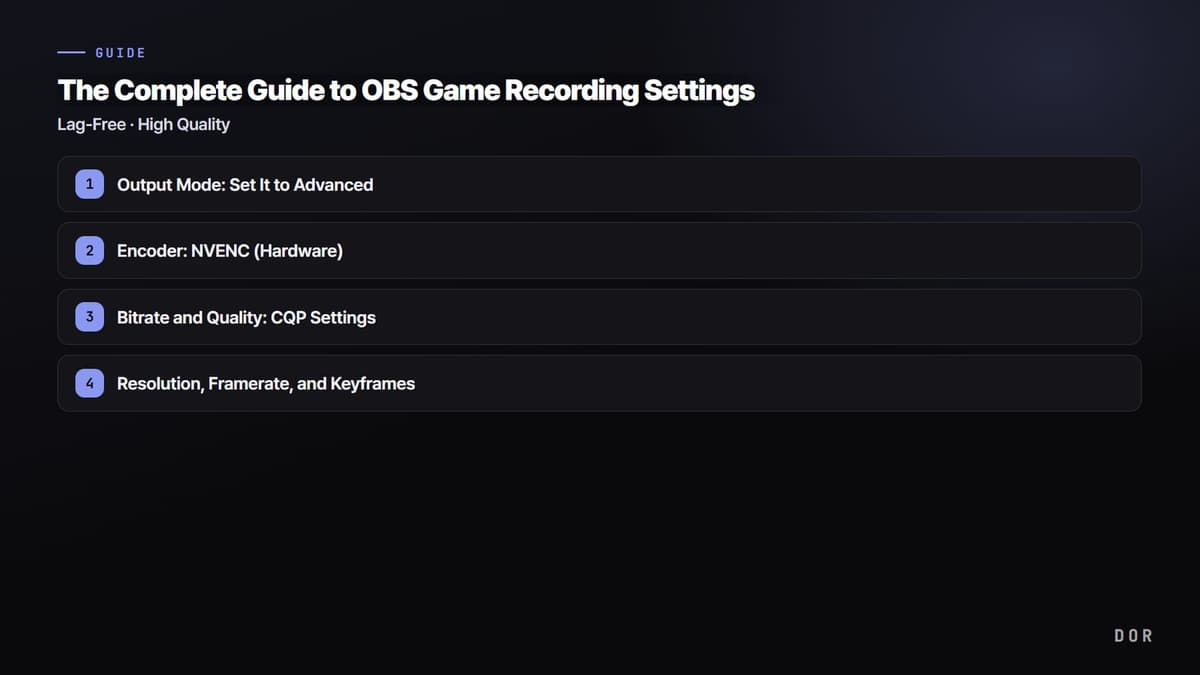
Output Mode: Set It to Advanced
First, go to "Settings" in the bottom-right of OBS, then "Output" in the left-hand menu. At the top, "Output Mode" is set to "Simple" by default. Change it to "Advanced." In Simple mode you can barely touch the encoder or bitrate, so it's impossible to set rate control to CQP or specify a keyframe interval. Once you switch to Advanced, a row of tabs appears at the top: Streaming, Recording, Audio, and Replay Buffer. Select the "Recording" tab. The "Streaming" tab is for output to Twitch and YouTube, so changing anything there won't affect your recording quality. This trips people up constantly, so double-check you're on the "Recording" tab.
Encoder: NVENC (Hardware)
This is the single most important line in this article. On the "Recording" tab, change the "Encoder" from the default software (x264) to "NVIDIA NVENC H.264," or "NVIDIA NVENC HEVC" if you have a newer graphics card. Once you understand the difference between the two, it becomes obvious why the lag disappears.
x264 encodes video using your CPU. Games already lean on the CPU and GPU, so piling encoding work on top of the CPU makes your in-game framerate drop and the picture stutter. NVENC, on the other hand, uses a dedicated encoding chip built right into your NVIDIA graphics card (GTX 10 series and up). Because the game's workload and the encoding workload are physically separate, your in-game framerate stays almost untouched even with recording on. Most "recording makes my game lag" complaints are solved just by switching the encoder from x264 to NVENC.
Menu Path to the Encoder Setting
The path is Settings, then Output (Output Mode: Advanced), then the Recording tab, then the Encoder dropdown. If you see "NVIDIA NVENC H.264" there, your NVIDIA card is being detected properly. If you use an AMD Radeon, you'll see "AMD HW H.264 (AVC)" in the same spot, and on Intel integrated graphics or Arc you'll see "QuickSync H.264." Only the names differ; they're all hardware encoding and work the same way. RTX 40 series cards, Radeon RX 7000, and Intel Arc and up can also pick the "AV1" encoder, which packs the same quality into a smaller file, so it's great for saving storage space. Just check your editor and platform support for AV1 first. If NVENC doesn't show up in the dropdown at all, your graphics driver is out of date, so update your GeForce driver to the latest version.
Bitrate and Quality: CQP Settings
Right below the encoder, change "Rate Control" from the default CBR to "CQP." The difference between these two is what determines your recording quality. CBR (constant bitrate) crams the same amount of data into every second whether the scene is simple or complex. That's fine for streaming, but for recording it wastes bitrate on static loading screens, then runs short during intense fights, leaving them looking smeared and blocky.
CQP (constant quality) sets a "quality target" and automatically raises or lowers the bitrate based on how complex the scene is. It spends more data on fast-moving moments and saves it on still frames, giving you more consistent quality at the same file size. When you switch rate control to CQP, set the "CQ Level (CQP value)" that appears to somewhere between 16 and 20. The recommended value is 18. The lower the number, the higher the quality and the bigger the file; the higher the number, the lower the quality and the smaller the file. 16 is nearly lossless but produces large files, while 20 keeps files light but shows slight quality loss in fast scenes. For 1080p gameplay, 18 lands around 150 to 300 MB per minute, the best balance of quality and size.
Resolution, Framerate, and Keyframes
Set resolution and framerate under Settings, then the "Video" tab. Set both "Base (Canvas) Resolution" and "Output (Scaled) Resolution" to 1920x1080, and "Common FPS Values" to 60. For most games, 1080p/60fps is plenty sharp and fits perfectly for Shorts and YouTube uploads. Just because you play competitive FPS games on a 144Hz or 240Hz high-refresh monitor doesn't mean you need to record at 144fps too. Bumping up your recording fps drives up both GPU encoder load and file size, which can actually make your in-game framerate wobble, so it's more stable to lock recording at 60fps and just enjoy the game at high refresh. On a low-spec PC, dropping output resolution to 1280x720 and 30fps dramatically reduces the load.
Head back to Output, then the Recording tab, and set "Keyframe Interval" to 2 seconds (0 means automatic, but specifying 2 seconds is safer for editing and playback compatibility). A keyframe is a "complete, full frame" that serves as a reference point when you rewind or jump to a specific spot in the video. If the interval is too long, frames can misalign when you cut clips in your editor and scrubbing gets choppy; if it's too short, file size grows. 2 seconds is the standard value for compatibility and size.
Recording Format: mkv, Then mp4
Under Settings, then Output, then the Recording tab, set "Recording Format" at the very top to "mkv (Matroska)" instead of mp4. If you record straight to mp4 and OBS crashes mid-recording, or the game freezes and gets force-closed, the entire file can corrupt and an hour or two of footage can vanish all at once. That's because mp4 needs to write an index to the end of the file the moment recording finishes properly, and without that index the whole thing is unreadable. mkv, by contrast, keeps everything recorded up to the point of interruption perfectly intact even if it cuts off. As of 2026-09-15, Hybrid MP4, introduced in OBS 30.2, is designed so the file stays recoverable even if recording is aborted by a crash, and since OBS 32.0 it is the default recording format for new profiles. If your recording format already says Hybrid MP4, you can leave it as it is; the mkv-then-remux approach in this guide is for older versions or for when plain MP4 (MPEG-4) is selected.
The catch is that some editors like Premiere and DaVinci, or certain social uploads, can't read mkv directly. So record safely to mkv, and when you're done, convert it to mp4 via the top menu "File," then "Remux Recordings." Remuxing isn't re-encoding; it only swaps the container, so there's zero quality loss and it finishes in seconds. If you turn on the "Automatically remux to mp4" option under Settings, then Advanced, in the Recording section, OBS handles this step for you. Note that it lives on the Advanced tab, not the Output tab.
Audio Settings
Under Settings, then the "Audio" tab, assign your "Desktop Audio" (game and Discord sound) and "Mic/Auxiliary Audio" (your voice). Then, under "Audio Track" on the Output, Recording tab, check the boxes to record them separately, say desktop on track 1 and mic on track 2. With the tracks split, you can adjust the two independently while editing, turning the game sound up while bringing your mic down, or the reverse. If you record them merged into one, you can never separate them later, so if you plan to edit, splitting tracks is a must.
Fixing Black Screens and Lag
If you've got everything set but your recording saves as nothing but a black screen, the game's display mode is almost certainly set to "Exclusive Fullscreen." Exclusive fullscreen lets the game monopolize display output, which blocks OBS's capture. Switching the game's display mode to "Borderless Windowed" in its graphics settings fixes it in most cases. If that still doesn't work, right-click OBS and choose "Run as administrator." Games with strong anti-cheat, like Valorant, require administrator privileges before OBS can capture the screen. Finally, updating your GeForce or Radeon graphics driver to the latest version often clears up both black screens and recording lag at once. On a laptop, don't forget to set OBS to "High performance" in Windows "Graphics settings" so it runs on the dedicated GPU rather than integrated graphics.
If Recording Lag Remains: the Checklist From the Official OBS Guide
If frames still drop after switching the encoder to NVENC, the usual cause is GPU overload: the game is using the GPU at full throttle and nothing is left for OBS to composite the picture. The Encoding Performance Troubleshooting guide in the official OBS knowledge base (checked 2026-09-15) recommends working through the checks below in this order. Apply them one at a time from the top and confirm each with a short test recording.
- 1Run OBS as administrator — This is the fastest fix, and it is Windows-only. Running OBS as administrator lets it ask Windows to reserve some GPU capacity for it, which helps with lag independently of the black-screen fixes above. The OBS guide says to try this before anything else.
- 2Close other programs that use the GPU — Check Task Manager for programs using a lot of GPU, such as another game running in the background or a program that uses the GPU for calculations, and close them (only ones you are sure about). The GPU has to render the game and composite OBS scenes at the same time, so the fewer competing tasks, the more is left for OBS.
- 3Cap the game's framerate — If the game runs the GPU at full throttle, there is very little left for OBS to composite the picture. Limit the game's framerate to your monitor's refresh rate or turn on V-Sync to free up processing power for OBS.
- 4Lower the game's graphics settings — If the framerate cap is not enough, drop heavy options such as shadows and anti-aliasing by one notch to free up more GPU headroom.
- 5Turn off Windows Game DVR (Game Mode only on old builds) — The OBS guide says Game DVR, which lets Windows record game footage in the background, uses additional system resources, so disable it while you use OBS. Game Mode prioritizes system resources like the CPU and GPU for the game and can affect OBS, but the guide says it can be left on in recent Windows and only needs disabling on Windows 10 builds older than 1809.
- 6Lower the OBS output settings — If the steps above are still not enough, go to Settings, then Video, and lower the output resolution to 1280x720 and the framerate to 30fps. Reducing the OBS resolution reduces the GPU resources it needs, and these are the same low-spec values recommended in this guide.
Recommended Settings Summary
- Output Mode: Advanced, with the "Recording" tab selected at the top
- Encoder: NVIDIA NVENC H.264 (AMD: HW AVC / Intel: QuickSync / newer cards: AV1)
- Rate Control: CQP (not CBR), CQP value 16 to 20, 18 recommended
- Resolution: 1920x1080 (low-spec: 1280x720)
- Framerate: 60fps (low-spec: 30fps), keyframe interval 2 seconds
- Recording Format: mkv, then remux to mp4 when done
- Audio: desktop (track 1) and mic (track 2) recorded separately
If the Setup Is a Hassle, There's DOR
If you've made it this far, you've finished setting up OBS for high-quality, low-lag recording. But you're still left hitting the record button for every game, then manually hunting through an hour-long video afterward to find and cut the best moments. If that whole process feels like a chore, there's a way that doesn't require thinking about settings at all.
DOR comes with the key settings we covered above, NVENC hardware encoding and keyframes, already set as the defaults, so you just install it and launch your game. It automatically detects when a game starts and records in the background, and unlike OBS, which only does "full recordings," in games like Valorant, League of Legends, and PUBG its AI detects highlight moments like kills, aces, pentakills, and clutches in real time and saves just those segments as clips. There's no watermark, and it's free. If you want to cut down on both setup and cut-editing without worrying about black screens or lag, it's faster to try DOR first before pouring time into OBS settings.