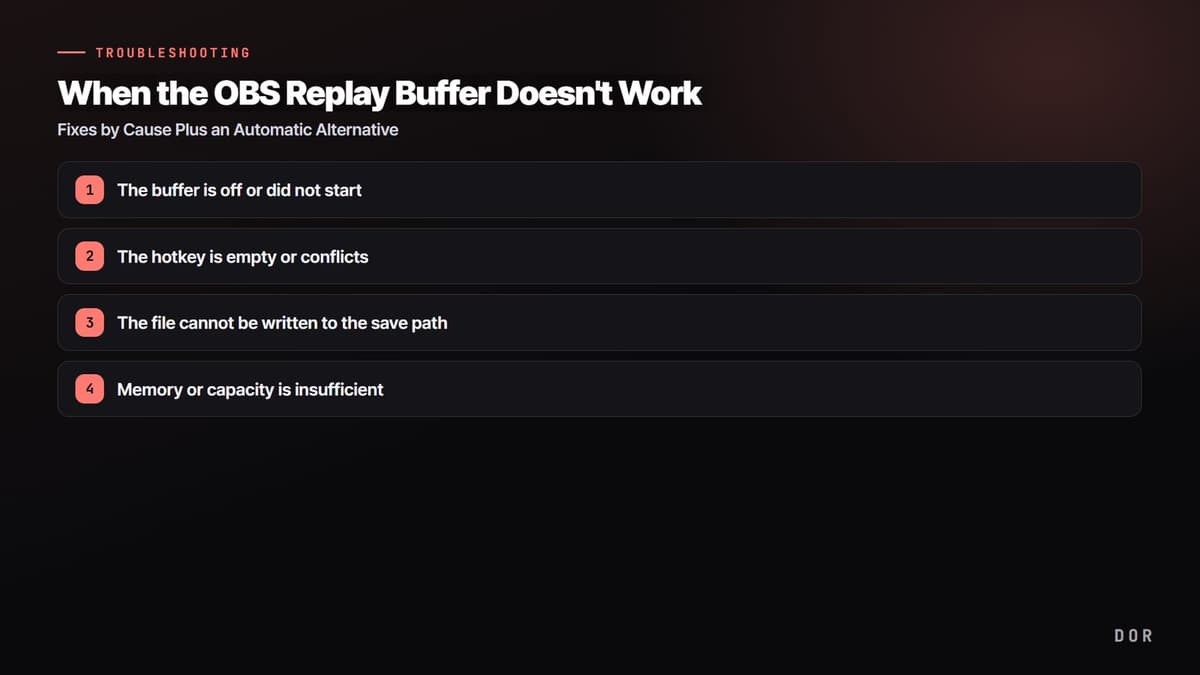
When the OBS replay buffer won't work, the cause narrows down to fewer things than you'd think. Most of the time the buffer simply is not turned on, the save hotkey is unassigned or conflicts with another key, the save path cannot be written to, or memory capacity is insufficient. Go through them one by one in order and almost everything is resolved. This article briefly walks through setup and the order of use, then focuses on fixing it by cause when it still won't work after you've set it up.
The short answer: the four fastest checks when the replay buffer leaves nothing behind
Check in this order, which matches Causes 1 to 4 below: ① that you actually pressed Start Replay Buffer on the main window, ② that the Save Replay hotkey on the Hotkeys tab in Settings has a key and does not clash with the game or an overlay, ③ that the Recording Path under Settings then Output is an existing local folder, and ④ that Maximum Replay Time and Maximum Memory fit your PC (verified 2026-09-15 against OBS Studio 32.2.2). If your goal is keeping footage of a game DOR supports rather than streaming, you do not need to go through this at all. DOR is a free Windows app that detects supported games and records the full match automatically into its library, so there is no buffer to keep running and no save key to press; you trim what you need in the browser clip editor (nothing to install) and share a dor.gg link.
OBS Replay Buffer setup and use sequence
- 1Enable Replay Buffer in Output settingsTurn on the buffer option and check the length of the previous segment to save and its memory limit.
- 2Assign a save hotkeyUnder Settings → Hotkeys, choose a combination that does not overlap with game controls or another overlay.
- 3Start the buffer from the main screenEnabling the setting and actually running the buffer are different states. Before the game, confirm that the start control is active.
- 4Save a short test filePress the hotkey and confirm that a file is created with both picture and game audio.
First, narrow down the likely causes
Here are the four checks from the short answer above, in detail by cause.
- Buffer off or not started: you only enabled it in settings but did not press Start Replay Buffer, or you turned it on while a stream or recording was running so it has not applied yet
- Hotkey problem: the save hotkey is empty, or it conflicts with the game's or another program's key
- Save-path problem: the recording save folder does not exist, has no permission, or is a network drive so the file cannot be written
- Memory or capacity problem: the maximum replay time is set too long so RAM is insufficient, or there is no free disk space
Cause 1. The buffer is off or did not start
This is the most common cause. Under Settings then Output the Enable Replay Buffer checkbox must be on, and if you turn it on while every output (streaming, recording, virtual camera) is stopped and press OK or Apply, the button appears immediately with no restart needed. If you turn it on while a stream or recording is running, in either mode it does not take effect until the output has stopped and the settings are applied again, so stop the output, then under Settings then Output untick and re-tick Enable Replay Buffer and apply (some output setting has to change for it to apply), or restart OBS. Then check whether the Start Replay Buffer button is visible in the control panel on the right of the OBS main screen, and whether you actually pressed that button before the game. If you do not press Start, nothing is held in memory, so there is no video to save even when you press the hotkey.
- 1The buffer is off or did not start
- 2The hotkey is empty or conflicts
- 3The file cannot be written to the save path
- 4Memory or capacity is insufficient
Cause 2. The hotkey is empty or conflicts
If the buffer is running but it won't save when you press the hotkey, nine times out of ten it is a hotkey problem. Go to Settings then Hotkeys and check whether a key is actually entered in the Save Replay item. This item is not in the streaming and recording group at the top but in the Replay Buffer section further down the list, and it is empty by default, so it is often overlooked. If the key is empty, nothing responds no matter how much you press.
If it won't work even though a key is assigned, suspect a conflict. If it overlaps with an in-game control key or a global hotkey from another program like the Discord or NVIDIA overlay, the signal does not even reach OBS. Try changing it to a key rarely used in games like F9, or a Ctrl or Alt combination. In particular, there are cases where the hotkey does not register when the game runs in fullscreen (exclusive fullscreen); switching to borderless window mode resolves most of them.
Cause 3. The file cannot be written to the save path
If the buffer is running and the hotkey registers, but no file ever appears, check the save path. If the recording path under Settings then Output points to a folder that does not exist, is a location with no write permission, or is an external or network drive that loses its connection, saving fails silently. Change the path to an existing folder on a local drive and check that there is enough free disk space. The save format is also worth checking. Leaving it as mp4 can, in certain situations, corrupt the file or fail to keep it, so mkv is safer for replay and recording.
If you are unsure whether it even saved, open the recent log under the top menu Help then Log Files in OBS. The save attempt and the failure reason are recorded there, so you can pinpoint whether it is a path-permission problem or an encoder problem.
Cause 4. Memory or capacity is insufficient
The replay buffer always holds video equal to the maximum replay time in RAM. If you set this value large, like 120 or 300 seconds, or use high-quality settings like 1080p and 60fps, memory usage rises sharply, so on a PC short on RAM the buffer start itself fails or OBS becomes unstable. Try lowering the maximum time to 20 to 30 seconds and reducing the resolution and frame rate. Also, if the destination drive has no free space, the file naturally won't remain, so check disk capacity together.
Quick lookup by symptom: short saves, failed to start, Maximum Memory
The symptoms people search for most often, checked against OBS Studio 32.2.2 (verified 2026-09-15). Text in quotation marks is the exact English label in that version of OBS.
| Symptom | What to look at first | Fix |
|---|---|---|
| It saves, but shorter than the time you set | Maximum Replay Time and Maximum Memory under Settings then Output. The buffer drops its oldest footage once the memory limit is reached, so if memory fills first, the file is shorter than the time limit. Right after starting the buffer, it only holds what has elapsed so far. | Raise Maximum Memory (the cap is 75% of installed RAM) or lower Maximum Replay Time, output resolution, and frame rate. Let the buffer run for at least the Maximum Replay Time before you save. |
| A "Failed to start replay buffer" dialog appears | The recording encoder could not start. Read the log as the dialog says, and if you use the NVENC or AMD encoder, make sure your graphics driver is current. In Advanced mode, the replay buffer cannot be used when the recording type is "Custom Output (FFmpeg)". | Read the failure reason under Help then Log Files then View Current Log, then apply whichever fits: update the driver, change the recording encoder, or set the recording type back to "Standard". |
| The "Enable Replay Buffer" checkbox is greyed out | The checkbox is disabled while the replay buffer itself is running, when Simple mode recording quality is "Lossless Quality", or when the Advanced mode recording type is "Custom Output (FFmpeg)". If only a stream or recording is running you can still tick it, but it does not take effect until the output has stopped and the settings are applied again. | If the buffer is running, press Stop Replay Buffer and reopen Settings; if lossless quality or the custom output type is the reason, change the recording quality or recording type, then enable it. |
| The PC slows down while the buffer runs | While the buffer runs, the same encoder as recording runs continuously, so the load equals leaving a recording on. A longer Maximum Replay Time also raises RAM use, and if Settings warns that the estimated memory usage exceeds the recommended maximum, the value is already too high. | If your graphics card supports it, set the recording encoder to a hardware encoder such as NVENC, and reduce output resolution, frame rate, and Maximum Replay Time. |
| "Can't start backtrack when no replay buffer is found" appears | This is not an OBS message; it is the Backtrack error from the Aitum Vertical Canvas plugin (as of 1.6.4). It appears when "Enable Replay Buffer" is off under OBS Settings then Output, so no replay buffer output exists. If the Advanced mode recording type is "Custom Output (FFmpeg)", you get a different message instead: "Can't start backtrack when recording is set to custom ffmpeg". | Turn on "Enable Replay Buffer" under OBS Settings then Output, keep the recording type at "Standard", then start Backtrack again. |
Maximum Memory vs Maximum Replay Time: which one decides the length
The defaults are a Maximum Replay Time of 20 seconds and a Maximum Memory of 512MB. The Maximum Memory field only appears, and only applies, when Simple mode recording quality is not "Same as stream", or when the Advanced mode recording encoder's rate control is not CBR, VBR, or ABR (quality-based modes such as CQP or CRF). In every other setup, OBS only shows an estimated memory usage computed from time and bitrate, and the length is decided by Maximum Replay Time alone. Where Maximum Memory applies, raising quality shrinks how many seconds fit in the same 512MB, so if saves come out short, check this value first.
When the hotkey fails only while you are in a game
- If Hotkey Focus Behavior under Settings then Advanced is set to "Disable hotkeys when main window is not in focus", hotkeys stop working whenever the game is in front. Change it to "Never disable hotkeys".
- Replays cannot be saved while a recording is paused. OBS warns "Replays cannot be saved while recording is paused", so resume or stop the recording and press the key again.
- How to tell whether it is the hotkey: once the buffer is started, a save icon button (hover shows "Save Replay") appears next to Stop Replay Buffer in the Controls dock. If that button saves but the key does not, the problem is on the key side.
- How to confirm a save: on success the status bar briefly shows "Replay buffer saved to '…'" and the log (Help then Log Files then View Current Log) gets a line reading Wrote replay buffer to '…'. If the line is there, open that path; if neither the status bar message nor the log line appears, the hotkey did not trigger a save.
An alternative with no buffer setup or hotkey: DOR automatic save
That covers the causes to check when the OBS replay buffer won't work. But if repeating this check every time is itself a hassle, an approach with no buffer or hotkey in the first place becomes the answer. DOR does not require you to enable, start, and assign a hotkey like a replay buffer does. That is because it records the full match on its own whenever you launch a supported game, and in games with auto clips such as League of Legends or Valorant it also auto-detects in-game kills and highlights and saves those moments as clips.
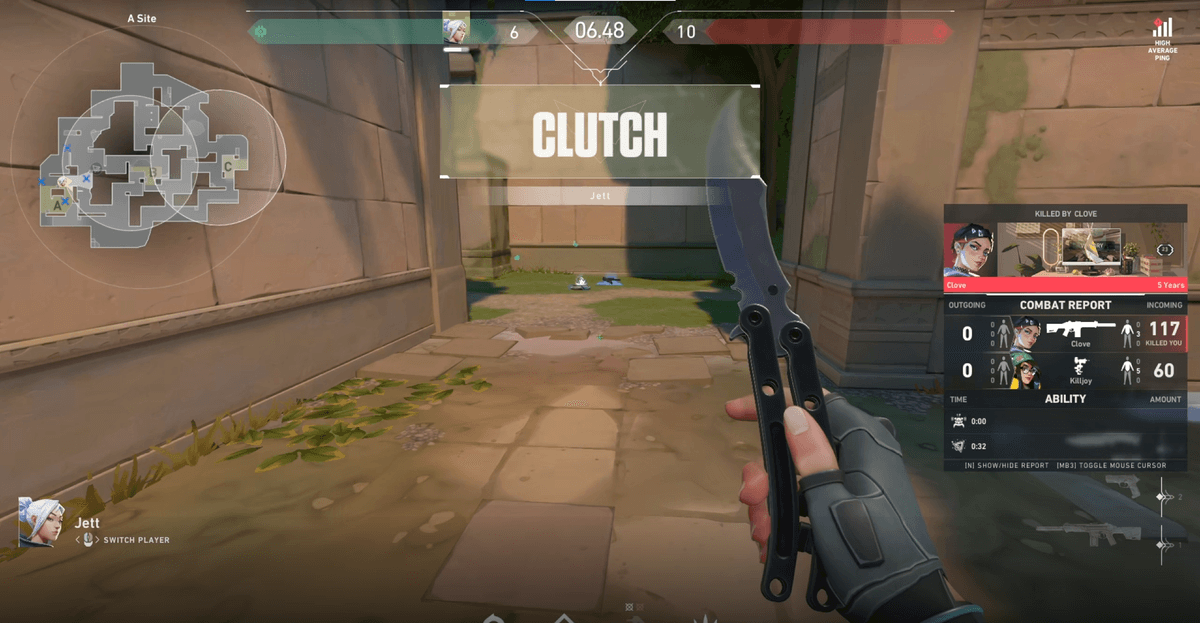
Leave it installed, and the moment you launch a supported game like Valorant or League of Legends it works on its own and records the full match; in games with auto clips, which includes both of those, the kill highlights are also cut as separate clips by the time you close the game. Other supported games keep the full-match recording, and you trim what you need in the browser clip editor. Steps like enabling the buffer, pressing Start, assigning a hotkey and checking for conflicts, and verifying the save path disappear entirely, so there is no cause to hunt for at all. NVENC hardware encoding is the default, so the load is light too, and it's free with no watermark.
In short, if you want to handle broadcasting and editing yourself and hand-pick which moments to save, pinpoint the cause and fix your OBS replay buffer. Conversely, if you are tired of hunting for the reason it won't save every time and your goal is to reliably keep only the good moments, DOR, which removes that process through automatic detection, takes the least effort.
 #Valorant