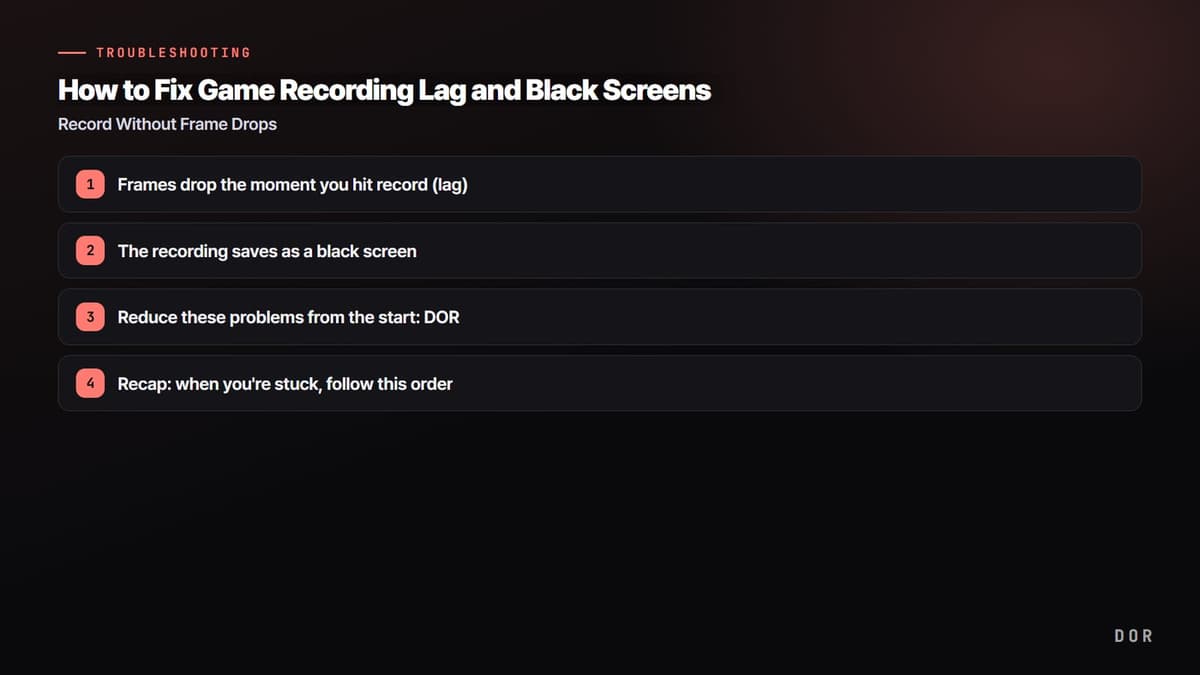
If the game screen is perfectly smooth but only the recorded video stutters or lags, the cause is almost always set. Either the x264 encoder that compresses video on the CPU can't keep up, or the bitrate is too high for your disk and encoder to follow, or the GPU is maxed out at 100% leaving no room for the encoder. Let's start with the bottom line: switching the encoder to NVENC, lowering the bitrate to a proper value, and clearing out the background, those three things fix it in most cases.
Below are the exact menu paths and recommended values for OBS Studio. Apply them in order from the top, tailored to your PC's specs. Often just doing Step 1 makes the stutter disappear.
First, Identify 'Which Stage' the Stutter Happens At
Before blindly changing settings, checking the status bar at the bottom right of OBS and the Stats window (top menu View → Stats) first lets you quickly narrow down the cause. The place to fix differs by symptom.
- 'Encoding overloaded' red warning → the encoder can't compress frames in time. Fix with an NVENC switch and lower bitrate
- 'Frames missed due to rendering lag' → the GPU is saturated at 100% with game + recording. In-game frame cap and clear out the background
- 'Disk write missing' → the storage drive can't keep up. Change the save location to an SSD or lower the bitrate
- No warning but the video stutters slightly → suspect variable frame rate or background interference like Discord
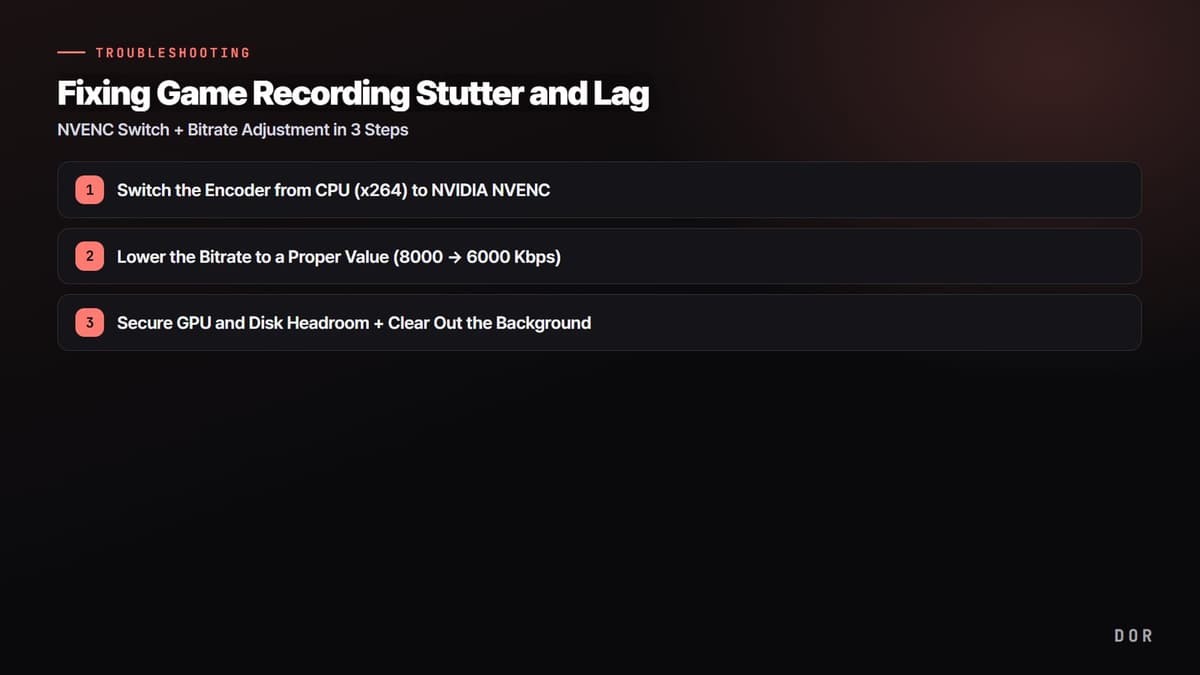
- 1Switch the Encoder from CPU (x264) to NVIDIA NVENC
- 2Lower the Bitrate to a Proper Value (8000 → 6000 Kbps)
- 3Secure GPU and Disk Headroom + Clear Out the Background
Step 1: Switch the Encoder from CPU (x264) to NVIDIA NVENC
The top cause of recording stutter is CPU encoding. x264 compresses video on the CPU, but if the game is already using the CPU, real-time compression falls behind and frames get dropped. If you have an NVIDIA graphics card (GTX 10 series or higher), using the dedicated encoding chip built into the GPU (NVENC) is the answer. NVENC has almost no impact on game performance, and the latest RTX 30/40 series NVENC is cleaner than x264 'medium' at the same bitrate.
OBS Setting Path
- Settings → Output → change Output Mode to 'Advanced'
- 'Recording' tab → set Encoder to 'NVIDIA NVENC H.264' (or HEVC/AV1 for RTX 40 series)
- For an AMD graphics card, select 'AMD HW H.264'; for Intel integrated/laptop, select 'QuickSync H.264'
- If you have no graphics card or a very powerful CPU, keep x264 (in which case set the preset to 'veryfast')
Step 2: Lower the Bitrate to a Proper Value (8000 → 6000 Kbps)
Cranking up the bitrate blindly seems like it would improve quality, but in reality the encoder and disk can't keep up and it actually causes stutter. In particular, saving to an HDD or leaving it at a high-bitrate VBR makes disk write misses likely. For 1080p60, around 6000 Kbps is plenty clean.
For the Easy Route via the Rate (CBR) Method
- Recording tab → select Rate Control 'CBR'
- 1080p60: if it stutters at 8000 Kbps bitrate, lower it to 6000 Kbps
- 1080p30: 4500-6000 Kbps is plenty
- 720p60: 3500-4500 Kbps recommended
If You're Going for Quality-First (CQP)
For local recording, a quality-based (CQP) method is actually more efficient per file size than a fixed bitrate. With NVENC, set Rate Control to 'CQP' and set the CQ Level (CQ value) between 18 and 22. The lower the number, the higher the quality and the larger the file. 18 is nearly lossless; 22 is light and plenty clean.
Step 3: Secure GPU and Disk Headroom + Clear Out the Background
If it still stutters even after switching to NVENC, the GPU may be maxed out at 100% from game rendering alone, leaving no room for the encoder. The key is to cap your frames in-game to give the GPU a little breathing room.
- Set a frame cap in-game (for example, cap at 142fps for a 144Hz monitor) to prevent GPU saturation at 100%
- Discord → User Settings → Voice & Video / Appearance, turn off 'Hardware Acceleration' (the bigger the effect, the lower-end your PC)
- Turn off duplicate recording/overlay features running at once, like GeForce Experience and Xbox Game Bar
- Change the recording save location to an SSD rather than an HDD (Settings → Output → Recording Path)
- Running OBS 'as administrator' makes Windows give it GPU priority, reducing stutter
- Stutter from heat is also common. If the CPU is 85-95°C or the GPU is over 80°C, clocks drop, so check your cooling and dust cleaning
If Doing These Settings Every Time Is a Hassle
If you've followed along this far, you've probably felt it. Choosing the encoder type, deciding the rate control method, setting the CQ value, and re-setting the frame cap for each game, this process is quite a hassle in OBS. Set just one thing wrong and it stutters again.
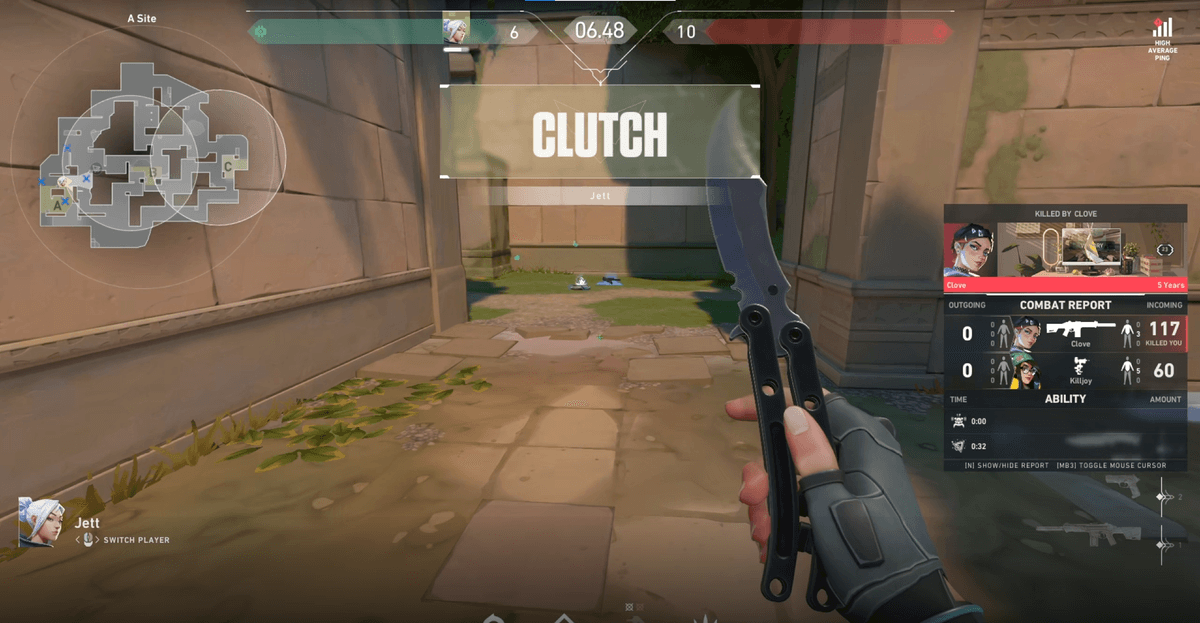
DOR sets hardware encoding like NVENC as the default, so you don't have to touch the settings above yourself. The moment you turn it on, it handles GPU load and bitrate on its own and records without stutter. The difference is especially large in FPS games where frames matter, like PUBG or Valorant, when you want to keep game performance intact and just get smooth video. If you need clean recording without complicated encoder settings, give DOR a try.
To sum up, the order is simple. Switch to NVENC → bitrate 6000 Kbps (or CQP 18-22) → GPU frame cap and clear out the background. These 3 steps make most game recording stutter disappear.