Let's start with the conclusion: OBS is not a bad program, it may just be too big a program for you. OBS is built so that the user configures scenes, sources, encoders, and audio tracks directly, so it is the best for broadcasting but becomes a barrier for a beginner who just wants to record a game. If you opened the window and saw a black screen and empty lists and thought, "What did I do wrong?" you did not do anything wrong; you chose the wrong tool. If the setup itself is not the goal and your goal is simply for recording to happen, now is the time to switch to automatic recording.
Why does OBS feel so uniquely complex?
OBS feeling hard is not a skill problem but a design-philosophy problem. OBS is a tool that moved broadcast equipment into software, so it hands the user the very work once done in a real broadcast control room. That is why when you first open it you face an empty screen where nothing is recorded. Only once you define everything, what to capture and how to capture it, does the first frame finally come in.
The first place you get stuck is scenes and sources. A scene is the layout of a single shot, and sources are the ingredients you place inside it (game screen, webcam, image, text). To someone who just wants to record the game, the very process of creating a game capture source, specifying which window to grab, and changing the capture mode when it does not grab is already a chapter's worth of study. This is mostly where a beginner stalls at a black screen (game capture failure).
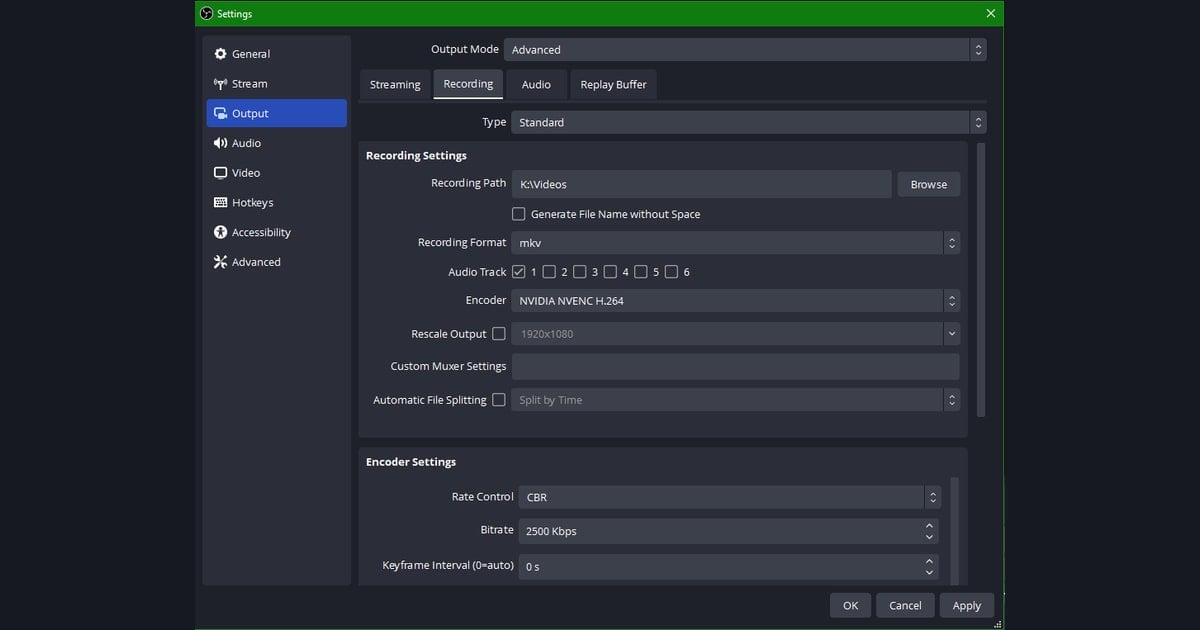
Next comes the encoder. Under Settings then Output, you have to pick yourself whether to go x264 (CPU) or NVENC (GPU), what bitrate to use, and whether to save as mp4 or mkv. If the default is set to CPU encoding, your game frame rate drops the instant you turn on recording, leaving only the impression that recording causes lag. In reality you just need to change one line, the encoder, but the reality for a beginner is not knowing where that one line is.
On top of this come audio tracks. Splitting the game sound and mic into separate tracks, specifying the desktop audio device, and setting things up so you can adjust each track in editing later, all of that is the OBS orthodoxy. It is a blessing for broadcasters, but for someone who just wants to keep one highlight, the window merely looks complex because of features they will never even turn on.
"I just want recording to happen" is already the answer showing itself
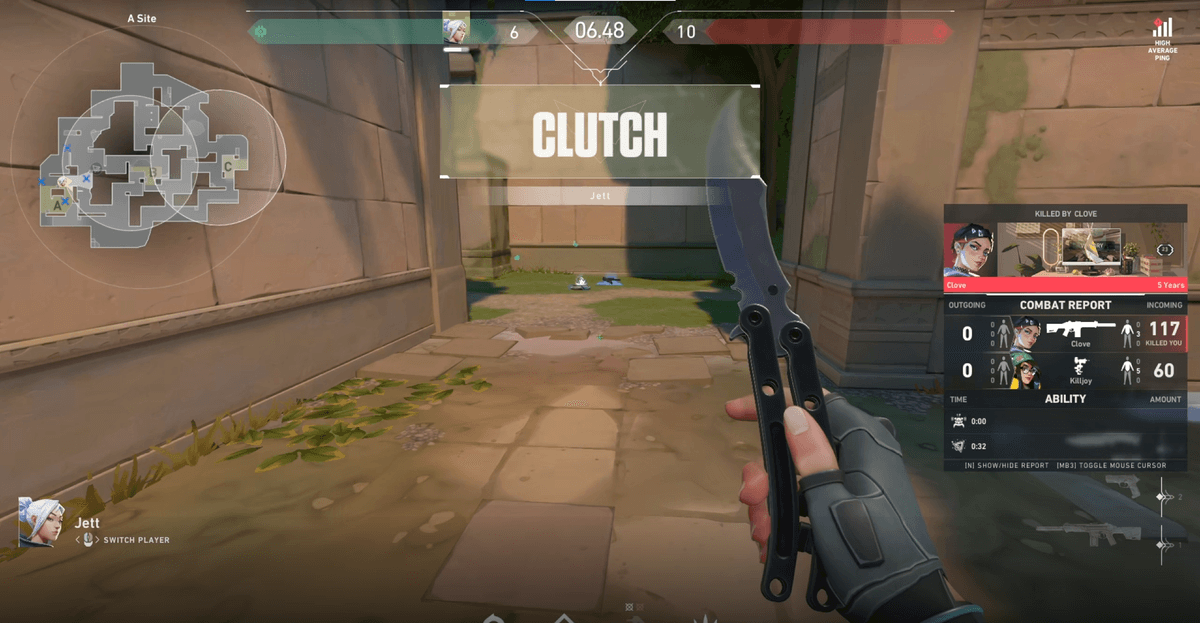
If, while searching for OBS setup videos, you suddenly thought, "But I wasn't trying to broadcast," that is the moment to switch. Perfectly learning the settings and keeping game footage are entirely different goals. The former is about handling a tool; the latter is about just having the result. Most people want the latter while their feet are tied to the former. Especially when gaming, the highlight always comes when recording is off. A Valorant clutch round or a decisive ace erupts without warning, and there is no room each time to go back to the OBS window, check the source, and press the record button. If "I got worn out setting up, so today I'll just game" keeps repeating, it means the tool is getting in the way of your play.
How to switch to automatic recording: install, launch a game, done
DOR is a tool that removes the very premise that you operate the recording. You do not create a scene, specify a source, or pick an encoder. After installing, just launch League of Legends or Valorant as usual, and DOR auto-detects the game and starts recording on its own. All you have to do is play.
- Step 1: download the installer from the official DOR site and install it. There is no separate scene or source setup screen.
- Step 2: with DOR running, launch a game as usual. If it is a supported game, it is detected automatically.
- Step 3: once the game starts, recording runs automatically. No need to press a record button or switch back and forth between windows.
- Step 4: when the game ends, clips organized around kills and highlights pile up. No need to dig through long footage to find segments.
The key difference is that a person does not decide what to record and when. If OBS is the way where you become the director and operate the control room, DOR is the way where things are kept on their own once you leave the game running. You do not have to know what an encoder is, and you never wrestle with a black screen. Rather than learning to overcome the complexity, you move to a side where the complexity is unnecessary.
There are also people who should keep using OBS
Honestly, not everyone has to switch. If you stream live in real time, need to finely arrange a webcam, overlays, alerts, and multiple scene transitions on screen, or need to split audio tracks and mix them precisely in post, OBS's freedom is hard to replace. That complexity exists because it is needed, and for such people OBS is still the best tool.
But if you had no such needs and were still clinging to a broadcasting tool and just repeating setup, that is closer to wearing the wrong shoe. If your goal is not to handle broadcast equipment but to keep your own good plays, deciding to end the struggle with OBS is not giving up but tidying up. Try choosing the side where, when you launch a game today, highlights are already piled up on their own. Giving the time you spent on setup back to the game is the first reward of switching. Rather than beating the complexity, moving to a spot where complexity is unnecessary is a perfectly wise choice too.
 #Valorant