You make a highlight clip, send it to a friend, and get back "I can't hear your voice at all," and the wind goes out of your sails. The opposite is common too: the game sound is booming but your mic voice is buried, so nobody can tell what you said. In game footage, sound is as important as image quality. You have to capture both the "desktop audio" like game sound effects and BGM, and the "mic input" of you talking, at a balanced volume no less, for the viewer to understand the situation. This article lays out how to record game sound and mic together, in order from the concept of simultaneous capture to track splitting for editing, Windows settings, troubleshooting, and reducing noise.
Game Sound and Mic, Why They Go Their Separate Ways
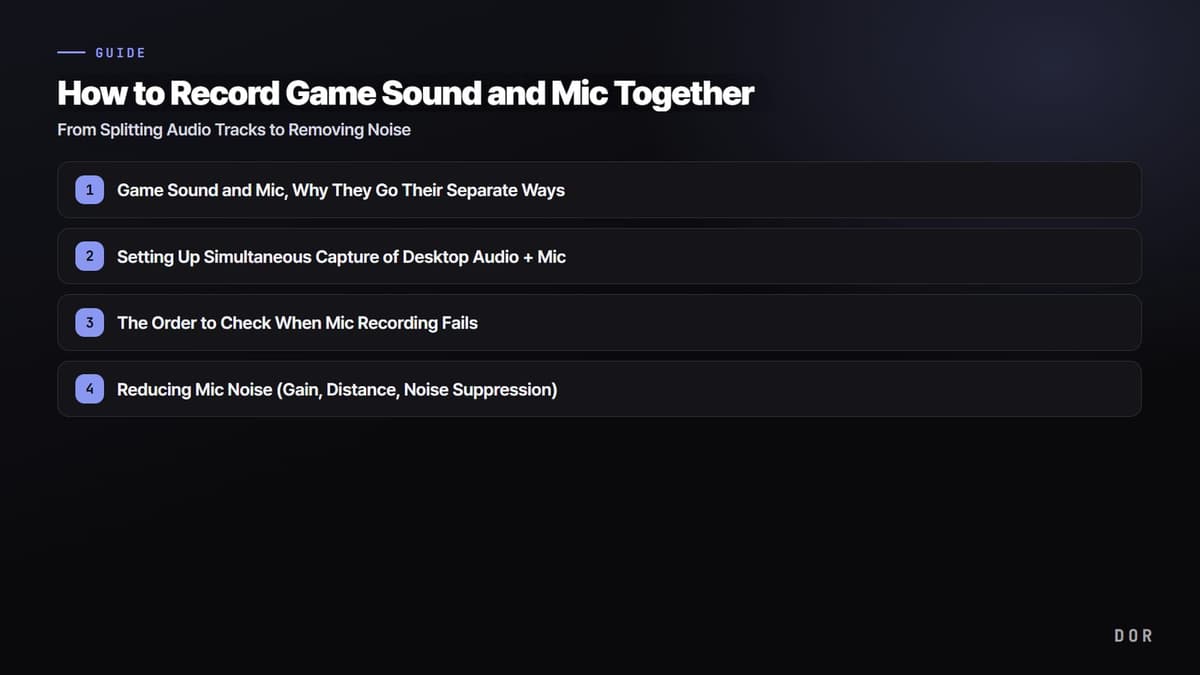
The sound from your computer falls into two broad streams. One is the "output (desktop audio)" that goes out to your speakers (or headset), like games, YouTube, and Discord calls; the other is the "input" that comes in through your mic. The recording program does not automatically combine these two. In default settings, often only the output gets captured or only the input does, so unless you turn them on separately, you end up with a video missing one side entirely. "I can hear the game sound but my voice isn't there" mostly happens because the mic input is not included as a recording target.
So the key is simple. Set it up to capture both sources, desktop audio and mic, at the same time. The gunfire and ability sounds of a Valorant match need your calls captured along with them for the clip to come alive.
Setting Up Simultaneous Capture of Desktop Audio + Mic
Taking OBS as an example, in Settings, then Audio, you need to assign "Desktop Audio" and "Mic/Auxiliary Audio" each to the device you are using. For desktop audio, pick the speakers/headset the game sound goes out to; for the mic, pick the input device you actually talk into. When both boxes are filled and the two bars in the audio mixer at the bottom of the main screen each move when you talk and when you play, simultaneous capture is working. If one bar is dead, that source is not being captured, so recheck the device assignment.
By contrast, DOR does not require the user to touch this process. When it detects a game and starts recording, it captures desktop audio and the mic together by default, and balances the volume of both sides when making a clip. The whole accident of "I forgot to turn on the mic so my voice is missing" gets reduced.
Recording with Split Audio Tracks, Where Your Editing Freedom Changes
If you record game sound and mic mixed onto one track, then later discover "the game sound is too loud and buries my voice," there is nothing you can do. They have already been merged into one lump. So if you seriously plan to edit, we recommend "recording with split audio tracks." Save game sound on track 1 and the mic on track 2 as separate tracks, and in your editing program you can boost or lower just one side's volume, apply noise removal to only the mic, and handle them separately.
How to Split Tracks in OBS
In OBS, under Settings, then Audio, then Advanced, you can decide which track each source goes to. In the audio mixer's gear icon, then Advanced Audio Properties, check desktop audio onto track 1 and the mic onto track 2. Then, under Settings, then Output, then Recording, turn on multiple "audio tracks" (say, both 1 and 2), and the split tracks get saved together inside the mkv/mp4. Load a file recorded this way into your editing program and you can adjust the volume of each track separately.
If Splitting Tracks Feels Like Too Much
Honestly, splitting tracks matters for "people who will actually edit." If you are just going to pull quick clips and share them, there is no need to go through complicated settings. DOR captures game sound and mic together while automatically balancing the volume at the clip stage, so even without splitting tracks yourself, you get a result where the voice is not buried. As long as the call you shouted in a League of Legends teamfight is heard without being buried under the game sound, that is plenty for most sharing purposes.
Getting Windows Sound Settings Right (Output and Input Devices)
No matter how well you set up the recording program, if Windows' own sound devices are tangled, the sound will not get captured. Right-click the speaker icon in the taskbar, then "Sound settings" (or Settings, then System, then Sound), and check two things. First, whether the output device is set to the headset/speakers you actually hear the game sound from. Second, whether the input device is assigned to the mic you actually talk into. When you plug in a new headset or connect Bluetooth, the default device often quietly changes.
The input device screen usually has a "mic test" bar. If this bar moves when you speak, Windows is receiving the mic normally, and if it still does not get into the recording, the problem is not Windows but the recording program. Breaking it down to see "how far it is working" is the key to troubleshooting.
The Order to Check When Mic Recording Fails
"Only the game sound records and the mic doesn't get in" is the most common headache. Do not poke at random; go through the order below one by one and you will catch almost all of it. Work down from the top to find where it is blocked.
- 1) Windows mic permission: In Settings, then Privacy, then Microphone, check that "apps can access the microphone" and desktop app access are on. If they are off, no program can receive the mic.
- 2) Default input device: In Sound settings, check that the mic you actually talk into is set as the "default device." With multiple mics, the wrong device may be the default.
- 3) Mute and volume: Check the mic's own mute button (including a headset inline switch), that the Windows mic volume is not 0, and that the mic is not muted in the recording program's mixer.
- 4) Recording program input device: Check that OBS's Mic/Auxiliary Audio device is assigned to the correct mic, and that the bar moves when you talk.
- 5) Exclusive mode: On some devices, if "exclusive mode" is on, other apps cannot grab the mic. In Device Properties, then Advanced, try turning exclusive mode off.
Checking in this order gives you a clear big-picture flow of "permission, then device, then mute, then program." For reference, DOR assumes mic capture by default at install, so as long as items 1-2 above (permission and default device) are fine, the mic often gets recorded together without separate input device settings.
Reducing Mic Noise (Gain, Distance, Noise Suppression)
Sometimes the mic does get in, but a "hissing" noise or keyboard sound comes in with it and grates. Adjust just three things and most of it improves. First, do not set the mic gain (input sensitivity) too high. Excessive gain amplifies even small noise loudly. The right level is when the bar moves around the middle without spiking all the way into red as you speak. Second, keep the distance between your mouth and mic consistently within about a hand's width, and the voice-to-background-noise ratio improves. Too far and you end up raising the gain, which makes the noise grow again, a vicious cycle.
Third, turn on noise suppression (noise gate and noise suppression). In OBS, under the mic source, then Filters, you can add "Noise Suppression (RNNoise)" and a "Noise Gate." Noise suppression reduces steady background noise, and the noise gate cuts off everything below a set volume (the moments you are not speaking) entirely, reducing things like keyboard clatter. If you hate excessive breathing and key-clatter getting in during tense moments like in PUBG, the gate is especially useful.
Recording Discord Calls Together Too
If you played a game while chatting with your party on Discord, you often want that call audio in the clip too. The voices of the other people on a Discord call go out as "desktop audio (output)," so if you set up desktop audio capture earlier, they get recorded automatically along with the game sound, no extra steps needed. In other words, game sound effects + your Discord friends' voices + your mic, all three streams get captured in one video.
That said, if you want to handle the call audio "separately from the game sound," it is a different story. In that case, you use a tool like a virtual audio cable to route the Discord output to a separate device and record it on a separate track. It tends to be fiddly to set up, so if your goal is simply "it just needs to be heard together," desktop audio capture alone is plenty. If you are just going to leave quick clips, a method like DOR's, which captures desktop audio and the mic together by default, takes the least effort.
Check the recommended settings and automatic clip examples on the pages for the games you play most, Valorant, League of Legends, PUBG.