Here's the bottom line: in Rainbow Six Siege, the surest way to never miss a clutch clip is to record the whole round and cut out just the segment where the clutch popped. Pressing the record button by hand is almost always a beat too late. After all, you can't know in advance the moment a 1v3 or 1v4 situation begins and turn recording on for it.
In this article, we first show you step by step how to set up round-by-round recording manually, then lay out how to automatically detect kills and clutches and save just those segments. The same principle works in other tactical FPS games like Valorant or CS, but R6 in particular makes setup more important because of round length.
Why saving clips is especially tricky in R6
In R6, a round is long, and the decisive moments cluster in the latter half of the round. As the prep phase, drone scouting, entry, and engagement unfold one after another, the clutch almost always pops in the final 30 seconds. The pace per round is longer than in Valorant or Counter-Strike, so if you don't turn recording on from the start, it's easy to lose the all-important 1v3 defuse segment entirely.
On top of that, R6 highlights come in many varieties. Aces (a solo 5-kill), 1v1, 1v2, and 1v3 clutch defuses, headshots through walls, operator gadget plays, drone and camera outplays, and more. You can't know in advance when these moments will happen, so recording the whole round in one piece ends up being the answer.
Method 1: Manual setup with in-game capture and the OBS replay buffer
If you're starting without spending money, OBS's replay buffer is the most reliable. The replay buffer is a feature that continuously holds a set duration of the screen in memory, then saves that preceding segment to a file when you press a hotkey. Even just pressing the hotkey right after a clutch ends saves the moment that just happened.
- Launch OBS and turn on 'Enable Replay Buffer' under Settings > Output > Replay Buffer tab.
- Set the maximum replay time to 90 to 120 seconds. This much is safe for capturing the latter half of an R6 round in one piece.
- Under Settings > Hotkeys, assign the 'Save Replay' key to an easy-to-reach spot (e.g. F9).
- Add a game capture to your sources and hit 'Start Replay Buffer' at the bottom of the main screen.
- Press the save hotkey immediately after a clutch or ace happens in the round.
If you want a console or lightweight setup, Xbox Game Bar or GeForce Experience's Instant Replay works on the same principle. That said, you have to nail the hotkey timing every time, and when you're locked in on the engagement, it often happens that you forget to save right after the clutch.
Method 2: Auto-detect kills and clutches and save just those segments
The limits of manual setup are clear. A clutch pops at the moment your concentration is at its peak, and grabbing the save hotkey at exactly that moment isn't easy. That's why, these days, the approach of automatically detecting kills and clutches and cutting just those segments into clips has taken hold.
R6 rounds are long and clutches come late, so you have to turn recording on in advance, but DOR automatically detects kills and clutches and saves those segments as clips. Without pressing a hotkey, the moment you clean up a 1v3 at the end of the round piles right into your clip folder.
- Install DOR and select Rainbow Six Siege as a recognized game.
- Turn on auto clip detection and set events like kills, multikills, and clutches as save targets.
- Play as usual. There's no need to press a hotkey separately during the round.
- When you finish the game, the ace and clutch segments are organized into individually cut clips.
- Pick just the clips you like, trim their length, and export them for social media.
The real advantage of this method is that 'no clip is missed.' In the days of doing it by hand, it was common to pull off a great 1v4 only to miss saving it and feel the loss, but auto-detection keeps catching events throughout while it runs round by round. It works exactly the same in other round-based tactical FPS games like Valorant or Counter-Strike. The same auto-detection also powers automatic VALORANT clips.
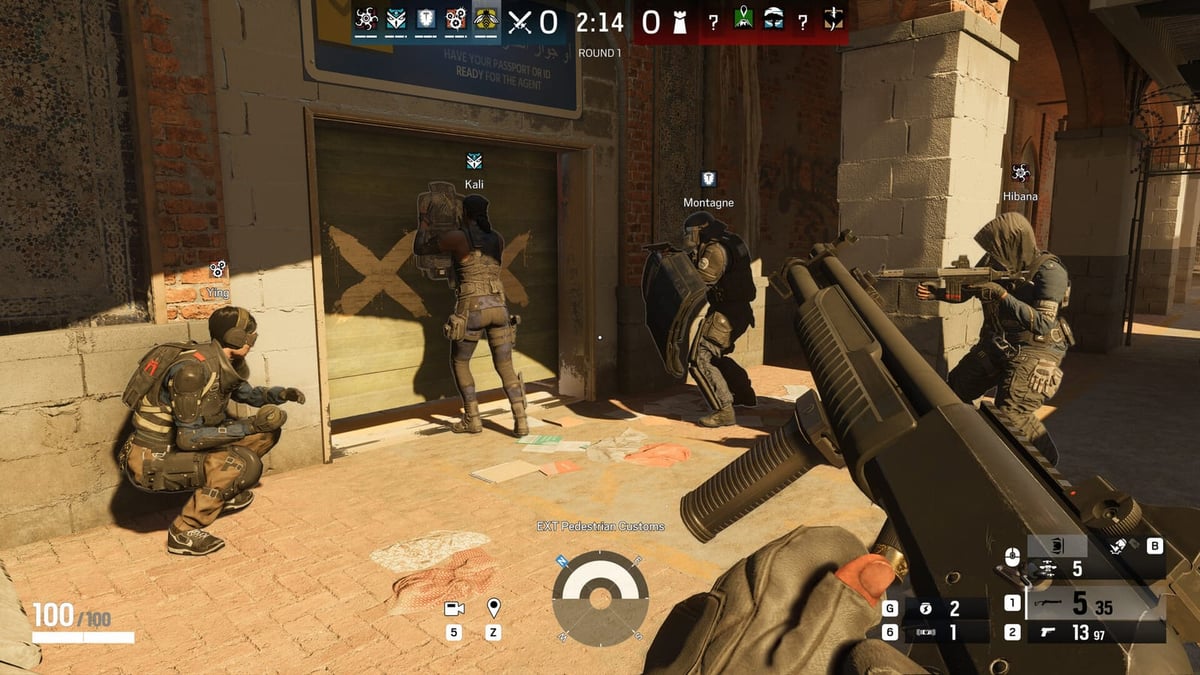
Finishing tips to make your saved clips better
- Pulling the clip's start point to just before the engagement keeps the tension alive. For clutches, the lead-in pacing matters.
- For ace clips, cutting off about 0.5 seconds after the final kill makes for a clean finish.
- For social media, cropping to a 9:16 vertical ratio makes it easy to post right away with no separate editing.
- For audio, record with the game volume turned up a bit so kill sounds and callouts come through clearly.
To sum up, the heart of R6 clips is 'turn it on in advance and pick later.' Starting with a manual replay buffer is fine, but if you want to automatically handle round length and end-of-round clutches, using kill and clutch auto-detection takes far less effort. Either way, what matters is first building an environment where you don't have to agonize over whether to hit the save button after a clutch pops.