If you get an SSD warning after just a few days of recording, nine times out of ten the cause is fixed: you are piling up full-quality, full-length recordings as-is. Recording 1080p/60fps at a generous bitrate piles up 20-30GB an hour, and bumping it to 4K can exceed 100GB an hour. This article points out the four reasons file size blows up and lays out, in order of codec, bitrate, and resolution, the settings that cut file size to less than half while preserving as much quality as possible. At the end, we cover how to eliminate the fundamental problem that settings cannot solve (keeping full recordings in the first place).
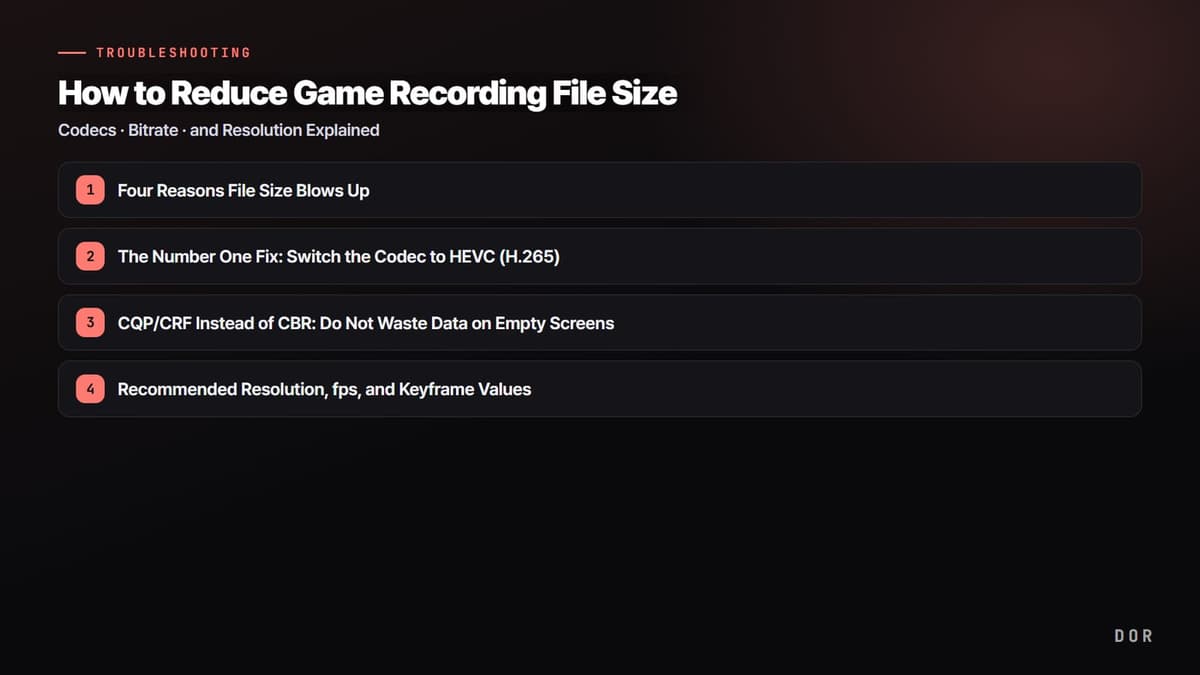
Four Reasons File Size Blows Up
File size is ultimately "data per second (bitrate) x time." So the factors that inflate file size all live inside this formula. Once you know where it leaks, where to plug it becomes clear.
- High bitrate: The most direct cause. Double the bitrate and the file size nearly doubles too. Recording at 50 Mbps piles up about 375MB a minute.
- High resolution: 4K has 4x the pixels of 1080p, so maintaining the same quality requires that much more bitrate. If your monitor is 1080p, recording in 4K is pure waste.
- High fps: 60fps has twice the frames of 30fps, so the file size grows accordingly. Recording at 120fps gives little perceived benefit for the size.
- Keeping full recordings: In a single 30-minute match, the segments you actually rewatch are usually 1-2 minutes. Storing the other 28 minutes whole is the real culprit behind file size.
The Number One Fix: Switch the Codec to HEVC (H.265)
The single change that shrinks size most at the same settings is the codec. Most recordings default to H.264 (AVC), and switching this to HEVC (H.265) shrinks file size by 40-50% at the same quality. A 30GB file becomes 15-18GB. It is not cutting quality, the compression efficiency itself improves, so you save nearly half with no visible loss.
How to Enable HEVC and Compatibility Caveats
In OBS, go to Settings, then Output, then the Recording tab, and switch the encoder to "NVIDIA NVENC HEVC" (for NVIDIA graphics cards, supported on most GTX 950 and later). One caveat is compatibility. HEVC may not open directly in some older editing programs or web uploads, so it is an especially good fit for "storage and archival," not for YouTube uploads. If the footage will go through editing, first check whether your editing tool reads HEVC.
If You Want to Shrink It Further, AV1
The AV1 codec is even more efficient than HEVC, shrinking file size further at the same quality. However, hardware encoding is supported only on the latest GPUs like the RTX 40 series, Intel Arc, and Radeon RX 7000 series, so if your card can handle it, it is the strongest choice for archiving. If your card cannot, HEVC is the realistic number one.
CQP/CRF Instead of CBR: Do Not Waste Data on Empty Screens
How you deliver the bitrate also greatly affects file size. The commonly used CBR (constant bitrate) spends the same amount of data no matter whether the screen is static or chaotic. It pours the full 50 Mbps even into near-motionless sections like a lobby screen, which wastes file size.
By contrast, CQP (Constant Quantization Parameter) or CRF (Constant Rate Factor) sets a "target quality" and spends only as much data as needed to hit it. It automatically lowers the bitrate in low-motion sections to save size, and gives more data only to complex sections like the final fight in PUBG or large-scale explosions in Battlefield 6. The result is lower overall file size at the same quality.
Recommended NVENC CQP: 19-23
In OBS, set Output Mode to "Advanced" and set the recording encoder to NVENC, and you can select "CQP" for rate control. Lower CQP values mean higher quality and larger size; higher values mean lower quality and smaller size. For game recording, somewhere between 19 and 23 is the balance point of quality and size. To shrink with almost no quality loss, use 20-21; to shrink more aggressively, raise it to around 23. Past 23, you start to see mushiness in fast motion.
Recommended Resolution, fps, and Keyframe Values
Once you have set the codec and bitrate method, what remains is resolution, fps, and keyframes. Just lowering overly aggressive values to realistic levels shrinks file size further.
- Resolution 1080p: If your monitor is 1080p or the footage is for YouTube, 1080p is plenty. 4K recording is 4x the size, and most viewers cannot tell the difference.
- fps 60: For an FPS where smooth motion matters, 60fps; for general archiving, 30fps is plenty. 120fps gives almost no perceived benefit for the size.
- Keyframe interval 2 seconds: If keyframes (I-frames) are too frequent, file size grows. A 2-second interval is the standard balance of compatibility and size, and OBS's default recommendation is also 2 seconds.
For a game with fast screen changes like Valorant, around 60fps/1080p/CQP 21 is solid for both quality and size. Conversely, for a slow-paced game or simple records, you can save more with 30fps/CQP 23.
The Fundamental Fix: Save Only Clips, Not Full Recordings
If everything so far is about "making files smaller," the real size problem lies elsewhere. Why store 28 minutes you will never rewatch in the first place? No matter how much you optimize codec and bitrate, as long as you keep piling up full recordings, your SSD eventually fills. In a 30-minute match, the only genuinely valuable parts are the kill scenes, the game-turning teamfight, and a few clutch segments.
So the highest-impact fix is "changing the recording method itself." Instead of storing full recordings whole, save only the moments a peak play happened as short clips, and the file size simply never gets generated. DOR works this way. It auto-detects when a game launches, runs in the background, then cuts and saves only the key moments like kills and aces as short clips. Since there is no 28-minute source, there is no piling up tens of GB an hour, and no need to scrub long footage to find peak moments. The codec defaults to NVENC hardware encoding, so the in-game frame cost is small too.
Re-encode Footage Already Piled Up with HandBrake
Changing settings leaves the old footage already on disk as-is. You can batch re-encode this with the free program HandBrake. Load the footage in HandBrake, switch the video codec to "H.265 (x265)," set the quality to RF 22-24, and encode, and the file size drops to roughly half without significantly harming quality. Lower RF means higher quality and larger size, so 22 prioritizes quality and 24 prioritizes size.
HandBrake supports folder-level queue processing, so drop in your piled-up recordings all at once and run it overnight, and the next day your size has dropped substantially. Once re-encoding is done and you have checked the quality, delete the source to reclaim space. That said, re-encoding is reactive cleanup of "what is already piled up," so to keep it from piling up again going forward, switching the recording method itself to be clip-centric is the right move.
Summary: The Order for Reducing File Size
The priority is clear. (1) Switch the codec to HEVC (H.265) to cut it in half, (2) use CQP 19-23 instead of CBR to eliminate waste in empty sections, and (3) lower overly aggressive values to 1080p resolution, 60fps, and 2-second keyframes. (4) Re-encode what is already piled up with HandBrake RF 22-24. And most fundamentally, move to saving only peak-moment clips instead of full recordings, and the size problem itself nearly disappears. Check the recommended recording settings and automatic clip examples on the pages for the games you play most, PUBG, Battlefield 6, Valorant.