To get straight to it, the surest way to save Valorant ace clips is to leave it to a recording tool that automatically detects kills and aces. Valorant rounds are short, making ace moments easy to miss, but DOR auto-detects kills and aces and saves only those segments as clips. Even when your hands are too busy to hit a hotkey, the decisive scenes pile up in the folder on their own.
This article lays out, step by step, how to gather ace clips with auto-detection and how to use manual backup to complement it. This flow applies as is to other tactical shooters like Counter-Strike, not just Valorant, so learn it once and you can use it the same way even if you switch games.
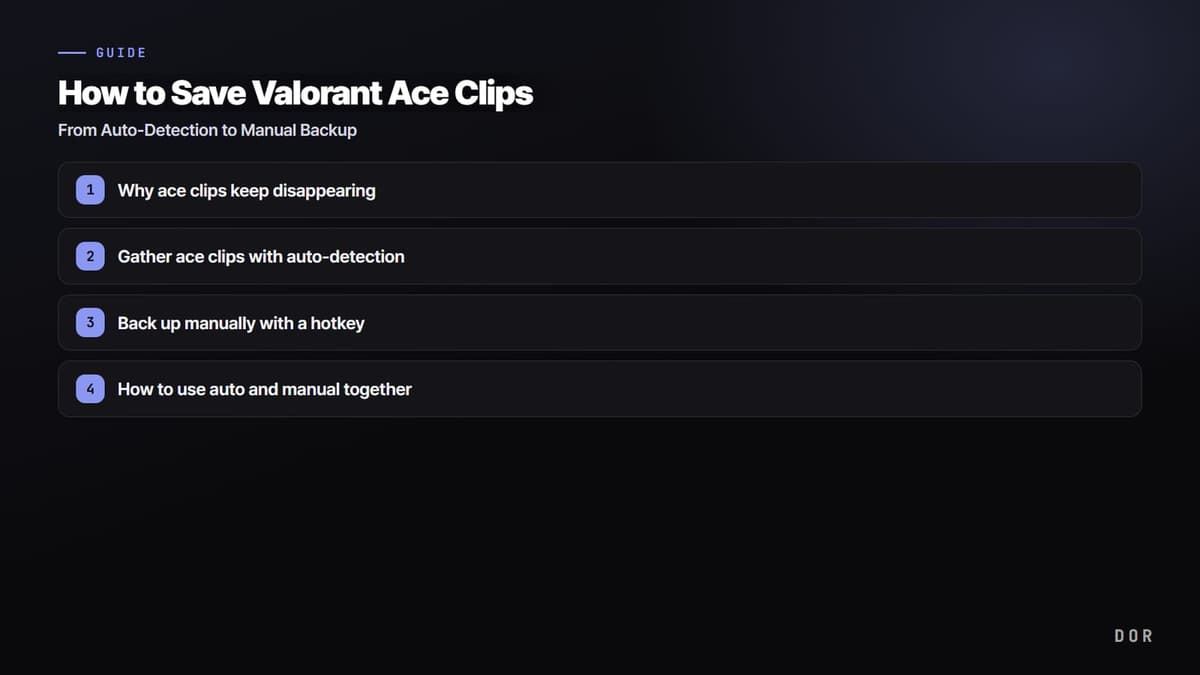
Why ace clips keep disappearing
A Valorant round is at most around 100 seconds, and the moment an ace happens is usually crammed into the last few seconds. As the fifth kill goes in, you're caught up in the excitement and moving on to prep for the next round, and you just blow right past the moment to hit the record hotkey. And that's how the day's best play vanishes without a record.
There's also the option of leaving full recording on, but hunting back through a two- or three-hour video to cut out just the ace segment is more of a hassle than it sounds. That's why the auto-detection approach of picking out only the decisive moments to save from the start is efficient.
Method 1: Gather ace clips with auto-detection
Auto-detection analyzes the game screen and sound signals to recognize meaningful moments like kills and aces, and saves only those segments as short clips. The key is that the decisive scenes are saved automatically without you pressing a hotkey yourself.
Here's the setup order based on DOR.
- Install and launch DOR, then have it recognize Valorant as the game to record.
- Turn on the auto-detection (kill/ace detection) option, and set the clip length to about 10-15 seconds around the ace.
- Set the recording quality to 1080p, 60fps. This gives the best balance of quality and framerate stability.
- Play the game as usual. When an ace happens, that segment is automatically saved to the clip folder.
- After the game, pick out the ace scenes from the clip list to review, and trim the start and end slightly if needed.
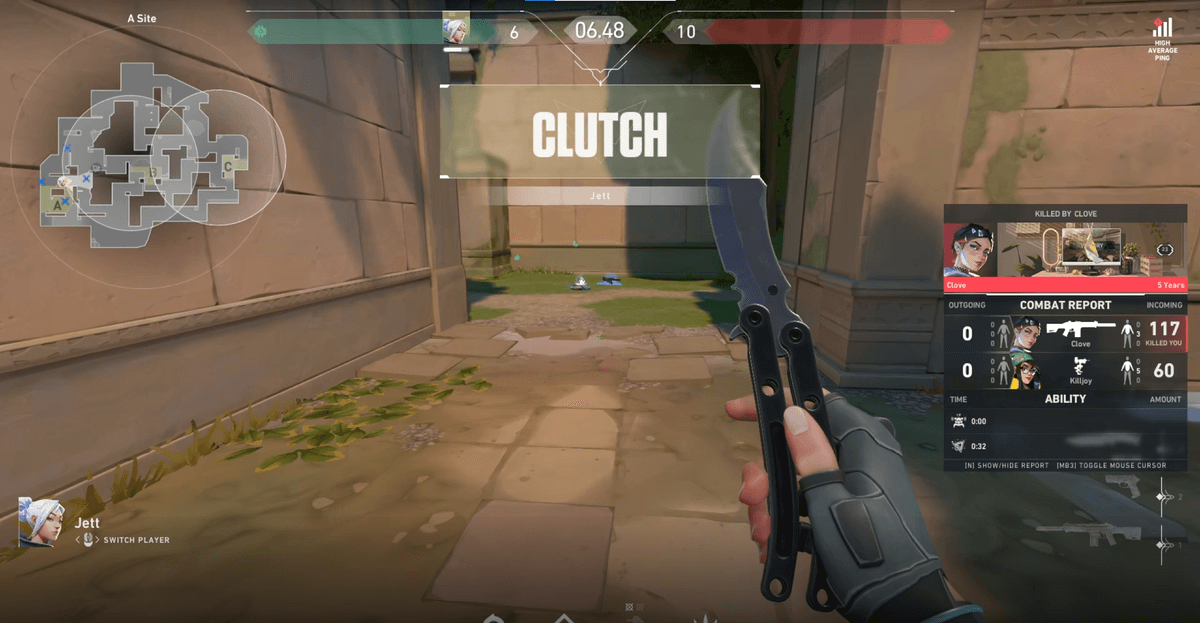
Method 2: Back up manually with a hotkey
Auto-detection won't catch 100% of every moment. For scenes only you know are special, like a slick Operator flick or a team fight where the vibe was just right, it's safer to back them up yourself. Manual backup saves the segment just before with a single hotkey, so it fits well as a safety net to complement auto-detection.
- In your recording tool, assign the instant-save hotkey to a key that's easy to reach.
- Set the save length to about the previous 15-30 seconds so the start doesn't get cut even if you press it right after an ace ends.
- Press the hotkey within a beat right after an ace or impressive play.
- After the round ends, open the saved clip and check that the segment was captured properly.
How to use auto and manual together
The most efficient combination is to leave auto-detection on as the default and use the manual hotkey as a backup. Auto-detection gathers most of the kills and aces on its own, and you press once more by hand to save your own highlight scenes that auto might miss. This way you capture every clip without your folder bloating unnecessarily.
Once you've learned this far, you can carry the same flow over to games other than Valorant. In round-based games like Counter-Strike too, auto-detecting and saving kill and clutch segments works just as effectively.
Summary
Valorant ace clips are hard to capture by hand given how short the rounds are. Use DOR's auto-detection to gather kill and ace segments by default, and complement only the scenes auto might miss with a manual hotkey, and you can reliably save the day's best plays. Start with a 1080p 60fps setting, and gradually tune the sensitivity and clip length to fit your own play style.