When you show off precise movement in a shooter, a combo in a fighting game, or a skill combo in a MOBA on video, the screen alone rarely makes it clear which keys you actually pressed. That is why most tutorial videos from skilled players keep the keyboard and mouse inputs displayed in a corner of the screen.
In this article, we walk through what a keystroke overlay is, why it is worth turning on, how people usually make one, and how to show key inputs on clips recorded with DOR and add them to the video, step by step.
What Is a Keystroke Overlay
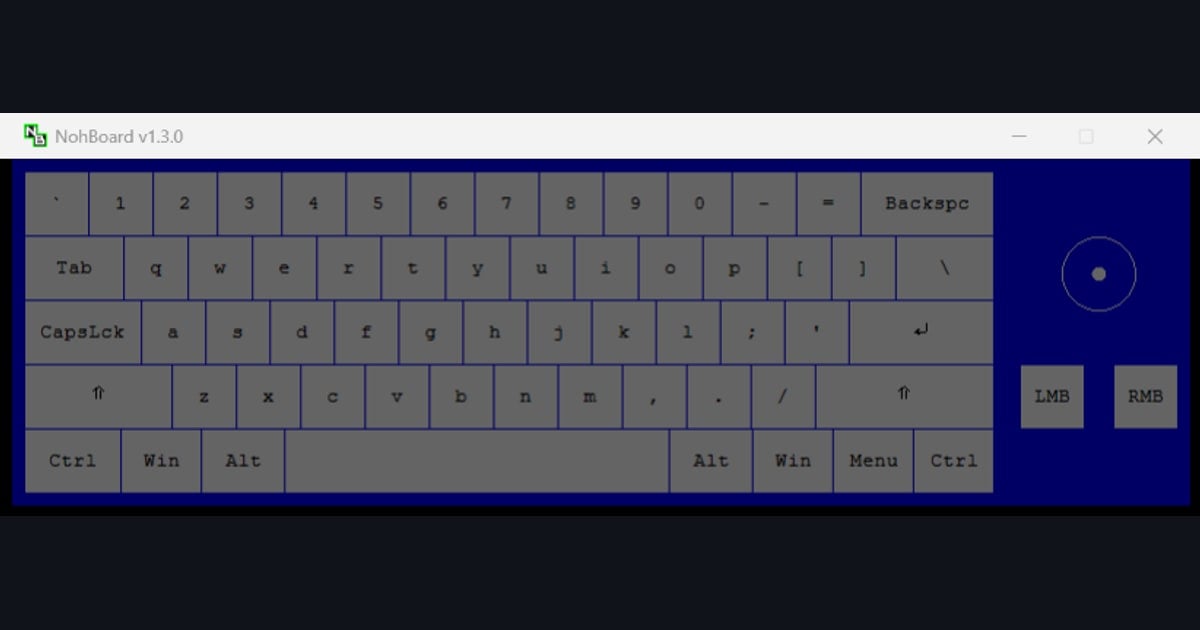
A keystroke overlay is a display that layers real-time graphics of the keyboard keys, mouse buttons, and mouse movement you are currently using on top of your gameplay video. In English it is called a key input overlay or keystroke overlay, and it usually appears as a small keyboard shape in a corner of the screen.
- The key you press lights up or changes color, so you can instantly see which key was hit.
- Mouse inputs such as left and right clicks, the wheel, and movement direction can be displayed too.
- WASD movement, skill keys, and actions like jumping or dashing line up perfectly with the on-screen action and its exact timing.
Why Showing Your Inputs Helps
Showing your key inputs on screen lets you convey controls that are hard to explain in words with precision. It is especially effective in the following situations.
- Combo and mechanics tutorials: viewers can copy exactly which keys you pressed, in what order, and with what timing.
- Sharing inputs: when you post a split-second movement or aim adjustment to the community, having the inputs shown makes it far more convincing.
- Reviewing your own play: when you rewatch your play, you can spot the moments your hands got tangled up and any unnecessary key presses yourself.
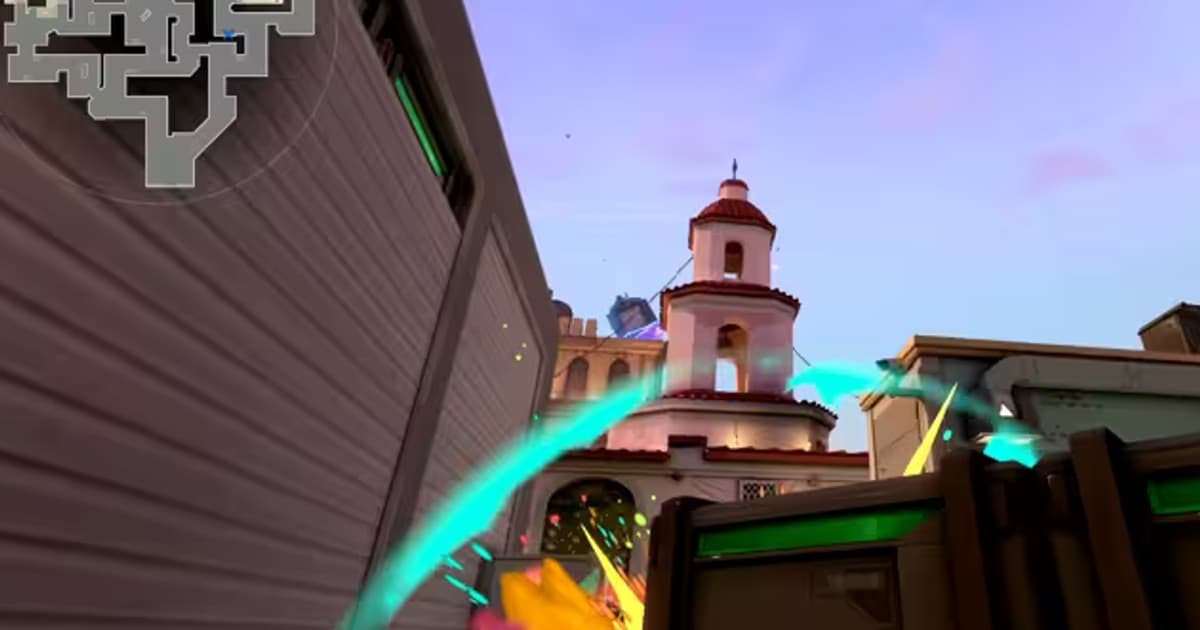
For example, counter-strafing in Valorant, fast skill combos in League of Legends, and slide-and-jump movement in Apex Legends all become noticeably easier to understand when the key inputs are shown alongside them.
The Usual Way: OBS + NohBoard
To build a keystroke overlay yourself, you generally combine a broadcasting program like OBS with a separate key display program like NohBoard. The concept is simple, but once you actually set it up, it takes quite a bit of work.
- You have to download, install, and keep running a separate key display program like NohBoard.
- You have to choose the key layout and skin to display, and separately configure it to show mouse inputs too.
- In OBS you have to bring in that display via window capture or chroma key and manually adjust its position and size.
- If you forget to keep the program running every time you record, the inputs will not be captured in your clip when it matters.
For someone comfortable with broadcast setups this is doable, but for someone who just wants to quickly save a good moment, the barrier is high. On top of that, a setup built this way makes it hard to turn the inputs on and off separately when you edit the clip later.
Showing Key Inputs with DOR
DOR is a free game recording and clip tool that automatically detects supported games and records them. While it records, it also logs your keyboard and mouse inputs, so you can show an input overlay on your finished clips without installing a separate plugin or adjusting its position.
- No need to install a separate program like NohBoard or composite the display in OBS.
- There is no display program to launch before you record, so there is nothing to forget to turn on.
- The overlay is drawn over the video during playback, so your original recording stays untouched; it is only baked in when you leave the input overlay switch on in Trim Section or in the edit step when sharing.
- A clip with the key inputs baked in can be exported as a file or posted to dor.gg to share.
Wrap-Up
A keystroke overlay is a huge help for showing combos and mechanics, sharing inputs, and reviewing your own play. Building one yourself means taking on the installation and setup of an OBS and NohBoard combo. If you recorded with DOR, your inputs were logged along with the video, so you can show them on finished clips and bake them into only the parts you need. If you want to make videos that show your controls properly, just turning it on once changes the result.
 #Valorant