You've probably had this experience: you uploaded that VALORANT ace clip you worked hard to land, only for it to come back not as the crisp screen you saw on your own computer but as a video that smears whenever it moves and bleeds color. The source file is clearly clean, yet quality drops the moment you upload, and this happens to everyone because of the way YouTube processes video. This article lays out the real cause of quality loss and the recommended settings for uploading the same video as sharply as possible, from a practical standpoint.
Why does quality break when you upload to YouTube?
There's just one core cause: YouTube "doesn't store the video you upload as-is." Whatever the video, once it's uploaded YouTube re-encodes (re-compresses) it into its own codec, VP9, and recently AV1. It does this to efficiently store and stream the billions of videos worldwide, and during this re-compression the bitrate (the amount of data per second) drops sharply. When bitrate drops, the fine detail on screen gets thrown away, and the result is the "smearing" we see.
The more motion in the game, the worse it gets
Re-encoding happens equally to all videos, but the quality loss is uniquely large for gaming footage. Unlike a static lecture video, a game screen has the entire frame moving fast. When you're racing in a vehicle in PUBG or whipping your view around quickly in VALORANT, nearly every frame is a new screen, so the information the compressor has to throw away balloons. This is exactly why details like foliage, smoke, and particles are the first to smear.
Low upload bitrate and the wrong resolution
When two more mistakes pile on top of this, quality collapses further. First, making and uploading your source at too low a bitrate. YouTube's re-encode cuts it once, but if the source bitrate is low to begin with, you're "compressing already-low quality again," and the result is dismal. Second, uploading 1080p video with a low codec and low bitrate. YouTube tends to assign 1080p-and-below videos a codec that's efficient but weak at preserving quality, which is especially unfavorable for high-motion games.
Recommended upload settings that preserve quality
You can't stop YouTube's re-encode itself. What you can do is upload your source at generous enough quality that "enough survives even after the re-encode cuts it." YouTube's officially recommended upload bitrates are minimums, so for gaming footage it's safe to set them higher. The recommended values per resolution are as follows.
- 1080p (60fps): at least 12 Mbps. For high-motion games, going up to 16 to 20 Mbps is safer.
- 1440p (60fps): at least 24 Mbps.
- 4K/2160p (60fps): at least 53 to 68 Mbps. For detail-heavy games, set it near the upper end.
- Codec: H.264 (AVC). It has the broadest compatibility and YouTube handles it most reliably.
- Container (file format): MP4.
- Audio: AAC-LC, stereo, 384 kbps recommended.
- Frame rate: match the source (usually 60fps). There's no need to force a 30fps game up to 60fps.
To sum it up, "H.264 codec + MP4 file + AAC audio + a generous bitrate matched to the resolution" is the basic formula. Just matching these values when you Export from your editing software makes a visible difference in quality after upload.
Why uploading at 1440p or higher is advantageous for quality
This is the most powerful yet least-known tip. Even if your monitor is 1080p, making and uploading your video at 1440p or 4K results in better quality. The reason lies in how YouTube assigns codecs and bitrates. YouTube allocates a codec with better quality preservation (VP9 and AV1) and a far higher bitrate to videos at 1440p and above. By contrast, it gives 1080p and below a relatively stingy bitrate.
So even for gaming footage recorded at 1080p, upscaling it to 1440p in editing and uploading that often makes the 1080p quality look sharper on playback than uploading it as 1080p directly. The difference is bigger the more the smearing shows, as in a fierce League of Legends teamfight or a VALORANT engagement. It takes a bit more effort, but it's the surest way to extract maximum quality from the same source.
Blurry right after upload is normal
People often panic when they upload a video and play it right away to find terrible quality, but this is usually normal. Once an upload finishes, YouTube first quickly makes and publishes a low-quality version, then processes the high-quality (1080p, 1440p, 4K) and VP9/AV1 versions in the background over time. Depending on the video's length and resolution, this can take anywhere from tens of minutes to a few hours.
So don't re-upload just because it's blurry right after upload; first check whether the quality settings gear shows a 1080p-or-higher option. If the high-quality option isn't showing yet, it means processing is still underway, so check again a few hours later and it'll be sharp.
YouTube Shorts has its own vertical quality
If you're uploading gaming highlights as Shorts, the resolution benchmark is different. Shorts are vertical video, so the standard is to make them 1080x1920 (1080 wide, 1920 tall) in a 9:16 ratio. If you upload a horizontal video as-is, black bars appear top and bottom, and the actual visible area's quality suffers by that much. It's best to lay out the game screen to fit a vertical frame from the start and export accordingly.
Bitrate governs quality for Shorts too. Even at vertical 1080p, you need to export at a generous bitrate similar to a regular video (12 Mbps or more) so that high-motion game clips don't smear.
In the end, the starting point is a clean source
Every setting up to here rests on one premise. YouTube's re-encode never makes quality "better" than your source. It only cuts. So no matter how well you match the upload settings, if the source is already smeared at the recording stage, the result is smeared too. The real starting point of the quality fight is "recording cleanly at high quality."
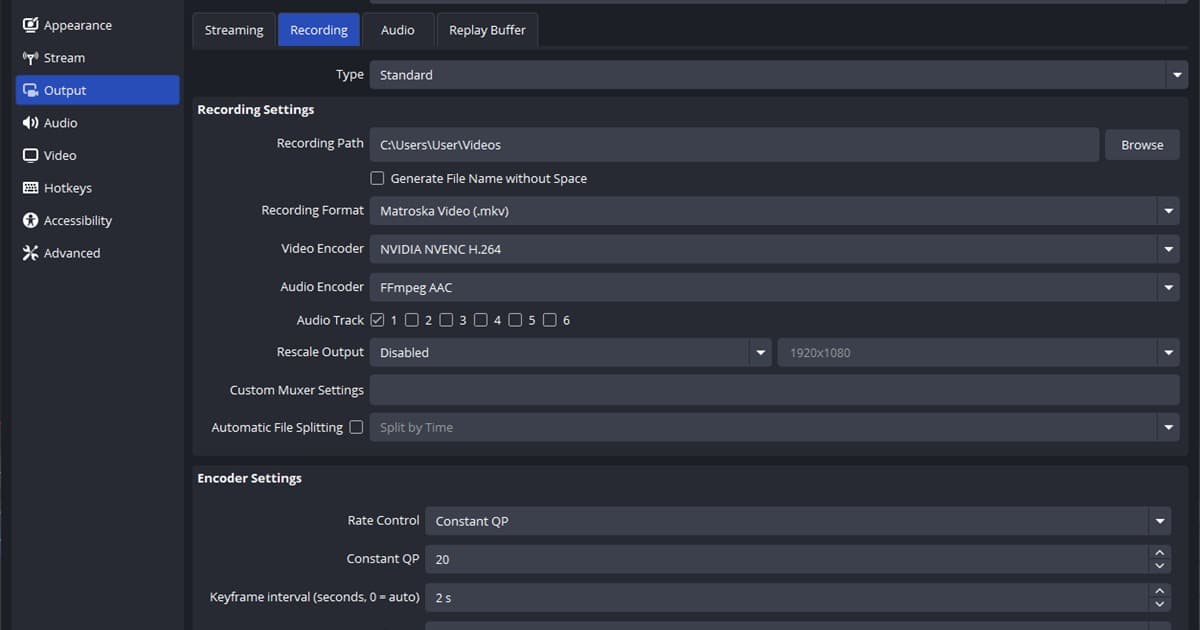
What often trips people up here is the recording encoder. Recording with CPU software encoding (x264) tends to drop your game frame rate, which can stutter or smear even the source footage. Use GPU NVIDIA NVENC hardware encoding instead, and the encoding load shifts to a dedicated GPU chip, letting you protect in-game frame rate while leaving behind a clean, high-quality source. DOR uses this NVENC hardware encoding by default, so it produces a high-quality source ready for YouTube from the start, with no settings to fiddle with.
On top of that, DOR automatically cuts highlights like kills, aces, and chicken dinners in games like VALORANT, League of Legends, and PUBG into clips, so you can upload a clean source straight to YouTube or Shorts without separate editing. Only when good upload settings meet a good source does "the quality I was looking at" finally hold up on YouTube too.