There are times in Competitive when you lose a round you clearly could have won, but you never figure out why you died. Where the enemy spike-plant pathing was, or at what moment your crosshair wobbled, isn't visible in the moment. For a long time, VALORANT had no way to rewind a past round inside the game, so to review you had to rely on footage you recorded yourself. But in September 2025, this changed completely as VALORANT officially introduced a replay system.
This article lays out, in order, how to rewatch past matches with the newly added replay system, what features it has, how to use it for review, and how to permanently keep replays, which vanish after a set period, as videos.
The VALORANT replay system: when and where you can use it
The VALORANT replay system officially launched in September 2025. Until then, the in-game demo/replay feature found in other tactical FPS titles like Counter-Strike didn't exist in VALORANT, so to rewatch your own play you had no choice but to use an external recording program. Now you can pull up past matches directly inside the client and rewind them freely.
Supported modes and unsupported matches
Replays aren't created for every match. They're supported in Unrated, Competitive, Swiftplay, and Premier, but not in Custom games or certain official VCT matches. In other words, the solo-rank or with-friends Unrated and Swiftplay games you usually play can mostly be rewatched, but the custom practice matches you set up in your own lobby may not leave a replay, which is worth keeping in mind.
- Supported: Unrated, Competitive, Swiftplay, Premier
- Not supported (some): Custom games, certain official VCT matches
- Key point: matches you play through normal matchmaking are mostly rewatchable; custom-focused practice may not be
What you can do with replays: a full rundown of the 2025 features
A replay isn't just replaying your own screen; it's closer to a spectator tool that lets you freely control the entire match. There are a lot of features, which gets confusing at first, so let's start with the core ones you actually use for review.
Switching to every player's view, and outlines
In a replay, you can freely switch between first and third person not just for your own view but for every player who took part in the match. That means you can step into first person and follow exactly where the enemy looked and how they moved in that round. And if you turn on player outlines, even the positions of characters behind walls are revealed as outlines, so you can grasp at a glance how both teams' movements overlapped within a single screen.
Projectile trajectory tracking: the path of abilities and bullets
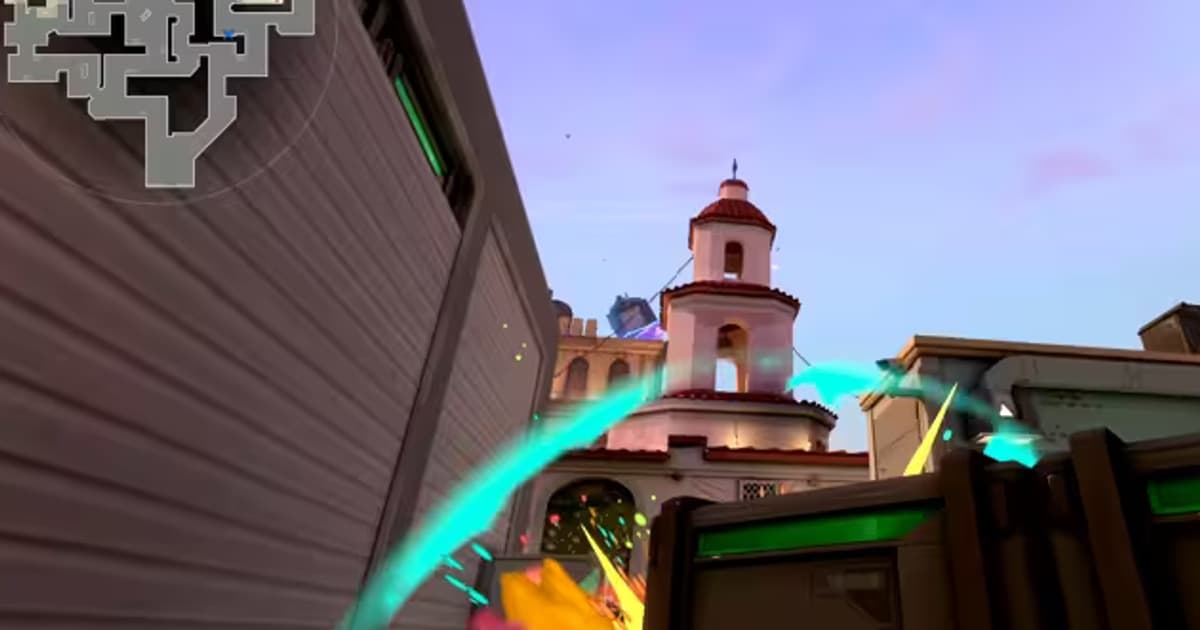
The most powerful analysis feature in replays is projectile trajectory tracking. It draws the paths of abilities (smokes, flashes, molotovs, and so on) and bullets as lines, so you can see with your own eyes exactly where your smoke landed, at what angle the enemy flash came in, and even where the bullets actually grazed in a decisive engagement. You can pin down why your aim missed by the trajectory rather than by feel.
Minimap and HUD toggles, playback speed and jumping
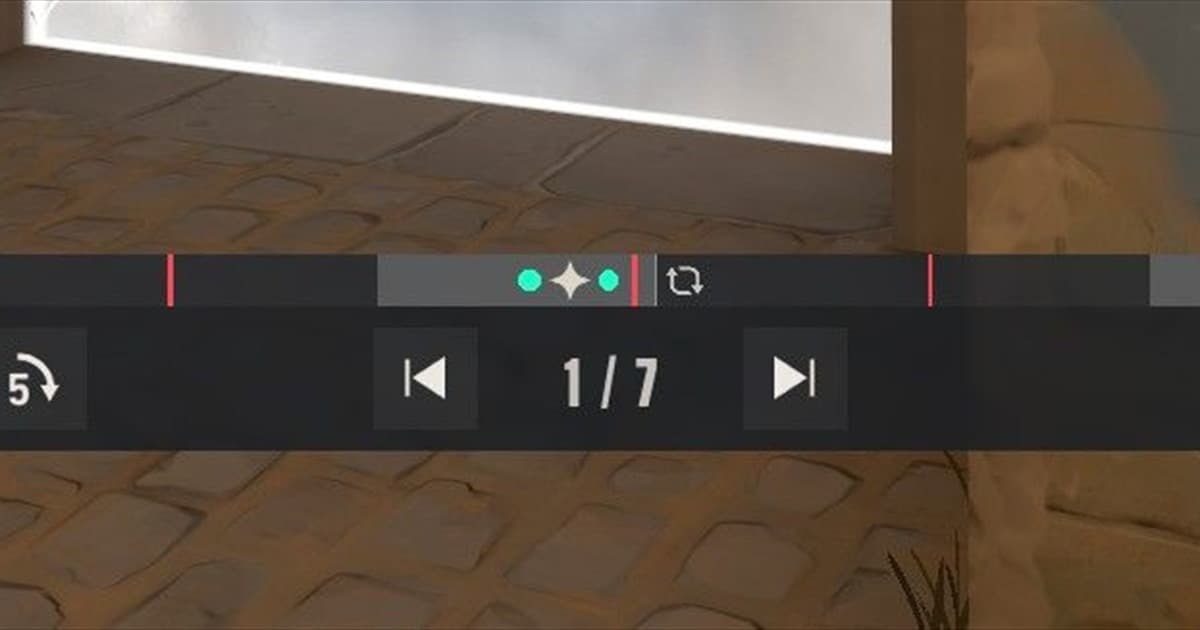
The minimap and HUD (health, ammo, scoreboard, and so on) can be turned on and off as needed. Turn the minimap on when viewing overall movement, and turn the HUD off to clear the screen when you want to keep it as a clean video. Playback speed can be slowed or sped up, and you can jump straight to any section on the timeline, enabling a review style where you skip quickly through the round-start phase and pick apart only the engagement moments at 0.5x.
How to review your skill with replays
Even if you know all the features, if you don't know what to look at, a replay stays just a rewatch. There's more to learn from an "ambiguously lost round" than a "won round." Watching in the following order makes the things to fix clear even within a single match.
- Narrow it down to lost rounds: rounds where you don't know why you died are the top priority
- Switch to the enemy view just before your death: check what angle you were exposed at
- Turn on projectile trajectories: whether your abilities landed where you intended, and what the enemy's utility angles were like
- Check movement with the minimap: inspect when the team stack broke down and rotation mistakes
- See whether the same mistakes repeat: patterns show when you compare several matches rather than one
This kind of review is essentially the same as fixing your positioning by rewatching your own play in another FPS like Apex Legends. The strength of VALORANT replays is that they provide every view on both teams plus projectile trajectories, letting you pin down the cause more precisely on an engagement-by-engagement basis.
Replays vanish: how to keep them as videos
There's an important limitation here. VALORANT replays are kept only for a limited recent period, and after that period passes they vanish automatically. That means even the ace round of your life from today disappears from the replay list over time, so you can't rewatch it for years to come, show it to friends, or post it on social media. Replays are "for review for a while," not "for permanent keeping."
So for any scene you want to keep, you have to record the screen while the replay is still alive and save it separately as a video file like mp4. Play the replay, turn off the HUD, set it to the view you want, and record that screen, and the video stays on your PC even after the replay is deleted from the system.
Keep highlights as automatic clips with DOR
The problem is that you have to turn on screen recording yourself every time, then manually find and cut the highlight sections out of a long replay. DOR is a free recording program that automates this process. Once installed, it automatically detects when VALORANT launches, records in the background, and cuts key moments like aces and multikills into short clips and saves them on its own. There's no watermark, and it uses NVIDIA NVENC hardware encoding, so the hit to in-game frame rate is small.
To sum it up, the two have different roles. The replay system is a review tool for precisely dissecting "why you lost" right after a match, while DOR is a tool that automatically keeps the highlights you want to save as videos before they vanish. Split the work, review with replays and permanent saving with DOR, and you'll never miss a good play.