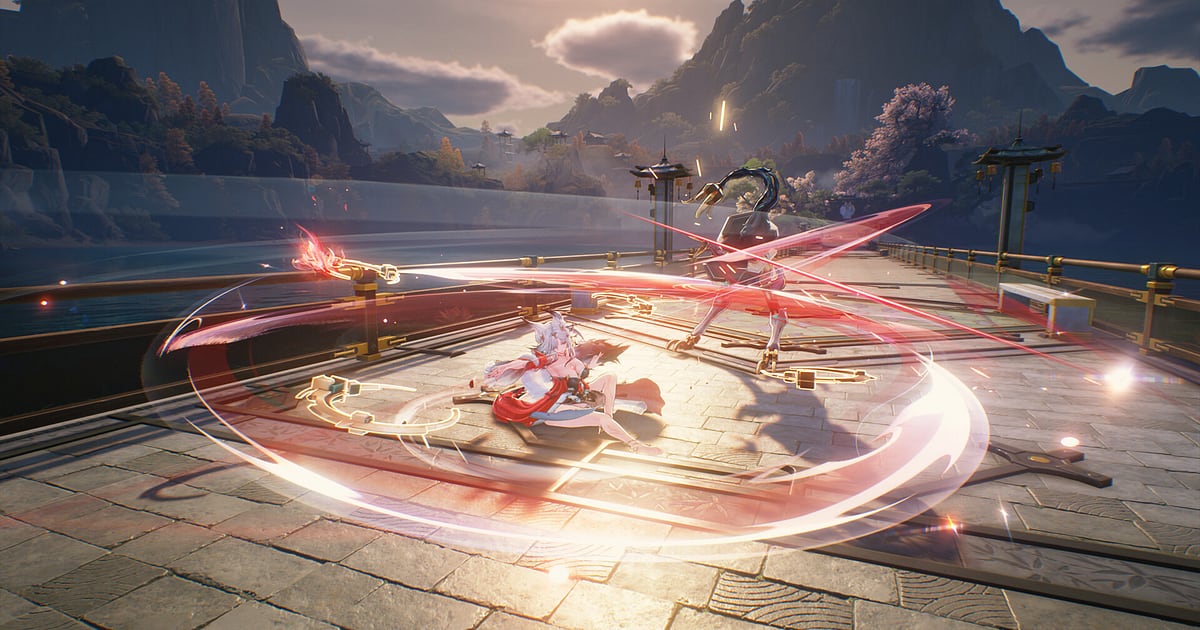
Wuthering Waves अपने आप record होता है: DOR install करें, game launch करें, बाकी काम DOR संभाल लेता है। न OBS scene बनाना है, न recording settings छेड़नी हैं। Game शुरू होते ही DOR उसे पहचान लेता है और open world की सैर से लेकर Hologram boss fights तक, game audio और आपके mic के साथ record करता है।
Boss के attack पर perfect dodge, Intro और Outro swap chain, Resonance Liberation का चलना और Rover की story cutscenes, सब recording में आ जाते हैं। इस guide में setup, fights save करना, rotation notes ढूंढना, showcase बनाना, share करना और Wuthering Waves record न हो तो क्या देखें, सब है।
- Exploration से लेकर Hologram bosses तक अपना पूरा Wuthering Waves play एक video में रखें और story cutscenes बाद में दोबारा देखें।
- नया pull जब एक ही rotation में boss को पिघला दे, वह पल उसी वक़्त clip कर लें।
- 'swap करो और Liberation चलाओ' जैसी बड़बड़ाई हुई बातें AI Voice Notes से ढूंढें और अगली कोशिश के लिए rotation notes की तरह इस्तेमाल करें।
- Resonance Liberation को 9:16 short बनाकर dor.gg link के रूप में भेजें।
Wuthering Waves record करने से पहले: install और recording mode
आपको बस DOR चाहिए, एक free Windows app जो recordings बिना watermark के आपके PC में save करता है। यह guide Windows PC पर चलने वाले Wuthering Waves के लिए है।
Recording session के हिसाब से होती है, इसलिए game बंद करने तक exploration, boss fights और story progress एक video में रहते हैं, और recording time की कोई सीमा नहीं है। Wuthering Waves graphics card पर भारी है, और recommended spec या उससे ऊपर के PC पर frames और recording दोनों स्थिर रहते हैं।
Default 1080p और 30fps से शुरू करें, और PC कमज़ोर हो तो हल्का 720p/30fps mode चुनें। Settings में हर game के लिए full play recording चालू या बंद भी कर सकते हैं। PC games record करने की बुनियादी बातें PC games कैसे record करें में हैं।
| चीज़ | Wuthering Waves के लिए | ध्यान दें |
|---|---|---|
| DOR install | Free Windows app, OBS जैसे scenes की ज़रूरत नहीं | Recordings पर कोई watermark नहीं |
| Game version | Windows PC पर Wuthering Waves | Game खुलते ही अपने आप पहचाना जाता है |
| Recording mode | Session recording: launch से बंद करने तक एक video | Exploration, boss fights और cutscenes एक ही recording में |
| Display mode | Fullscreen, windowed और borderless तीनों record होते हैं | Game capture रुके तो monitor capture पर चला जाता है |
| Resolution और frame rate | Default 1080p 30fps, 60fps भी मिलता है | Game GPU पर भारी है, frames कम हों तो 720p/30fps mode लें |
| हर game की setting | Settings में हर game के लिए full play recording चालू या बंद | Wuthering Waves को अलग से adjust कर सकते हैं |
DOR से Wuthering Waves record करें: step by step
- 1DOR install करें और चालू रहने देंDOR install करके एक बार खोलें, फिर यह background में Wuthering Waves का इंतज़ार करता है। अगर आप rotation बोलते हुए खेलते हैं, तो देख लें कि DOR ने सही microphone चुना है।
- 2Wuthering Waves launch करेंGame शुरू करें, DOR उसे पहचानकर recording शुरू कर देता है। Capture login screen से ही शुरू होता है, इसलिए आज की story की पहली cutscene भी आ जाती है।
- 3Recording चल रही है, यह check करेंField में जाने से पहले एक बार DOR app खोलकर देख लें कि recording चल रही है। RTX series जैसे supported NVIDIA graphics cards पर recording NVENC hardware encoding से होती है, इसलिए पूरी screen भरने वाला Liberation भी ज़्यादा load नहीं डालता।
- 4Dodge या Liberation के ठीक बाद clip करेंBoss के attack को perfect dodge से counter करने या Hologram boss गिराने के ठीक बाद clip save shortcut दबाएं। पिछले 30 सेकंड clip बन जाते हैं और session recording चलती रहती है।
- 5Game बंद करें और My Clips देखेंGame बंद करते ही recording और save किए clips My Clips में दिखते हैं। देख लें कि आज का boss clear capture हुआ है।
अपनी recordings ढूंढें
Recordings DOR app की library, My Clips, में जमा होती हैं। हर launch से बंद करने तक एक recording बनती है, और shortcut से save किए clips अलग list होते हैं।
जिस recording में exploration और combat मिले हों, उसमें boss की health bar दिखना fight की शुरुआत का निशान है, इसलिए उन points पर skip करके जल्दी आगे बढ़ें।
Story cutscenes gameplay के साथ एक ही video में record होती हैं, तो अगर पहली बार देखते वक़्त record किया, तो कभी भी उस हिस्से पर लौटकर दोबारा देख सकते हैं। Combo को start और end set करके trim करें और short के लिए 9:16 में export करें।
जो videos रखनी हैं, जैसे नए Resonator की पहली boss fight, उन्हें like करें। Space भरने पर पहले वे पुरानी videos हटती हैं जिन्हें like नहीं किया, इसलिए liked videos बची रहती हैं। Trim करने के tips game clips कैसे trim करें में हैं।
जो पल रखने हैं उन्हें save करें
Clip save shortcut दबाने से ठीक पहले का play save होता है। Default 30 सेकंड है, और 15, 30, 45 या 60 सेकंड चुन सकते हैं। एक perfect dodge और उसके बाद का counter 15 सेकंड में आ जाता है।
Intro और Outro skills से characters बदलते हुए Liberation पर खत्म होने वाले पूरे rotation में पहला swap भी चाहिए, तो 45 या 60 सेकंड लें। Boss गिरने या Liberation animation खत्म होने के ठीक बाद दबाएं। चूक जाएं तो session recording से trim कर लें। यह तरीका पिछले कुछ सेकंड तुरंत save करें में समझाया गया है।
AI Voice Notes से बोली हुई बात ढूंढें
AI Voice Notes खेलते समय आपकी कही बातें recording timeline पर लिख देता है। Solo combat में भी यह काम का है।
'आख़िरकार dodge timing लगी', 'swap करो और Liberation चलाओ', 'इस Echo का main stat बढ़िया आया' या 'इस हफ़्ते Tower में full stars' जैसी बातें उसी पल पर वाक्य बनकर रहती हैं, और किसी पर click करते ही वह scene खुल जाता है। 'यहां Outro फिर Liberation' जैसी बड़बड़ाहट अगली कोशिश का rotation note बन जाती है। Game audio और mic साथ record होते हैं; दोनों का balance सेट करने के लिए mic के साथ game audio record करें देखें।
AI Highlight से montage बनाएं
AI Highlight आपके चुने clips को जोड़कर एक montage बनाता है। 'Boss पर perfect dodge', 'Intro Outro swap chain', 'Resonance Liberation' और 'Hologram boss clear' चुनें, AI Highlight दबाएं, और एक combo video तैयार।
नए Resonator के showcase या 'Tower full stars' record के लिए यह बढ़िया है, और 'ताकतवर Echo absorb करना' वाला clip अच्छा ending बनता है। Order खुद तय करना हो तो game clips merge करें देखें।
DOR Studio में edit करें
DOR Studio बिना कुछ install किए browser में खुलता है। Clips merge और trim करें, text, background music और effect templates जोड़ें, और 16:9, 9:16 या 1:1 में mp4 या share link के रूप में export करें। Liberation लगते ही punch zoom और perfect dodge पर shake zoom डालें।
Character और sequence का caption लगाएं ताकि यह showcase जैसा लगे। Character swap पर glitch transition जंचता है। 9:16 में export करें और WuWa short post करने के लिए तैयार। सब कुछ DOR browser clip editor में और vertical editing games से vertical shorts record करें में है।
dor.gg link से share करें
जब कोई दोस्त आपका rotation पूछे, तो boss fight एक dor.gg link में भेजें, यह बिना app के browser में चलता है। इसे Discord या Reddit thread में डालें, और YouTube व TikTok uploads के लिए PC में save हुई बिना watermark वाली recordings से शुरू करें। PC recording से dodge counters और Liberations निकालने का तरीका Wuthering Waves boss videos कैसे share करें में है।
Wuthering Waves की recommended settings और troubleshooting
Wuthering Waves fullscreen, windowed और borderless तीनों में record होता है। Recording 1080p और 30fps पर शुरू होती है; edits के लिए smooth footage चाहिए तो 60fps चुनें।
Wuthering Waves record न हो रहा हो, तो पहले देखें कि DOR game से पहले चल रहा था और settings में Wuthering Waves की full play recording चालू है। Game capture रुक जाए तो DOR black screen से बचने के लिए monitor capture पर चला जाता है। Game पहचाना न जाए तो recorder game को detect नहीं कर रहा देखें, और आवाज़ न आए तो game recording में sound नहीं देखें।
| समस्या | क्या check करें | हल |
|---|---|---|
| Wuthering Waves खुलता है पर record नहीं होता | Launch का क्रम और उस game की full play recording setting | Setting चालू करें, पहले DOR खोलें, फिर game दोबारा launch करें |
| Recording में black screen | Display mode और दूसरे overlay या recording software | दूसरे recorders बंद करके दोबारा launch करें। Game capture रुके तो DOR monitor capture पर चला जाता है |
| Recording में game की आवाज़ नहीं | Windows output device और DOR audio settings | जो headset या speakers इस्तेमाल करते हैं उनसे मिलाएं और छोटा test record करें |
| Boss fights में frames गिरते हैं | Game की graphics options और GPU की गुंजाइश | Options कम करें; फिर भी दिक्कत हो तो 720p/30fps mode लें |