Many people say their screen stutters or their frame rate drops when they record games on a Radeon graphics card. Bottom line: most of the time the cause is that the CPU is shouldering the video compression, and the solution is to turn on AMF (Advanced Media Framework), the hardware encoder built into AMD cards. With AMF, the graphics card takes over video encoding during recording, so you can record while barely cutting into game performance. In this article, we go in order through the steps to turn on the AMF encoder in Adrenalin and OBS, codec and bitrate choices, and the points where AMD cards often get stuck.
What Is the AMF Encoder and Why Should You Turn It On?
AMF is the name software uses to call the dedicated video encoding circuit built into Radeon graphics cards. When a recording program compresses each frame into a video file, the load differs greatly depending on whether the CPU's software encoder (x264) does this work or the graphics card's AMF does. CPU encoding has good image quality but is heavy, and since the game uses the same CPU, the two contend for resources and the frame rate drops. AMF uses a dedicated circuit separate from the game, so its impact on game performance is much smaller.
To sum up, the key to stutter-free recording on a Radeon card is just one thing: setting the encoder to AMF. The other settings (codec, bitrate, resolution) are closer to supporting settings that fine-tune image quality and file size.
Method 1: Recording With Adrenalin (ReLive)
You can record using only the Adrenalin software included in your Radeon driver, without any separate program. Adrenalin's recording feature (ReLive) is built to use AMF from the start, so you don't need to choose an encoder separately, just set the codec and bitrate.
- Press Alt+R to open the Adrenalin overlay, or launch AMD Software: Adrenalin Edition from the taskbar.
- Go to the Record & Stream tab at the top, then turn on Record Desktop or the ReLive feature.
- Choose the video encoding (codec). If the default is set to AV1, switching to HEVC is the safe choice for editing and upload compatibility.
- Raise the video bitrate. The default of 30 can be a bit low, so raising it to around 40 to 60 for 1080p sharpens the image quality.
- Set the recording resolution to the same value as your in-game or monitor resolution, and start and stop recording with the hotkey (default Ctrl+Shift+R).
Method 2: Turning On the AMF Encoder in OBS
If you use OBS because you need scene composition or overlays, you absolutely have to switch the encoder to AMD's AMF to take advantage of your Radeon card. OBS often defaults to the CPU software encoder (x264), and leaving it this way overworks only the CPU even though you're using a Radeon card.
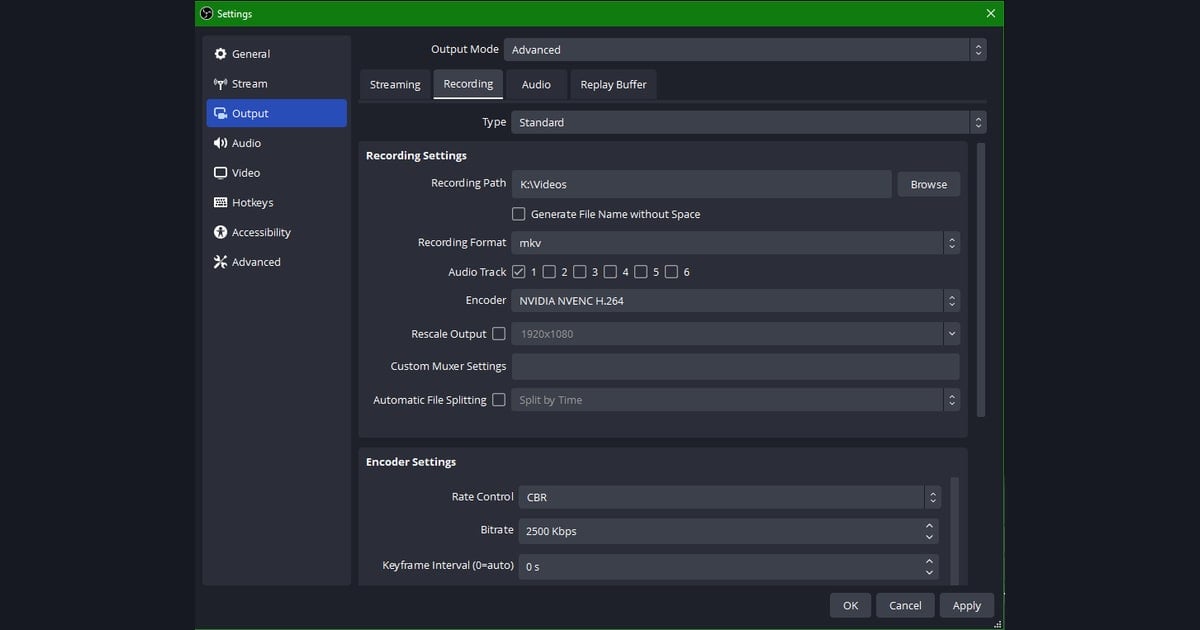
- Go to Settings in OBS and open the Output tab.
- Switch the output mode from Simple to Advanced so you can choose the recording encoder yourself.
- In the Recording tab, choose the encoder as H264/AVC Encoder (AMD) or AV1/HEVC (AMD), that is, the AMF option.
- Set rate control to CQP or VBR, and since recording is quality-focused, give it a generous bitrate of around 30,000 to 50,000kbps for 1080p.
- Set the keyframe interval to 2 seconds and start with the preset at Quality or Balanced, then adjust while watching the load.
It's safest to confirm with a short test recording that the preview comes out well and your game frame rate holds before going into the real recording. Even at the same 1080p 60fps, the right bitrate varies by game and card model, so one test recording prevents a long re-recording.
Points Where AMD Cards Often Get Stuck
Recording on Radeon cards is simple to set up, but you often get tied up in a few spots. Knowing them ahead of time can reduce wasting time on failed recordings.
AV1 Default and Compatibility
The latest Radeon cards sometimes have AV1 set as the default codec. AV1 has the best size-to-quality ratio, but it may not play or edit in older editing programs or some upload environments. If you plan to edit or share the recorded video right away, switching to the broadly compatible HEVC or AVC (H.264) is the more comfortable choice.
Driver Version
AMF is included in the Adrenalin driver, so if the driver is old, the AMD encoder option may not appear at all in OBS or you may get errors when recording. If there's no AMD option in the encoder list, the first thing to try is updating Adrenalin to the latest version. Keeping OBS updated alongside it too reduces compatibility problems.
Quality-Enhancement Options and Performance
Options like Adrenalin's Enhanced Filtering or OBS's Psycho Visual Tuning and look-ahead raise image quality, but they add that much more load to the graphics card. If your card has headroom, it's fine to turn them on, but if your game frame rate wavers during recording, turn off these options first to ease the load. Think of it as a dial that shifts the weight one way or the other between quality and performance.
Even Simpler With DOR: Automatic AMF Use
If it's a hassle to handle one by one what codec to set, what bitrate to use, and where to change the encoder, DOR is a good choice. DOR automatically uses the AMD hardware encoder (AMF) to record low-load even on Radeon cards, so users don't need to choose the encoder type themselves or wander through settings menus.
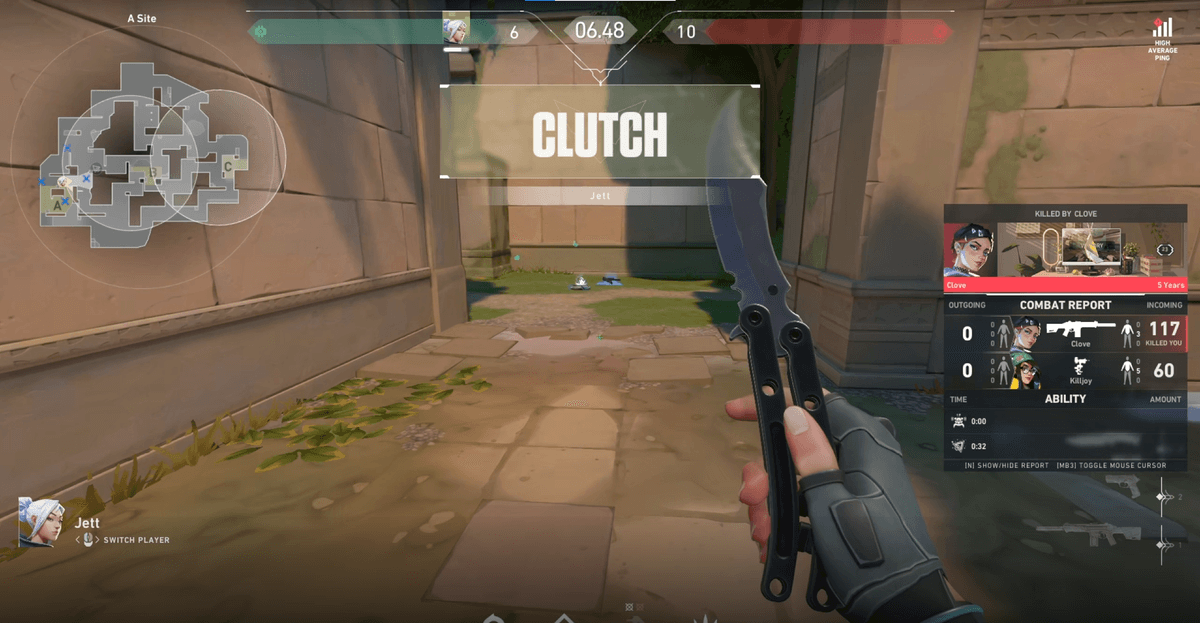
Instead of taking your time on settings, DOR automatically picks out the decisive moments from your recorded game footage and turns them into clips. Like a multikill round in Valorant or the final fight in PUBG, it picks out just the essentials from long recordings and organizes them so they're easy to share right away. It's a good fit for people who want both low-load recording and automatic clip organization on a Radeon card at once.
Summary
The key to stutter-free recording on a Radeon card is the one thing of setting the encoder to AMF. Adrenalin already uses AMF, so you just set the codec to HEVC and raise the bitrate generously, and for OBS you just need to remember to switch the encoder to AMD AMF. Checking just three things, AV1 default compatibility, driver version, and the load of quality-enhancement options, solves most problems. If you want to skip the configuration process entirely, start with DOR, which picks up AMF automatically.