To get straight to the point, Apex FPS goes up almost entirely once you adjust just two things: turning off heavy effects in the in-game video settings, and adding a few frame-related lines to your launch options. Combine these two and it is common to see frame rates climb 40 to 60 percent compared to max settings. Just follow the steps below in order.
First, lower your video settings
In the Video tab of the in-game settings menu, start by turning off the effects that eat into your frame rate. The key is to keep the items you truly need to spot enemies and cut back mainly on visual effects.
- Display Mode: Fullscreen (for a single monitor). Windowed or borderless windowed modes cost you around 5 to 15 frames.
- Anti-aliasing: Off (None). You get jagged edges, but this gives the biggest frame boost.
- Ambient Occlusion Quality: Disabled. It cuts shadow-shading calculations, dropping the load sharply.
- Motion Blur: Off. Your view gets cleaner and your frame rate goes up along with it.
- Spot Shadow Detail: Disabled or Low. Shadow calculations are heavy, so the effect is large.
- Model Detail and Effects Detail: Low. The lower-end your system, the more you feel it.
- Texture Streaming Budget: Match it to your VRAM. Setting it too high causes stutter.
Add launch options
On Steam, right-click Apex in your library, then go to Properties, General, and enter them in the Launch Options box. On the EA app, put them in the Advanced launch parameters box in the game settings. You can paste the line below as-is.
+fps_max 0 -novid -high -forcenovsync -cl_forcepreload 1
- +fps_max 0: Removes the frame cap. If you want to lock it to a number matching your monitor's refresh rate, put a value in place of 0 (see the recommended values below).
- -novid: Skips the intro video when the game launches, speeding up loading.
- -high: Runs Apex at high priority so the system allocates it more resources.
- -forcenovsync: Keeps vertical sync always off so it does not impose a frame cap.
- -cl_forcepreload 1: Preloads textures and sounds. The first load gets a bit longer, but your frame rate is more stable during play.
Recommended values: match your monitor's refresh rate
0 (unlimited) is not always the right answer for fps_max. When your frame rate is uneven, it actually feels like stutter, so locking it slightly below your monitor's refresh rate feels smoother.
- 60Hz monitor: +fps_max 60, or +fps_max 58 for stability
- 144Hz monitor: +fps_max 140 (about 4 below the refresh rate)
- 240Hz monitor: +fps_max 236
- If you have plenty of frames to spare and screen tearing does not bother you: +fps_max 0 (unlimited)
If your frame rate spikes excessively in the lobby and causes heat, you can cap just the lobby separately, like +lobby_max_fps 60 instead of +lobby_max_fps 0. It is a way to reduce the load on the waiting screen while leaving your actual fight frame rate untouched.
Once your settings are done, save your highlights automatically
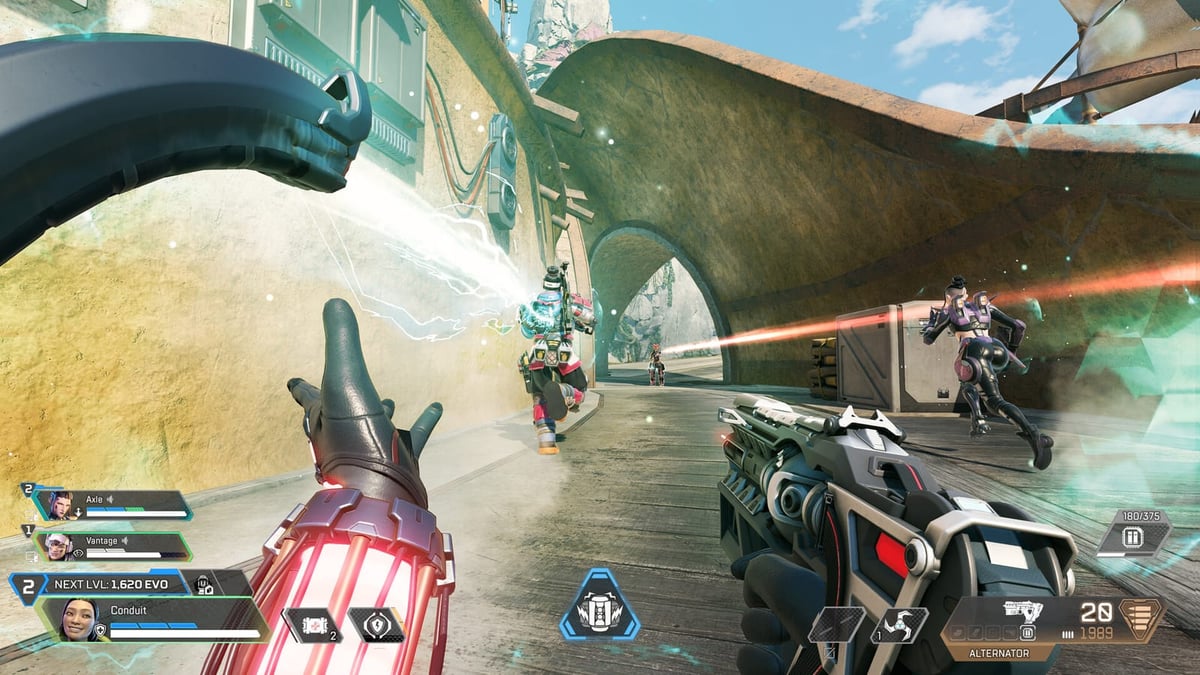
In Apex, fights end in an instant. That super glide you pulled off out of nowhere, that final 1v1 clutch, are already gone by the time you try to watch them again. And if you fire up a heavy recording program, the frames you worked so hard to gain get cut right back down.
DOR uses low-overhead capture, so it saves your kills and highlights as automatic clips while keeping your fps. You do not have to give up recording just to protect your frame rate, and when a match ends you can pick out only the good scenes and share them right away. It works the same way in other FPS games like Valorant.
To sum up, the flow is: turn off heavy effects in the video settings, stabilize your frame rate with launch options, then lock fps_max to match your refresh rate. Once you have it all dialed in, stutter drops a lot, and all that is left is making sure you do not miss the good scenes.