The surest way to clip Apex is to have recording run on its own during the match and cut out just the kill scenes once it's over. Because Apex fights end in a matter of seconds, by the time you press a shortcut after a great scene happens, it's often already too late. When the whole match is saved, the decisive moment is already in the footage even if your hands are slow.
This article lays out, step by step, how to clip with in-game features and basic tools, why the 'turn it on beforehand' approach so often fails given the nature of fast fights, and how to auto-record the full match with DOR and cut kill clips from it.
Why Are Apex Clips Easy to Miss?
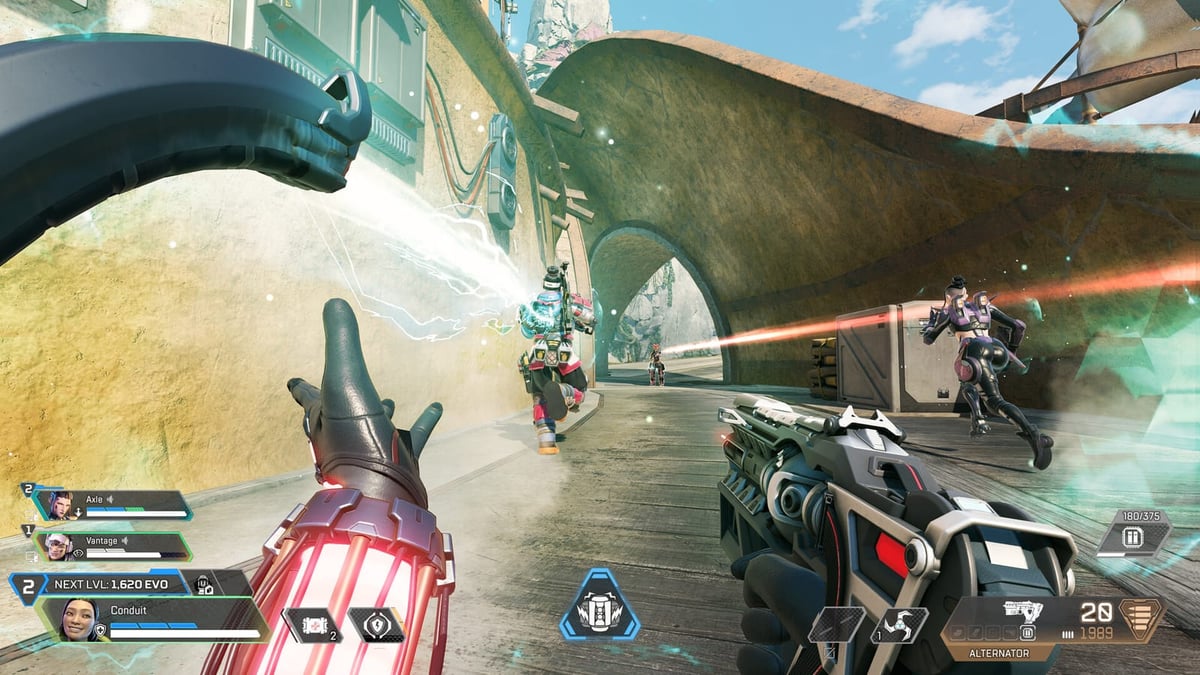
Apex fights are short and intense. It's common to wipe a whole team in less than 5 seconds, and during that time one hand is tied to movement and the other to shooting. By the moment you realize a great scene happened, the fight is often already over.
So to reliably save Apex clips, you need one of two things. One is recording the entire match in full and cutting it later, the other is automatically detecting good moments and pulling out just those parts as clips. For Apex, DOR supports the former, automatic full-match recording, so this article focuses on making that flow hands-off. The same dilemma repeats in Valorant and PUBG, where fast fights are likewise the core.
Method 1: Clipping with In-Game and Basic Tools
First, here's a basic method you can follow without any separate program. You can start quickly, but it has clear limits, which I'll explain later.
- Step 1: Turn on the Windows built-in Game Bar. Enable the Game Bar in settings, and Win + G opens the recording panel.
- Step 2: Right after a cool scene happens, press Win + Alt + G to save the preceding segment as a clip. For this, you need to turn on the background recording option in advance.
- Step 3: If you have a tool from your graphics card maker, use it together. Instant Replay in the NVIDIA app (the successor to GeForce Experience) or Radeon Software's instant replay feature can save the preceding segment, and the length is set in each app's settings.
- Step 4: Saved clips collect in the folder shown at the top of Windows Settings > Gaming > Captures (the path can differ by install, so the Open folder button is the sure way in). The date is in the file name, so if you organize them by match, they're easy to find later.
What Each PC Recording Tool Actually Keeps in Apex: Game Bar, NVIDIA App, Steam
On PC, Apex Legends is downloaded through the EA app, Steam, or the Epic Games Store and played with an EA Account (EA Help). Which recording tool is within reach depends on how you launch it, and even the same 'save the last moment' feature needs a different switch turned on beforehand and lands files in a different place. The Windows built-in tool is covered in detail in Xbox Game Bar recording, and if you launch through Steam, in recording Steam games; the table below only lists what each official document confirmed as of September 14, 2026.
| Tool | Turn on before the match | What you get | Where to check |
|---|---|---|---|
| Xbox Game Bar (built into Windows) | Win+G > Settings > Captures widget: check 'Record in the background while I'm playing a game' (off by default) | Win+Alt+G clips the last moment; Win+Alt+R starts and stops a recording | The folder shown at the top of Windows Settings > Gaming > Captures (Open folder) |
| NVIDIA app (successor to GeForce Experience) | Turn on Instant Replay from the Alt+Z overlay | Alt+Shift+F10 saves the last moment; Alt+F9 records manually | Length, hotkeys, and save location under the overlay Settings cog |
| Steam Game Recording | Steam > Settings > Game Recording > Record in Background | Temporary full recording (overwritten once the reserved space fills); make a clip to keep it | View > Recordings & Screenshots |
| DOR | Just install and run it (Apex is detected automatically) | The full match, auto-recorded straight into the in-app library | Library > browser clip editor |
Game Bar's background recording is off by default, uses PC resources that can affect game performance, and according to the official documentation records for up to 30 minutes before stopping on its own. The length of the 'last moment' and the audio option (game only, all, or none) are set in Windows Settings > Gaming > Captures (adjust capture settings). On the NVIDIA side, GeForce Experience features moved into the NVIDIA app in November 2024, and per the official wording, with Instant Replay you press Alt+Shift+F10 whenever something memorable happens and a clip is saved; hotkeys can be changed in Settings (NVIDIA app features). One caveat: NVIDIA Highlights, which saves kills automatically, only works in compatible games, and as of September 14, 2026, Apex Legends is not on the supported games list. To find where the saved files end up, see NVIDIA recording save location.
Steam Game Recording works in any game where the Steam overlay runs and uses the encoding hardware on NVIDIA and AMD GPUs, but footage from Record in Background is temporary storage: once the disk space you reserved fills up, new play overwrites it. Anything you want to keep has to be turned into a clip, and if you need an mp4 file you have to export that clip (Steam Game Recording FAQ). Which program costs Apex the fewest frames is covered in the Apex recording software comparison, and the settings that free up frames while recording stays on are in boosting Apex FPS.
The Limits of the Basic Method
Basic tools ultimately depend on a person's hands. A clip is only saved if you notice the good scene yourself and press the shortcut. But in Apex, there's almost no room for that during a fight. Even when a great double kill happens, if a fight with the next enemy immediately follows, you miss the timing to press the shortcut, and that scene vanishes just like that.
The record-everything-then-cut method doesn't miss scenes. The problems are that someone has to start the recording every match, and that recording files scatter across folders, making it a chore to work out which match is which file. What Apex really needs, then, is to take 'starting the recording' and 'sorting by match' out of human hands.
Method 2: Auto-Record the Whole Match with DOR, Then Cut the Kill
The answer is simple. EA's official help documents list no replay feature for Apex you could go back to (checked September 14, 2026), so to get a clip, recording has to be running during the match. DOR is a free Windows app that detects Apex automatically, records the full match on its own, and keeps it in the library, so after the match you cut the kill and down scenes in the browser clip editor and share them as a dor.gg link. Just keep in mind that Apex is not a game where DOR cuts kills into clips automatically. To see how DOR detects and records Apex, check the Apex Legends recording page.
- Step 1: Install and launch DOR, then select Apex Legends from the game list.
- Step 2: Check the recording settings. On an NVIDIA GPU, NVENC hardware encoding is the default, so there's nothing to tweak; just decide whether to capture game audio and your mic together.
- Step 3: Apex is supported in DOR with automatic full-match recording, so there's no auto-kill-clip option to look for. Clip length is decided when you cut after the match.
- Step 4: Play Apex as usual. DOR detects the game and records automatically from the start of the match to the end, keeping it in the library.
- Step 5: When the game ends, open that match from the library, cut just the kill segments, and export or share them as a dor.gg link.
After the Match: Cutting Just the Kill from the Library, Edited on PC with Nothing to Install
With the full match sitting in the library, the only job left is finding when the kill happened. Apex has stretches where fights cluster, like right after landing and in the final ring, so you don't have to watch the timeline end to end; scrubbing back and forth around the few spots where the kill feed lit up is enough. Do the cutting in the browser clip editor, which opens with nothing to install, and send the result as a single dor.gg link so teammates play it straight from a phone browser. For clean cut points see how to trim game clips, and for 9:16 Shorts and Reels see recording and editing vertical game video.
- 1Open the match that just ended from the library — DOR keeps every full match in the library match by match, so once you close the game, open that match.
- 2Find the kill and down moments on the timeline — Use standout scenes like the kill feed or the spectator view after dying as landmarks and move back and forth from there to find where the fight began.
- 3Cut from a few seconds before the fight started — Start from the moment the enemy first appears so the context of why the kill happened survives, and end right after the kill confirms so it doesn't drag.
- 4Export it or share the dor.gg link — Export a file to drop into an editing program, or copy just the link and paste it into Discord or chat; the other person watches in a mobile browser with no app.
Setting Tips to Save Clips Better
Even with full-match recording running, dialing in a few settings makes a big difference in the quality of the result. Check the items below in advance.
- Resolution and frame rate: For fast-moving games like Apex, recording at 60 fps or higher keeps the kill moment crisp.
- Clip leeway: The context up to just before the kill needs to be captured for it to come alive, so give the start point plenty of room.
- Storage management: Full-match recordings add up every game, so keep only the clips you've cut and tidy up periodically to free disk space.
- Audio separation: Capture game sound and your mic separately, and you can freely adjust the volume later when editing.
Putting Your Clips to Use
The kill clips you've collected can be woven into a short highlight video or posted to social media as-is. With the full match saved to the library every game, cutting the kill segments just once per match keeps video material steadily on hand. Not just in Apex but in other shooters like Valorant or PUBG, you can collect clips the same way and keep filling up your channel.
In summary, the surest way not to miss kill scenes in Apex is to take recording out of human hands. Leave DOR on and play as usual, and the full match lands in the library automatically; when the match ends, cut just the kill segments and send them as a dor.gg link. Even in fast fights, the decisive moment ends up in your hands every time.