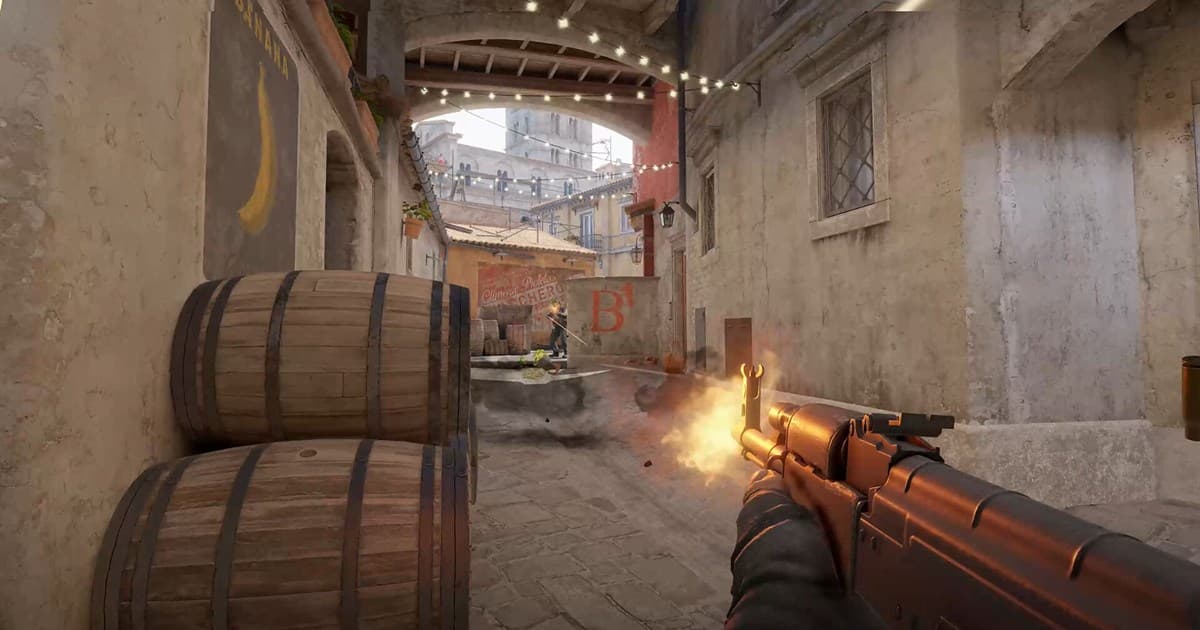
Here is the bottom line first: CS2 fps rises immediately just by changing one line of launch options and a few video settings. The most effective combination is putting -high -novid +fps_max 0 in your launch options and dropping textures and shaders to low in the video settings. This article lays out those two things in order so you can just follow along.
In CS2, fps is not simply a matter of smoothness; it directly affects aim accuracy. When frames waver, a tiny delay appears between input and screen, and your sprays and flicks subtly miss. That is why securing stable frames before flashy graphics is the key.
The short answer: launch options -high -novid +fps_max 0 and low textures/shaders
Two places matter. Put -high -novid +fps_max 0 in the Steam launch options, and in the video settings drop model, texture, shader and particle detail to low while keeping global shadow quality at medium or higher for information, with multicore rendering on and V-Sync off. The goal is a frame rate that stays above your monitor's refresh rate, and cl_showfps 1 lets you compare before and after. The common trap here is recording: the frames you just won often get eaten back by the overhead of a recorder like OBS. DOR uses NVIDIA NVENC hardware encoding by default, so the load on game frames is small, and it detects Counter-Strike, records the whole match and saves kills as automatic clips. If you want clutch clips after the change, there are no recording settings to touch — just leave it running. Below, we start with the launch options.
Step 1: Set Your Launch Options
Launch options are commands applied before the game boots, so their effect is reliable. Right-click Counter-Strike 2 in your Steam library, go into Properties, and you will find the launch options field in the General tab. Just paste the commands here on one line, separated by spaces.
The recommended launch options are as follows: -novid -high +fps_max 0 -forcenovsync. They are short, but each has a clear role.
- -novid: Skips the Valve intro video to cut loading time.
- -high: Gives CS2 high CPU priority to improve frame stability.
- +fps_max 0: Removes the fps cap to push to the maximum frames your monitor can display.
- -forcenovsync: Turns off vertical sync and removes fps-limit-related issues.
Step 2: Adjust Your Video (Graphics) Settings
After launching the game, tweak the graphics items in the Video tab of the settings. It is efficient to lower them in order, starting with the items that eat the most fps. Setting Model/Texture Detail, Shader Detail, and Particle Detail to low comes first.
That said, there are items you should not leave on low. Keep Global Shadow Quality at medium or high. In CS2, an enemy's shadow is important information that you see first from beyond a corner. Turning off shadows gains you a few more frames at the cost of losing fight information.
- Model/Texture Detail: Low
- Shader Detail: Low
- Particle Detail: Low
- Global Shadow Quality: Medium or High (keep the information)
- Multicore Rendering: On
- Vertical Sync: Off
Resolution and Aspect Ratio
Using a 4:3 stretched resolution widens player models horizontally so they are easier to hit, and depending on your setup you may gain 20 to 40% more fps. The downside is a narrower field of view, so if your PC stutters badly, try it first and switch back to 16:9 if the loss of view bothers you.
Step 3: Finish With the Recommended Values
Set your target frame rate at or above your monitor's refresh rate. On a 144Hz monitor, it is good to tune your settings so at least 144 or above is maintained stably. Screen and input are most consistent when fps stays steadily higher than the refresh rate.
Apply everything up to here and stutter drops noticeably even on a low-spec PC. You can turn on the fps display with cl_showfps 1 or +fps_perf_logging-family commands in the console, so compare before and after for yourself.
How to Protect Your Frames While Saving Clutches
CS2 is a game where fps is tied directly to aim. So if your recording program eats your frames, you lose out no matter how well you tune your settings. DOR uses low-load capture, so it maintains your fps while automatically saving decisive moments like clutches and aces as clips. You can keep exactly the frames you raised with your settings while saving only the highlights.
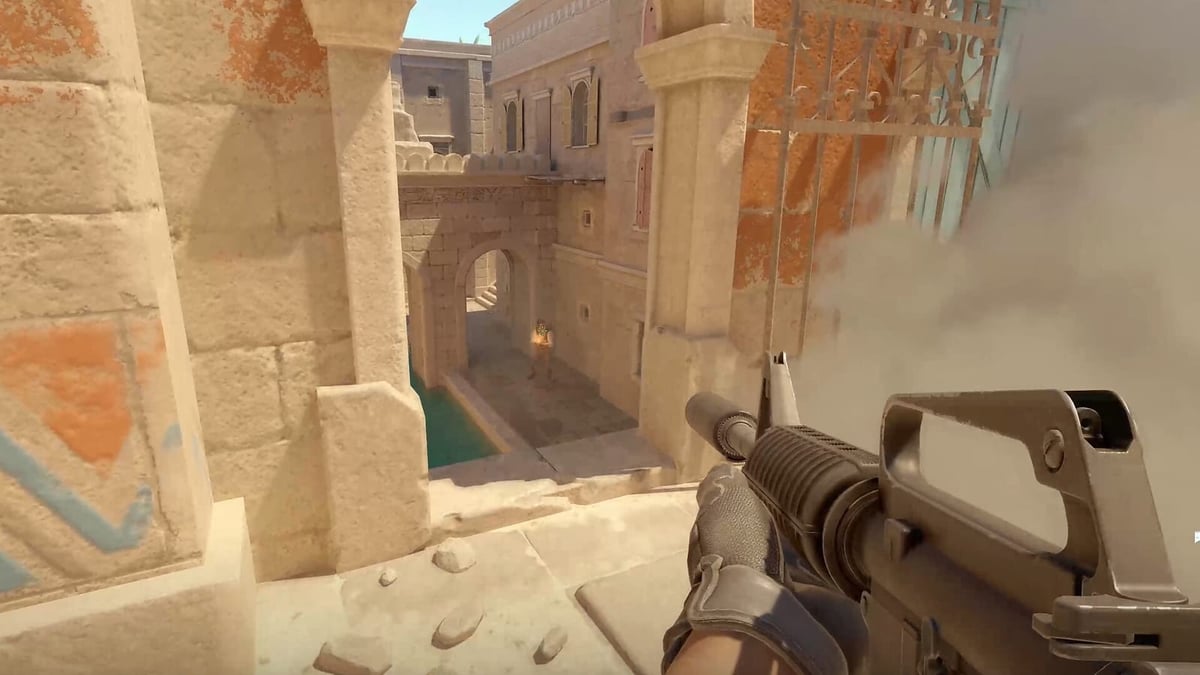
In the same way, you can record your play while protecting your frames in Valorant and other FPS games too. Automatically collecting Counter-Strike clutches makes reviewing and sharing much easier. First secure your frames with the settings above, then layer low-load recording on top.