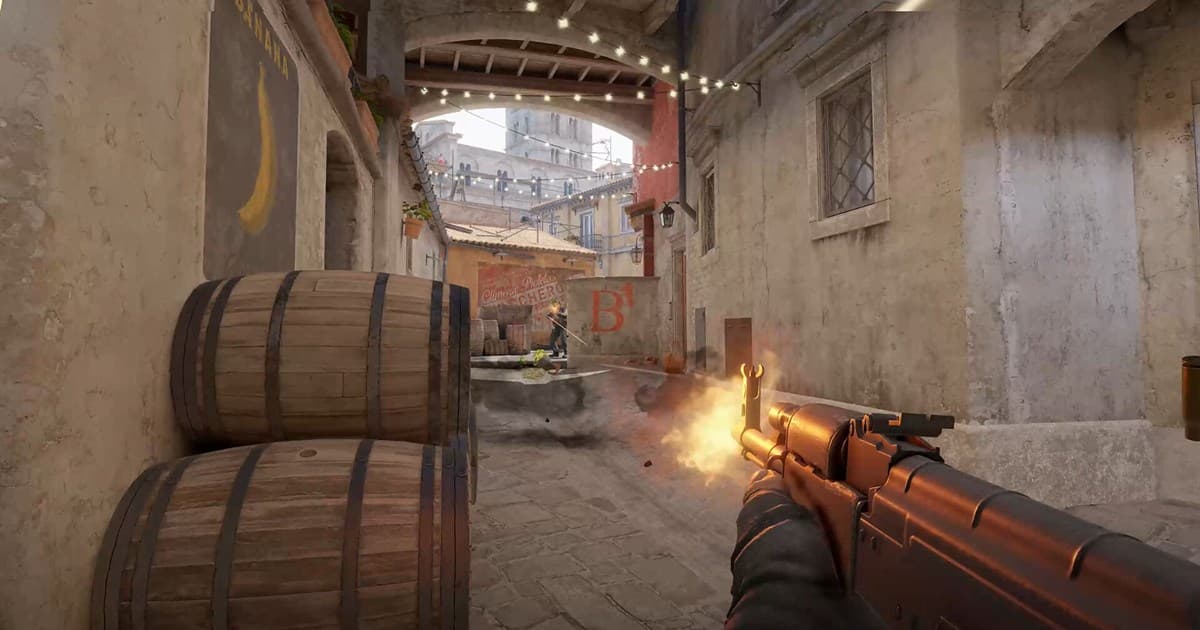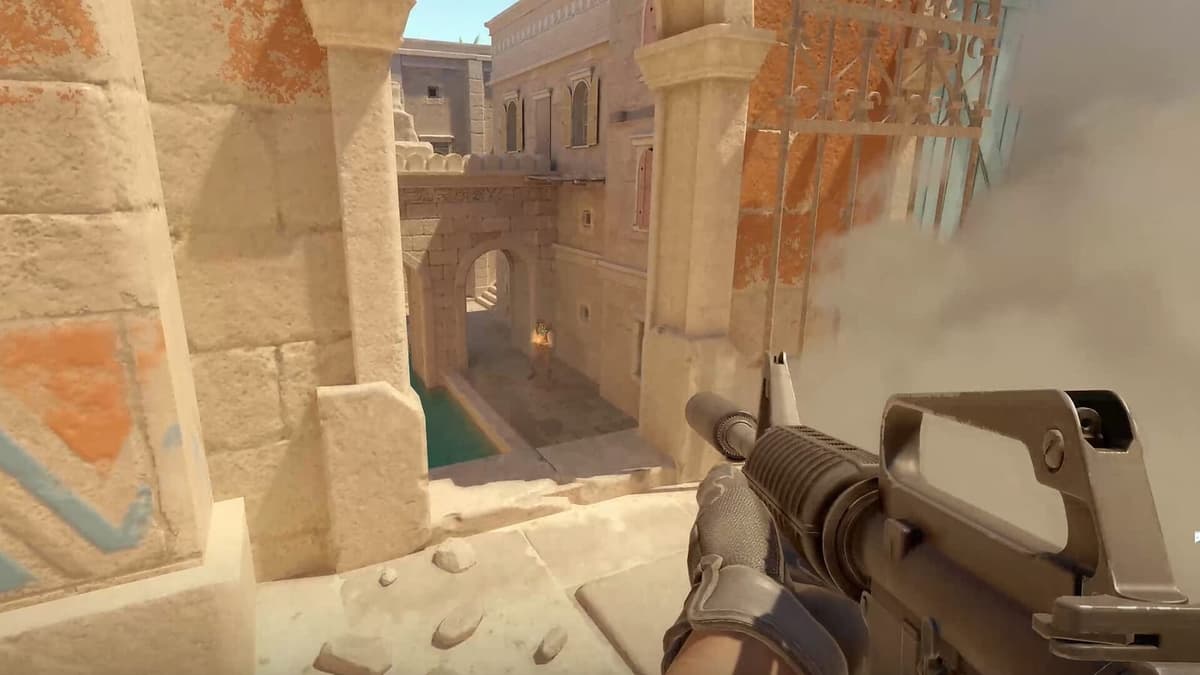
Search for CS2 graphics settings and most answers say to lower everything for frames. That is only half right. Frames matter, but dropping every option to minimum actually costs you enemies. This guide gives per-option recommendations balanced for both frames and target acquisition.
Start with resolution and aspect ratio
Decide resolution and aspect ratio first. Stretched 4:3 is common among pros because character models look wider and therefore easier to hit, and the narrower view helps concentration. The trade-off is real: your field of view genuinely shrinks, so you can miss information at the edges.
| Setting | Recommended | Why |
|---|---|---|
| Display mode | Fullscreen | Lowest input latency and the most stable frames |
| Aspect ratio | 16:9 or stretched 4:3 | 16:9 favours field of view, 4:3 favours model size |
| Resolution | Whatever holds your refresh rate | If frames fall below refresh rate, lower resolution first |
| Vertical sync | Off | A primary cause of added input latency |
Option by option, and why
The values below balance frames against enemy visibility. If your hardware has headroom, there is no need to floor everything.
| Option | Recommended | Why |
|---|---|---|
| Shadow quality | Medium | Too low removes shadow cues that reveal enemies behind cover |
| Model / texture detail | Low – Medium | Large frame impact, little effect on spotting enemies |
| Texture filtering | Anisotropic 4x or higher | Cheap, and sharpens floors and walls |
| Shader detail | Low | Effective for reclaiming frames |
| Particle detail | Low | Simpler smoke and fire effects make it easier to see through |
| Ambient occlusion | Off | Costs frames with almost no competitive benefit |
| Multisample anti-aliasing | 4x MSAA | Keeps distant enemy outlines from breaking up |
| FidelityFX Super Resolution | Only if you lack headroom | Buys frames by lowering internal resolution, at the cost of sharpness |
Settings that actually help you see enemies
- 1Raise brightness slightly — Enemies standing in dark corners become noticeably easier to see. Overdo it and contrast collapses, so move in small steps.
- 2Do not switch multisampling fully off — When distant enemy outlines break into jagged steps, they blend into the background.
- 3Lower particle detail — Simplified smoke and fire make movement behind them easier to read.
- 4Keep shadows at medium — Enemy shadows are information about positions you cannot see directly.
If frames are still short
When graphics options are not enough, launch options and system settings need attention as well. That side is covered step by step in CS2 FPS boost settings.
Check whether the change actually helped
The effect of graphics settings is hard to judge from a frame counter. What matters is whether an option let you see an enemy sooner, and that only shows up when you review the moment of the fight.
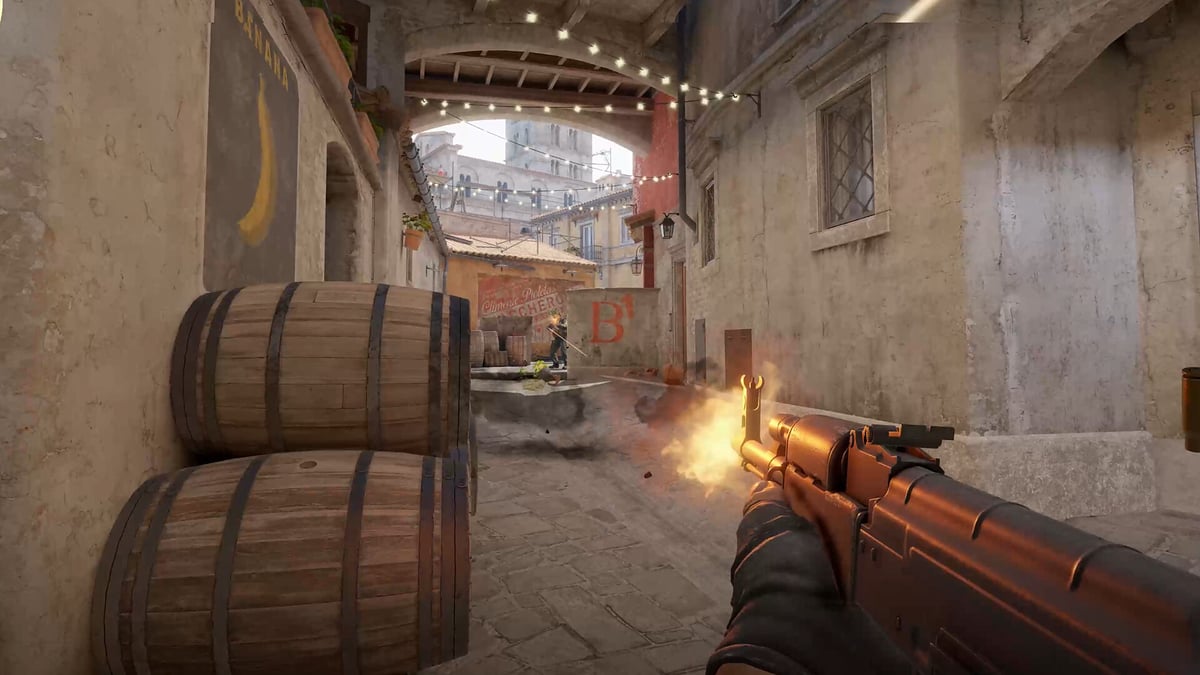
DOR detects CS2 automatically and keeps engagements as separate clips. Comparing clips from before and after a settings change shows whether silhouettes through smoke really are clearer and whether distant outlines hold up. It uses hardware encoding by default, so leaving it on costs few frames.
Wrapping up
Minimum is not automatically correct in CS2. Lower the options that eat frames without helping you spot anything — shader detail, particles, ambient occlusion — and keep the ones that carry information, like shadows and multisampling. Resolution and aspect ratio are preference, so hold a change for a few days, and make the final judgement on engagement clips.