To get straight to the point, setting a recording hotkey is as simple as opening the hotkey section inside your recording software's settings menu and pressing the key you want to assign. The key is to pick a key that does not overlap with the movement and skill keys you use constantly in games, and to keep your clip save key separate from your manual record key. Follow the steps below and you will have a key layout that fits your hands in under five minutes.
Why You Should Not Just Stick With the Default Hotkeys
Most recording programs set keys like F12, Tab, or Space as the default record key. The problem is that these keys are also used constantly inside games. Tab is often bound to the scoreboard and Space to jumping or dashing, so when you hit the key at a decisive moment you end up triggering a game action instead of a recording.
That is why it is best to move your recording keys to keys physically far from your game controls. Set it up properly once and your hands will remember it from then on.
Step 1: Open the Hotkey Settings Menu
Almost every recording program keeps a separate section in its settings called Hotkeys or Shortcuts. Launch the program, click the settings (gear) icon in the top right or in the left-hand menu, then find and open the Hotkeys tab. With Xbox Game Bar, press the Win key together with G to bring up the overlay, then go into the shortcuts section in settings.
Step 2: Choose the Function and Assign a Key
The hotkey screen usually lists functions like start/stop recording, pause, save clip, and screenshot in a row. Click the input field next to the function you want to change to put it into capture mode, then simply press the new key you want and it gets registered.
- Manual record start/stop: the key that turns recording on and off directly
- Save clip (save recent segment): the key that cuts and saves the moment that just happened
- Pause: the key that briefly stops and then resumes recording
- Screenshot: the key that saves a still frame separately
The two most important here are the manual record key and the clip save key. Putting them on the same key or right next to each other makes them easy to mix up, so it is best to space them out across different areas of the keyboard.
Step 3: Recommended Keys That Will Not Clash With Your Game
To avoid key conflicts, the right answer is to use keys far away from the movement (WASD) and skill (Q, E, R, and the like) zones. The less your fingers normally reach a position during play, the less it will misfire.
- F8 to F12: the top row of the keyboard, almost never overlapping with game controls
- Mouse side buttons (buttons 4 and 5): convenient since you can press them without lifting your hand
- The numpad 0, Enter, and so on: recommended unless your right hand is gripping the mouse
- Editing keys like Insert, Home, and End: a zone games almost never use
Key placement directly affects clip quality, especially in games where reaction speed is everything. In League of Legends, where laning and teamfights flow quickly, or Valorant, where split-second decisions matter within a single round, keys you can press with barely any hand movement, like your pinky or a mouse side button, give you the edge.
Changing the Clip Save Key in DOR
DOR lets you freely remap the clip save hotkey to any key you want. Open the Hotkeys section in settings, click the clip save input field, and press the key you want once to register it. You can also assign the manual record key separately on the same screen, so you can space the two functions out to fit your hands.
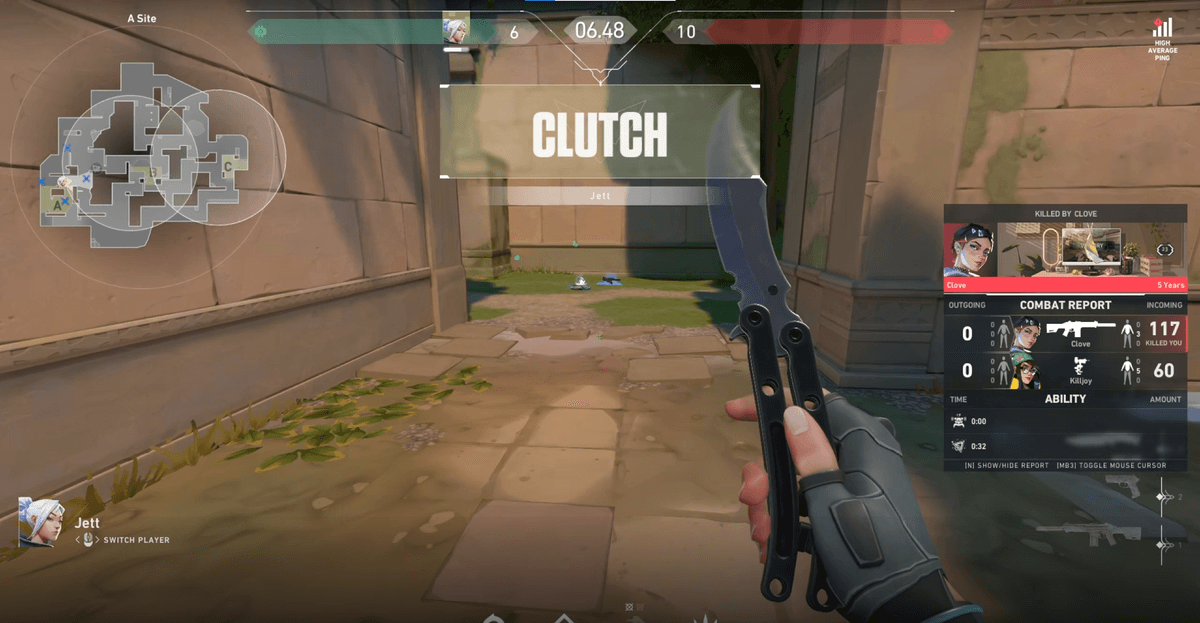
DOR's strength is that hotkey remapping and automatic detection work together. While you save clips by pressing a key yourself, DOR also detects key moments like kills and deaths on its own and marks the segments. So even if you forget to press the key at a decisive moment, automatic detection has your back, and conversely, the subtle moments automatic detection misses you can capture yourself with the hotkey.
Wrapping Up: A One-Time Job Once You Set It
Changing your recording hotkeys is a simple task that comes down to pressing a key once in the settings menu. Just follow the two principles of moving keys far from your game controls and keeping clip save and manual record separate. Add automatic detection on top and your odds of missing a decisive moment drop even lower. Take a moment today to organize your keys to fit your hands.