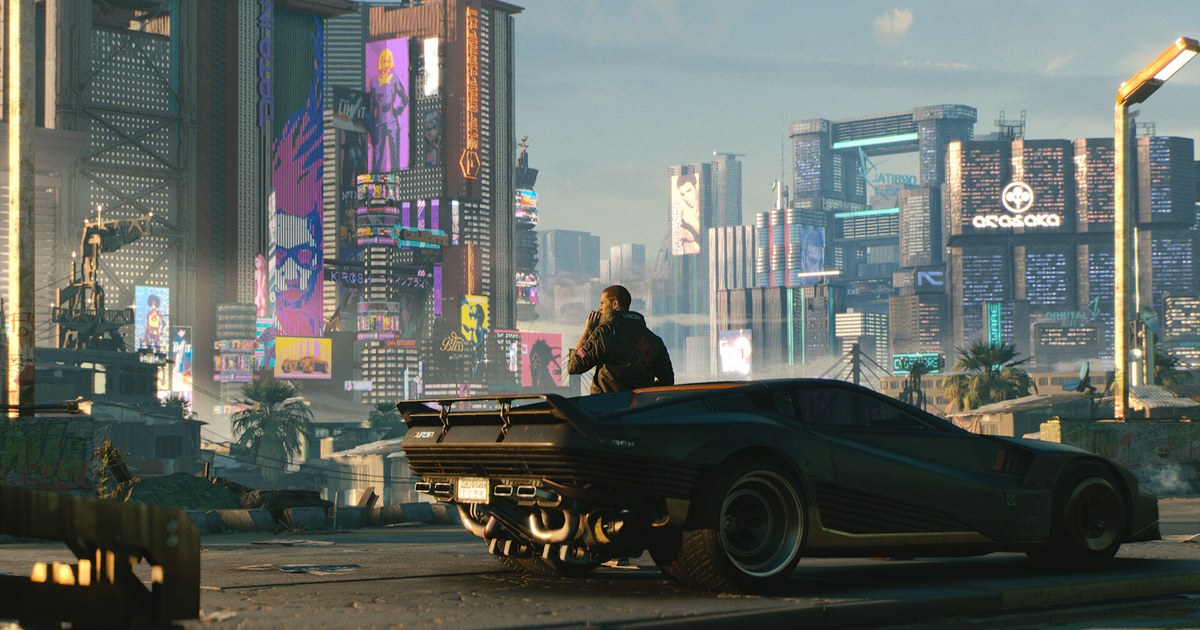

Here is the short answer: Cyberpunk 2077 save files are in C:\Users\YourName\Saved Games\CD Projekt Red\Cyberpunk 2077. Paste %USERPROFILE%\Saved Games\CD Projekt Red\Cyberpunk 2077 into the File Explorer address bar and press Enter, and it opens without you needing to know your user name.
Copying that whole folder to another drive or a cloud folder is a backup, and pasting it into the same location on a new PC is a transfer. The confusing part is that the folder is Saved Games, not Documents, so people who only search Documents often conclude the saves are missing.
This guide covers how to open the folder, what is inside, how to back up and restore, and how to keep your saves separate from gameplay recordings.
The answer: copy the whole Saved Games folder
You do not need to pick save files one by one. Copying the outer Cyberpunk 2077 folder takes every manual save, quicksave and autosave in one go. Make a dated copy before a big story choice or before starting DLC content, and you can always return to that point if a save breaks.
Even with Steam Cloud or launcher sync switched on, some players run into sync conflicts or errors between devices, so keeping a manual copy of your own is the safer habit.
This is the default path as checked on November 24, 2026, and the location can differ with a different install setup or on Linux under Proton. Protecting saves and keeping footage are different jobs, so if you also want video, read how to share Cyberpunk 2077 gameplay videos.
How to find and back up your save folder
- 1Paste the path into the Explorer address barOpen Windows File Explorer, paste %USERPROFILE%\Saved Games\CD Projekt Red\Cyberpunk 2077 into the address bar and press Enter. Your own save folder opens even if you do not remember your user name.
- 2Check how the saves are organizedInside you will find one folder per save, and each holds sav.dat, a metadata json file and a screenshot png. The folder with the latest modified time is your most recent save.
- 3Close the game and copy the whole folderIf the game is running, a save may still be in progress, so exit completely and then copy the outer Cyberpunk 2077 folder. Paste it to another drive or a cloud folder and add the date to the name.
- 4To roll back, paste it into the same locationIf a save breaks, overwrite the original folder with the backup while the game is closed. Copy your current folder once more before overwriting, so even a mistake can be undone.
- 5To move to a new PC, match the same pathInstall the game on the new PC and launch it once so the Saved Games folder is created. Close the game, paste the backed up contents into the same path, and check that the saves appear on the load screen.
Cyberpunk 2077 save locations and files at a glance
| Item | Location or form | Note |
|---|---|---|
| Default save folder | C:\Users\YourName\Saved Games\CD Projekt Red\Cyberpunk 2077 | It is under Saved Games, not Documents |
| Quick open address | %USERPROFILE%\Saved Games\CD Projekt Red\Cyberpunk 2077 | Paste it into the Explorer address bar and it opens whatever your user name is |
| One save | One folder (named by type, such as manual save, quicksave or autosave) | It holds sav.dat, a metadata json file and a screenshot png |
| Backup | Copy the outer Cyberpunk 2077 folder whole | Keep it on another drive or in the cloud with a date in the name |
| Restore | Copy the backup back to the same location | Overwrite it while the game is fully closed |
| Move to another PC | Paste the folder into the same path on the new PC | Install and launch the game once first, then match the folder |
Check before you back up
- The path is under Saved Games, not Documents
- The game was fully closed before copying
- You copied the outer Cyberpunk 2077 folder, not just one save
- The backup has a date in its name and sits on another drive or in the cloud
- You copied the current save folder once more before overwriting
Keep your gameplay too with DOR
DOR is a free Windows game recorder. When you launch a supported game it detects it automatically and records the whole session from launch to exit, and the recordings collect in My Clips in the app.
Save files are data the game creates, and DOR does not touch them, while your Night City moments are kept separately as DOR recordings. With both in hand, a broken save is less painful because the footage shows the choice you made.
The folder location and storage limit are explained in how to change the DOR save location, and the game hub Cyberpunk 2077 collects related guides and clips. Recordings and edited exports made with DOR carry no watermark.