
Automatic recording is great until your system drive turns red. DOR records whole matches on its own as soon as a supported game launches (how DOR auto recording works), so videos pile up without you ever pressing a button.
That makes two settings worth five minutes on day one: where recordings are saved, and how much space they are allowed to use. If you want the general version of this for any recorder, our guide to changing your recording save location covers that. This article sticks to DOR's own menus.
Every setting name below is written exactly as it appears in the DOR app on November 12, 2026, so you can search the settings screen for the same words. The good news is that once these are set, storage mostly manages itself: old footage rotates out, and anything you mark as a favorite stays put.
Decide two things first: which drive, and how much space
Start with the drive. If your C drive holds Windows and your games and is already tight, create a folder such as DOR Recordings on a second SSD or a roomy D drive.
Recording writes data continuously, so a fast internal SSD is the safest choice, and an external USB drive that can disconnect mid match is the riskiest. Next, decide how much of that drive DOR gets.
Automatic File Management only starts deleting when recordings go over the limit you set, oldest first. Set it too low and yesterday's matches vanish quickly; set it too high and the drive fills up again.
A practical approach is to leave generous free space on the drive before you start recording, and then pick a limit you would be comfortable losing to video. If your disk is already full right now, clear space first with our low disk space fix for game recording, then come back and set things up so it does not happen again.
How to move DOR recordings and turn on automatic cleanup
- 1Finish any recording in progressIf you open Settings mid match and try to change the folder, DOR shows the message that you cannot change the save path while recording. End the match and close the game first.
- 2Open the File tab in SettingsOpen Settings in the DOR app and choose File in the left menu. The File Management page shows File Save Path at the top, with the free space left on that drive written right under it.
- 3Point File Save Path at your new folderClick the box that shows the current path. When the window asks you to select the folder where you want to save the video, choose the folder you made on your SSD or D drive. A short path right under the drive root is easiest to find later.
- 4Turn on Automatic File Management and set a capSwitch on Automatic File Management and the File Auto-Management Storage Settings box below it becomes active. Pick a value between 10 GB and 200 GB, or choose Custom and type your own. The same cap is also under Set limit capacity in the storage panel at the top of the app. Cleanup only removes the oldest videos once you go over this cap.
- 5Favorite the clips you want to keepIn My Clips, favorite any video you want to hold onto; favorites are collected under Likes. As the app's own description says, favorited videos are not deleted by automatic management.
DOR File tab settings at a glance (as of November 12, 2026)
| Setting (as shown in the app) | What it does | When to touch it |
|---|---|---|
| File Save Path | Chooses the folder where recordings are saved | Right after installing, or when your C drive is tight |
| Automatic File Management | Deletes old videos automatically to stay under your set capacity | Turn it on if you do not want to delete clips by hand |
| File Auto-Management Storage Settings | Sets the storage cap that cleanup keeps you under: 10 GB to 200 GB, or Custom | Once Automatic File Management is on, based on your drive size |
| Favorite (shown under Likes in My Clips) | Favorited videos are excluded from automatic deletion | Whenever you get a clip worth keeping |
| Storage Space | Shows a bar of how much space recordings take up; free space is written under File Save Path | Before you move folders and during heavy play weeks |
| Changing path while recording | The app tells you the save path cannot be changed while recording | Finish the match first, then change it |
Check these after setup
- Play one match and confirm a new video file appears in the new folder.
- Make sure the free space readout in the File tab now refers to the new drive.
- Double check that your storage cap is comfortably smaller than the free space on that drive.
- Scroll through My Clips and confirm the moments you care about are favorited.
- If you plan to replace or wipe a drive, move the save path while nothing is recording.
Set storage once, then just leave recording on
DOR is a free Windows app that detects supported games when you launch them and records the whole match, collecting everything in My Clips.
Storage only gets cleaned up when full gameplay recordings go over their share (5 GB by default), oldest first, and your most recent recordings and favorited videos stay.
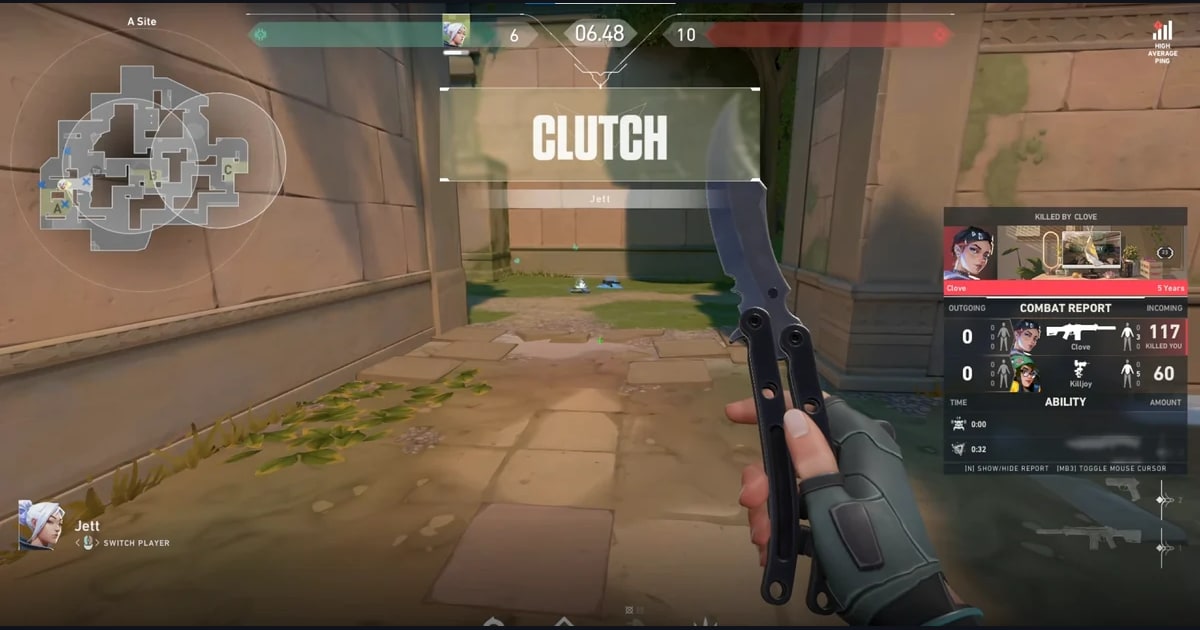
In League of Legends, kills, multikills and objectives are also saved as separate automatic highlight clips, and in VALORANT your kills are clipped with ace and clutch tags (automatic highlight clips explained), so even when a long recording rotates out, the big moments live on as short clips. See what works per game on the League of Legends page and the VALORANT page.