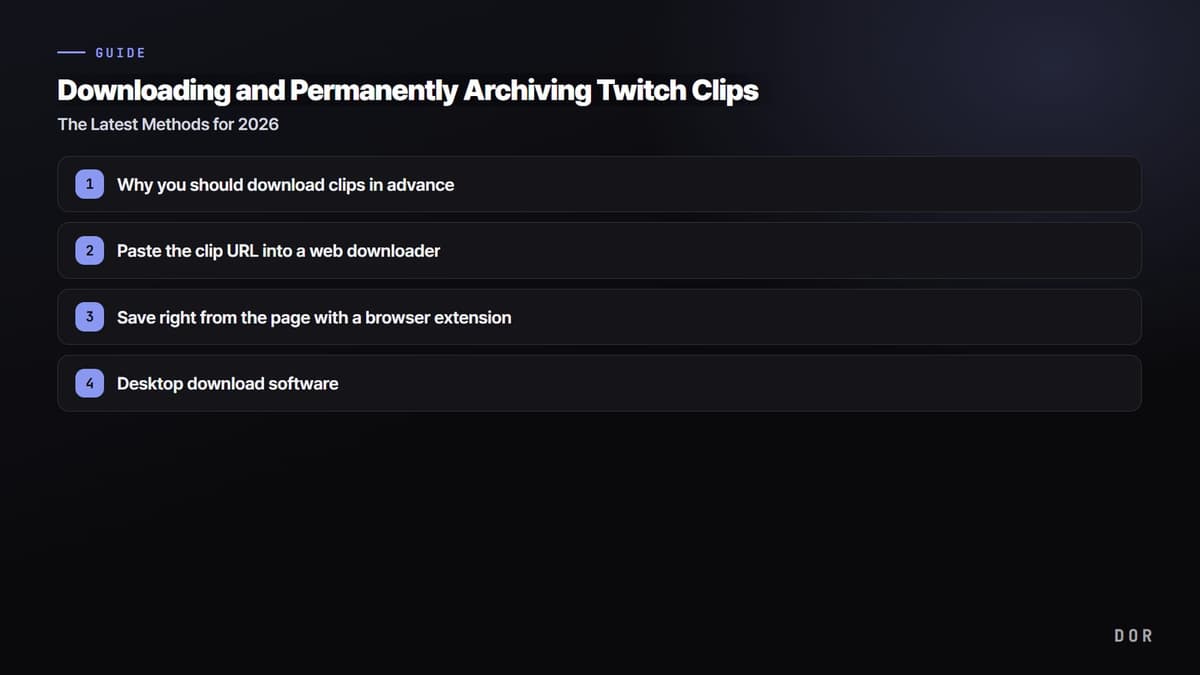
Let us start with the conclusion: the fastest way with Twitch clips is to copy the clip URL, paste it into a web downloader or browser extension, and download it as an MP4. And if there is a clip you like, it is best to download it right now. Clips can be deleted along with the original broadcast (VOD) or channel if they disappear, so as time passes, you often cannot find the same moment again.
This article organizes, as of 2026, how to save Twitch clips to your own device step by step, where the boundary of legally usable scope lies, and how to archive the source one step more safely than a clip.
What does the Korean search term '트저장' mean?
The Korean shorthand '트저장' combines the words for 'Twitch' and 'save.' People use it when looking for a way to download a Twitch clip or broadcast video as a file on a PC or phone. The official options and required rights differ depending on whether you are keeping one clip or backing up your own channel's VOD, so identify the item you want to save first.
Why you should download clips in advance
A Twitch clip is a short video made by cutting out part of a streamer's broadcast. It is convenient, but it has one weakness. Clips are usually linked to the original broadcast replay (VOD), so if the original is deleted after its retention period or the streamer makes the channel private or deletes it, the clip may also become blocked from access or disappear.
To prevent a favorite moment you used to watch, a highlight you made yourself, or a moment shared with friends from suddenly disappearing one day, the surest habit is to download clips you like as files as you go.
Method 1. Paste the clip URL into a web downloader
The simplest method without installing anything is to use a web-based downloader. As of 2026, there are several online services that convert a clip link into an MP4 when you paste it. The procedure is mostly the same.
- Open the clip you want to save on Twitch, then press the share button to copy the clip URL.
- Go to a web downloader site and paste the copied URL into the input box.
- Choose the resolution and format (usually 720p/1080p MP4).
- Press the download button to save it to your device.
Method 2. Save right from the page with a browser extension
If you frequently save clips on PC, a Chrome extension is convenient. Once you install the extension, it automatically detects the video when you open a clip page and lets you download the MP4 in your preferred quality with one button. The advantage is that it saves right from the page you are viewing, without separately copying and pasting the URL.
- Install an extension for downloading Twitch clips from the Chrome Web Store.
- Open the clip page you want to save.
- Press the extension icon and choose the quality of the detected video.
- Press save to download it as an MP4.
Method 3. Desktop download software
If you want to organize not just clips but VODs, highlights, and collections all at once, you can also use dedicated desktop download programs. They let you batch-download multiple videos or specify quality in fine detail, making them suitable for backing up large numbers of clips. Just enter a clip or channel URL, choose the items and quality you want, and specify the save location.
The scope for downloading and using legally
How clip downloads are allowed depends on how you use them. If you follow the criteria below, you can use them safely.
- Even for a video from your own channel, check whether it contains background music, broadcast footage, or someone else's work.
- Crediting the source of another streamer's clip does not automatically grant permission to use it.
- Before redistribution, adaptation, or commercial use, confirm the necessary permissions and the applicable license.
- Even for personal archiving, do not bypass access controls or compromise account or service security.
- Twitch features and terms can change, so base your decision on the official guidance in effect when you save the content.
A surer method: record your play source directly and archive it permanently
Downloading clips is a good backup method, but it has the limit that the starting point is ultimately Twitch's servers. If the original broadcast is deleted or clip policy changes, the source to pull from may disappear. The most fundamental solution is to record the very moment you play directly on your own PC.
The game recording program DOR records your gameplay screen exactly as the source and keeps it on your own device. If you record and archive it yourself, you can permanently archive the source unaffected by Twitch policy or channel and VOD deletion. The key is that the full-quality source, before it is cut into a clip, always remains in your hands.
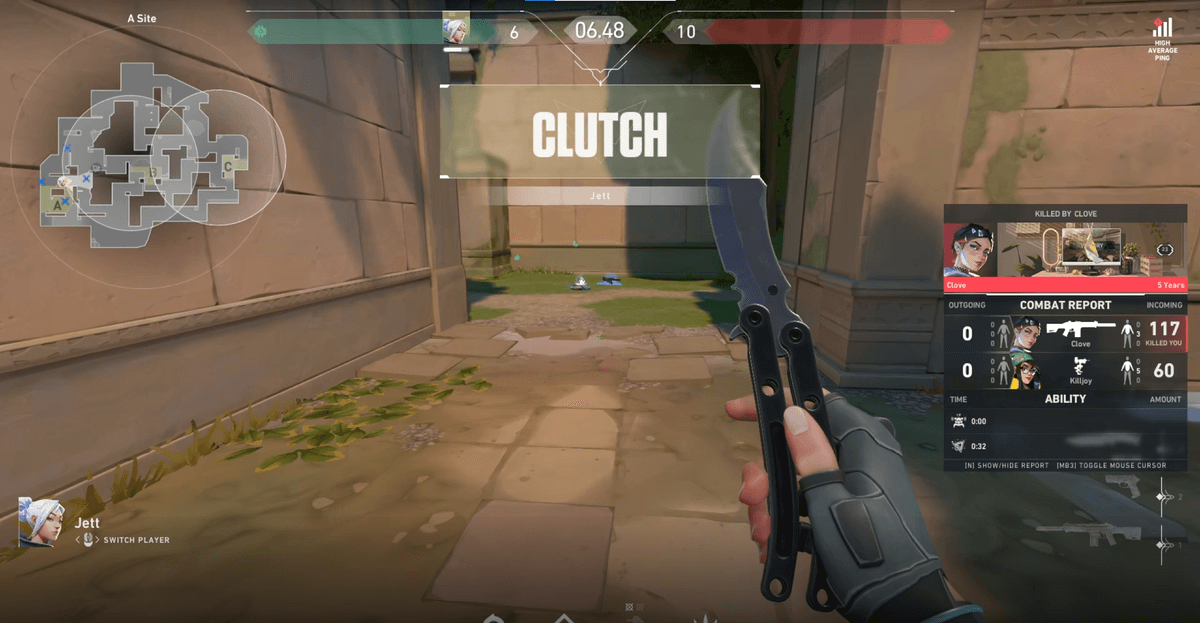
The value of archiving the source is especially great in games where great moments happen often. For plays you want to rewatch, like an ace round or a clutch moment in Valorant, or a teamfight comeback in League of Legends, having the original recording before cutting it into a clip lets you re-cut the segment you want as much as you like.
Summary
To download Twitch clips, copy the URL and then save the MP4 with whichever is convenient among a web downloader, browser extension, or desktop software. If you use them within the scope of your own clips or with the source credited, you can archive and edit them legally. However, the source of a clip is ultimately Twitch, so for plays that really matter, using a method like DOR to record and archive the source directly alongside it is the safest.