The short answer: a game GIF is made by trimming the section you want out of a short game clip and converting it into a GIF. Instead of uploading a whole long video, you pull out just the 3 to 5 second highlight and turn it into a looping GIF. It works great anywhere you need an image that moves on its own without a click, like Discord chats, community posts, and reaction threads.
This guide walks through the whole flow step by step, from the difference between a GIF and a short mp4 to grabbing a clip, trimming the section, and optimizing frame rate and file size to finish it off. The principle is the same no matter what tool you use, so once you learn the order you are set.
What is a game GIF
A GIF is an animation format that stitches multiple images together and plays them back at short intervals. It carries no sound, and in most chats and communities it loops automatically without a separate play button. That is what makes it a good fit for when you want to show one moment over and over.
GIF vs. short mp4: what is the difference
Even for the same scene, whether you make it a GIF or keep it as a short mp4 depends on your goal. Here are the key differences in short.
- File size: at the same length, a GIF is far heavier than an mp4. The more colorful or motion-heavy the scene, the more sharply the GIF size balloons.
- Quality: an mp4 wins on color reproduction and sharpness. A GIF cuts its palette down to 256 colors, so gradients can look blocky.
- Autoplay and compatibility: a GIF loops without a click in nearly every chat window. An mp4 can carry sound, but it often requires pressing a play button.
3 steps to make a game GIF
1. Grab the highlight clip
The raw material for a GIF is ultimately a short clip. First you need the video file that contains the scene you want to GIF. In-game replays, the recording features on your console or PC, and clips saved with a separate recording program all work as source material. Since a GIF is a format only a few seconds long, it is easier to pull just the moment you need out of a longer 30-second or one-minute original.
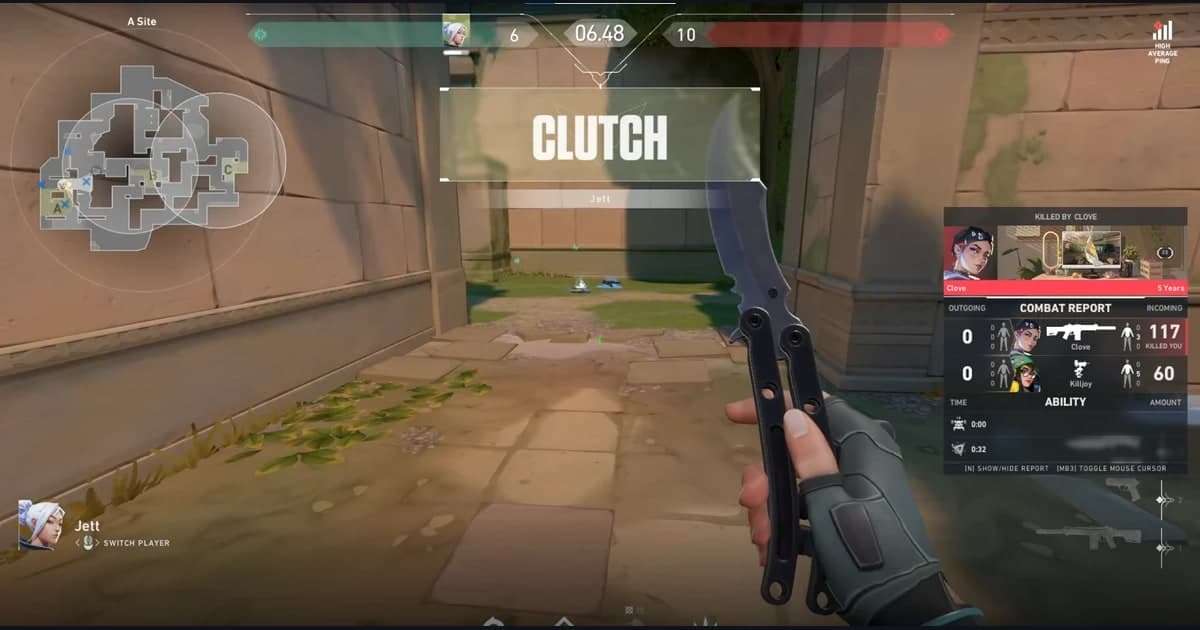
Scenes you want to watch on repeat suit GIFs especially well, like an ace moment in Valorant, a teamfight comeback in League of Legends, or an ultimate combo in Overwatch. Each game guide covers how to use its clips in more detail: Valorant, League of Legends, Overwatch.
2. Trim the section
Set the start and end of the section you want to GIF and trim it out of the original clip. The key to a good GIF is length. 2 to 6 seconds is the safest range, and around 3 seconds keeps it from getting boring on loop while staying light on file size. Cut any unnecessary loading or waiting screens on either end, and set your start point right on the moment the impact lands.
3. Convert and optimize the GIF
As you convert the trimmed section into a GIF, adjust the frame count and file size. A frame rate (FPS) between 15 and 24 is about right. Higher FPS is smoother but grows the file size a lot, while lowering it makes the file lighter at the cost of choppier motion. Dropping the resolution to 720p or below rather than keeping the original also saves a lot of size.
- Trim the length: shaving even 1 second brings the size down noticeably. Keep only the section you truly need.
- Lower the FPS: dropping from 24 to 15 alone makes the file lighter. Unless the scene has fast motion, 15 is plenty.
- Optimize resolution and color: shrinking the size and compressing the color palette keeps you under Discord and community upload limits.
Trim DOR clips, then convert them with a GIF tool
The most tedious part of those three steps is grabbing the highlight clip. Scrubbing through a long gameplay video from start to finish to find the scene takes a lot of time. DOR automatically detects highlights like kills, deaths, and ultimates while you play and saves them as clips. When the match ends, a list of neatly split clips is already waiting, so you can pick the scene to GIF right away.
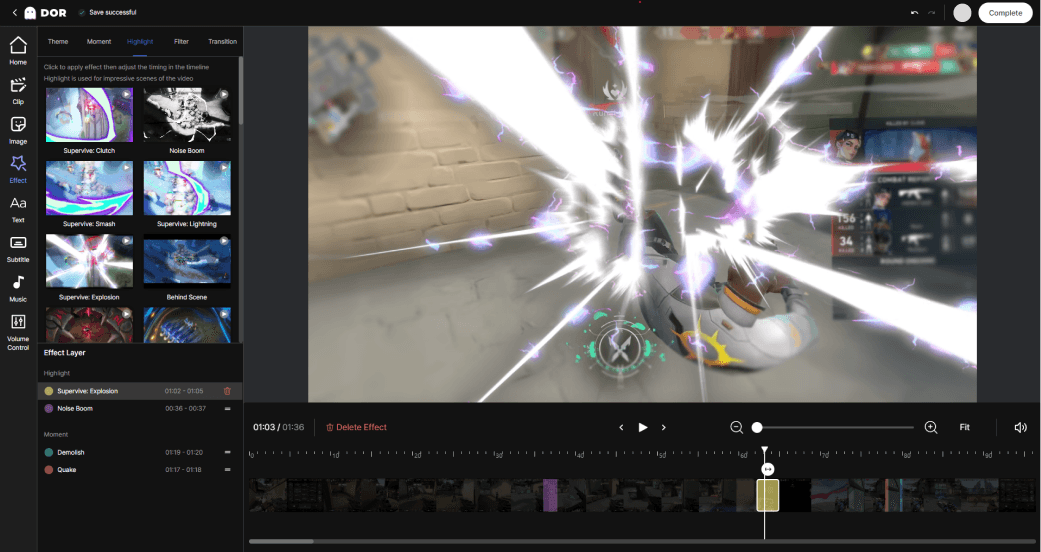
After DOR saves a highlight as a clip, trim the section you want in the editor and convert the trimmed clip with a separate GIF conversion tool. Use DOR for automatic clips and trimming, then use a dedicated tool for GIF conversion and optimization.
Wrapping up
A game GIF ultimately comes down to trimming a good section out of a short clip and converting it into a GIF. Just remember the benchmarks of 2 to 6 seconds, 15 to 24 FPS, and 720p or below, and you can make a light, clean GIF with any tool. If you want to spend less time hunting for highlights, pairing it with a tool that saves clips automatically is well worth it.
 #Valorant