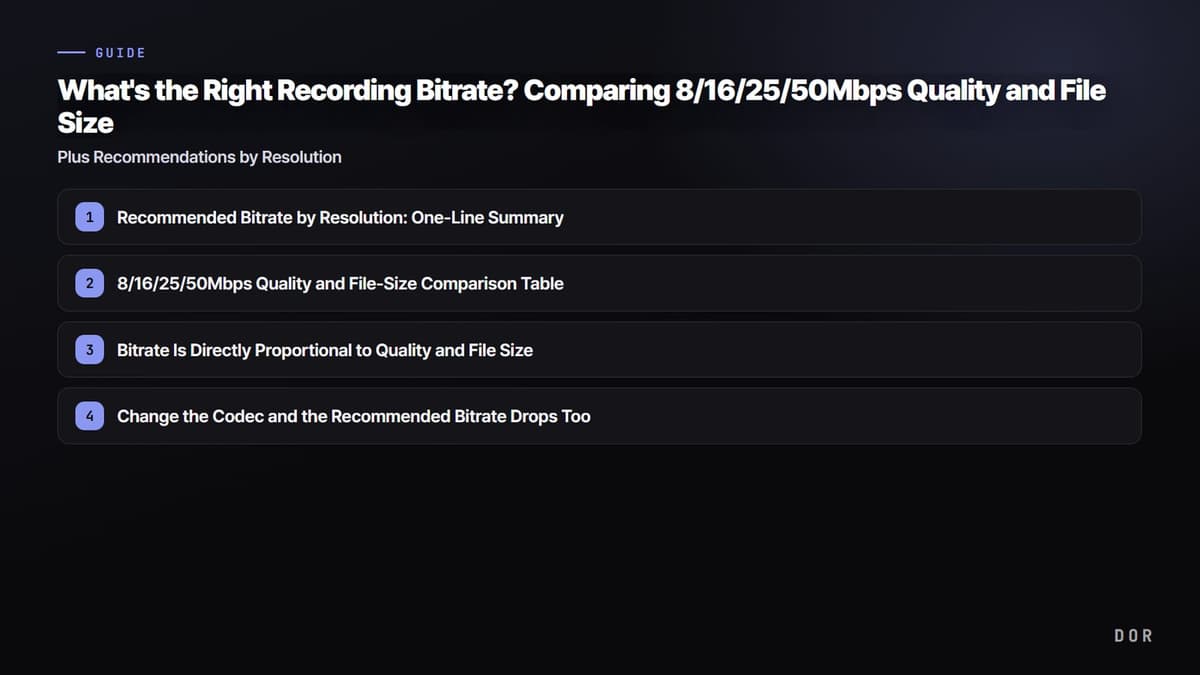
When you open recording settings, there's a field called "bitrate," and many people are stumped about what to put in it. Set it too low and quality smears on fast-moving scenes; set it too high and the file balloons to tens of GB in no time. Here's the answer right up front: setting 1080p 60fps at 16Mbps, 1440p (2K) 60fps at 25Mbps, and 4K 60fps at 50Mbps as your baseline balances quality and file size for most game footage. If you're mostly doing 1080p 30fps with little on-screen movement, 8Mbps is clean enough. Let's unpack the reasons with the table and explanation below.
The Short Answer: Three Rules for Choosing a Recording Bitrate
First, start from the baseline for your resolution and frame rate, and go one step lower only for light recordings with little on-screen movement. Second, for games where the screen shakes hard in fights, stay at the upper end of the baseline even at the same resolution, and if you record in H.265 or AV1, start 30 to 50% lower. Third, multiply the bitrate by how long you expect to record and check that the result fits your SSD headroom. If you'd rather not pick a bitrate at all, DOR, a free Windows app, auto-detects supported games and records full matches automatically with NVENC hardware encoding by default, so you can start without ever touching the bitrate field.
Recommended Bitrate by Resolution: One-Line Summary
- 1080p 30fps (light recording, web upload): 8Mbps
- 1080p 60fps (FPS and action game standard): 16Mbps
- 1440p (2K) 60fps (high-quality archival, editing source): 25Mbps
- 4K 60fps (top quality, large-screen viewing): 50Mbps
The key here is "the amount of movement." Even at the same 1080p, genres where the whole screen changes fast, like fighting or shooting games, eat more bitrate. For games where the screen shakes violently during engagements, like Valorant or PUBG, it's safer to aim at the upper end of the recommendation (16Mbps or more for 1080p60), while for static screens like card or strategy games, you can go lower with almost no quality penalty.
8/16/25/50Mbps Quality and File-Size Comparison Table
The table below is based on the H.264 codec, summarizing the perceived quality of each bitrate and the approximate video file size (audio excluded) per 1 minute, 10 minutes, and 1 hour. File size is calculated as "bitrate (Mbps) × time," and it's easy to convert if you remember that 8Mbps accumulates 1MB per second, that is, about 60MB per minute.
- 8Mbps · Quality: Fine for 1080p30; in 60fps action, fast scenes smear a bit. Size: about 60MB/min / 600MB/10min / 3.5GB/hr. Recommended for: saving space, web upload.
- 16Mbps · Quality: 1080p60 standard, clean even in engagements. Size: about 120MB/min / 1.2GB/10min / 7GB/hr. Recommended for: the most reliable default.
- 25Mbps · Quality: Sharp up to 1440p60, plenty for an editing source. Size: about 188MB/min / 1.9GB/10min / 11GB/hr. Recommended for: 2K archival and editing.
- 50Mbps · Quality: Holds detail even at 4K60, feels nearly lossless. Size: about 375MB/min / 3.7GB/10min / 22GB/hr. Recommended for: 4K, top-quality archival.
Bitrate Drives Quality and File Size, but Past the Right Level the Gains Fade
Bitrate is "the amount of data packed into the video per second." The bigger the number, the more information recorded per second, so detail and color come alive, and the file gets correspondingly heavier. The key point is that past a certain threshold, quality gains become hard to see. Pouring 50Mbps into a 1080p video makes little perceptible difference over 16Mbps while tripling the file size. That's why setting "the right level for the resolution" is smarter than just cranking it up.
Change the Codec and the Recommended Bitrate Drops Too
The table above is based on H.264, which has the best compatibility. But newer codecs like H.265 (HEVC) and AV1 have higher compression efficiency, fitting the same quality into a lower bitrate. Roughly speaking, H.265 achieves similar quality at about 30 to 50% lower bitrate than H.264. In other words, if you recorded 1080p60 at 16Mbps with H.264, you can get a similar result at 10 to 12Mbps with H.265. If your GPU supports H.265 or AV1 encoding, you effectively get better quality at the same file size, or a smaller file at the same quality.
Best Recording Bitrate at a Glance: CBR Baseline, OBS Kbps Input, and File Size per Hour by Resolution
If you searched for the best bitrate for 1080p, 1440p (QHD/WQHD) or 4K recording and only want one row, here is everything in a single table: the H.264 CBR baseline explained above, the exact Kbps value you type into OBS, and the approximate file size per hour (audio excluded).
| Resolution / fps | H.264 CBR baseline | OBS input (Kbps) | Size per hour (H.264) |
|---|---|---|---|
| 1080p 30fps | 8Mbps | 8000 | about 3.5GB |
| 1080p 60fps | 16Mbps | 16000 | about 7GB |
| 1440p (2K, QHD/WQHD) 60fps | 25Mbps | 25000 | about 11GB |
| 4K 60fps | 50Mbps | 50000 | about 22GB |
Steps to Set Bitrate in OBS
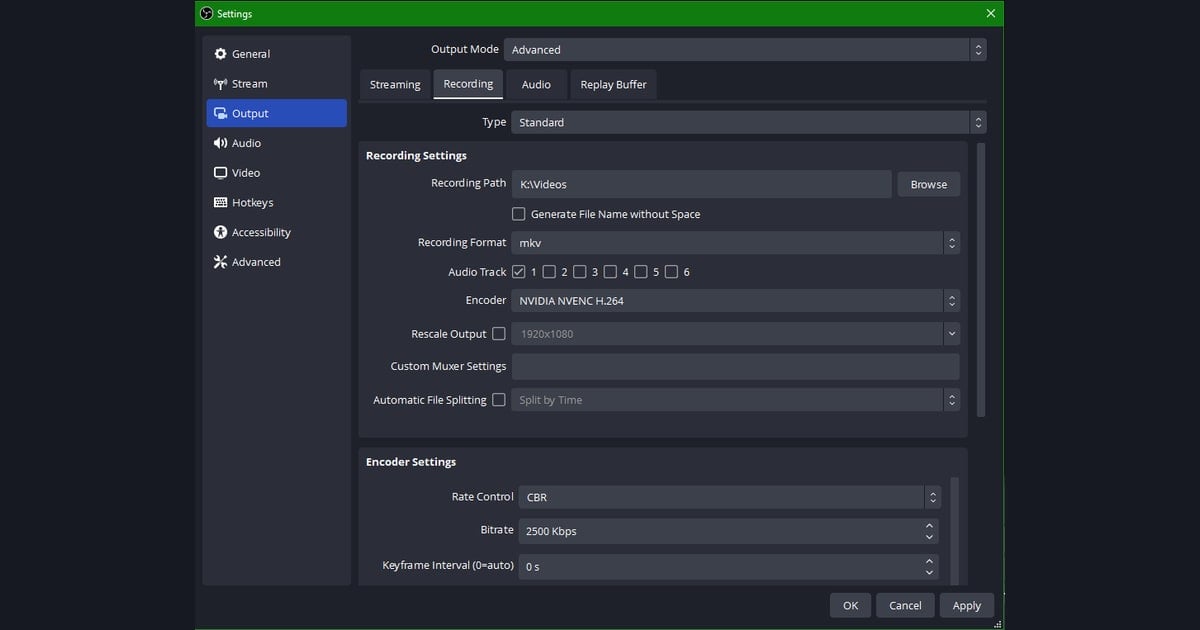
- Step 1: From the top menu, go to 'Settings → Output,' then change the output mode to 'Advanced.' This is required to enter the bitrate directly (other recording programs are structured similarly, with only the item names differing).
- Step 2: Go to the 'Recording' tab. Note that it's the 'Recording' tab, not the 'Streaming' tab.
- Step 3: For the encoder, choose a GPU encoder (such as NVENC HEVC), and if you want to fit the same quality into a smaller size, select an H.265-family codec.
- Step 4: Set Rate Control to either 'CBR' or 'CQP.' To predict file size precisely, enter the table's bitrate in CBR (e.g., 16000Kbps for 1080p60).
- Step 5: If quality is the priority, use CQP and set the value between 15 and 23 (the range recommended in OBS's official advanced recording settings guide, verified 2026-09-15). The smaller the number, the higher the quality and file size.
- Step 6: Under 'Settings → Video,' confirm the resolution and frame rate (e.g., 1920x1080, 60fps) match your intent, then apply.
If Memorizing and Setting It Is a Hassle: DOR's Default Optimization
If after reading this far you're thinking "do I have to memorize a number for each resolution and tweak it every time," there's also a way to take that burden off you. DOR has bitrate optimized for quality and size by default, so there's little need to memorize this table and set everything by hand. Because it automatically picks the right level for the resolution and frame rate, you'll less often miss a recording window agonizing over what to put in the bitrate field.
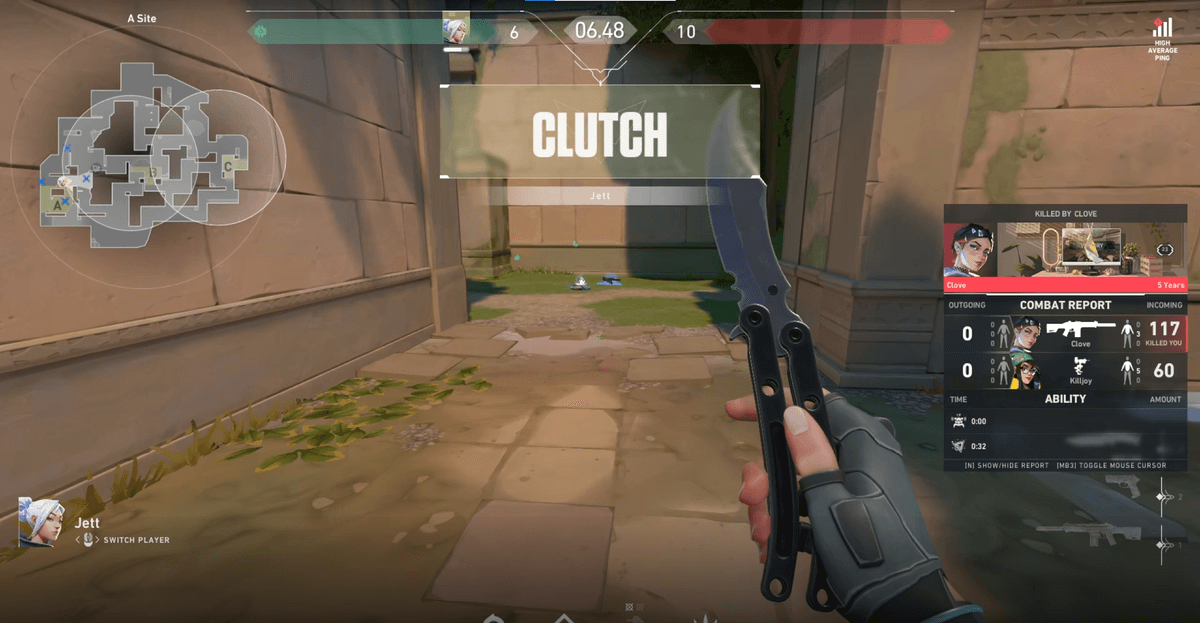
Of course, for those who want to fine-tune everything by hand, the table and OBS settings above remain useful as-is. But if you just want to casually flip recording on and off through a Valorant match or a PUBG squad game and quickly keep only the great moments, it's far more convenient to start with a tool whose defaults are already dialed in and only touch them when needed.
Summary: Just Remember the Right Level
For recording bitrate, the answer isn't "higher is better" but "the right level for the resolution." Use 16Mbps for 1080p60, 25Mbps for 1440p60, and 50Mbps for 4K60 as your baseline, nudge it up if there's a lot of on-screen movement, and nudge it down if your codec is H.265 or AV1. File size is proportional to bitrate, so set it to fit your SSD headroom. If tweaking this balance every time is a hassle, starting with a default-optimized tool like DOR and focusing on the game is also a good choice.