Let's start with the bottom line. If your frames drop sharply the moment you turn on recording, it's not because your computer's specs are lacking. The cause is mostly the video encoder type. The x264 (software) encoder set as the default borrows the very CPU your game uses to compress video, so the game and recording fight over the same resources. Switching to NVENC, a GPU-dedicated encoder, makes this fight disappear and recovers your frames almost entirely.
Looking at real numbers, the difference is clear. Recording with the x264 veryfast preset cuts game frames by about 17%, which in a 144-frame environment means an average of 20-30 frames vanish. NVENC, on the other hand, has a separate chip inside the GPU handle the encoding, so under the same conditions the loss stops at single digits. Just follow the order below.
Top Priority: Switch the Encoder from x264 to NVENC
This is the first thing to do, and the one with the biggest effect. In OBS, change Settings > Output > Output Mode to Advanced, then check the Encoder item in the Recording tab. If this is set to x264 (software), this is the culprit eating your frames.
- NVIDIA graphics card (GTX 16xx, previous-gen RTX): select NVENC H.264 or NVENC HEVC
- AMD graphics card (RX series): select AMD HW H.264 (AVC)
- Intel integrated graphics (Iris Xe or higher): select QuickSync H.264
Just switching the encoder to NVENC hands the compression computation the CPU was doing entirely over to a GPU-dedicated encoding chip. This chip is physically separate from the CUDA cores that draw the game, so even with recording on, it has almost no impact on game rendering. The perceptible difference is largest in frame-sensitive matches like Valorant and League of Legends.
- 1Top Priority: Switch the Encoder from x264 to NVENC
- 2Second Priority: When You Can't Use NVENC, Lower the x264 Preset, Resolution, and FPS
Second Priority: When You Can't Use NVENC, Lower the x264 Preset, Resolution, and FPS
If you have no dedicated graphics card and have no choice but to use x264, adjust in the direction of reducing CPU burden. In Settings > Output > x264 settings, lower the CPU Usage Preset one step from the default veryfast to superfast or ultrafast. The faster the preset, the less CPU it uses, but to maintain the same quality you'll need to raise the bitrate a bit.
If it's still too much, lower the load of the recording itself. The key is to reduce the number of pixels and frames the encoder has to process.
- Resolution: Lowering Settings > Video > Output (Scaled) Resolution from 1920x1080 to 1280x720 cuts the encoding load to less than half.
- Frame rate: Lowering the Common FPS value from 60 to 30 halves the frames to process per second.
- In-game frame cap: Capping frames in-game at 60 or 120 gives the GPU headroom and stabilizes encoding.
Quick Diagnosis by Cause
We've organized where to touch first based on the symptom. After checking in Task Manager whether OBS's encoding overload warning appears, whether only the CPU spikes, or whether the GPU is at 100%, look at the matching line.
- Frames crash + CPU usage surges the moment recording starts → x264 in use. Switch to NVENC (top priority)
- Encoding overload warning appears often → set the preset to ultrafast, lower resolution and FPS (second priority)
- GPU is already packed at 99-100% → lower the game's graphics options one step to secure headroom for encoding
- Frames are fine but only the recording file stutters → the storage disk is slow; change the save path to an SSD
- Drops only in heavy games like PUBG → in-game frame cap + NVENC together
x264 vs. NVENC: What's the Difference?
Knowing the difference between the two encoders makes it clear why NVENC is the answer. There used to be a perception that x264 had better quality, but NVENC from the Turing generation onward delivers x264 medium-preset-level quality while barely touching game frames. In scenes with intense motion, some even rate NVENC as having less ghosting.
- x264: compresses on the CPU → competes with the game for resources → about 17% loss on veryfast, an average of 20-30 frames
- NVENC: compresses on a GPU-dedicated chip → separate from game rendering → single-digit frame loss
- Quality: the latest NVENC is at x264 medium level, strong in high-quality action scenes
- Setup difficulty: x264 needs manual preset and bitrate tuning, while NVENC is practically fine on defaults
If the Settings Are a Hassle: DOR Defaults to NVENC
As you've probably felt reading this far, OBS requires you to find and switch the encoder yourself and tune the preset and bitrate by hand. Get it wrong once, and you'll play without even realizing frames are leaking every time you record. DOR removes this process entirely. NVENC hardware encoding is set as the default from the start, so once you install and turn it on, it records with low load and no separate setup.
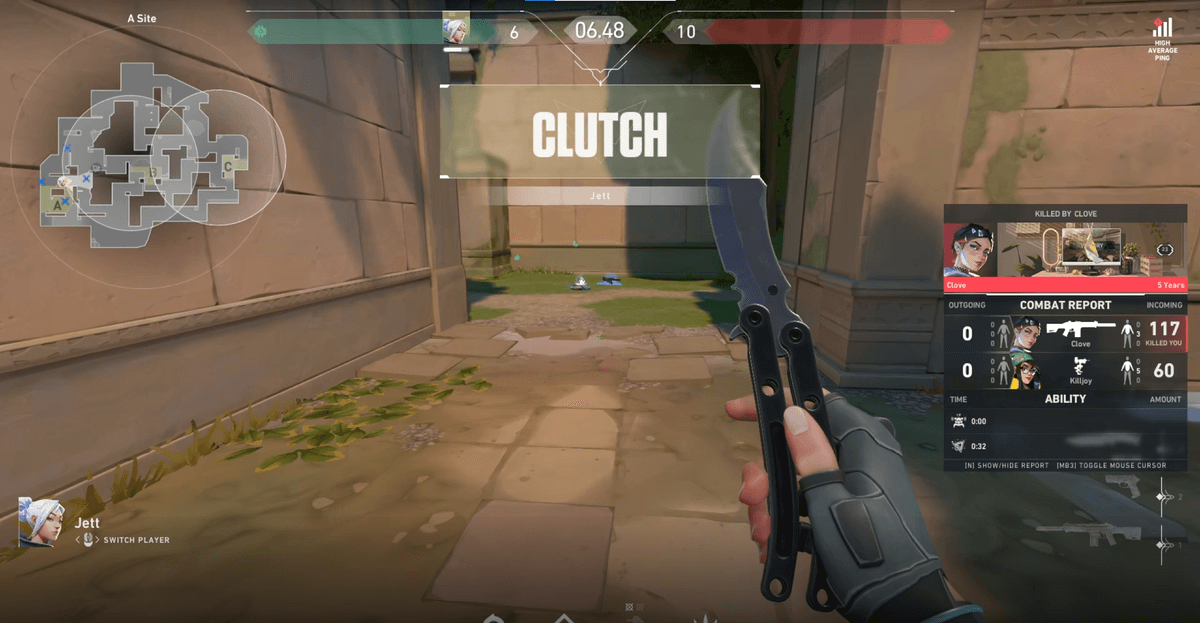
Thanks to that, you can keep recording on at all times even in games where a single frame decides win or loss, like Valorant or Overwatch. When a great moment happens, you just cut and save it then, so you don't have to spend time wrestling with encoder settings. If you want to just turn on recording without worrying about FPS drops, DOR is the fastest path. See how this NVENC-based capture works in practice on the VALORANT recorder page.
To sum up, when FPS drops during recording, the order is simple. Switch the encoder to NVENC, and if that's not possible, lower the preset, resolution, and FPS, and if even that's a hassle, use a tool where NVENC is the default. Before blaming your specs, check the encoder first. That's usually where it ends.