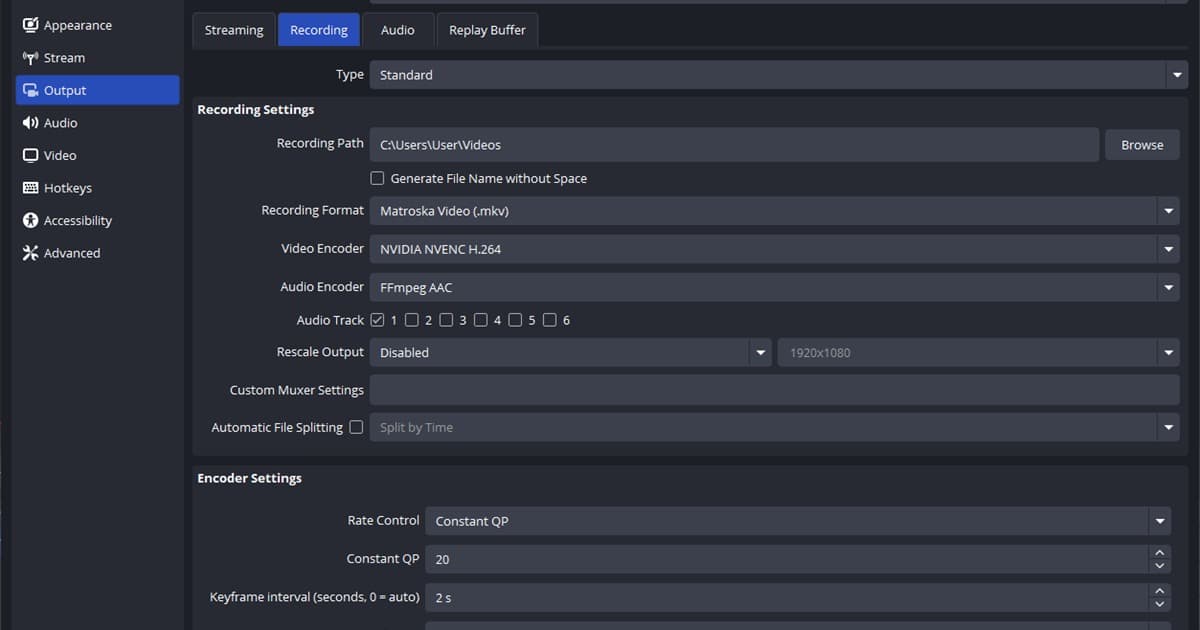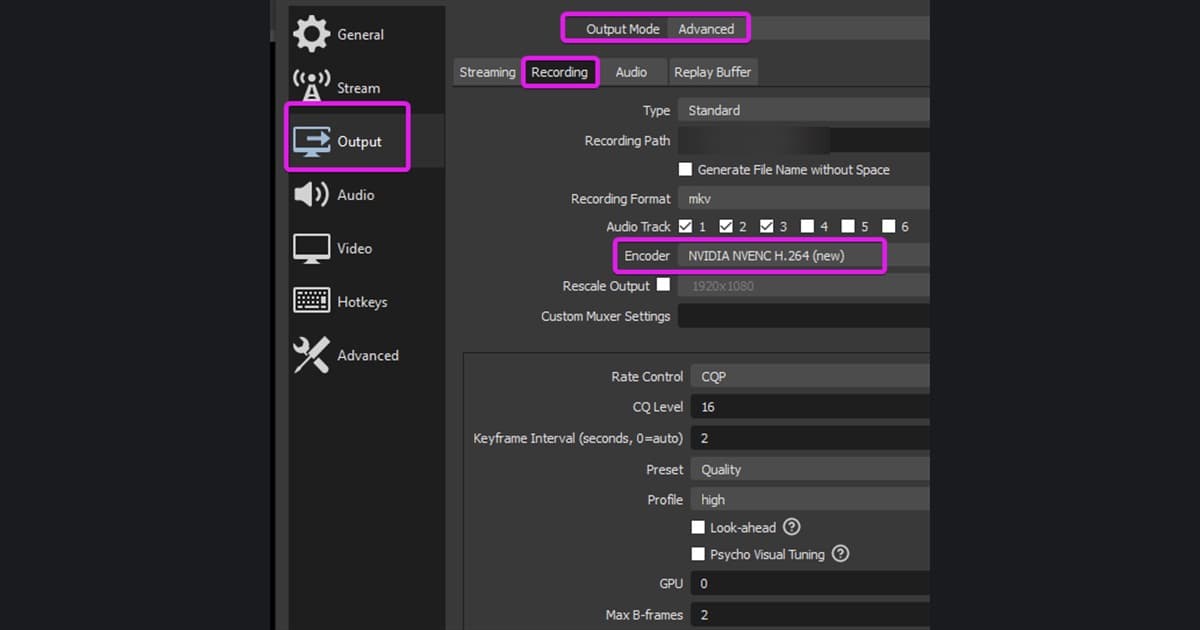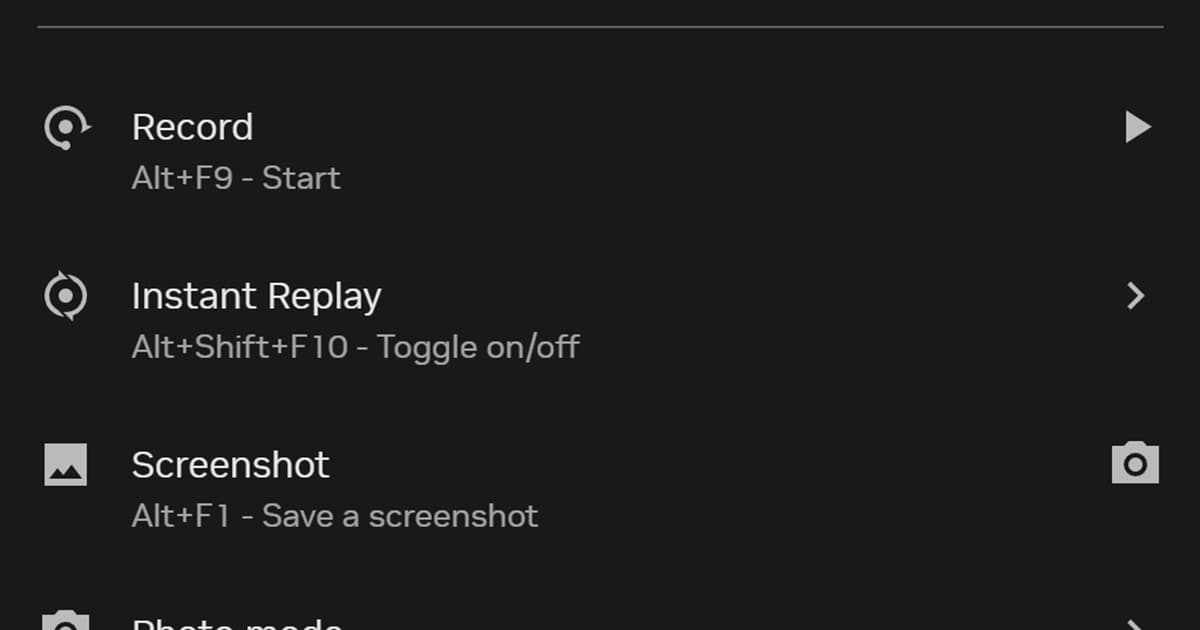
“Instant Replay not working” can mean three different things: the overlay will not open, replay switches itself off, or Alt+F10 reports a save but no file appears. Identify the symptom before resetting settings. For quality tuning rather than a failure, use the NVIDIA game recording settings guide.
Short answer: four checks when Instant Replay turns off or Alt+F10 does not save
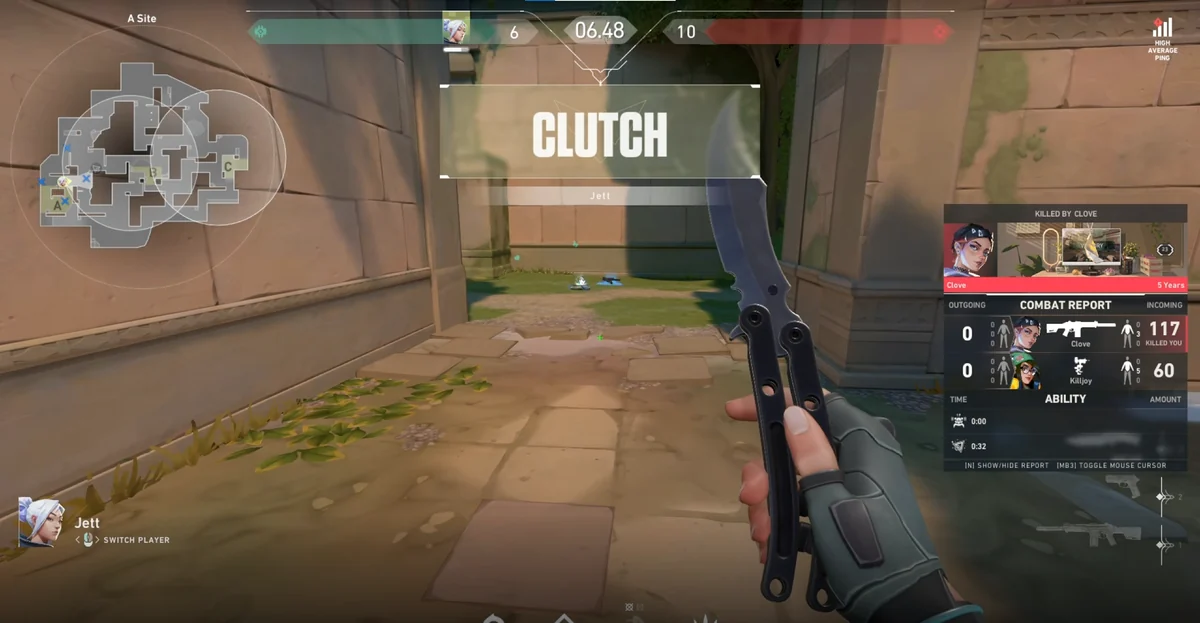
If you press Alt+F10 and no clip is kept, the fastest order is: the in-game overlay is enabled in the NVIDIA app → Instant Replay is switched on in the Alt+Z overlay (Alt+Shift+F10 toggles it by default) → the save location is a writable local folder that is under the disk-usage limit and has free space → only the game is on screen (close streaming and DRM windows). Per NVIDIA’s official guidance (checked 2026-09-15), hotkeys, the disk-usage limit, and the save location all live under the Settings cog of the Alt+Z overlay. If recording itself is the goal, you can skip this problem entirely: DOR is a free Windows app that detects supported games and records the full match automatically into its in-app library, so you never have to press a save key, and the “pressed save, nothing was kept” problem simply does not come up. In seven games including VALORANT, League of Legends, and PUBG, kills and highlights are also saved as automatic clips; other supported games get full-match recording only.
Match the symptom to the likely cause
| Symptom | Check first | Likely area |
|---|---|---|
| Alt+Z does not open | In-game overlay switch | App, permission, or driver |
| Replay immediately turns off | Free space and protected content | Disk or capture restriction |
| Alt+F10 does nothing | Assigned shortcut | Hotkey conflict |
| Save notice but no file | Gallery and temporary path | Path or write permission |
Fix it in a controlled order
- 1Confirm the overlay — Toggle the in-game overlay off and on in the NVIDIA app.
- 2Restart Instant Replay — Turn Replay off in Alt+Z, enable it again, and confirm its status.
- 3Check the save path — Choose a writable local folder with enough free space.
- 4Remove conflicts — Temporarily close Game Bar, other recorders, and apps using the same shortcut.
- 5Update and restart — Update the NVIDIA app and graphics driver, then restart Windows.
- 6Verify a short clip — Play for about 30 seconds, save with Alt+F10, and open the file.
When Instant Replay still fails
DOR does not repair NVIDIA settings. First use NVIDIA's official in-game overlay troubleshooting guide to verify the overlay switch, Windows Media Feature Pack, and driver requirements. If you need a separate workflow that automatically records moments in supported games, test DOR automatic game recording, then play back a real match to verify video and audio. You can also compare options in ShadowPlay alternatives.
If only the shortcut fails, continue with the recording hotkey troubleshooting guide. Change one variable at a time and save a fresh test clip after every step so the actual cause remains visible. For a game with automatic event detection, see the VALORANT recorder page.
NVIDIA overlay default hotkeys: when Alt+Z, Alt+F10, or Alt+Shift+F10 does nothing
Alt+F10 and Alt+Shift+F10 do different jobs. Alt+Shift+F10 turns Instant Replay on or off; Alt+F10 saves the last stretch to a file, and only while Instant Replay is on. Below are the NVIDIA app defaults (NVIDIA’s official guidance, checked 2026-09-15) and where to look when a key does nothing; every hotkey can be changed under the Settings cog of the Alt+Z overlay.
| Function | Default hotkey | Where to look if it does nothing |
|---|---|---|
| Open/close the overlay | Alt+Z | Confirm the in-game overlay is enabled in the NVIDIA app, then update the app and driver and restart Windows |
| Instant Replay on/off | Alt+Shift+F10 | Open Alt+Z and check the Instant Replay status indicator directly |
| Save Instant Replay | Alt+F10 | Confirm Instant Replay is on first, then close Game Bar, other recorders, or any app using the same key |
| Start/stop manual recording | Alt+F9 | Check free space on the save-location drive and the disk-usage limit |
| Show performance stats | Alt+R | Reassign the hotkey under the overlay Settings cog |
| Screenshot | Alt+F1 | Reassign the hotkey under the overlay Settings cog |
Instant Replay won’t turn on, Save is greyed out, or “not enough disk space”
These symptoms usually come down to the save location and disk-usage limit, whether Instant Replay is actually on, what is on screen when you toggle it, or the overlay and app itself. Check them one at a time in this order.
- “Not enough disk space” message: open Alt+Z → Settings cog and check the disk-usage limit and save location. Free up space on the save-location drive or move the save location to a local drive with room, then turn Instant Replay back on.
- Save greyed out or Alt+F10 does nothing: saving only works while Instant Replay is on. NVIDIA’s own instruction is Alt+Shift+F10 first, then Alt+F10 to save, so confirm the on indicator before pressing again.
- Won’t turn on or turns off right away: keep only the game on screen and close the streaming and DRM windows from the tip above. To record anything outside a game, NVIDIA’s guidance is to enable the “Desktop capture” option.
- The overlay itself will not open: follow the Alt+Z row in the table above and steps 1 and 5 of “Fix it in a controlled order” (Confirm the overlay, Update and restart).
- Still on GeForce Experience: NVIDIA says it will be switching off GeForce Experience web servers and asks users to upgrade to the NVIDIA app (checked 2026-09-15). Move to the NVIDIA app before troubleshooting further.