Even for the same video, a single thumbnail can multiply your view count several times over. That is because viewers skim a thumbnail in their recommended feed for about half a second before deciding whether to click. In other words, a thumbnail is not the "cover" of your video, it is the "billboard" for your video. No matter how good the content is, if the billboard is blurry, people will not come in. This article lays out the principles of click-worthy game thumbnails in order of color, text, people, background, and size, all of which you can follow even if you cannot design at all. At the end, we walk through using free tools, avoiding common mistakes, and turning DOR clip highlights straight into thumbnails.
Principle 1: Use High-Contrast Colors to "Pop" in the Feed
The recommended feed has dozens of thumbnails on screen at once. To catch the eye first among them, your color contrast has to be strong. On a dark background, use bright, highly saturated text (yellow, white, or neon tones); on a light background, use dark text (black or deep red). Game footage tends to be dark and visually busy, so just adding a single outline (stroke) or drop shadow to your text to separate it from the background makes a huge difference in readability.
Limit Yourself to 2-3 Colors
If you get greedy and use five different colors, it just looks chaotic and the viewer has no idea where to look. Bundle it down to 2-3 colors: one main color (say, yellow text), one accent color (say, a red highlight), and the colors of the game footage in the background. For a game like Valorant, where red and white dominate, pulling those colors straight in for a unified look is also a great approach.
Principle 2: 3-4 Words, Bold Sans-Serif, and "Big"
The text on a thumbnail is not the place to copy your title verbatim. The video title shows up separately next to it, so the thumbnail text should be a "hook phrase that reads at a glance." The key is word count and font size. Keep it to no more than 3-4 words, and use a bold sans-serif instead of a thin, fancy typeface. That way the strokes do not get mushy even when it shows up small on mobile.
- Good examples: "No way?", "Insane solo-rank clutch", "1v5 comeback"
- Bad example: "A collection of ridiculous moments from my solo-rank games today.zip" (too long, nobody reads it)
- Make the words big enough to take up at least a third of the screen, and add a little spacing between letters so they do not clump together
- Numbers (1v5, 99%, 0.1 sec) pull the eye hard and boost click-through
Principle 3: Add "Emotion" with a Human Face or Character
People instinctively look at faces. If you have a facecam (webcam), putting a big shot of yourself at a moment of shock or excitement is the most effective thing you can do for click-through. The more over-the-top the expression, the more it sparks curiosity that "something happened here." If you do not have a facecam, you can substitute a close-up of an in-game character, or a striking pose from a champion or agent.
Cut the Character Out of the Background and Make It Big
When you make a League of Legends champion or an Overwatch hero the star of your thumbnail, cutting just the character out of the background and placing it large makes it look far more powerful. Behind it, lay down a blurred game scene or a solid color so the figure stands out. Cutting out the background takes just one click with a free tool like remove.bg, which we cover below.
Principle 4: For the Background, Use the Video's "Climactic Frame"
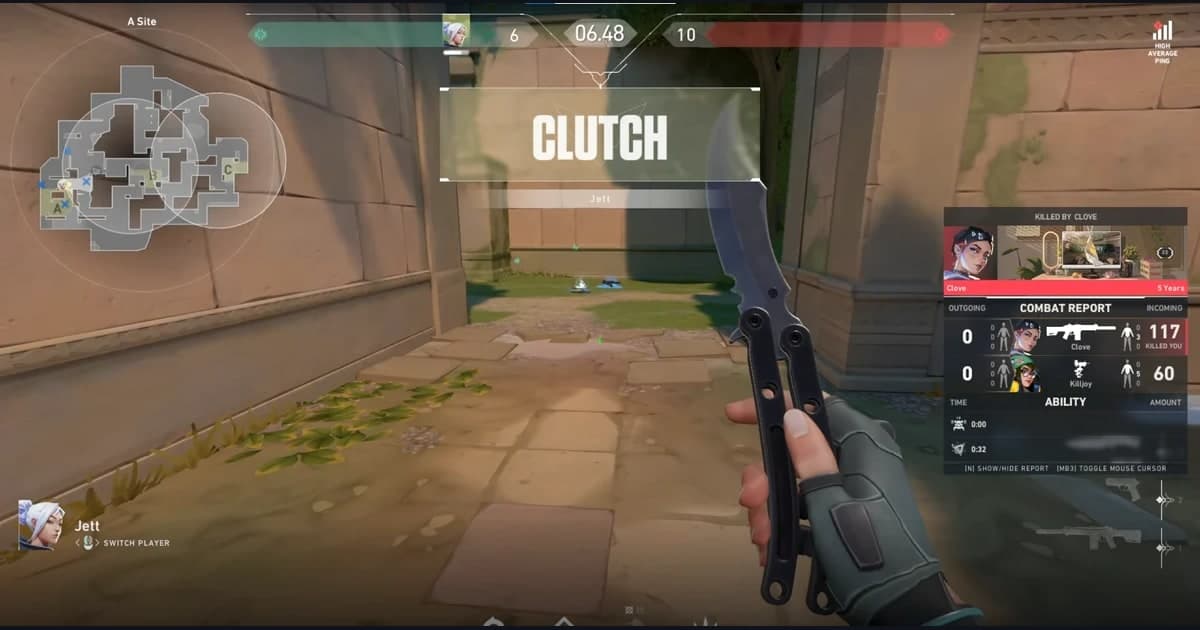
The fastest and most powerful background is not a separately drawn illustration, but a single frame captured straight from the most impactful moment in your video. The instant a pentakill goes off, the final kill of an ace, that split second when a comeback is sealed. It works because it becomes the bait that makes viewers think, "I want to see this scene." The key is to hint at the climax of the main video while hiding the outcome.
Leave Whitespace to Give It Room to Breathe
The flashier the peak-moment frame, the more deliberately you need to leave "empty space (whitespace)" to place your text and figure. If the whole screen is packed with explosion effects, the text is unreadable no matter where you put it. From the moment you pick which frame to capture, choose a cut where one side is relatively simple, or slightly darken the area where the text will go.
Principle 5: Test Readability at "Thumbnail-Sized" on Mobile
Most YouTube viewing happens on mobile. But when you work on a big PC screen, it is easy to fall into the trap of assuming "of course it's readable." Shrink your finished thumbnail way down, like it will actually appear. On a phone screen, a thumbnail is the size of a thumbnail. Shrunk to that size, check whether (1) the big text is readable, (2) the star pops at a glance, and (3) you can tell what the video is about within half a second.
Free Tools and Recommended Sizes
You do not need to buy a design program. The free tools below are plenty. Canva comes with built-in YouTube thumbnail templates, so you just swap out the text; Photopea gives you nearly the same features as Photoshop for free in the browser, which is great for precise compositing. remove.bg automatically cuts out characters and people from their backgrounds.
- Canva: Free template-based, swap just text and color and finish in 5 minutes. Recommended for beginners
- Photopea: Web-based free Photoshop alternative. Great for precise work with layers, strokes, shadows, and more
- remove.bg: Removes the background from characters and faces (cutout) in one click
- Recommended size (horizontal video): 1280x720 pixels, 16:9 ratio, under 2MB
- Recommended size (Shorts and Reels): 1080x1920 pixels, 9:16 vertical ratio
Make Shorts Thumbnails Separately, in Vertical
Shorts and Reels are vertical, so using a horizontal 16:9 thumbnail as-is gets the top and bottom cropped or hides the text. Make the Shorts version separately in 1080x1920 vertical, and it is safest to put the text slightly above dead center. The bottom gets covered by the title and UI overlapping on top.
5 Common Mistakes
- Text too small and too long: The number one reason it is unreadable on mobile. Cut it to 3-4 words and make it bigger
- Weak contrast: Dark text on a dark game screen gets lost. Separate it with an outline or shadow
- No whitespace: The screen is crammed full of effects with no room to place text
- Too much clickbait: If the thumbnail and the content differ too much, the bounce rate climbs and you actually get less reach
- A different style every time: Without channel consistency, it does not read as "your video." Lock down color, font, and layout and it becomes a brand
Grab Peak-Moment Frames Straight from DOR Clips
By the time you read this far, you hit one practical wall: "Where do I even get a good background frame?" Scrubbing through a long recording from the start to find that pentakill moment takes a lot of time. DOR automatically detects peak moments like kills, aces, and pentakills while your game is running and saves them as short clips. In other words, just the "climaxes" of your footage are already gathered separately.
The flow is simple. (1) Open the peak-moment clip DOR has automatically cut, (2) capture the screen at the single most impactful frame, (3) drop that image into Canva or Photopea as a background, and (4) layer on big text and an expression or character. The time you would have spent digging through long footage disappears, so thumbnail work shifts from "searching" to "picking and decorating." The more a game has clear peak moments, like Valorant, League of Legends, and Overwatch, the better this approach fits.