You've probably had the experience of carefully landing a highlight, making it into a clip, and uploading it, only to be flustered by an unfamiliar program logo stamped right in the corner of the screen. When another company's watermark shows up on a video that's your own channel's, it looks somehow amateurish, and remaking it to remove the logo just doubles your time. Let's start with the conclusion: to keep a watermark from being left on a clip, you have to use tools with no watermark in both the recording stage and the editing stage. If a watermark-adding tool slips in at even one spot, the logo ends up stamped on. In this article, we check at which stage a watermark appears, the criteria for picking watermark-free tools in both recording and editing, and how to deal with a watermark that's already stamped on.
A Watermark Comes From One of Two Places: Recording or Editing
There are broadly two stages a game clip goes through before it's finished: recording, which saves the game screen as a video file, and editing, which cuts and refines that video. A watermark isn't added by the game itself; it appears because the program used in these two stages lays its own logo on the screen. So to find the culprit, you have to check the two stages separately.
Check 1: Does the Recording Program Add a Watermark?
This is the most common cause. A good number of free screen recording programs stamp their own logo in the corner of videos saved with the free version. They often come with a notice that it disappears if you pay. If you record with one of these programs, the watermark is already engraved into the original file itself, so no matter how clean an editing tool you use afterward, that logo stays in the video. If you see a logo on a clip, the first place to suspect is the recording program.
Check 2: Does the Editing or Conversion Tool Add a Watermark?
If the recording was clean but a logo appeared after you cut it and added captions, the culprit is the editing tool. In particular, free video editing apps and online conversion sites often lay a watermark on at the export stage. It's common in mobile editing apps, and it also frequently shows up in free web tools that do vertical conversion for Shorts. If the recording original is clean when you check it, you have to look separately at whether the logo was added to the file exported after editing.
Criteria for Picking a Watermark-Free Recording Tool
To leave no watermark at the recording stage, you have to pick a tool that doesn't stamp a logo even in the free version. There are several recording methods out there that are completely free and watermark-free.
- Windows Game Bar: A recording feature built into Windows 10 and 11 that opens when you press the Windows key and G. You can record the game window without a watermark and without a separate install.
- OBS Studio: A free open-source program, so it has no watermark at all and lets you set the quality and bitrate in fine detail. The initial setup is a bit complex, though.
- Dedicated game clip tools: Among the tools that automatically catch and cut game highlights, there are free, watermark-free ones too. The advantage is you don't need to press a record button yourself.
The key criterion is simple: while unpaid, do a short test recording on a trial basis and check with your own eyes that there's no logo on the saved file. The actual save result, not the marketing copy, is the real standard. The more it's a scene you really want to keep, like an ace in Valorant or a pentakill in League of Legends, the safer it is to test once in advance.
Criteria for Picking a Watermark-Free Editing Tool
Even if the recording original is clean, it's all for nothing if a logo gets added in editing. For an editing tool, whether a watermark gets attached to the export result is everything. When using a free editing app, check the following.
- Check whether a logo or the app name is added to the corner or bottom of the result video after export.
- Check whether it's a structure where a watermark is attached due to free-version limits and disappears with paid payment.
- For online conversion sites, download the converted file and play it back yourself to check for a logo.
- Check whether an extra watermark is attached when using features like vertical (9:16) conversion or caption compositing.
There are editing tools that are completely free and watermark-free too, but using a separate editing program adds one more stage. Going through recording separately, editing separately, and conversion separately creates an opening for a logo to slip in anywhere. The fewer the stages, the lower the risk of a watermark being stamped on.
What to Do With a Clip That Already Has a Watermark
Cleanly removing a watermark from a video where the logo is already engraved is harder than you'd think. There are methods like blurring it or cutting out part of the video, but marks tend to remain or the screen gets cropped and the composition turns awkward, and AI removal tools often leave traces in busy game footage too. So the surest solution is not to remove it but to keep it from being stamped on in the first place. Remaking the same highlight with a watermark-free tool gives a far cleaner result than clumsily erasing a stamped logo.
DOR Has No Watermark in Either Recording or Editing
As we've seen, the key to completely eliminating a watermark is bundling both stages, recording and editing, with watermark-free tools. DOR solves both of these stages at once. It automatically detects when a game launches and records in the background, then cuts the key moments like kills, aces, pentakills, and chicken dinners into short clips on its own. And there's no watermark anywhere in this recording and automatic editing process, so no logo gets stamped on the clip.
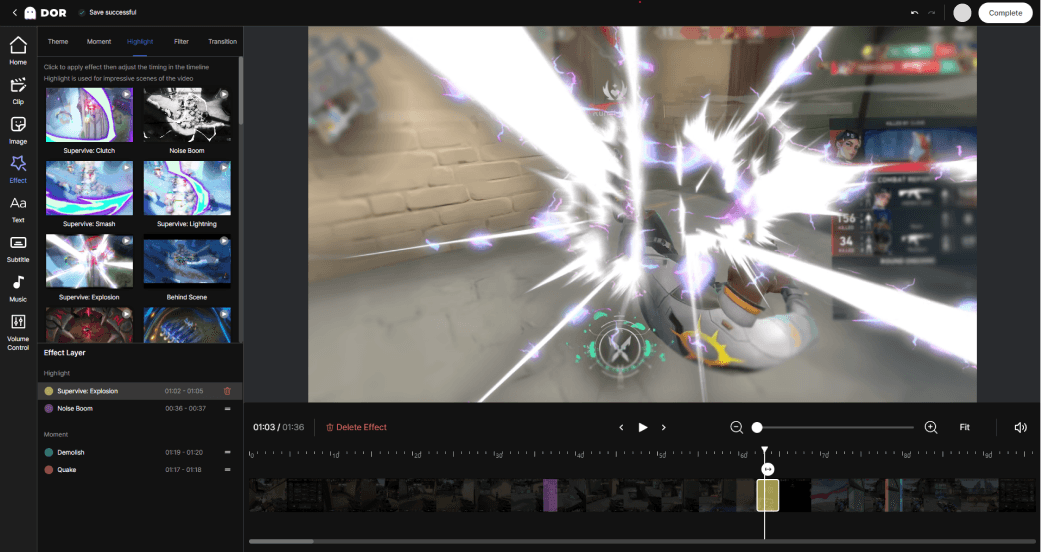
Going through a recording program separately, an editing app separately, and a conversion site separately creates a risk of a watermark slipping in between them. With DOR, recording and clip creation connect in one flow so the number of stages itself drops, meaning there's no opening for a logo to be stamped on in the first place. When you close the game, the highlights from Valorant or League of Legends are piled up in a folder as watermark-free clips, ready to be uploaded to YouTube or Shorts as is. When a watermark shows up, the textbook approach is to check which stage, recording or editing, is the culprit and switch both stages to watermark-free tools, but using a tool that's watermark-free in both recording and editing from the start makes this check unnecessary altogether. Check the auto-clip examples on the pages for the games you play often, Valorant, League of Legends.