If you are just starting gaming video editing, there are exactly 3 things to memorize: cuts (trimming out the parts you do not need), captions (adding text at important moments), and music (laying a mood underneath). The dozens of features in pro programs can be learned later. If you can just do these 3, you can make your first video today.
This article is written for someone with zero editing experience. It sets the order of what to do first and what to do later, and tells you free tools that are good for beginners to use. Follow along in order and at the end you will have one finished clip.
Why 3 things, cuts, captions, and music, are enough
Most of the gaming videos you see on YouTube or Shorts are ultimately a combination of these 3. You trim out boring stretches to create pace (cuts), explain the situation or highlight the funny point (captions), and lift the mood (music). Flashy transition effects and color grading look nice, but at the beginner stage, what determines a video's polish is these basic 3.
So rather than trying to learn every feature from the start, finishing these 3 all the way through in one video improves you much faster. Once you finish one piece, the next one goes twice as fast.
From 0 to 1, the editing order
Editing stops feeling overwhelming once the order is set. Just proceed in the order below.
- Step 1, pick clips: pull only the sections worth using from your recorded footage. Not the whole match, but only the parts worth showing, like kill scenes, clutches, and funny moments.
- Step 2, cut: trim out the hesitant or empty stretches from the sections you picked. Select the cut point on the timeline and press the cut button to delete the unnecessary parts before and after.
- Step 3, captions: lay text over situation explanations or lines you want to emphasize. Use 1 to 2 fonts; white text with a black outline reads well on any background.
- Step 4, music: lay background music to fit the video length, and lower the music volume so it does not get buried by the game sound. Usually around 20 to 30% is enough.
- Step 5, export: save in 1080p, mp4 format. For Shorts or Reels, set vertical 9:16; for regular videos, horizontal 16:9.
Small tricks for cutting well
The mistake beginners make most is being stingy with cuts. If you keep everything because it feels wasteful, the video sags. The rule is simple. If there is a second that would bore the viewer, cut that second. Even when showing one round of Valorant, starting from just before a Valorant engagement and cutting right after it is settled is much cleaner. Boldly cut the stretches of moving and getting into position.
Captions should be short and big
Do not write long captions; put just the gist on one line. Since many people watch on mobile, it is better to make the text bigger than you think. For a League of Legends teamfight scene, the screen is busy, so the caption has to go in one short line in the empty space at the top or bottom to catch the eye.
Free tools that are good for beginners
You do not need to buy an expensive program from the start. There are plenty of free tools that do cuts, captions, and music all at once.
- CapCut: cuts, captions, music, and transitions are nearly all available in the free version. It supports both mobile and PC, so it is the most used for beginner onboarding.
- Vrew: AI recognizes speech and creates automatic captions. It greatly cuts captioning time in talky gaming videos.
- Canva: it is a design tool, but it is strong at simple cuts, captions, and template-based caption design.
- Clipchamp: built into Windows, so you can do basic editing right away with no separate install.
These tools share one common headache. The process of first saving your recorded footage to the computer, installing the editing program, and importing the file into it is itself an entry barrier for beginners.
Starting more easily with DOR
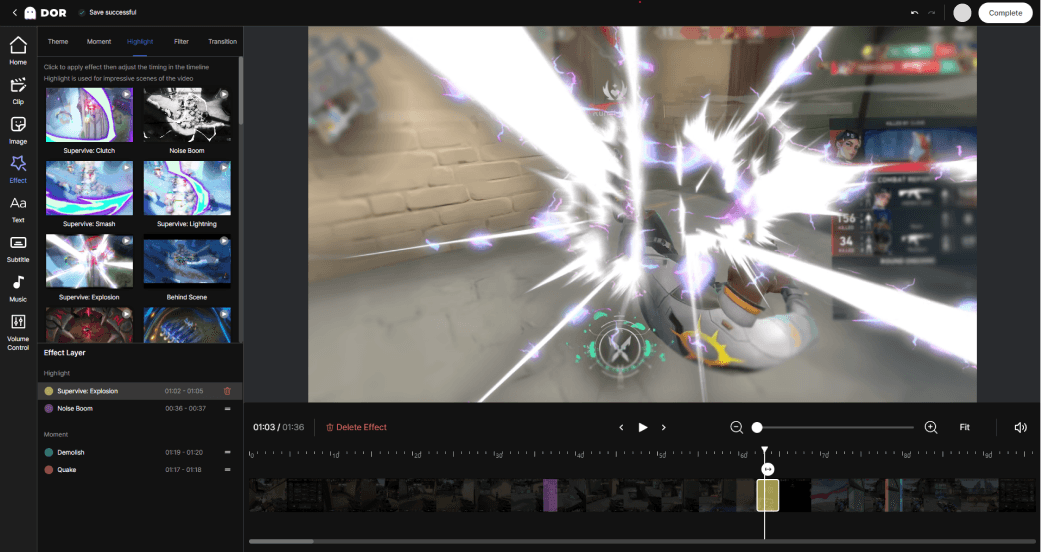
DOR bundles recording through editing into one flow. When you record a game, you can open that clip right in a browser editor with no install, and handle cuts, captions, and music right there. With the step of separately installing a program and moving and importing files removed, the part where first-time editors get stuck most disappears entirely.
You can walk through the 5-step editing order explained above all in the single DOR editor. Just cut a recorded Valorant clutch or League of Legends pentakill on the spot, lay on captions, add music, and export right away. You only need a browser, no heavy program, so the onboarding burden is the smallest.
Summary
Gaming video editing starts with 3 things: cuts, captions, and music. Just keep the order of picking clips, cutting, laying on captions, adding music, and exporting, and anyone can finish their first video. Practice with free tools, but if you get stuck at the install and file-import steps, finish your first edit without pressure using DOR, which edits your recorded clips right in the browser.