Recording games on a laptop brings on heat and lag much faster than on a desktop. To get straight to it, the cause is usually four things. Power mode is locked to a battery-saving setting so you don't get full performance, the game and recording run on different GPUs, the CPU shoulders the encoding, and the resolution and framerate are too high for the laptop's tier. Tackle these four in order and even a gaming laptop can record with almost no framerate hit.
This article guides you through step-by-step settings tuned for laptops, in this order: power mode, dual-GPU assignment, hardware encoder, and resolution downscaling. The part that differs most from a desktop guide is the second one, the dual-GPU setup unique to laptops, so be sure to handle that step.
Why does a laptop get hotter and stutter the moment you start recording?
A laptop crams the same performance into a much tighter space than a desktop. So just running a game already produces a lot of heat, and recording adds another layer of encoding load on top. When the temperature hits its limit, the laptop enters thermal throttling, lowering its own clocks on its own, and from that point the game framerate drops sharply. Running a game and recording together usually pushes you into this zone within 20-40 minutes.
In other words, lag in laptop recording isn't simply because the program is heavy; it happens in a chain where heat cuts performance, which in turn cuts framerate. So the standard fix is to reduce heat step by step, starting from the points that create it. The four steps below are that order.
Step 1: Lock power mode to high performance
To save battery, a laptop's default power settings cap performance. In this state you won't get the framerate for recording, let alone gaming. First, with the charger plugged in, go to Windows Settings > System > Power & battery > Power mode and change it to 'Best performance.' If you have a manufacturer utility (Asus Armoury Crate, MSI Center, Lenovo Vantage, etc.), turning on performance/turbo mode there is even more reliable.
- Always keep the charger connected. On battery, the laptop deliberately limits performance and recording stutters.
- Set Windows power mode to 'Best performance.'
- If you have a manufacturer app, also turn on performance, turbo, and cooler-boost modes.
- Use a stand or cooling pad so the bottom intake vents aren't blocked, raising it up to drop the temperature a few more degrees.
Step 2: Unify the dual GPUs onto the discrete one (the laptop key)
A gaming laptop usually has two GPUs: a power-saving integrated one (Intel/AMD) and a performance discrete one (NVIDIA/Radeon). Windows switches between them automatically depending on the situation, and if the game runs on the discrete one while the recording program runs on the integrated one, copying the screen between GPUs increases load and heat and drops the framerate. That's why tying the game and recording to the same discrete GPU is the single most important step in laptop recording.
Assigning a per-app GPU in Windows graphics settings
Go to Windows Settings > System > Display > Graphics, add the game's executable and the recording program (or DOR) separately, and set each to 'High performance.' Then both will run on the discrete GPU. On an NVIDIA laptop, you can nail it down once more by also setting that app's 'Preferred graphics processor' to 'High-performance NVIDIA processor' in NVIDIA Control Panel > Manage 3D settings > Program Settings.
- In Windows graphics settings, set the game to 'High performance.'
- Set the recording program (or DOR) to the same 'High performance' so it ties to the same discrete GPU.
- In NVIDIA Control Panel Program Settings, lock the preferred graphics processor to 'High-performance NVIDIA processor.'
- After assigning, you have to fully close and reopen the game and recording for the settings to take effect.
Step 3: Switch the encoder to hardware (NVENC)
The single biggest cause of recording heat and lag is the encoder choice. Software encoding (x264) grinds the CPU directly, causing heat and frame drops at once on an already-cramped laptop. Hardware encoding, on the other hand, uses a separate chip inside the GPU dedicated solely to encoding (NVENC on NVIDIA, AMF/VCE on AMD, QuickSync on Intel), so it's separated from the computation the game uses and adds almost no load or heat.
If you use a program like OBS, go to Settings > Output, change Output Mode to 'Advanced,' and select the encoder in the Recording tab as 'NVIDIA NVENC H.264 (or HEVC).' On a laptop, it's common for the dozens of frames you were losing with x264 to drop to single digits after switching to NVENC. Switching just this one encoder is the step that makes the biggest difference in how it feels.
Step 4: Downscale resolution and framerate to match the laptop's tier
If Steps 1-3 still aren't enough, the last move is to lower the recording resolution and framerate. On a laptop, the fewer pixels the encoder has to process, the more directly heat and load drop. If there's no reason to record at 4K 60fps, 1080p 60fps, or even down to 720p 30fps if heat is severe, is plenty sharp for clips.
- Lower the recording resolution to 1080p, and to 720p if it's still hot.
- Start framerate at 60fps, and drop to 30fps if heat is severe.
- Setting an in-game frame limit (e.g., an in-game fps cap) can drop the GPU temperature by 10 degrees or more.
- For recording, 1080p 60fps is the most reliable sweet spot between quality and heat.
Recording lightly on a laptop with DOR
If dialing in the four steps above every time is a hassle, DOR is close to having those settings already done for you. DOR uses NVENC hardware encoding by default for low-load background capture, so it records with little heat or lag even on a laptop. Because it hands the encoding load off to a dedicated GPU chip, it barely touches the performance the game uses.
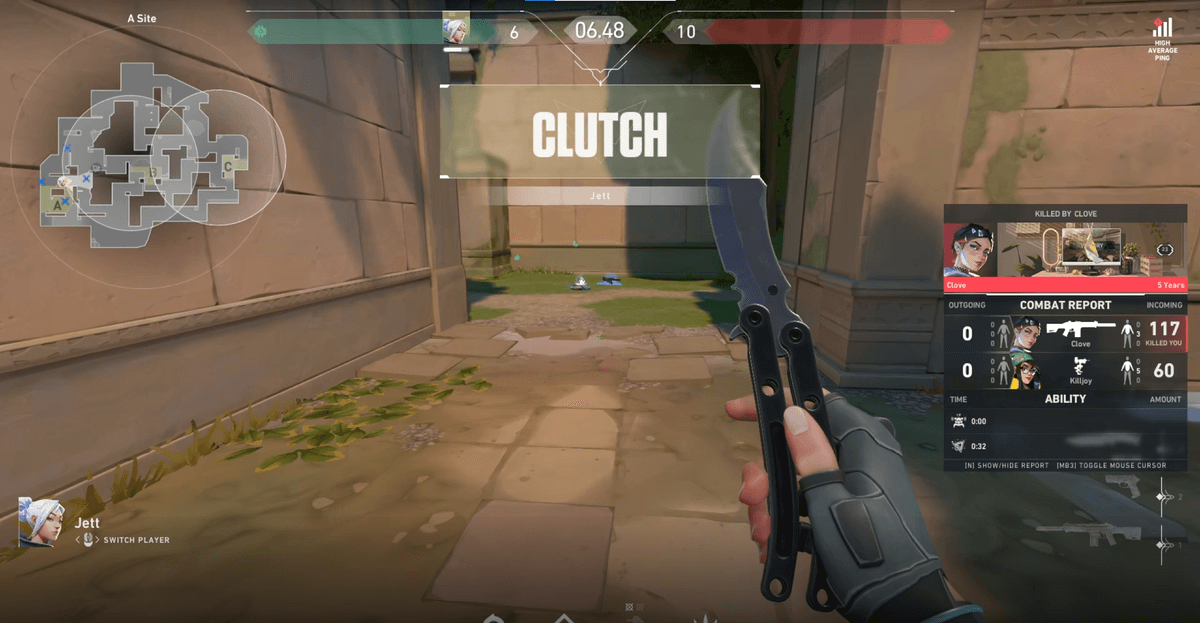
On top of that, DOR doesn't require you to press a record button; it automatically detects when a game launches and records in the background, then automatically clips out only the key moments, like a pentakill in League of Legends or an ace in Valorant. When you're worried about laptop heat and don't want to keep long full recordings, this approach of gathering only the best scenes as short clips is advantageous for both heat and storage.
To recap, the four steps of locking power mode to high performance, unifying the dual GPUs onto the discrete one, switching the encoder to hardware (NVENC), and lowering the resolution to match your tier will handle most of the heat and lag in laptop recording. If you'd rather not touch the settings yourself, start with DOR, which uses low-load capture by default, and record lightly starting with Valorant or League of Legends.