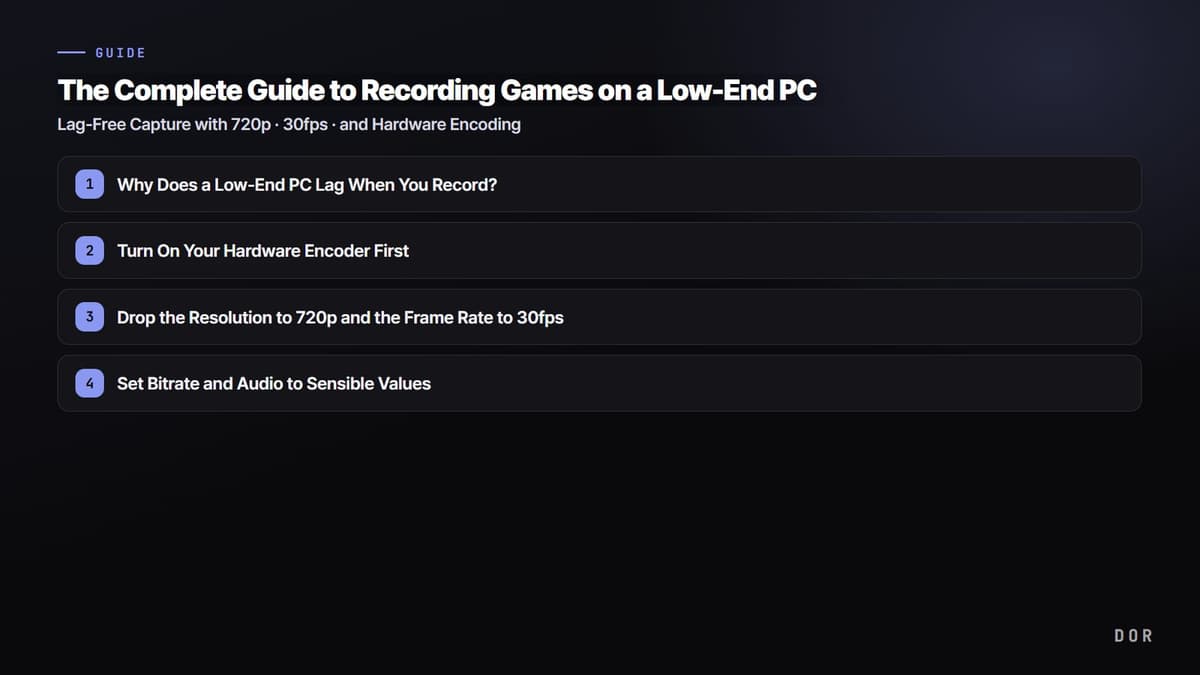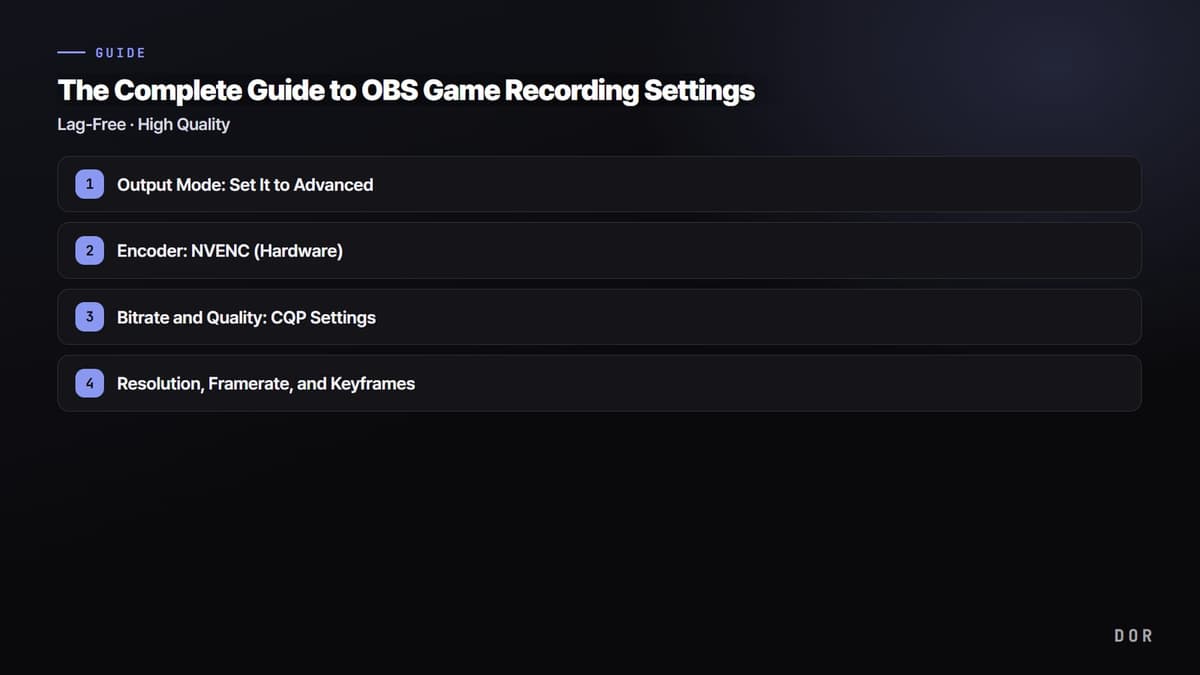
To get straight to it, what makes a game recorder lightweight isn't the brand but two technologies. The first is hardware encoding, which handles encoding on a dedicated GPU chip (NVIDIA NVENC, AMD, Intel QuickSync) rather than the CPU. The second is background capture, which doesn't intrude heavily on top of the game screen but quietly records from behind. Satisfy just these two and any program has almost no impact on game framerate, while without both, even a famous program drops your framerate the moment you turn on recording.
In this article we first define what lightweight recording means, point out the conditions that actually govern load, then compare commonly used recorders from a resource-load standpoint. Finally, we lay out, step by step, settings that protect framerate even on low-spec PCs and a recommended tool that has those conditions as defaults.
What exactly is lightweight recording?
What people commonly call a 'lightweight recorder' blends two ideas. One is something with a small install size that's no burden to launch; the other is something that doesn't cut into the game framerate while recording. For gamers, the second one is what truly matters. Whether the install file is tens of MB or hundreds, the point is that the game doesn't stutter. So in this article, 'lightweight' means 'turning on recording barely drops the in-game framerate.'
How much the framerate drops varies greatly even on the same PC depending on the program and settings. A well-made recorder uses anywhere from single digits to a teens percentage of CPU for 1080p recording, while a misconfigured one chews up nearly half the CPU just to record the same screen. On a dual-core-class laptop, this difference becomes the difference between 'smooth play' and 'a slideshow.'
The first condition that governs load: hardware encoding
Recording captures the screen and then compresses (encodes) that video to save it as a file. This encoding accounts for most of the load. How lightweight it is depends on where the encoding happens.
- Software encoding (x264): compresses on the CPU. Quality and compression are excellent, but it heavily occupies CPU cores, so running the game on the same CPU drops the framerate. Unless it's a high-spec PC, it's a big burden for game recording.
- Hardware encoding (NVIDIA NVENC): a dedicated encoding chip inside the GPU handles the compression. Since it's separate circuitry from the GPU computation used for game rendering, it records with almost no drop in game performance. It's effectively the standard for lightweight game recording.
- Hardware encoding (AMD, Intel QuickSync): AMD graphics cards' encoder and Intel integrated graphics' QuickSync ease the CPU burden on the same principle. Even without an Nvidia card, lightweight recording is possible.
In short, the first fork for lightweight recording is 'did you move encoding from the CPU to the GPU?' Most recent graphics cards (for Nvidia, GeForce GTX 600 series and later) have a built-in hardware encoder, so just switching the encoder to NVENC in settings makes the same program much lighter.
The second condition: low-load background capture
Just as important as encoding is how the screen is captured. If the capture method is heavy, the framerate wobbles even with a light encoder. Another important thing is 'the burden of leaving it always on.' Highlight moments come without warning, so many gamers leave recording on throughout the game, and if capture is heavy here, the entire play session takes a hit.
Background capture is a method that doesn't layer heavy processing on top of the game screen but quietly receives and saves frames from behind. Well-implemented background capture pulls the frames the game draws through an efficient path and hands them to the encoder, so the load is small enough that you can barely feel it's even on. A lightweight recorder should have 'hardware encoding + low-load background capture' meshing together.
Why capturing moments is lighter than recording everything
There's one more thing. If you record a two- or three-hour play session in its entirety, encoding and disk writing continue the whole time. By contrast, the method of saving only key moments as short clips saves only short segments from behind, so the everyday load is lower and it saves disk space too. There's no need to press a record button every time, so it doesn't break your play flow. Taken to its conclusion on lightness, 'auto-saving only the moments you need' is one step lighter than 'recording everything.'
Resource-load comparison of major recorders
Here's a rundown of commonly used recorders from a load standpoint. Absolute numbers vary by PC spec and settings, so it's most accurate to read them as 'tendencies' of load.
- OBS Studio: free and open source. Used with software (x264), CPU usage is high, but switching the encoder to NVENC greatly lowers the load. It has the most settings flexibility but takes a lot of initial setup effort.
- Bandicam: specialized for game recording. It hooks directly into the graphics API to capture and supports NVENC, so turning on hardware encoding keeps the load relatively low. The free version has a watermark and a time limit.
- Xbox Game Bar: built into Windows 10 and 11 by default. As part of the OS, there's no extra install and the baseline load is low, but it's simple in features and sometimes fails to capture certain games.
- NVIDIA app (formerly GeForce Experience): for GeForce users. Being NVENC-based, the load is low, and instant-save features like Instant Replay are a strength. You do need an Nvidia graphics card, though.
- DOR: uses NVENC hardware encoding by default and runs on low-load background capture. It auto-detects game launches and saves only key moments as clips, so the everyday load is low, and it's free with no watermark.
To summarize the table in one line: for any program, 'is hardware encoding on' governs 80% of how lightweight it is. OBS is light too when run with NVENC, and tools built around hardware encoding from the start, like Bandicam, the NVIDIA app, and DOR, have low load even without special setup. Add 'auto-saving only the moments you need' on top, and the everyday load drops one step further.
Settings that protect framerate on low-spec PCs
Before switching programs, just tweaking settings can greatly reduce the load. The lower your spec, the more you should check in the order below.
- Encoder to hardware: first, and with the biggest effect. Switch from software (x264) to NVENC or a hardware encoder.
- Resolution and framerate only as much as needed: 1440p 144fps recording is heavy. 1080p 60fps is enough for most uploads and has far lower load.
- Bitrate not excessive: it's tied directly to quality, but raising it blindly increases disk writing and load. Start at a reasonable value for 1080p and raise it only when needed.
- Moment saving over full recording: rather than recording every game in its entirety, auto-saving only key moments as clips reduces everyday load and storage together.
Just matching these four makes most of the 'my game stutters when I turn on recording' problem disappear. The first item in particular, switching to hardware encoding, has more effect than the other three combined.
Why DOR is tuned for lightweight recording
DOR is a tool focused on lightweight recording that minimizes the impact on game framerate, with NVENC by default plus low-load background capture. The two conditions noted earlier, hardware encoding and background capture, are applied as defaults from the start, with no need for the user to hunt them down in settings and turn them on. The encoding load moves to a dedicated GPU chip, and the capture doesn't intrude heavily on top of the game, so it's hard to even feel that it's on.
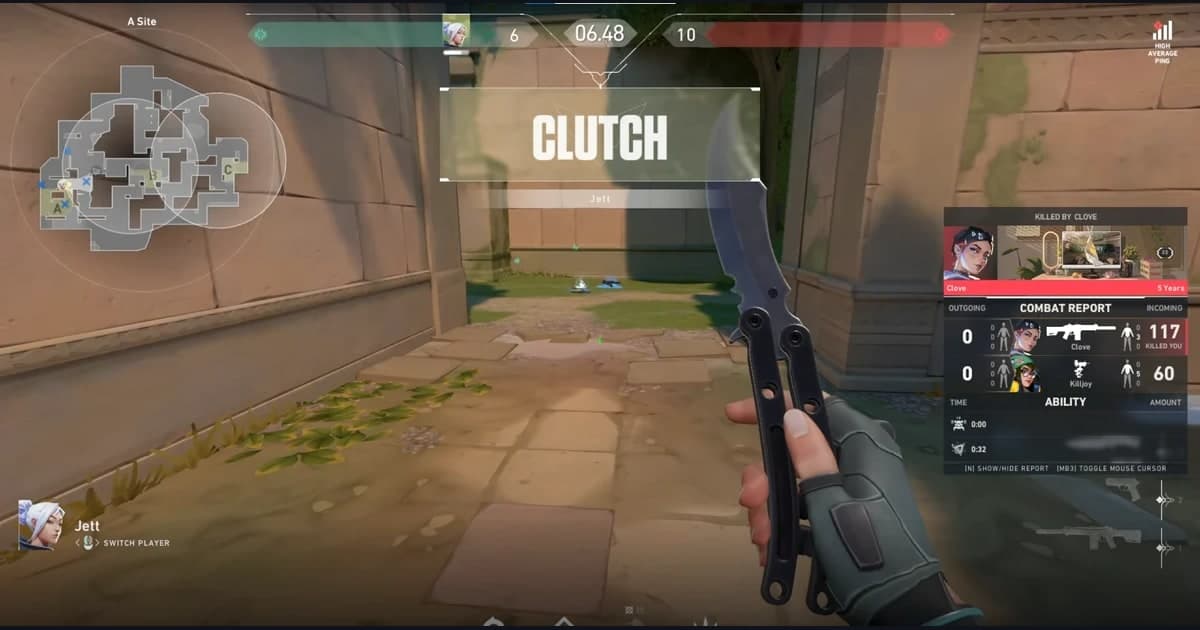
On top of that, DOR automatically detects game launches and waits in the background, then clips out only key moments as short clips, like an ace in Valorant, a pentakill in League of Legends, or a chicken dinner in PUBG. Since it doesn't encode two or three hours in their entirety, the everyday load is low, and there's no need to press a record button every time, so it doesn't break your play flow. It's free with no watermark, so you can upload the clips it makes as is.
The same principle applies no matter what game you play
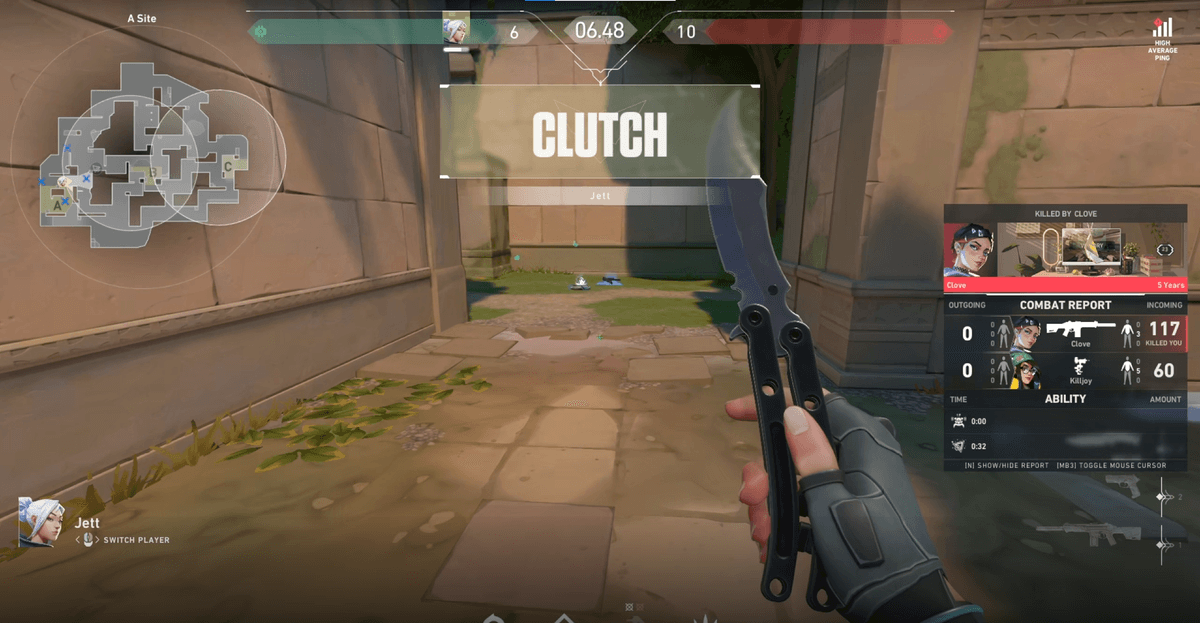
The principle of lightweight recording doesn't discriminate by game. Whether it's a furious firefight in Valorant, a vehicle dash with the screen spinning fast in PUBG, or a late game with a big teamfight in League of Legends, as long as hardware encoding and background capture back you up, the framerate hit from recording is small. Just check the auto-clip examples and recommended settings on the page for the game you play most, then get started.
To recap, the criteria for choosing a lightweight game recorder are simple. Does it use hardware encoding, does it stay out of the game's way with background capture, and does it efficiently save only the moments you need? Pick a tool that has these three as defaults, and even on a PC that isn't high-spec you can protect your framerate while gathering every best scene.