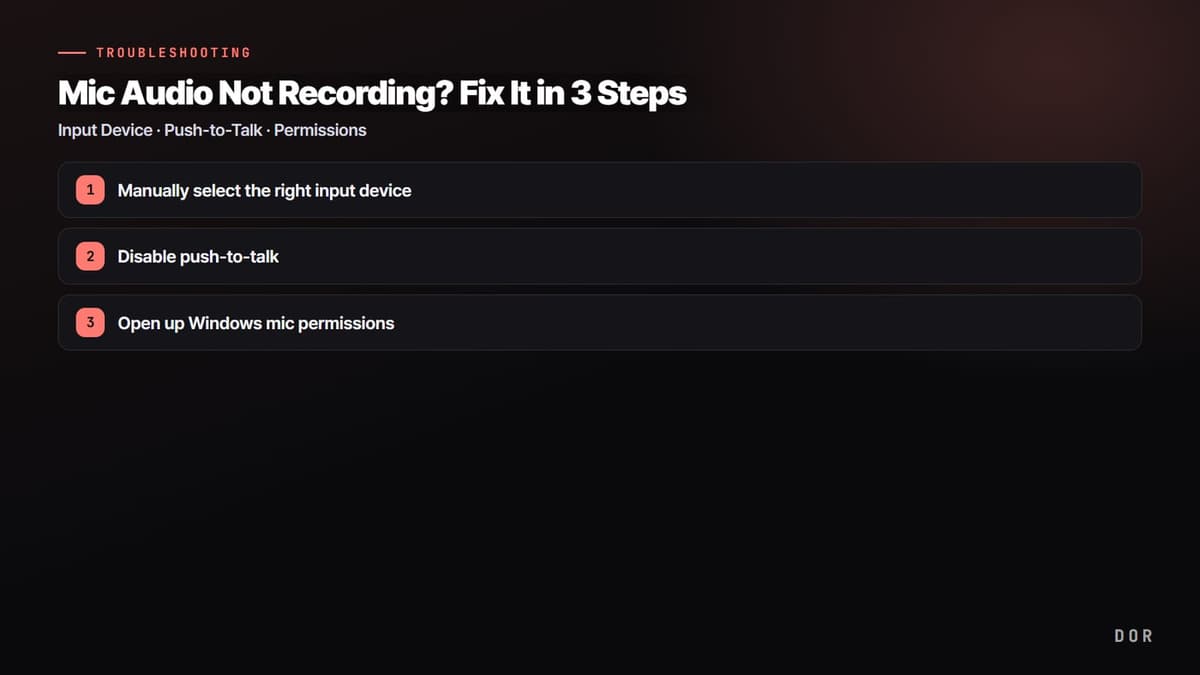
If your game screen and audio recorded perfectly fine but your voice is missing entirely, the cause almost always falls into one of three buckets. First, your recording program is watching the wrong input device. Second, push-to-talk is on, so it only records the instant you hold the hotkey. Third, Windows is blocking the app's mic access altogether. Check the items below in order and your mic will usually come back right away.
Step 1: Manually select the right input device
The most common cause is that your recording program is using a device other than the mic you actually use as its input. If you're on a headset but the laptop's built-in mic is selected, or the device list is set to 'None' or 'Disabled,' there's no path for sound to come in.
- In OBS, go to Settings > Audio and directly select the mic you actually use under 'Mic/Auxiliary Audio.'
- If the value is set to 'Disabled' or 'Default,' explicitly pick the device by name.
- Connect the mic before launching the program, and if it doesn't appear in the list, close and reopen Settings to refresh.
- After making changes, always save with Apply, then OK.
Step 2: Disable push-to-talk
If the input device is correct but your voice still drops out when you record, suspect push-to-talk. When this feature is on, the mic only opens while you hold the assigned hotkey. If you start recording with just the mouse, you never press the hotkey, so it looks like the mic dropped out entirely.
- Go to Settings > Audio and uncheck 'Enable push-to-talk.'
- In Settings > Hotkeys, find the 'Push-to-talk' item and delete the assigned key if there is one.
- Also check whether the opposite feature, 'Push-to-mute,' is on and muting the mic on a certain key.
- In the audio mixer, make sure the mic channel isn't muted (red speaker) and the volume slider isn't at zero.
If the mic bar in the audio mixer bounces green when you speak, the input is working. If the bar doesn't move at all, you're still blocked at the input stage, so move on to the Step 3 permission check.
Step 3: Open up Windows mic permissions
If the device is correct and push-to-talk is off but the bar is still dead, there's a good chance Windows is blocking the app's mic access. When permissions are blocked, no recording program can receive any sound.
- Go to Windows Settings > Privacy & security > Microphone.
- Turn on 'Microphone access' and turn on 'Let apps access your microphone.'
- In the desktop app list below, check that your recording program (or 'Let desktop apps access your microphone') is turned on.
- On a work or school PC, security policies or antivirus may block the mic, so check administrator policies as well.
How to keep the mic from dropping out in the first place: separate-track recording
The real reason mic dropouts happen so often is that the game audio and your voice get recorded mixed together on a single track. When they're merged into one track, a single wrong setting wipes out your voice entirely, and you only notice after the recording is over.
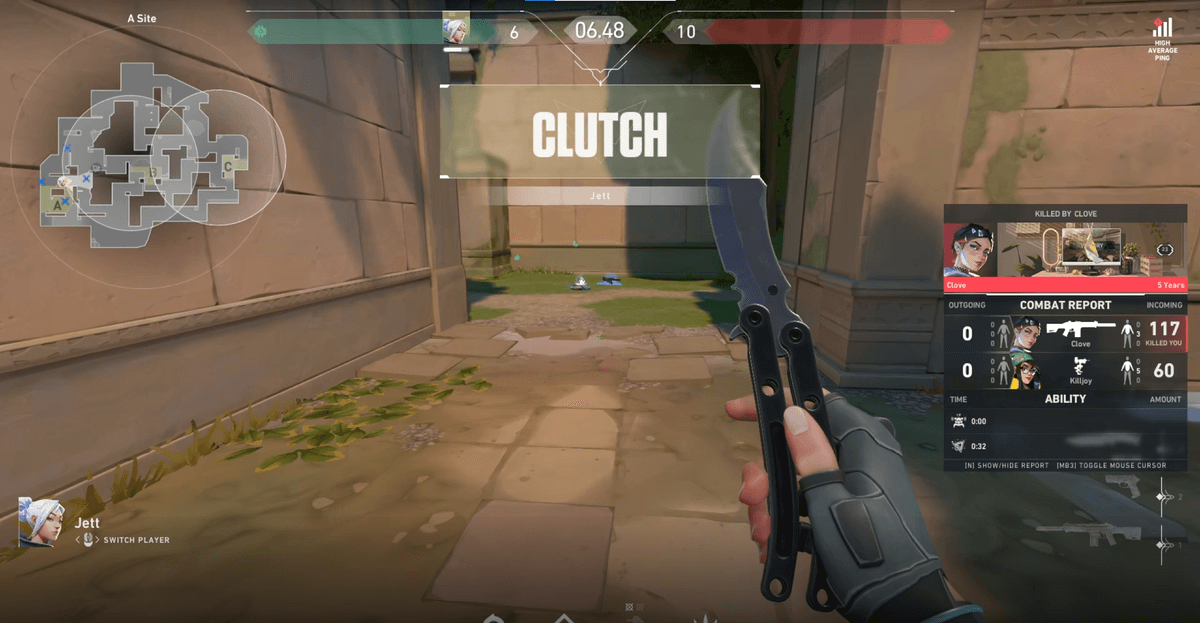
DOR automatically records game audio and your mic on separate tracks, so mic dropouts are rare. Because the two sounds stay on independent tracks, one misconfigured setting won't take down the other, and afterward you're free to boost just the voice volume or lower just the game audio. When you're saving clips where comms matter, like Valorant, or where team voice is key, like Overwatch, it heads off the disaster of the mic dropping out at the decisive moment.
- 1Manually select the right input device
- 2Disable push-to-talk
- 3Open up Windows mic permissions
To recap, when only the mic drops out, just check in this order: input device selection, disable push-to-talk, then Windows permissions. If verifying settings every time is a hassle, using a recording setup that safely captures your mic on its own track from the start is the surest prevention.