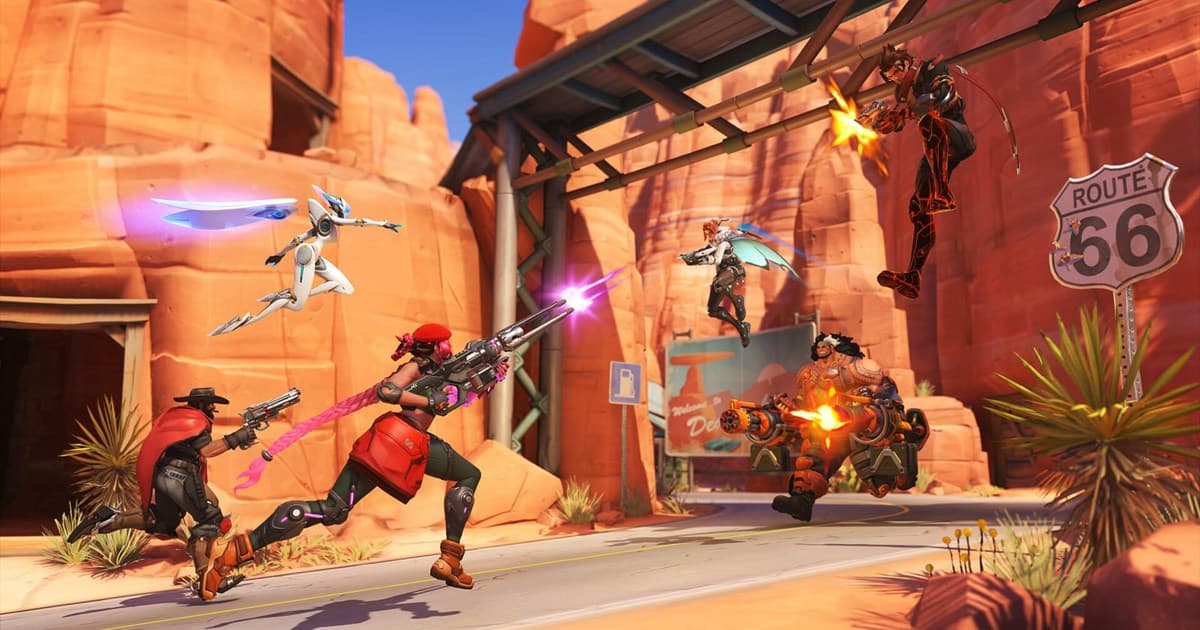
Overwatch matches fly by, and by the time you want to rewatch that clutch teamfight or that slick ultimate combo, you're usually already in the next game. Fortunately, Overwatch has a built-in replay system, so you can rewatch the match that just ended in full. This article covers it in order: the basics of loading and playing a replay, how to share the same match with a replay code, how to move freely between every player's perspective and the free camera, and how to save replays as video so they last even when the patch changes.
If you just want the gist, check the summary up top; if you need the step-by-step controls, follow the sections below in order. We'll also cover the replay system's own limits (storage count, retention period, patch restrictions) and how to get around them later on.
Where do you find Overwatch replays?
Replays aren't a separate program; they're a feature built right into Overwatch. Open the "Replays" option from the main menu and you'll see a list of your recently played matches laid out as cards. Each one shows details like the map, your hero, and the result, so you can tell the matches apart at a glance. Pick the match you want and hit play, and it starts over from the beginning.
There are limits on how many are stored and how long they last
The thing to watch out for is that the replay list doesn't pile up forever. There are limits on how many matches are stored and how long they're kept, so as you keep playing new matches, the oldest replays get pushed off the list and disappear. In other words, if you go back to rewatch that amazing match from a week ago, it may already be gone, bumped out by your recent games. If there's a match you want to keep, it's safer to check it and save it separately that same day rather than putting it off.
Can you save Overwatch replays? Why there is no save button
Short answer: Overwatch has no button that saves a replay as a video file. According to the official replay guide, you can load your 10 most recent matches in all game modes (except Tutorial and Practice Range), and replays reset when a new patch launches. Pinning keeps up to 10 replays, but only until the next patch as well. The only thing the game exports as a video file is a short highlight; exporting a full replay as video is not described anywhere in the official documentation (checked on September 14, 2026 against the official Overwatch replay guide). So if you want the whole match, you have to record the screen, and DOR does that recording for you every match, with your kills cut out separately as automatic highlight clips.
| Method | How long it lasts | What you get | How you share it |
|---|---|---|---|
| Replay code (in-game) | Until the next patch (10 most recent matches, 10 pinned at most) | The full match, every perspective | Enter a code of usually 6 characters, only inside Overwatch itself and on the same patch |
| Highlight export (in-game) | Top 5: 24 hours or until the client is patched; Recently Captured: until patched (up to 36) | Short moments only (manual captures are 12 seconds) | Send the exported video file yourself |
| Screen recording (DOR) | As files on your PC, until you delete them | The full match plus automatic clips of kills and other highlights | One dor.gg link that plays in a mobile browser with nothing installed |
The patch notes usually say whether codes survive a given update. The May 26 and June 30, 2026 patch notes state that replay codes were wiped, while the September 10 hotfix says codes from the September 8 patch are still available (see the September 2026 patch notes). In other words, the only way to know which update will erase your codes is the wording in the patch notes, so turn the matches you care about into video before that line shows up. The same approach works for Valorant, and we laid it out in How to watch Valorant replays.
Loading the same match with a replay code
The powerful part of Overwatch replays is that each one comes with its own unique "replay code." You can find this code in that match's info within the replay list. Give the code to a friend, and they can enter it on their own replay screen to load the exact same match from their point of view. Instead of describing "check out how I won this one" in words, you can just send a single code.
Codes only work on the same patch
There's one important catch. A replay code only loads correctly on the same patch (game version) the match was played on. Once Overwatch updates and the patch changes, replays and codes created on the previous patch no longer play. So you should check a code you've received as soon as possible, ideally before the next patch lands. If you get a code and it says "can't load," odds are the patch has already moved on.
Camera switching and the free camera: the real fun of replays
If you only ever rewatch a replay from your own perspective, you're using half of it. Overwatch replays let you freely switch to any player in the match and either team. You can follow along in their first-person view to see how your play looked from the enemy's side, or where the enemy healer was and what they were doing. It's especially handy for reviewing why a teamfight broke out and who got picked off first.
Looking down on a teamfight with the free camera
Beyond player perspectives, there's also a "free camera" mode. Not tied to any one person, you can move the camera anywhere on the map to look down on the whole teamfight or frame a moment from any angle you like. Combine this with playback speed controls and seeking (jumping to a specific moment), and you can review efficiently: slow down the important moments and speed past the boring stretches. The free camera is also key for nailing a great angle for clips.
- Player/team perspective switching: move freely between every player in the match and both teams
- Free camera: move the camera anywhere on the map without being tied to a person, and frame the shot at any angle
- Playback speed: slow down the important moments, speed up the boring stretches
- Seeking: jump straight to the moment you want to see
- POTG/highlights: the best plays and highlight candidates are captured automatically and can be exported as short clips
POTG and highlights: top moments captured automatically
When a match ends, Overwatch automatically picks and shows a "Play of the Game (POTG)" and also gathers other highlight candidates on its own. These highlights can be exported as short clips, so you can grab just the key moments fast without sitting through an entire long replay. A clean ultimate or a decisive kill gets nominated automatically, which saves you the trouble of hunting down "where was the best moment?" yourself.
But highlights don't last forever either
The catch is that the highlights stored in the game aren't free from storage limits, retention periods, and patch restrictions either. As new highlights pile up or the patch changes, the old highlights disappear. So for the scenes you "really want to keep," the sure thing is to export the game's highlights as a video file, or record them separately from the start.
To rewatch your Play of the Game, open the History tab of your Career Profile (per the Overwatch 2 patch notes, checked September 14, 2026). The patch notes that introduced the feature say the automatic Top 5 highlights persist for 24 hours or until the client is patched, whichever comes first, and manually captured 12-second highlights are kept until the next patch, up to 36 at a time; confirm the current values in your own client. Exporting them as video files works as follows, and the Blizzard support article lists the default location on PC as Documents > Overwatch > Videos (it may differ depending on your installation). For how POTG is chosen, see just the selection logic in How to save Overwatch POTG.
- 1Open your highlights from the History tab of your Career Profile — Play of the Game, automatic highlights, and your manual captures are gathered here. The exact menu location can vary by client version.
- 2Pick the highlight you want and run Record (export) — Per the official notes, any Top 5 or Recently Captured highlight can be exported as a video file.
- 3Choose the export quality — The patch notes that introduced the feature listed support up to 4K. Check the options in the current export dialog.
- 4Find the file in the save folder — The default is Documents > Overwatch > Videos, as worded in the official support article. Only short highlights come out this way; for the whole match you need the recording steps in the next section.
Saving disappearing replays as video, forever
By this point, one pattern is clear. Overwatch replays are great for rewatching, but the three layers of limits (storage count, retention period, and patch) make them a poor fit for "long-term keeping." The surest way around this is to turn a replay or highlight into a video file like mp4 and save it directly on your PC. A video file stays put even when the patch changes or it gets pushed off the replay list.
And turning recording on by hand every time is easy to forget. DOR is a free recording program that automates this. Install it and it automatically detects when Overwatch launches, records in the background, and cuts your best moments into short clips on its own. It uses NVIDIA NVENC hardware encoding to offload the encoding load to the GPU, so the in-game frame hit is small and there's less worry about lag mid-match.
Overwatch isn't the only game where replays vanish with each patch. Games full of highlight moments like Marvel Rivals and Valorant are the same, so making a habit of saving great plays as video on the spot is the surest approach. With Overwatch, as long as DOR is running, your kill highlights are already gathered as clips by the time you close the game, so "I forgot to hit record and lost the play of my life" stops happening.
Recording a replay itself is easy. It takes the four steps below, and the recorder can be DOR or a manual tool like Xbox Game Bar; the difference is that manual recording has to be switched on every time and only works while the match is still in your replay list.
- 1Open the match you want to keep from the replay list and play it — First check that the match is still in the list. It only plays before the next patch.
- 2Set your perspective and playback speed — Switch to the free camera or the player you want and seek to the moment you need. The default controls can be checked and changed in the options menu.
- 3Start recording and play the scene to the end — Turn on your recorder and let the scene run through. Whether game audio and your mic are both captured is set in the recorder.
- 4Forgot to record? Check the DOR library first — If DOR was running while you played, it detected Overwatch, recorded the full match, and clipped your kills automatically, so the match is already in the library even if it has dropped off the replay list.
Matches recorded by DOR pile up in the in-app library, and you can trim any moment in the browser clip editor, which opens without installing anything, then send it as a dor.gg link. Game audio and your mic are recorded together, so your own reactions stay in, and nothing disappears on the next patch the way a replay code does. As long as DOR is running when you launch Overwatch, a match that has been pushed off the replay list is still on your PC.
There is no Overwatch replay site: sharing a code vs. sharing a video
If you are looking for an Overwatch replay site or a replay download, the official Blizzard documentation and patch notes describe no way to watch replays on the web or download them as files (checked September 14, 2026). A replay code can be sent anywhere, yet whoever receives it has to launch Overwatch on a device where it is installed and type the code in. For a friend who does not play Overwatch, or anyone watching on a phone, the code is useless.
So when the goal is to show someone the play, share a video. A clip trimmed from the DOR library is shared as a single dor.gg link that plays in a mobile browser with nothing installed, and when you have to send the video file itself, how to export clips as files covers the details. Use codes for teammates who will review the match with you, and video for everyone else.
In summary: replays are for review, video is for keeping
The Overwatch replay system is a fantastic tool for loading recent matches from the main menu, reviewing them from every perspective and the free camera, and sharing them with friends via codes. But because of the storage count, retention period, and patch limits, it falls short for long-term keeping. So it's cleanest to split the roles. Handle post-match review and sharing with the in-game replay, and handle permanently keeping the moments you truly want with automatic recording like DOR. That way, even when the replay is gone, your best play stays put.