Search for Palworld best settings and many of the lists you find were written for Early Access. Palworld left Early Access with version 1.0 on July 10, 2026, and Pocketpair's official changelog describes a major visual brush-up: water, coastlines, lighting and environmental rendering were all revised, and the draw distance for grass and trees was adjusted at High graphics settings and above. The same changelog lists optimization work for grass, trees and gatherable objects in the open world, for scenes with many placed objects and for memory handling, and says temporary stuttering should now be less likely. Performance fixes kept coming after launch. v1.0.2 (July 29) reduced processing load in Sunreach, v1.0.3 (August 12) fixed resolution settings not applying correctly in fullscreen, and v1.0.4 (September 7) changed the default FPS cap on PC to 120 and reduced load from some rendering, foliage and effects, including field rendering in the World Tree area. As of October 16, 2026, the latest patch on Steam is v1.0.5 (September 15), which fixed terrain and building textures loading at much lower resolution for some players. So rather than copying an old settings table, it is faster to find where your game actually lags in the current build and test changes one at a time. This guide covers the Steam version of Palworld on a Windows PC: how to split the problem by symptom, what to change and in which order, and how to confirm a change actually worked. For more Palworld guides and DOR recording support, see the Palworld game page.
Bottom line: find where Palworld lags, then change one setting at a time
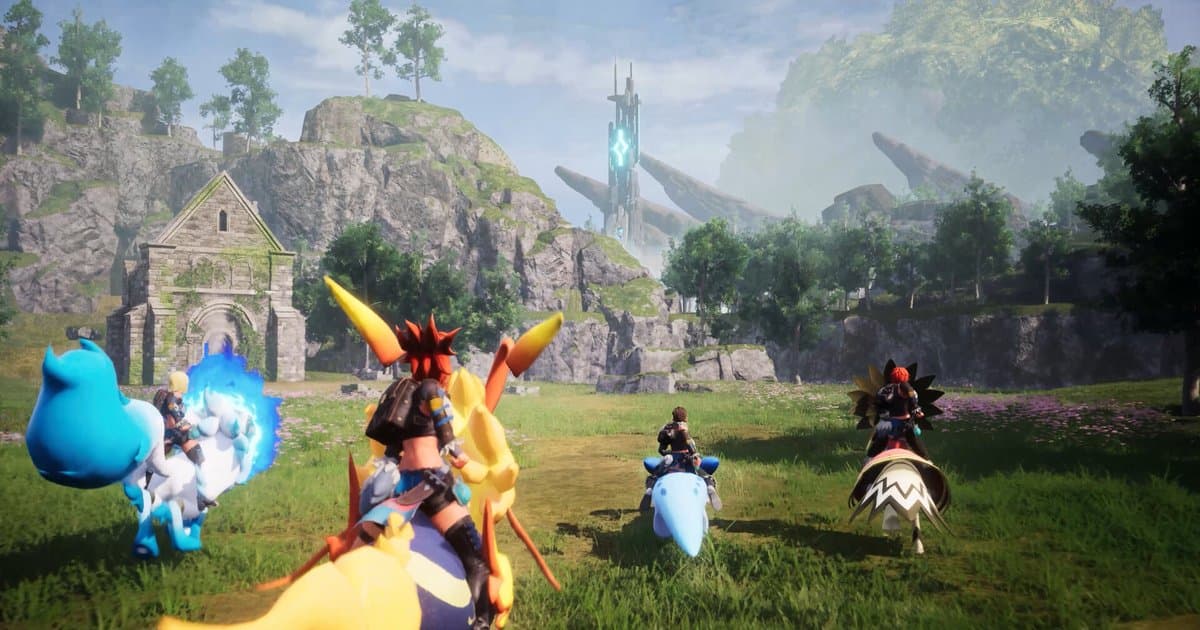
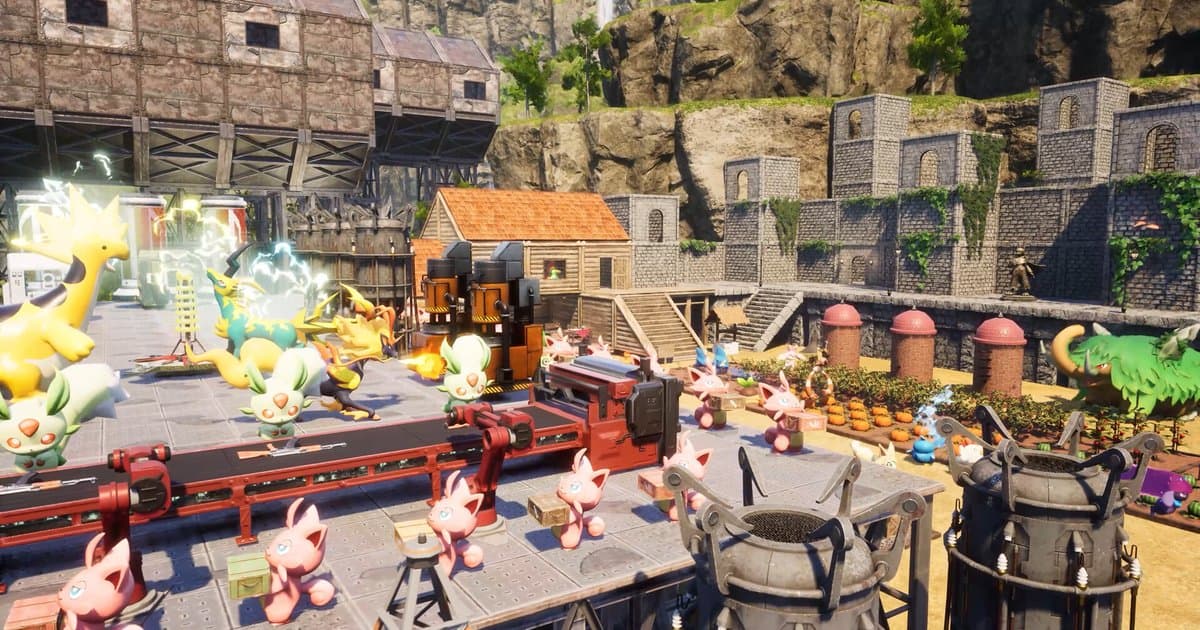
Palworld lag usually falls into one of three buckets. If FPS is low everywhere, your graphics card is often the bottleneck: drop the graphics preset one step, set the resolution to your monitor's native resolution, and try DLSS if you have an NVIDIA GeForce RTX card. If frame drops only show up in grassy, tree-heavy fields or the new areas, remember that 1.0 changed grass and tree draw distance at High and above, so lower the preset or the grass and view-distance style options. If it only stutters at a base packed with working Pals, you are probably looking at processing load rather than graphics. The Steam store page warns that performance may vary with the number of active Pals, and the official dedicated server documentation says that raising the per-base Pal limit (BaseCampWorkerMaxNum, up to 50) increases processing load and that the Pal spawn rate (PalSpawnNumRate) impacts performance. In that case, fewer Pals per base or a second look at your world settings will do more than any graphics slider, and the Palworld world settings guide explains each option. Whatever the bucket, change one setting at a time and replay the same spot with the same route. Change five things at once and you will not know which one helped, and you will usually give up more image quality than you needed to.
Palworld best settings: what to change, in order
- 1Update the game and turn off modsBefore touching any setting, make sure Palworld is on the latest patch. Steam normally updates games automatically, but a stuck update means you could spend an evening trying to fix something that has already been patched. If textures look blurry or broken, right-click Palworld in your Steam Library and choose Properties > Installed Files > Verify integrity of game files. If you use mods, test with all of them off first. The 1.0 changelog warns that mods may cause crashes, save data corruption or loss, or other unexpected issues, and tells players who run into problems to remove mods installed from any source and to disable Steam Workshop mods from the Mod Management menu.
- 2Pick a test routeYou need the same conditions to compare anything. Choose a two- to three-minute route where you usually feel the lag: a lap around your busiest base, a sprint through a grassy field, one fight. If you want numbers as well, turn on the in-game FPS counter (the performance monitor on some Steam client versions) in Steam's settings; the exact menu name depends on your Steam client version. Day or night and how busy your base is will change the result, so test under conditions that are as close as possible each time.
- 3Check display mode and resolutionIn the game's graphics options, look at display mode and resolution first. Your monitor's native resolution is the baseline; only lower it if you are far short of your target frame rate. According to the patch notes you can switch window mode with F11 or Alt+Enter, and v1.0.3 fixed resolution settings not applying correctly in fullscreen as well as the game jumping back to fullscreen after a loading screen once you had switched modes. If you change the resolution and nothing seems to happen, check your game version first.
- 4Drop the preset one stepA preset sets many options at once. If you are on High or above, go down one step and run your test route again. The 1.0 changelog says grass and tree draw distance was adjusted at High and above, so if your frame rate only drops in open fields, this is where you are most likely to see a difference. Once the lower preset runs well, raise the options you miss most one by one as a custom setup. Switching presets also changes the individual options, so if you had tweaked anything by hand, check it again afterwards.
- 5Set an FPS cap your PC can holdSince v1.0.4, the default FPS cap on PC is 120. If your PC cannot stay near 120, the frame rate swings from scene to scene, and those swings can feel like stutter even when the average looks fine. Lower the FPS cap to a value at or below your monitor's refresh rate that your PC can hold in most scenes. And if you have a high-refresh monitor and the game stops at exactly 120, that is the cap, not your hardware.
- 6Lower heavy options one at a timeIn the graphics options, look for settings that draw across a wide area, such as shadows, grass, view or draw distance and effects, and lower them one step at a time, testing after each change. Option names can differ by game language and version, so go by what your menu shows. Texture quality is tied to your graphics card's memory (VRAM); if you get hitches while moving on a card with little VRAM, try lowering it. On an NVIDIA GeForce RTX card, turn on DLSS and start with a quality-leaning mode, moving toward performance only if you still need frames. Version 1.0 also fixed the whole screen going blurry after the game sat idle for a while with DLSS enabled.
- 7Re-test the same routeFinally, play your original route again and compare. Do not just watch the FPS number; check whether the hitches when you turn the camera at your base or sprint through a field have gone. Feel alone is easy to misjudge, so record the route before and after the change and play the same section of both videos back to back. If a change did not help, put it back and move on to the next one.
Palworld stuttering fix by symptom: what to change first (checked October 16, 2026, v1.0.5)
| Symptom | Change first | What to know |
|---|---|---|
| Low FPS everywhere | Drop the preset one step, use native resolution, turn on DLSS on an RTX card | If your PC is below the Steam store minimum (GTX 1660, 16 GB RAM), settings alone will not close the gap. |
| FPS drops only in grassy fields | Drop a High-or-above preset one step, lower grass and view-distance options | 1.0 adjusted grass and tree draw distance at High and above (1.0 changelog). |
| Lag only at a busy base | Assign fewer Pals to the base, check Pal count and spawn rate in world settings | The Steam store page says performance may vary with the number of active Pals. |
| Short hitches and stutter | Install the latest patch, keep the game on an SSD, turn mods off | 1.0 made temporary stuttering less likely, and v1.0.4 reduced stutter when some passive skills activate. |
| FPS swings up and down | Set the FPS cap to a value your PC can hold | The default PC cap has been 120 since v1.0.4. |
| Resolution will not apply or fullscreen comes back | Update, then set the display mode again with F11 or Alt+Enter | v1.0.3 fixed fullscreen resolution not applying and the game returning to fullscreen after loading. |
| Blurry terrain and building textures | Update and verify the game files | v1.0.5 fixed textures loading at much lower resolution for some players. |
Before you tweak: quick Palworld FPS checklist
- The Steam version of Palworld is on v1.0.5 or later (the latest patch as of October 16, 2026).
- The game is installed on an SSD (the Steam store page says SSD required).
- Your PC has at least 16 GB of RAM (Steam store minimum; 32 GB recommended).
- You have tested once with every mod turned off.
- You do not have several recording or overlay apps running at the same time.
- You changed one setting at a time and compared on the same base and the same route.
Compare before and after with DOR: Palworld auto-recording and F8 for the last 30 seconds
DOR is a free Windows PC app. It detects the Steam version of Palworld (Palworld-Win64-Shipping.exe) and records your whole session, from launch to exit, as a single video. Full gameplay recording is on by default on personal PCs, and Palworld detection was added in DOR 1.6.0, so keep the app up to date. Press F8 right after a stutter and the last 30 seconds are saved as a separate clip. Play the same base and the same route before and after a settings change, press F8 whenever it hitches, and you can play the matching sections back to back in My Clips. If you did not press F8 in time, sign in and trim the moment out of the full recording in My Clips. Because Palworld is recorded from the moment it launches, and resolution, frame rate and clip length cannot be changed while recording, change those settings before you start the game. If you are worried about recording load, set DOR to 720p and 30 fps under Settings > Video before launching Palworld (the Game Performance preset uses exactly those values). The default is 1080p at 30 fps, and clip length is set with Highlight Length under Settings > Highlight to 15, 30, 45 or 60 seconds. To see how much recording itself affects your PC, turn off Full gameplay recording for Palworld only under Settings > Game and replay the same section. Full gameplay videos are kept within their own share of storage (5 GB by default), and the previous session can be cleaned up after your next one ends. Like the videos and clips you want to compare right away, because liked videos are kept when older files are cleaned up. DOR warns when free space drops below 30 GB and will not start, or stops, recording below 20 GB. If you also have Steam's own Game Recording running in the background, it uses disk space too and means two recorders are running at once, so check the Steam side first with the Steam game recording low disk space fix. To keep captures and boss fights, continue with how to record Palworld. A few limits are worth knowing. DOR does not raise Palworld's frame rate, and it does not make automatic highlight clips for Palworld. The Xbox app (PC Game Pass) version is not auto-detected, so use F7 screen recording instead, which records your whole monitor until you press F7 again.