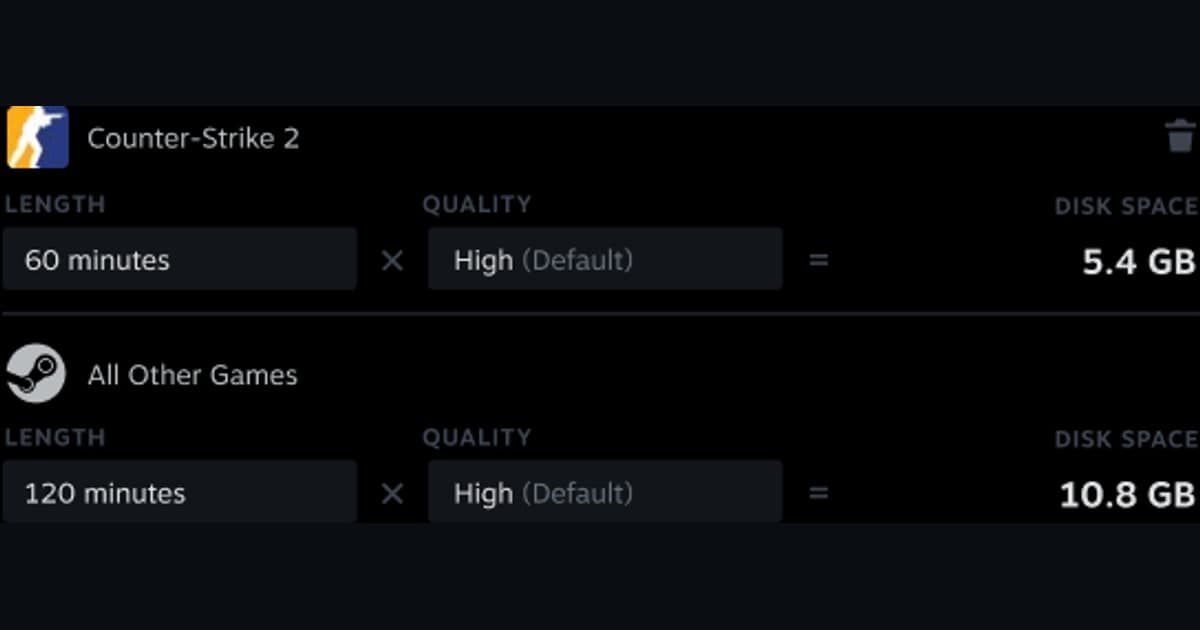
When disk space falls quickly or older moments disappear, deleting the recording directory blindly can remove material that was meant to be kept. Steam background recording overwrites older temporary footage when its assigned budget fills, while permanently saved clips and exported MP4 files consume storage separately.
Compare the options and their failure conditions
| Option | Best fit | Verify before committing |
|---|---|---|
| Inspect the Steam recording storage source | The feature was off or no file exists | Settings, location, and current version |
| Inspect playback and resources | A file exists but will not open or stops | Version, capacity, permission, external player |
| Compare a new sample | The correction must be verified | Same sixty-second conditions and one change |
Identify the file and the required outcome first
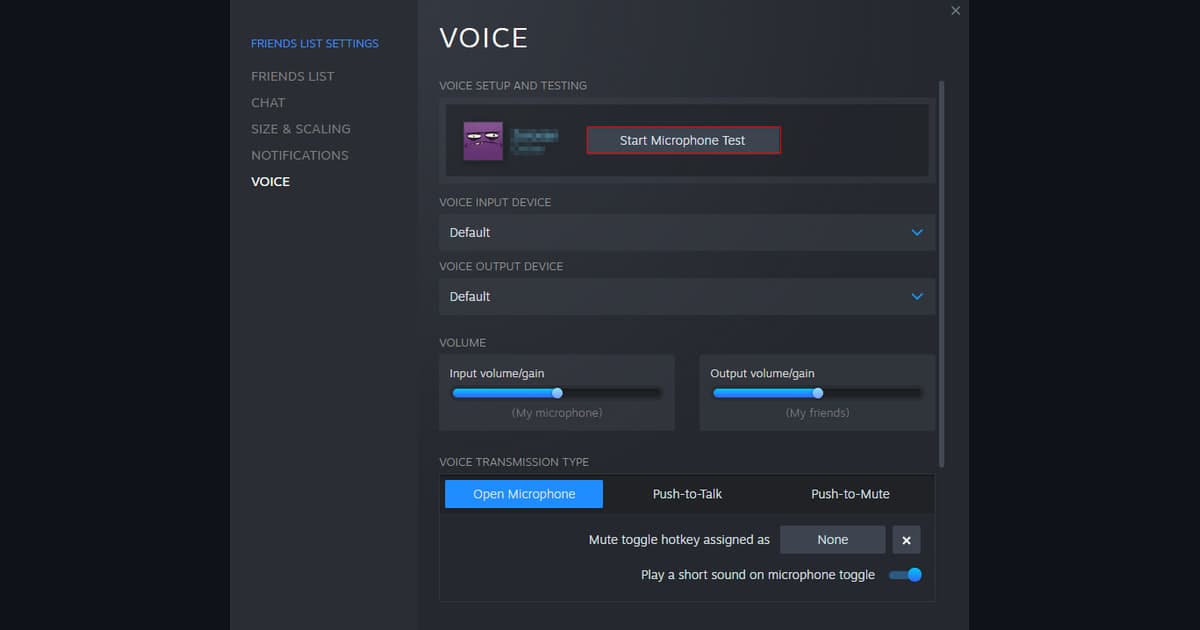
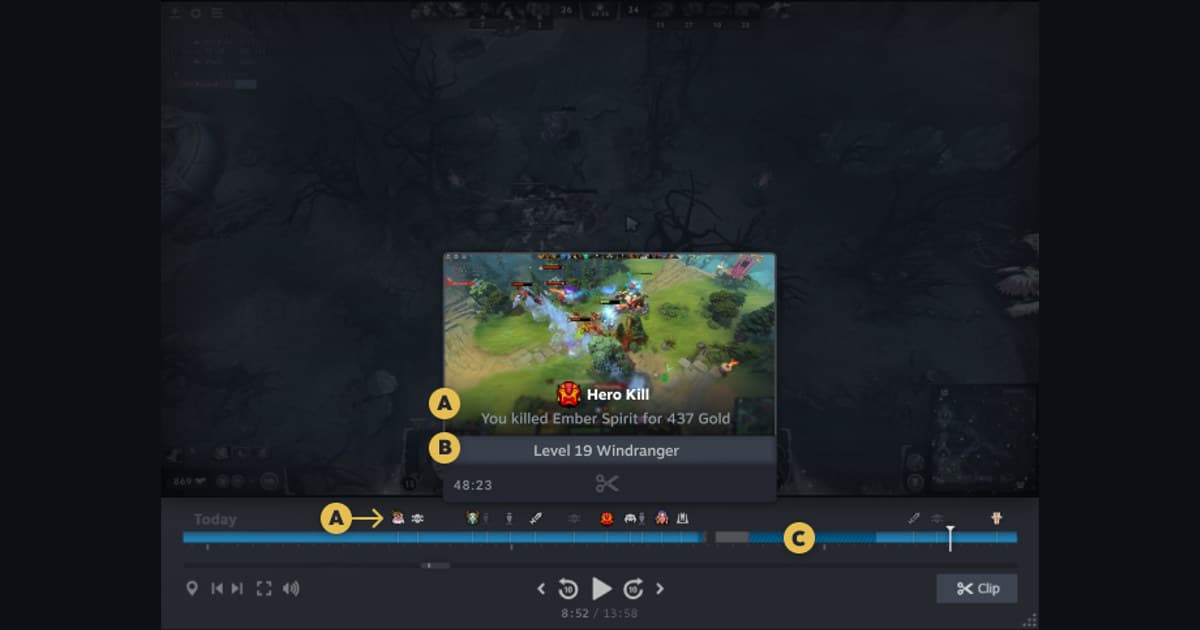
Open Steam Settings and Game Recording to verify mode, maximum background budget, and destination drive, then preserve and export important clips before cleanup. Before moving or deleting folders manually, distinguish temporary footage from permanent clips in Steam and verify that every exported MP4 opens.
A source-safe workflow
- 1Preserve the source and baseline — Copy the file and note game and app versions, display mode, audio devices, encoder, destination, and free space.
- 2Create a sixty-second reproduction — Use real-match conditions and include fast movement, game effects, microphone speech, and any required voice path.
- 3Inspect each result separately — In both the original app and an independent player, verify video, every audio source, frame pacing, seeking, and size.
- 4Change only one variable — Adjust one setting directly tied to the observed failure, then repeat the same sample and compare.
Checks after a one-match test
- A backup of the source file and settings exists.
- Current game and application versions are recorded.
- Game audio and microphone were checked separately.
- Output location and free space were verified.
- The sample opens in an independent player.
Test DOR as a separate capture path
DOR does not fix Steam storage management. If future short moments matter more than full sessions, compare the size of a separate sample in a DOR-supported game. Steam game recording guide, find recording files, PUBG game page.
Official source and version boundary
Steam documents a configurable maximum disk budget, overwrite of temporary background recordings when full, and a create-clip-and-export step for MP4. official Steam Game Recording support.