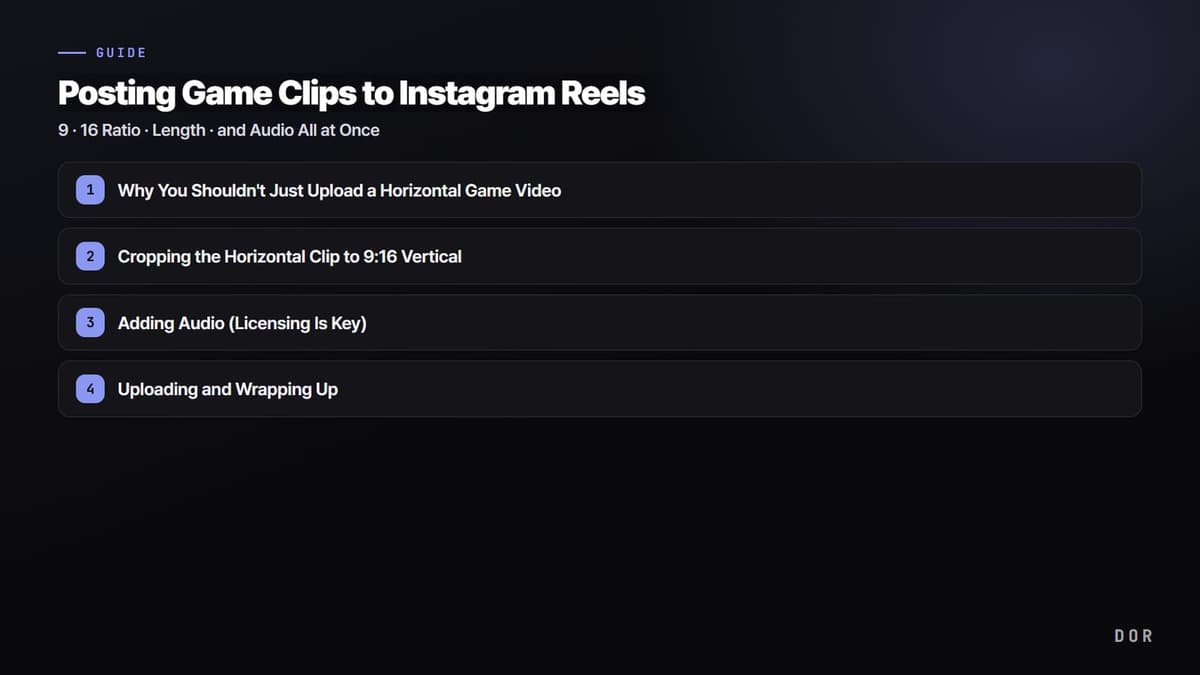
Let's start with the conclusion: when posting game clips to Instagram Reels, there are three key points. First, the ratio is 9:16 vertical (1080x1920). Second, shorter is better for length. Third, the audio has to be a licensed track that Instagram allows. Games are usually recorded horizontally (16:9), so cropping that horizontal clip into vertical is basically the whole job. Below we'll go through it step by step in the order of crop, audio, then upload.
Why You Shouldn't Just Upload a Horizontal Game Video
Reels are designed to fill the screen while you hold your phone vertically. That's why the default ratio is 9:16 and the recommended resolution is 1080x1920px. Games are mostly recorded in 16:9 horizontal to match the monitor, so if you upload that video as is, black bars appear above and below and it shows up as a small strip in the middle. When screen coverage drops, you fail to grab attention in the first one to two seconds and viewers leave faster. That's why re-framing the horizontal clip into vertical 9:16 is the first step.
Step 1: Cropping the Horizontal Clip to 9:16 Vertical
Cropping means cutting out only a vertical 9:16 region from the horizontal video. The key is deciding which part to keep. For a game video, you can usually frame the vertical strip around the center where the character, crosshair, or kills happen. The minimap or UI on the sides of the screen can often be cut off, but if there's information you want to show, like the kill log, sitting near the edge, adjust the crop position so that part stays in frame.
- Set the output ratio to 9:16 (1080x1920).
- Position the crop so the key action you want to show (kills, clutches, teamfights) falls within the vertical frame.
- If the action position differs from scene to scene, shift the crop position slightly per segment to follow it.
- If text or UI gets too small, zoom in a bit on the important parts and reposition them as needed.
Step 2: Adding Audio (Licensing Is Key)
On Reels, audio does more than serve as background sound. Using a popular track gives you a chance to be shown in the feed grouped under that same audio. But you can't just put any song on it. Using copyrighted music without permission can get your video muted or its posting restricted. The safest approach is to pick a track from the music library inside the Instagram app. The audio in this library is already licensed for use in Reels, so you can add it as is.
Game videos already contain game sounds in the original audio, like gunfire, ability sounds, and cheers. When adding audio, it's important to decide the volume balance between the original game sound and the added music. If you want to keep the impact of sounds like the kill sound, leave some game audio in and lay the music underneath as background. For mood-focused edits, turn the music up and the game audio down.
- Prioritize licensed tracks from Instagram's music library.
- If you're going to use audio from outside the library, check whether it's royalty-free (commercial use allowed).
- Set the volume balance between the original game sound and the music, choosing whether to emphasize impact or mood.
- Aligning the most exciting part of the audio (the drop) with the highlight moment of the video (kills, clutches) increases the impact.
Considering Audio and Length Together
Once you pick the audio, your sense of length naturally falls into place. The memorable section of a song is usually within 10 to 20 seconds, and if you cut the clip to match that section, the music and video land cleanly together. The longer game highlights drag on, the lower the watch-through rate, so matching the video to the length of the audio's key section ends up leading to length optimization.
Step 3: Uploading and Wrapping Up
Once the crop and audio are done, uploading is simple. In the Instagram app, go into Create Reel and load your edited 9:16 video. For the cover (thumbnail), it's better to manually pick the single most impactful frame. For a game video, a shot where the kill moment or scoreboard is clearly visible drives clicks. In the caption, briefly note which game and which scene it is, and including the game name and related hashtags makes it easier to reach people with the same interests.
Recommended Reels Specs as of 2026
- Ratio: 9:16 vertical, resolution 1080x1920px recommended.
- Length: In-app camera recording is usually up to 90 seconds, and some accounts can record longer in-app. Pre-edited videos uploaded from the gallery can go up as Reels at longer lengths.
- Recommended length: Game highlights have higher watch-through and rewatch rates within 7 to 30 seconds.
- Frame rate: 30fps is standard, and fast game footage can be recorded at 60fps and uploaded for a smoother result.
- Codec and audio: H.264 video with AAC audio, file size within 4GB.
- Audio: Use a licensed track from Instagram's music library or royalty-free audio.
The length rules are an area Instagram tweaks frequently, so the numbers shift a little over time. But the direction is clear: for game videos, the shorter and more focused on the essentials, the better. Cutting it impactfully at 15 to 20 seconds almost always performs better than packing the full 90 seconds.
Turn Horizontal Clips Into Vertical Reels Right Away With DOR
Looking at all of this, the most tedious step is ultimately cropping a horizontally recorded game video to 9:16 and adding audio. DOR shortens this process. It automatically detects when a game launches and records in the background, then cuts the key moments like kills and clutches into short clips on its own. After that, DOR crops the horizontal clips to 9:16 and adds audio so you can post them straight to Reels. Without pressing a record button or opening a separate editing program, just launching Valorant or League of Legends means vertical clips for Reels keep piling up.
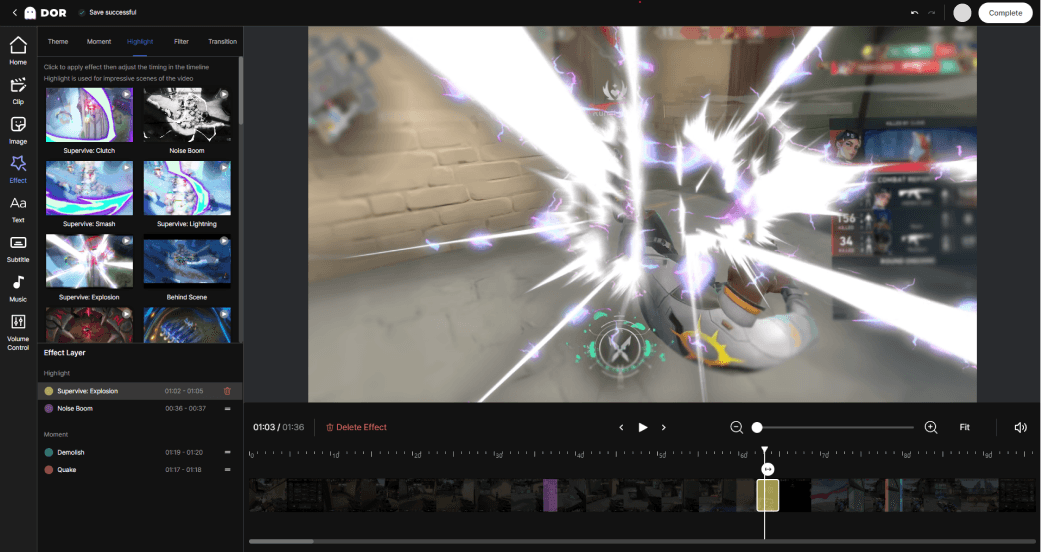
To sum up, posting game clips to Instagram Reels comes down to three steps: 9:16 crop, audio, then upload. As long as you follow the ratio and audio rules, the rest is a battle over which scene you put up front. Whether it's an ace in Valorant or a comeback teamfight in League of Legends, if you crop the clips DOR collected automatically into vertical and add audio, one Reel comes together fast.