Search for how to build a game recording PC and the spec debates never end. Yet the conclusion is surprisingly simple. With just two things, one graphics card that supports hardware encoding and an SSD, 1080p game recording mostly runs without trouble. Because a dedicated chip inside the GPU handles encoding rather than the CPU, you can record on the very PC running the game while barely dropping any frames. In this article we organize that baseline into tables by CPU, GPU, RAM, and disk, then walk through what matters more at each resolution and how to lower the threshold when your specs are tight.
First, what you should know: GPU decides the recording load
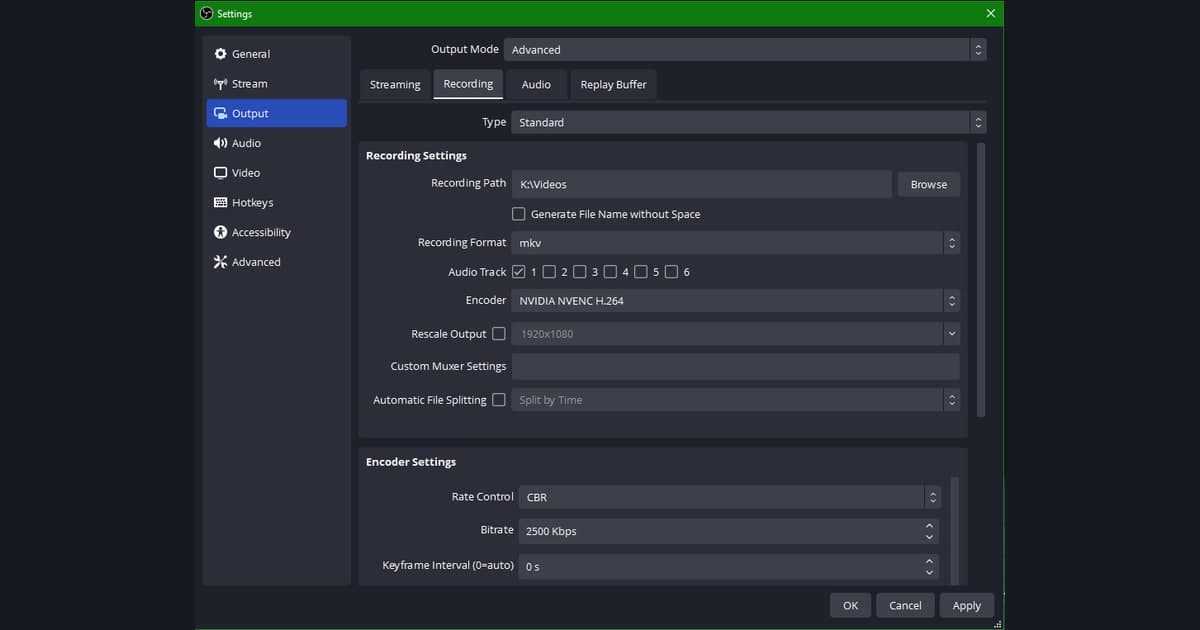
If you nail down just one thing before reading the spec table, the rest becomes easy to understand. Game recording uses two broad encoding methods. One is software encoding (x264), which compresses video on the CPU, and the other is hardware encoding (NVIDIA NVENC, AMD AMF, Intel QuickSync), which uses a dedicated encoding chip built separately into the graphics card. Software encoding piles compression work onto a CPU that is already busy with the game, dropping your frames. Hardware encoding, by contrast, hands compression to a chip physically separate from the game computation, so your in-game frames stay nearly unchanged even with recording on.
That is why 90% of the recommended-spec conversation really ends in one line. Use a GPU that supports hardware encoding, and turn that encoder on in your recording program. NVIDIA's NVENC became good enough from the GTX 10 series onward that recording the game and capture on one machine feels natural, and the RTX 40 and 50 series even support an AV1 encoder that fits the same quality into a smaller file. AMD Radeon and Intel Arc each have their own hardware encoders too, so the principle is identical. With this premise in place, the numbers in the reference table below become much clearer.
Minimum and recommended spec reference table by component
Using 1080p 60fps recording as the baseline, here are the minimum and recommended specs by component. The minimum is the floor at which recording runs without stutter, and the recommended is the line that gives you comfortable headroom for game frames and quality.
- CPU minimum: Intel i5 (8th gen class) or AMD Ryzen 5 (2000 series class), 4 cores or more / Recommended: Intel i5 or i7 (12th gen or later) or Ryzen 5 or 7 (5000 series or later), 6 cores or more
- GPU minimum: NVIDIA GTX 1050 or higher / AMD RX 500 or higher / Intel QuickSync integrated graphics · Recommended: RTX 2060 or 3060 or higher / RX 6000 or higher (for AV1, RTX 40 or 50 or RX 7000 or higher)
- RAM minimum: 8GB / Recommended: 16GB / If you edit often too: 32GB
- Disk minimum: SATA SSD (an HDD is a common cause of stutter and frame drops) / Recommended: NVMe SSD, 256GB or more of free space dedicated to recording
- Capacity sense: about 5 to 10GB per hour at 1080p 60fps, and 4K grows to 3 to 4 times that.
The bar shifts by resolution and framerate
Recommended specs ultimately depend on the resolution and framerate you record at. Even on the same PC, 1080p and 4K are entirely different loads, so it makes sense to set your specs around the videos you will actually make. 1080p 60fps is the most standard tier, where most game videos end up, including YouTube, Shorts, and Twitch replays. Even an entry-level GTX 1050 to 1660 class card with 16GB of RAM and a SATA SSD can capture without stutter using hardware encoding, and nearly every current gaming PC passes, so if 1080p is your goal you can effectively stop worrying about specs.
The load climbs once you step up to the 1440p, high-framerate tier. To enjoy a game like Valorant or League of Legends at 144fps on a QHD monitor while recording at 1440p simultaneously, we recommend an RTX 3060 class or higher with an NVMe SSD and 16 to 32GB of RAM. From here it is most stable to lock the recording framerate at 60fps and enjoy only the game at a high refresh rate. 4K carries roughly four times the data of 1080p, so not just the GPU encoder but the disk write speed becomes a bottleneck. An NVMe SSD is effectively a must, we recommend an RTX 40 or 50 class GPU with 32GB of RAM, and since it can pile up to 30 to 40GB per hour, use an AV1 encoder to cut capacity and plan your storage space alongside it.
When specs are tight, how to lower the threshold
Even if your current PC falls short of the recommended line, there are ways. First, in your recording program, be sure to switch the encoder to hardware (NVENC, AMF, QuickSync). Second, drop the recording resolution and framerate by one tier. Even just 1080p 30fps keeps most videos plenty sharp. Third, separating the disk where the game is installed from the disk where recordings are saved reduces stutter from write conflicts. Fourth, above all, choosing a recording program whose capture itself is lightweight has the biggest effect.
Why DOR lowers the recommended-spec threshold
DOR is designed around hardware encoding and low-load capture by default, pulling the recommended-spec threshold organized above down by one tier. It hands encoding, the heart of recording load, to the GPU's dedicated chip, and the capture process itself is built to use few system resources, so it records while keeping your game frames nearly intact even on an entry-level graphics card with 16GB of RAM. Without having to touch complex encoder or bitrate settings yourself, recording starts with a low-load configuration suited to your PC the moment you turn it on.
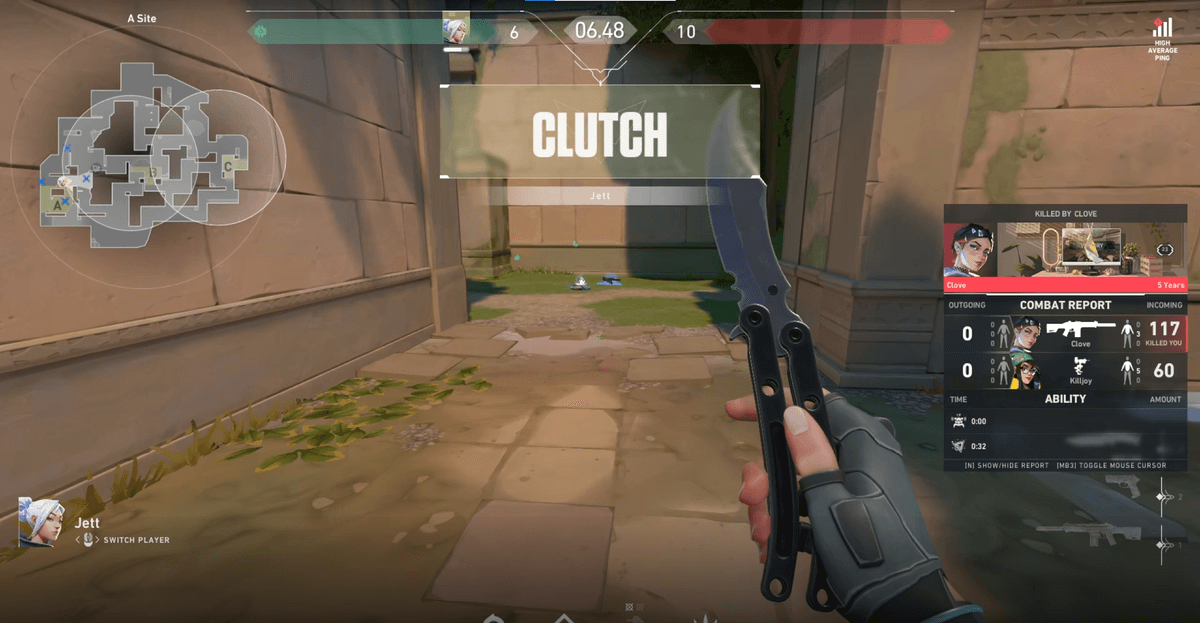
Thanks to that, you can start comfortably even without a high-end PC. Whether it is a Valorant firefight clip, a League of Legends teamfight moment, or a decisive moment in PUBG, the key is recording while protecting your game frames, and DOR was built aimed at exactly that point. Before scrutinizing a spec table to build a new PC, it is faster to first check how much of a difference low-load capture makes on your current PC.
Summary
Recommended specs for game recording ultimately compress into one sentence: "a hardware-encoding GPU plus an SSD." A CPU that can run the game is enough, 16GB of RAM is the baseline, and set storage around an NVMe SSD. 1080p passes on nearly every current PC, and the load only ramps up from the 1440p, 4K, and high-framerate tiers. If your specs are tight, simply lowering the resolution and using a low-load recording program can drop the threshold dramatically.